Why Is Printer Waiting? A Step-by-Step Troubleshooting Guide
Discover why your printer is waiting and how to fix it quickly. This Print Setup Pro guide covers common causes, diagnostics, and tips for homes and offices.


According to Print Setup Pro, the most common reason a printer waits is a stuck print job in the queue or a paused device awaiting action. The quickest fix is to clear the print queue, restart the printer and computer, and reprint. If it persists, verify driver status and basic network connectivity before escalating to professional help.
Why Printers Pause: Understanding the Waiting State
When you see your printer marked as Waiting or Paused, you’re not imagining a random delay. If you’re asking why is printer waiting, the most common answer is that a print job is stuck in the queue or the device is paused due to a connection issue. According to Print Setup Pro, this waiting state is a signal that the system needs a simple reset or a fresh job to proceed. In most homes and small offices, the fix is usually quick and non-destructive. Start by framing the symptom: is the problem happening with all documents or just one? Is the printer connected by USB, Wi‑Fi, or Ethernet? Are there error lights or messages on the printer display? With this context, you can apply targeted fixes rather than guesswork. This article expands on the two most frequent culprits—print queue issues and driver/communication problems—and provides practical steps to test and verify each assumption.
Common Causes of Waiting: Quick Hit List
- Stuck print job in the queue (high likelihood): The most frequent trigger is a single job that won’t progress, which blocks subsequent tasks. Cancel or clear that job first.
- Paused printer or software state (medium likelihood): A setting or a software pause can halt all new print traffic until you resume.
- Outdated or corrupted driver/firmware (medium likelihood): Incompatibilities lead to miscommunication between the computer and printer.
- Network or USB connectivity problems (medium likelihood): Intermittent connections or wrong ports can cause wait signals.
- Paper jam, out of paper, or low ink (low likelihood): These physical states often surface as wait signals on the device panel.
- Print spooler issues or service misconfiguration (high likelihood): If the spooler isn’t running, the queue stalls until you restart it.
Checkpoints Before You Dig In: Quick Troubleshooting
Before you dive into heavy fixes, perform these quick checks to rule out obvious causes. Start with the simplest and work toward slightly more involved steps:
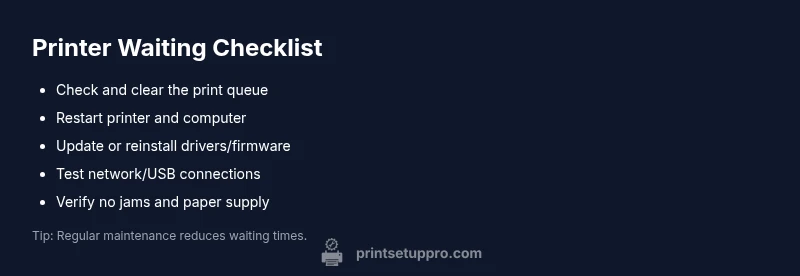
- Look at the printer queue on your computer for any stuck documents and delete them. If you see multiple items, cancel all and print a test page.
- Power cycle the printer and the computer. Turn the printer off, wait 10 seconds, then turn it back on. Do the same for your computer.
- Check for any visible paper jams, paper supply status, and ink or toner levels. Clear jams carefully if found.
- Confirm the connection type and status: USB cable seated firmly, or if wireless, verify the network status and that the printer is on the correct network.
- Verify basic system status: Ensure the Print Spooler service on Windows or the printing system on macOS is running and not paused. A quick reboot often clears temporary glitches.
- Print a simple test page from a different program or a different device to see if the issue is limited to one file or one device. This helps isolate the problem.
If these steps don’t resolve the issue, move to the diagnostic flow below for a structured approach to deeper causes.
"## Diagnostic Flow: Symptom to Diagnosis (High-Level)"
Step-by-Step Fix for the Most Common Cause: Clear the Print Queue
- Open the print queue on your computer and cancel all documents. If items remain stuck, reboot the computer and printer to reset the queue state.
- On Windows, stop and restart the Print Spooler service: open Services, find Print Spooler, click Stop, then Start again. On macOS, reset the printing system via System Preferences.
- Delete any lingering spooler files (Windows: C:\Windows\System32\spool\PRINTERS). Reboot after deletion to ensure a clean slate.
- Reprint a simple document. If the queue clears and prints, you’ve resolved the issue. If not, proceed to driver checks.
- If the problem recurs with one file only, try printing from another program or another file type to see if the problem is file-specific.
Tip: After clearing the queue, always perform a test print to confirm the issue is resolved.
Advanced Fixes If the Queue Is Clear
If clearing the queue doesn’t fix the waiting issue, you’re likely dealing with driver, firmware, or hardware communication problems. Update or reinstall the printer driver from the manufacturer’s site. If you’re using a wireless printer, reset the network settings and re-connect to the network. Consider updating the printer’s firmware if available. For USB printers, try a different USB port and a different cable to rule out a faulty connection.
When drivers or firmware update, restart both the computer and the printer to ensure the new software loads correctly. If you have multiple devices, test printing from a different computer to see if the issue is device-specific. These steps help identify whether the problem lies in the device, the driver, or the network.
Safety, Warnings, and When to Call a Pro
Never force open a jam or poke aggressively at internal components. Turn off power and unplug the device before performing any inside-the-housing checks. Avoid using damaged cables, water near electronics, or cleaning solutions that could corrode components. If you’re still under warranty or the printer is a business asset, consider contacting the manufacturer support line or a trained technician. Print Setup Pro recommends escalating to professional help for persistent issues after driver and spooler checks have been exhausted.
Prevention: Keep Your Printer From Waiting in the Future
Regular maintenance dramatically reduces waiting. Schedule quarterly clean-ups of the print queue, update drivers and firmware promptly, and monitor the spooler service’s status. Keep a clean, organized print queue by archiving completed jobs and avoiding printing unnecessary large files in sequence. Maintain physical upkeep—check for jams, ensure paper stock matches the printer’s requirements, and use the correct media type for each job. In shared environments, set up a clear printing policy to avoid conflicting jobs that can stall queues.
Steps
Estimated time: 45-75 minutes
- 1
Identify symptom and isolate scope
Review the printer status, document the exact error message, and determine if the issue affects all apps or just one file. This helps you choose the right path (queue vs. driver vs. network).
Tip: Document the exact error text for faster tech support. - 2
Clear the print queue
Open the print queue, cancel all documents, and confirm the queue is empty. Reboot the printer and the computer to ensure a clean restart.
Tip: If a single job keeps reappearing, delete it with the printer offline status disabled. - 3
Restart spooler services
On Windows, restart the Print Spooler service. On macOS, reset the printing system if available. This clears stuck tasks in the background.
Tip: Always perform a full reboot after restarting services. - 4
Test print from a different method
Try printing from another app or a different device to determine if the problem is file-specific or device-wide.
Tip: This helps you quickly distinguish software vs hardware problems. - 5
Update drivers/firmware
Install the latest driver from the manufacturer’s site and update the printer firmware if available. Reboot both devices after updating.
Tip: Check the release notes for known issues and fixes to avoid repeating the problem. - 6
Check network/USB connectivity
If wireless, re-connect to the correct network and verify IP addresses. If USB, try a different port and cable.
Tip: Avoid hubs or shared USB ports that can introduce instability. - 7
Escalate when needed
If the problem persists after these steps, contact the manufacturer support or a printer technician.
Tip: Provide model, firmware version, and a summary of attempted fixes.
Diagnosis: Printer shows Waiting/Paused status and refuses to print
Possible Causes
- highStuck or paused print job in the queue
- highPrint Spooler service not running or misconfigured
- mediumOutdated or corrupted printer driver/firmware
Fixes
- easyClear the print queue and restart the spooler/service
- mediumUpdate or reinstall the printer driver/firmware and reboot devices
- easyReset the print subsystem or perform a factory reset on the printer if available
People Also Ask
What is the first thing I should check when my printer is waiting?
Start by inspecting the print queue for stuck jobs and cancel everything. If the queue is clear but the printer still waits, restart both the printer and the computer to reset the communication channel.
Check the print queue for stuck jobs, cancel them, and restart both devices to reset the connection.
Can driver updates fix a waiting printer?
Yes. Outdated or corrupted drivers can cause the printer to pause while waiting for data. Update or reinstall the driver and firmware, then test again.
Driver updates can fix waiting issues; update or reinstall the driver and firmware and test again.
What should I do if the spooler service won’t start?
Try restarting the spooler service from the Services panel, then reboot your computer. If it still fails, check for Windows updates or try a different USB port.
Restart the spooler service and reboot. If needed, check for updates or try another USB port.
Is a network issue the cause for waiting on a wireless printer?
Network interruptions can halt print jobs. Reconnect the printer to the correct network, renew the IP lease if needed, and ensure the printer has a stable wireless connection.
Network issues can cause waiting; reconnect to the network and ensure a stable connection.
When should I call a professional?
If you’ve exhausted queue, spooler, driver, and firmware fixes and the printer still waits, contact the manufacturer support or a qualified technician.
Call a professional if the issue persists after basic troubleshooting.
Can printing from another device help diagnose the issue?
Yes. If another device prints successfully, the problem is likely with the original device or its configuration rather than the printer itself.
Testing with another device helps identify whether the problem is device-specific.
Watch Video
Quick Summary
- Identify if the issue is queue or driver related
- Clear the queue and restart spooler first
- Update drivers/firmware if the problem persists
- Test with different files or devices to isolate causes
- Know when to seek professional help