Why Is Your Printer Not Printing Anything? Urgent Troubleshooting Guide
Urgent guide to diagnose and fix a printer that won't print. Step-by-step checks, diagnostics, and safe fixes for home offices, small businesses, and students needing reliable printing fast.


According to Print Setup Pro, the most likely reason your printer isn’t printing anything is a simple stall in the print queue or a connectivity issue. Start by ensuring the printer is powered on, not paused, and connected to the computer or network. Check the default printer, cancel stuck jobs, then retry. If it still fails, update drivers or reinstall firmware.
Quick diagnostic overview
When a printer suddenly stops producing output, the root causes usually fall into a few broad buckets: like a paused or offline status, a backlog in the print queue, connectivity problems (USB or wireless), driver/firmware issues, or a minor hardware hiccup such as a jam or empty cartridge. This guide is designed to help you quickly identify which bucket your issue belongs to, so you can apply the simplest fix first. Print Setup Pro notes that many “not printing” problems are solved by basic checks and a quick reset, rather than replacing parts. By following a systematic flow, you’ll minimize downtime and avoid unnecessary replacements. We’ll start with the most common, low-effort fixes and move toward more involved steps only if necessary. Remember: safety first, unplug devices when you’re inspecting internal components. This approach helps you answer the question, why is printer not printing anything, with confidence and speed.
Start with the basics: power, cables, and status
Begin with the obvious but often overlooked checks. Ensure the printer is plugged in and powered on, the power light is steady (not blinking), and there are no flashing error indicators. If your printer is connected via USB, try a different USB port or another cable to rule out a faulty connector. For Wi-Fi setups, confirm the device is joined to the correct network and that the printer has a valid IP address. In many cases, a simple restart fixes the issue: power off the printer and the computer, wait 15–30 seconds, then power them back on. While you reset, verify that no other printer is set as the default, and that the printer is not paused in the queue. If the device has a touchscreen, run any built-in network diagnostic tools to verify connectivity.
Check the print queue and default printer
A stuck print job can stop all printing until it’s cleared. Open the print queue on your computer and cancel any stuck or paused jobs. If multiple jobs are queued, cancel all and try printing a single test page. Next, confirm that your printer is set as the default printer for your user account and for any application you’re using. Sometimes, documents print to a different device or a virtual printer, leaving your actual printer idle. On Windows, you can reset the spooler service by typing services.msc, finding Print Spooler, and choosing Restart. On macOS, go to System Preferences > Printers & Scanners, right-click the printer, and choose Reset Printing System if needed. Clearing the queue and verifying defaults often resolves the most common blocking issues.
Connectivity and network checks
If you’re printing over a network, a drop in connectivity is a frequent culprit. Confirm the printer's connection type (USB vs. Ethernet vs. Wi-Fi) and verify that the printer and computer are on the same subnet. For wireless printers, re-enter or re-connect to the correct Wi-Fi network, and consider moving the printer closer to the router to strengthen signal, especially in environments with many walls or interference. Check for IP address changes after a reboot; if it changed, update the printer’s IP in your computer’s printer settings. If you’re using a shared network printer, ensure the host computer is on and its firewall permissions allow print sharing. A quick route to test connectivity is to print a network configuration page from the printer’s control panel.
Driver, firmware, and software health
Outdated drivers or firmware can prevent printing or cause compatibility issues. Check the manufacturer’s website for the latest driver package and install it following their instructions. If you recently updated your operating system, you may need a newer driver version compatible with your OS. Firmware updates can also resolve bugs that affect basic printing tasks. If possible, uninstall the existing printer driver first, then perform a clean reinstall to avoid corrupted driver files. When updating, ensure you have a stable internet connection and avoid interrupting the update process. After updating, restart both the printer and the computer and attempt a test print.
Common issues by symptom and fixes
This section maps typical symptoms to likely causes and actionable fixes, making it easier to troubleshoot without guessing. For a printer that prints nothing at all, the top suspects are a paused/offline status, a jam, or empty/low ink or toner in inkjet or laser printers respectively. If a specific error code appears, consult the manual or the manufacturer’s website for interpretation. For a black-and-white testing page or a simple document, try printing from a different application to rule out a software-specific problem. If the problem persists, perform a factory reset or reinstall the printer software as a last resort, but back up any important settings or profiles first. Print Setup Pro emphasizes that most fixes are non-destructive and reversible, so start with the least invasive steps.
Prevention, maintenance, and safe practices
To minimize repeats of not printing issues, schedule regular maintenance. Clean printer heads and feed rollers according to the user manual, replace consumables before they run dry, and keep cables tidy and free from damage. Create a routine to check print queues and drivers after major OS updates, and review network settings periodically if you rely on wireless printing. Always power down before cleaning internal components and avoid using harsh solvents. If you’re in a shared workspace, establish clear guidelines for printer usage to prevent unauthorized changes that can interfere with printing tasks.
When to escalate to professional help
If you’ve exhausted the above steps without success, it’s time to seek professional support. Look for service options from the printer manufacturer or a trusted local technician. Provide the technician with a detailed log of the steps you’ve taken, any error codes, and whether the issue affects all applications or just a single one. In some cases, hardware faults such as failing printheads, transport mechanisms, or sensor issues may require replacement parts. The Print Setup Pro team recommends documenting symptoms and timing to help technicians diagnose the root cause quickly and avoid unnecessary repairs.
Steps
Estimated time: 30-45 minutes
- 1
Verify power and status
Check that the printer is plugged in, powered on, and showing normal status lights. If the device has a touchscreen, use it to run any built-in self-test or connectivity checks. This initial scan often reveals simple issues like a paused state or a rejected network connection.
Tip: If the power light is blinking oddly, unplug for 30 seconds and plug back in to reset internal controllers. - 2
Review the print queue
Open the queue on your computer and cancel all jobs. If a single document is stuck, delete it and try again. Ensure the correct printer is selected as default in both system settings and within the application you’re using.
Tip: Toggle the default printer off and back on to refresh the system’s mapping to the device. - 3
Test connectivity
If USB, swap ports or try a different cable. If wireless, reconnect to the network and verify the printer has a valid IP. Print a network configuration page if available.
Tip: Temporarily disable VPNs or firewalls that could block printer traffic during testing. - 4
Update or reinstall drivers
Download the latest driver and firmware from the manufacturer, uninstall the old driver, then perform a clean install. A fresh driver stack can resolve hidden conflicts.
Tip: Do not interrupt the installation; a corrupted install commonly causes silent failures. - 5
Check for jams and consumables
Inspect for paper jams and confirm there’s paper loaded correctly. Check ink cartridges or toner levels and replace any empty or degraded consumables as needed.
Tip: Use the printer’s built-in diagnostic pages to locate jammed areas more quickly. - 6
Reset and retry
If all else fails, reset the printer to factory defaults and reconfigure network or USB settings. Perform a simple test print from a basic document to verify success.
Tip: Back up any saved presets or scan settings before a reset. - 7
Run a driver-agnostic test
Try printing from a different application or OS print dialog to determine if the issue is app-specific. If it works elsewhere, the problem may be software-related.
Tip: Test with a simple text document to avoid page formatting issues masking the problem. - 8
Document results and next steps
Record which steps fixed or failed, and prepare to contact support if unresolved. Share screenshots of error messages and the printer’s network page with the technician.
Tip: Keep a running log for faster diagnosis if you call support later.
Diagnosis: Printer won't print anything
Possible Causes
- highPrinter is paused or offline
- highStuck or backed-up print queue
- mediumConnectivity problems (USB/wireless/network)
- mediumOutdated or corrupted drivers/firmware
- lowPaper jam or empty cartridges/toner
Fixes
- easyCheck power, status lights, and ensure printer is not paused
- easyOpen the print queue and cancel all jobs, then retry
- easyReconnect cables or rejoin to Wi-Fi with a valid IP
- mediumUpdate or reinstall drivers/firmware, then reboot devices
- mediumClear jams and replace empty cartridges/toner
- hardReset printer settings or reinstall the entire printing software
People Also Ask
Why is my printer not printing even though it's online?
Common culprits are a paused queue, an incorrect default printer, or a blocked print job. Start by checking the queue, then confirm the printer is set as default and not paused. If problems persist, inspect connectivity and drivers.
Check the queue and default printer, then verify connectivity and drivers.
How do I fix a stuck print job?
Open the print queue, cancel all jobs, and restart the print spooler service. If needed, restart the computer and printer. Try printing a test page after the reset.
Cancel all jobs and restart the spooler, then test print.
What should I check first if the printer won't print at all?
Check power, status lights, connection type, and the default printer. Ensure there are no jam alerts and that tray paper is loaded correctly. Then proceed to test print with a basic document.
Power, connection, and default printer first, then test print.
Can driver updates fix this issue?
Yes. Outdated or incompatible drivers can block printing. Install the latest driver and firmware from the manufacturer, and perform a clean reinstall if problems continue.
Yes, update drivers and firmware to resolve compatibility issues.
What if the printer shows an error light?
Consult the printer manual for the specific error code, clear any jams, and ensure consumables are in good condition. If the light persists, reset the device and re-run diagnostics.
Check the error code in the manual, clear jams, then reset if needed.
When should I call for professional help?
If you have exhausted basic troubleshooting and firmware updates, or suspect hardware failure, contact manufacturer support or a qualified technician for diagnosis and repair.
If basics fail or hardware seems faulty, seek professional help.
Watch Video
Quick Summary
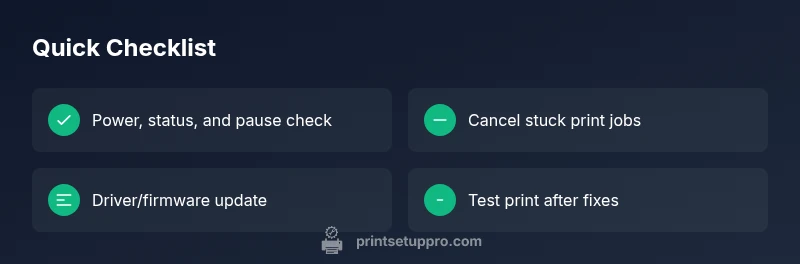
- Start with simple checks before hardware tweaks
- Clear the print queue and verify the default printer
- Update drivers/firmware if the issue persists
- Escalate to professional help when basics fail