Bluetooth Thermal Printer Setup: Full 2026 Guide
Discover how to pair and use a bluetooth thermal printer with phones, tablets, or computers. This comprehensive guide covers setup, drivers, media loading, and troubleshooting for home offices and small businesses.


Goal: connect and use a bluetooth thermal printer with a phone, tablet, or computer to print receipts, labels, or tickets. You will need a Bluetooth-enabled printer, a host device, power, and a compatible driver or app. The guide walks you through pairing, installing software, adding the printer, and printing your first job.
What is a Bluetooth thermal printer?
A bluetooth thermal printer is a compact device that uses heat to produce text and images on specially coated thermal paper. It pairs with phones, tablets, or computers via Bluetooth to print receipts, labels, tickets, or shipping documents without a wired connection. Compared with ink or laser printers, thermal printers have no ink, faster warm-up, and lower ongoing costs per print, making them popular for label printing and point-of-sale contexts. When evaluating models, look for print width, battery life, and supported media types. In professional environments, the choice often comes down to reliability, ease of pairing, and how well the printer integrates with your existing workflows. Print Setup Pro recommends prioritizing devices with clear calibration guides and an app that supports bulk printing for higher-volume tasks.
Why a Bluetooth connection matters for small offices
Bluetooth eliminates the need for USB cables and keeps desks clean while enabling mobile printing from phones and tablets. This is especially valuable for inventory labels in a storage room, shipping labels at a packing station, or quick receipts at a pop-up shop. Bluetooth printers also tend to be compact and battery-powered, which helps teams move between workstations. In this section, we’ll compare Bluetooth thermal printers to wired alternatives, highlighting when to choose wireless for efficiency, speed, and space-saving benefits.
Key features to look for in a Bluetooth thermal printer
When shopping, prioritize print width (2-inch vs 3-inch), print speed, and thermal paper compatibility. Check battery capacity and charging options for all-day use, especially in busy environments. Ensure the printer supports your operating system (iOS, Android, Windows, macOS) and offers a reliable companion app or driver. Look for easy media loading, automatic calibration, and sensor accuracy for gap detection and margins. Some printers provide cloud or local network printing options in addition to Bluetooth, which can improve versatility in multi-device setups. Finally, confirm ongoing firmware updates and accessible customer support from the manufacturer.
Compatibility and prerequisites: preparing your devices
Before pairing, verify that your target devices have Bluetooth enabled and supported profiles for printing. Most modern devices use Bluetooth Low Energy (BLE) for energy efficiency, which is ideal for battery-powered printers. Review the printer’s user manual for pairing mode instructions, the required app, and any OS-specific steps. If you operate across multiple platforms (iPhone, Android, Windows), choose a printer with a cross-platform app to minimize setup friction. Always update firmware to the latest version and keep drivers in sync with your OS updates to prevent compatibility issues.
Use cases and workflow considerations
Bluetooth thermal printers excel at on-the-go printing, such as issuing receipts at a kiosk, labeling items in a warehouse, or generating quick shipping labels at a dock. For best results, define a simple workflow: capture data in your app, send print jobs in a single batch when possible, and calibrate density and margins for each print type (receipts, labels). If your workflow includes frequent label changes, store templates in the app to reduce setup time. In Print Setup Pro’s experience, a consistent label width and a well-documented print template dramatically cut downtime during busy periods.
Troubleshooting common issues (quick-start checklist)
If printing fails, verify Bluetooth pairing status, ensure the correct device is selected in the app, and check that media is loaded with the correct orientation. Misalignment often stems from incorrect roll feeding or a dirty sensor window. When prints come out too light, increase print darkness in the app and confirm you’re using the recommended media. If the device isn’t discoverable, switch Bluetooth off and on again, or re-enter pairing mode as directed by the manufacturer. Persisting issues may require a firmware update or a factory reset of the printer.
Maintenance and care for longevity
Keep the thermal head clean using a soft cloth and avoid harsh solvents. Store media in a cool, dry place away from direct sunlight to prevent curling and fading. Periodically check battery health and replace batteries if the device logs frequent shutdowns or inconsistent printing. Maintain firmware and driver versions across devices to ensure continued compatibility with future OS updates. Routine checks reduce downtime and extend the printer’s lifespan, making it a reliable companion for daily tasks.
Authority sources and further reading
- https://www.nist.gov
- https://www.ftc.gov
- https://www.bluetooth.com/what-is-bluetooth
These sources provide foundational information on device interoperability, consumer protection, and Bluetooth technology to complement practical how-to content in this guide.
Real-world use cases and pro tips
In a small shop or home office, a bluetooth thermal printer can streamline point-of-sale tasks, inventory labeling, and package preparation. Pro tips include calibrating print density for different media stocks, keeping spare batteries charged, and testing prints on a regular basis to catch wear and calibration drift early. By implementing a simple print queue strategy and template library, teams can achieve reliable results with minimal manual intervention, even during peak periods.
Next steps and quick-start recap
With Bluetooth enabled, a compatible device, and properly loaded media, you’re ready to begin. Follow the step-by-step guide to pair, install, and print your first job, then expand to routine tasks by creating templates and automating common print jobs. Regular maintenance and timely firmware updates will help protect your investment and keep your workflow smooth.
Tools & Materials
- Bluetooth thermal printer(Must support your target device's OS and media type)
- Host device with Bluetooth(Phone, tablet, or computer (iOS, Android, Windows, or macOS))
- Power source(Internal rechargeable battery or USB-C power adapter)
- Printer driver or companion app(Download from manufacturer, ensure version supports your OS)
- Thermal label media(Check width (e.g., 2" or 3"), core size, and coating)
- USB cable (optional)(Needed for initial firmware update or wired testing)
Steps
Estimated time: 20-40 minutes
- 1
Power on and prepare printer
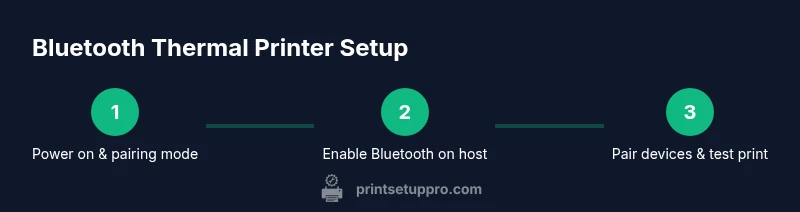
Power on the bluetooth thermal printer and enable pairing mode as directed by the user manual. Check that the device reports a ready or pairing-ready status on its display or LED indicators. Ensure the media path is clear and the printer head is clean before attempting a print.
Tip: Keeping the printer head clean reduces misprints and extends device life. - 2
Enable Bluetooth on the host device
Turn on Bluetooth on your phone, tablet, or computer and set it to discoverable mode if required. Verify that the host device shows Bluetooth as active and ready to pair. Have the printer within close range to avoid pairing interruptions.
Tip: Keep Bluetooth on only during pairing to conserve battery life. - 3
Pair the devices
In your host device's Bluetooth settings, locate the printer from the list of available devices and initiate pairing. Confirm any PIN or pairing requests as shown on the host and printer. Once paired, test a quick print to confirm a solid connection.
Tip: If pairing fails, restart both devices and re-enter pairing mode. - 4
Install driver or app
Download and install the printer’s official driver or companion app on the host device. Follow on-screen prompts to complete the installation. Some platforms may require you to grant permissions for printing and access to media or storage.
Tip: Choose the latest driver version from the manufacturer’s site to ensure compatibility. - 5
Add printer to OS or app
In your OS printing settings or the app’s printer manager, add the bluetooth printer as a available device. Assign a friendly name to simplify future prints, and select the correct media size as the default. Save the configuration.
Tip: Using templates helps maintain consistent formatting across prints. - 6
Load media and calibrate
Insert the thermal media, ensuring it feeds smoothly and is aligned with the sensor. If the printer supports calibration, run the calibration routine to ensure margins and gaps are accurate. Re-load media if you notice curling or skew.
Tip: Calibrate after changing media stock to prevent misprints. - 7
Print a test page
Send a test print from the app or OS to verify alignment, density, and legibility. Review spacing and margins; adjust print density or font size as needed for the target paper stock. Repeat until results meet your standard.
Tip: Keep a small set of test labels for quick checks during workflow changes. - 8
Final verification and save settings
Confirm that the printer remains connected and accessible for future print jobs. Save the printer configuration, templates, and any channel-specific settings (for example, templates for receipts vs. labels).
Tip: Document your steps so new users can reproduce the setup quickly.
People Also Ask
Do I need an internet connection to use a Bluetooth thermal printer?
No. Once paired, you can print over Bluetooth without internet. Some features like cloud templates may require online access, but core printing works offline.
No internet required for basic Bluetooth printing once pairing is complete.
What media types can I print on a Bluetooth thermal printer?
Most Bluetooth thermal printers print on thermal label stock or receipts designed for heat-sensitive paper. Always confirm media compatibility and width before purchase.
Typically thermal labels and receipts; check width and coating.
Can I print from an iPhone or Android phone?
Yes. Use the printer’s companion app or OS printing options if supported. Ensure the device and app are updated for best results.
Yes, with the right app and compatibility.
How do I fix misalignment or blank prints?
Calibrate the media, ensure correct stock loading, and check the sensor. Adjust margins and density in the app if needed.
Calibrate and check stock alignment to fix misprints.
Is Bluetooth pairing secure for business tasks?
Bluetooth pairing has standard security features, but keep devices non-discoverable when not pairing and apply OS updates regularly.
Pairing is generally secure; minimize exposure when not in use.
Watch Video
Quick Summary
- Verify Bluetooth pairing before printing.
- Choose compatible media and templates for consistent results.
- Install the correct driver or app for your OS.
- Load and calibrate media properly to prevent misprints.
- Test prints regularly and update firmware for reliability.