Photo Printer Bluetooth: Setup, Connect, and Print Photos
Learn to pair a photo printer with Bluetooth, print photos from devices, and troubleshoot common issues. This guide covers setup, compatibility, color management, and security for home offices and students.


Goal: connect a photo printer via Bluetooth and print photos from a phone or computer. Key requirements: a Bluetooth-enabled printer, a Bluetooth-capable device, and the manufacturer app or driver. This quick guide outlines the essential steps to pair, print a test photo, and verify settings.
Bluetooth basics for photo printers
Bluetooth creates a short-range wireless link between your photo printer and a pairing device such as a smartphone or laptop. For printing, Bluetooth is convenient because it avoids cables and lets you print directly from mobile apps or desktop software. However, print quality and reliability can depend on the printer’s Bluetooth version, the device’s OS, and the status of drivers or apps. Print Setup Pro notes that knowing your printer’s Bluetooth capabilities (version, pairing method, and supported profiles) helps you avoid compatibility pitfalls and delivers a smoother print experience. When you plan a setup, consider whether you will primarily print from a phone, a tablet, or a computer, and ensure your chosen printer supports that workflow.
Choosing a Bluetooth photo printer: what to look for
When evaluating options, start with print quality and color fidelity. Look for printers that support standard color profiles (sRGB, AdobeRGB) and offer consistent color management through a companion app. Check battery life for portable use, the ease of pairing, and whether the printer supports direct printing from iOS, Android, Windows, and macOS. Support for multi-photo printing, memory card slots, and wireless networking can influence your day-to-day satisfaction. Print Setup Pro recommends verifying the printer’s latest firmware and ensuring the companion app is actively maintained by the manufacturer.
Device compatibility: iPhone, Android, Windows, macOS
Bluetooth workflows differ by platform. iPhone and iPad typically rely on iOS printing APIs and the vendor’s app for best results; Android devices often use system Bluetooth pairing plus a vendor app. Windows and macOS may require driver installations or a desktop app to expose advanced settings like color management and paper type. To minimize surprises, confirm the printer’s compatibility matrix and test-print from at least two different devices before committing to a long-term setup. Print Setup Pro highlights that cross-platform compatibility reduces bottlenecks and expands use cases.
Quick-start setup guide (high-level)
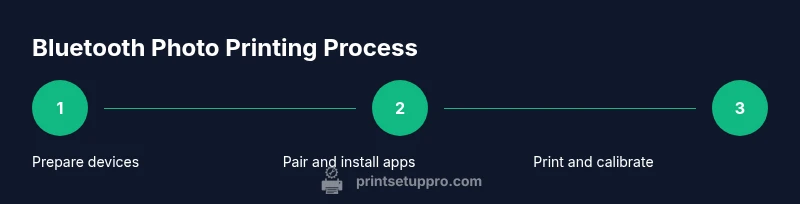
A practical approach begins with turning on the printer, enabling Bluetooth, and launching the manufacturer app. Then, activate Bluetooth on your phone or computer, pair the devices, and install any required drivers or software. After pairing, perform a test print and adjust print quality through the app's color management or paper settings. If you run into issues, recheck proximity, firmware, and battery levels. This section provides a framework you can apply across most Bluetooth photo printers.
Printing from a smartphone: a walkthrough
Open your photo gallery or editing app, select a photo, and choose the share or print option. In the printer list, select your Bluetooth printer, then adjust print size, border options, and color settings if available. Some printers offer direct editing within their app—use this to apply basic corrections before sending the job. When the preview looks right, hit print and monitor the job until complete. Regularly updating the app ensures continued compatibility with new OS versions.
Troubleshooting common Bluetooth issues
If pairing fails, start by turning Bluetooth off and on again on both devices, then retry. Ensure the printer is in pairing mode and within close range (not behind walls). Check for firmware updates and confirm that the correct device is selected in the printer app. If prints are slow or incomplete, reduce file size, verify color profiles, and ensure sufficient power. Network interference or crowded Bluetooth channels can also degrade performance; moving to a less crowded area can help.
Color management and print quality via Bluetooth
Bluetooth can transmit color data, but the display you preview on may differ from the printed result. Calibrate using your printer’s color settings and select a standard color profile (like sRGB) in the app. Use high-quality print media that supports the printer’s color range and avoid extremely glossy papers if your device isn’t optimized for them. Practically, print a small test strip with different color densities to adjust the balance before committing to a full photo batch.
Security and privacy when printing over Bluetooth
Bluetooth is convenient but not risk-free. Keep firmware up to date to mitigate vulnerabilities and avoid printing sensitive photos from public or shared devices unless you’re certain the pairing is secure. Turn off Bluetooth when not in use and forget old paired devices after you’re done. If you use a shared computer, sign out of apps after printing and enable device discovery only during setup.
Future trends: wireless printing ecosystems
As printers gain stronger app ecosystems, cloud-enabled workflows, and multi-device synchronization, users will print more directly from mobile galleries with fewer steps. Expect improved color management, better device discovery, and more robust on-device previews. Print Setup Pro foresees a future where seamless cross-device printing remains central to home offices and classrooms, with ongoing focus on security and reliability.
Tools & Materials
- Photo printer with Bluetooth support(Check model specs for Bluetooth version and supported profiles)
- Bluetooth-enabled device (phone, tablet, or computer)(Ensure Bluetooth is turned on and discoverable during setup)
- Printer drivers or official mobile app(Install the latest version from the manufacturer)
- Power supply and cables(Keep the printer powered during setup and testing)
- Test photo paper for calibration(Optional; helps verify print quality during setup)
- Stable Wi-Fi or direct USB cable (for initial firmware update)(Some models require a firmware push via USB before Bluetooth use)
Steps
Estimated time: 25-40 minutes
- 1
Prepare devices and install software
Power on the printer and device, ensure Bluetooth is enabled, and install the manufacturer's app or driver. This creates the control surface for pairing and print settings. If there’s a firmware update, complete it before proceeding to ensure compatibility with your OS.
Tip: Use the latest app version from the official store to maximize compatibility. - 2
Enable pairing mode on the printer
Put the printer into Bluetooth pairing mode per the manual. This makes the device visible to your phone or computer. Keep the printer close to avoid pairing interruptions during the process.
Tip: If pairing code is required, locate it on the printer label or in the manual. - 3
Pair the printer with your device
On the device, open Bluetooth settings and select the printer from the list. Confirm any prompts and wait for the pairing confirmation. If prompted for a code, enter the code shown in the manual or on the device.
Tip: Avoid pairing with multiple devices at once to prevent connection conflicts. - 4
Install and configure drivers/app
Launch the manufacturer app or driver installer and follow on-screen prompts to configure print preferences such as paper type, size, and color profile. If available, set the color management to a standard profile (e.g., sRGB).
Tip: Some apps offer built-in color calibration tools—use them for better consistency. - 5
Print a test photo and adjust settings
Select a photo, choose print options, and send a test print. Review the result for color accuracy, sharpness, and border handling. Tweak brightness, contrast, and paper settings if needed, then reprint until satisfied.
Tip: Print a small crop first to save ink and paper during calibration. - 6
Troubleshoot and secure the setup
If issues persist, restart devices, re-pair, and verify firmware versions. Ensure you’re printing from a trusted app and consider disabling Bluetooth when not actively printing to reduce exposure.
Tip: Document steps you took so you can repeat or adjust later.
People Also Ask
Can I print photos from an iPhone to a Bluetooth printer?
Yes, you can print photos from iPhone to a Bluetooth printer using the Photos app or the printer’s companion app. Ensure the printer is paired and that the app has permission to access your photos.
Yes—pair the printer and print from Photos or the manufacturer’s app.
Do all photo printers support Bluetooth?
Most modern Bluetooth-enabled printers support Bluetooth, but some budget models rely on Wi-Fi or USB. Always check the model’s specs before purchasing.
Most do, but check exact specs.
What file formats work best for Bluetooth printing?
JPEG and PNG are universally supported and work well for color photos. Some printers handle TIFF or RAW via apps; large RAW files may be slower to transfer.
JPEG and PNG are the safe defaults.
Why is Bluetooth printing slow or failing?
Possible interference, distance, outdated firmware, or low battery can cause issues. Move closer, reduce interference, and update firmware and apps.
Check distance, updates, and battery levels.
How do I reset Bluetooth connections on the printer?
Power cycle devices, then use the printer’s menu to reset Bluetooth or forget the device on your pairing device. Reattempt pairing afterward.
Reset Bluetooth and pair again.
Is Bluetooth printing secure?
Bluetooth printing can be secure when firmware is up to date and devices are trusted. Avoid printing sensitive content when connected to public networks.
Keep firmware updated and use trusted devices.
Watch Video
Quick Summary
- Choose a Bluetooth printer with strong app support
- Pair devices following manufacturer instructions
- Test photos and calibrate color profiles
- Secure Bluetooth connections and keep firmware updated