Photo Printer for Phone: Print Photos from Your Smartphone
Learn how to print high-quality photos from your phone with a portable photo printer. This guide covers choosing the right device, setup, print quality, and troubleshooting for home offices, students, and DIY enthusiasts.


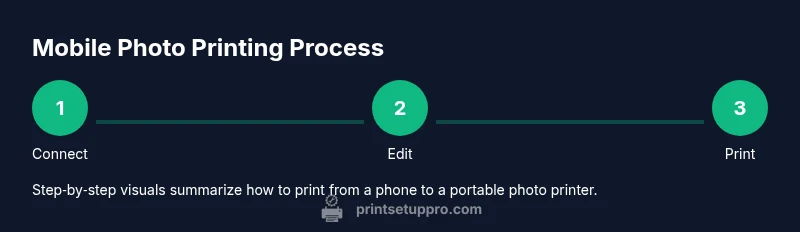
You can print photos directly from a phone to a compatible photo printer using wireless options like Wi‑Fi, Bluetooth, or AirPrint. The key steps are to connect your phone to the printer, select the photo, and adjust print settings in the printer app. This approach is ideal for quick keepsakes, school projects, and on‑the‑go crafts.
What is a photo printer for phone?
A photo printer for phone is a compact, usually battery-powered printing device designed to print photos directly from a smartphone. These printers connect via Bluetooth or Wi‑Fi and rely on mobile apps to manage photo selection, sizing, and print settings. For home‑office users, students, and DIY enthusiasts, a photo printer for phone delivers quick, tangible memories without the need for a full desktop setup. As you weigh options, prioritize print quality, ink cost, and app compatibility to ensure reliable results from any mobile device.
How mobile photo printing works
Most mobile photo printers rely on wireless connections rather than USB cables. You’ll typically connect your phone to the printer through Bluetooth or a shared Wi‑Fi network, or use a direct Wi‑Fi Direct/AirPrint/Google Cloud Print‑like protocol. The printer’s companion app then transfers the image, crops or edits it, and sends data to the printer. This workflow makes it easy to print snapshots from trips, events, or daily messages without a computer. Print quality depends on dye‑sub or pigment ink, photo paper quality, and color management in the app.
Key features to look for
When selecting a photo printer for phone, look for portability, print quality, and ease of use. Important features include: borderless printing, compatible photo paper sizes (4x6, 5x7), battery life, and quick print times. App features to watch for include built‑in photo editing, filter options, color correction, and bulk printing support. Consider whether you’ll print often, as some models offer cheaper ink per photo but higher upfront costs.
Compatibility and mobile apps
Compatibility varies by platform. iPhone users often benefit from AirPrint or vendor apps, while Android devices may rely on Bluetooth or proprietary apps. Check whether the printer supports your phone’s OS version, and whether the app stores photos directly from cloud services like iCloud or Google Photos. For best results, ensure the app can handle RAW or high‑resolution JPEGs and offers basic adjustments such as brightness, contrast, and saturation.
Paper, ink, and media options
Photo paper choices affect color accuracy and durability. Look for water‑ and fade‑resistant finishes, especially if you plan to display prints. Ink type matters too: dye‑sub printers tend to be faster and cheaper per print, while pigment inks offer longer longevity. Ensure your printer supports the specific paper formats you prefer (commonly 4x6 and 5x7) and has a reliable ink supply with legitimate replacement options.
Print quality and color management
Print quality hinges on the printer’s resolution, color range, and calibration. A good mobile printer should reproduce skin tones naturally, hair highlights, and sky gradients without heavy banding. If precise color matching is crucial for projects or gifts, look for printers with color management profiles or ICC support. Real‑world results vary with lighting, screen calibration, and image compression, so always print a test photo to confirm expectations.
Step‑by‑step workflow example
- Power on the printer and connect it to your phone via the preferred method.
- Open the camera roll or photo app and select a image you want to print.
- Launch the printer’s companion app and import the photo.
- Crop, adjust brightness/contrast, and choose print size and finish.
- Tap Print and collect the photos when the printer finishes. Keep the device near Wi‑Fi to avoid interruptions.
- Store or display prints in a photo album or frame. Regularly clean the printer’s paper path to prevent jams.
Troubleshooting common issues
Connectivity problems are the most common. If the phone doesn’t find the printer, toggle Bluetooth or Wi‑Fi, restart both devices, and re‑pair. Print quality issues may stem from low‑quality paper, incorrect color profiles, or dirty print heads. Check the paper type, ensure the ink is not dried, and perform a printer head cleaning if available in the app. If prints are skewed, verify paper alignment and tray guides.
Maintenance and care tips
Keep papers and inks sealed when not in use to prevent moisture damage. Clean the feed path and rollers gently with a lint‑free cloth, and replace any worn cartridges promptly to avoid clogging. Store the printer in a cool, dry location away from direct sunlight. Periodically update the printer app and firmware to improve compatibility and fix bugs.
Cost considerations and budgeting for paper
While the upfront cost of a photo printer for phone varies, ongoing costs come from ink/toner and photo paper. Compare the price per print by dividing the ink cost by the recommended page yield, and consider refills or compatible third‑party supplies. If you print occasionally, select a model with inexpensive consumables and an easy refilling process. Over time, higher quality paper will improve perceived value.
Real‑world use cases: students, home offices, and DIY enthusiasts
Students can instantly print study aids, flashcards, and project photos. Home office users may print client photos for portfolios or product shots. DIY enthusiasts often print crafts, scrapbooks, or gift tags. A portable printer fits small desks, kitchen counters, or workbenches, saving time and reducing the need to transfer files to a desktop computer.
How to choose between portable vs desktop mobile‑friendly printers
Portable printers excel in portability, speed, and simplicity, ideal for quick photos on the go. Desktop or larger mobile‑friendly printers may offer higher print resolution, larger media support, and better ink efficiency for larger batches. Your choice should weigh print quality against portability, cost per print, and storage space.
Tools & Materials
- Smartphone with camera(Any modern iOS or Android device)
- Wireless photo printer(Battery or AC powered; supports mobile app)
- Photo paper (4x6, 5x7)(Check compatibility with your printer model)
- Printer power adapter or charger(Keep near power source)
- Printer companion app(Install from App Store or Google Play)
- Wi‑Fi network or Bluetooth enablement(Stable connection for quick transfers)
- USB‑C/Lightning cable (optional)(For wired setup if supported)
Steps
Estimated time: 20-40 minutes
- 1
Power on and connect
Turn on the printer and enable its wireless mode. Use Bluetooth or Wi‑Fi Direct to pair with your phone, following the printer’s on‑screen prompts.
Tip: If pairing fails, toggle airplane mode on phone for a moment, then retry. - 2
Install and open the app
Download the printer’s official app, grant necessary permissions, and ensure the app recognizes the connected printer.
Tip: Enable auto‑updates for the app to keep features current. - 3
Select photo and adjust
Choose a photo from your gallery, crop or rotate if needed, and adjust brightness or contrast to improve print results.
Tip: Preview prints on screen to catch issues before printing. - 4
Choose print settings
Pick the photo size, finish (glossy/matte), and number of copies. If your app supports ICC profiles, apply the correct one for accurate color.
Tip: Borderless printing often looks cleaner for photos. - 5
Print and collect
Send the print job and wait for the printer to finish. Retrieve the photo promptly to avoid smudges or stacking jams.
Tip: Keep the print area clear to prevent accidental rubbing. - 6
Evaluate and adjust
Check color accuracy and sharpness. If needed, print a test copy with adjusted exposure and contrast.
Tip: Fine‑tuning may be necessary when switching paper types. - 7
Maintenance after printing
Clean the feed path if you notice adhesive residue or dust, and store paper in a dry place to avoid curl.
Tip: Clean printer every few weeks with a dry cloth to prevent jams.
People Also Ask
Can I print photos from an iPhone to any photo printer?
Most iPhones can print to compatible photo printers via AirPrint or the printer’s app. Check your printer’s compatibility list before purchasing to confirm iOS support and required app features.
Most iPhone users can print to compatible printers using AirPrint or the printer's app after setup. Verify compatibility before buying.
Do mobile photo printers offer good color accuracy?
Color accuracy varies by printer, paper, and lighting. Look for printers with color management options and high‑quality ink for consistent results, and always run a test print.
Color accuracy varies; choose a printer with color management features and run a test print to verify results.
What paper sizes should I expect from mobile photo printers?
Most mobile printers support common sizes like 4x6 and 5x7. Verify supported media in the product specs to ensure you have the right paper for your projects.
Common sizes are 4x6 and 5x7; check your printer's specs for exact support.
Are portable photo printers worth it for a home office?
If you frequently print proofs, portfolios, or classroom materials, a portable photo printer can save time and make quick previews, but consider ongoing ink and paper costs.
For frequent prints and previews, a portable photo printer can be worth it, factoring in ongoing consumables.
How can I fix blurry prints from a phone printer?
Blurry prints are usually caused by motion blur, compression during transfer, or low‑quality paper. Use a steady hand or tripod, transfer high‑resolution images, and choose appropriate paper for sharp results.
Blurry prints usually come from motion or compression; use high‑resolution images and steady setup to avoid it.
Watch Video
Quick Summary
- Choose a printer with strong mobile app support.
- Match paper type to your color and durability needs.
- Test prints to calibrate for best results.
- Keep prints organized for easy display.
- Maintenance prevents jams and extends life.