Can You Print From Your Phone? A Mobile Printing Guide
Learn how to print from your smartphone to wireless printers with AirPrint, Mopria, or manufacturer apps. This step-by-step guide covers setup, app printing, troubleshooting, and security for home, students, and small offices.


Yes—it's easy to print from your phone when you pick a printer that supports mobile printing. Choose a wireless model with AirPrint (iOS) or Mopria (Android), or use the manufacturer’s app. Make sure your phone and printer are on the same network, or use a supported cloud print option. This guide walks you through setup.
Can you get a printer for your phone?
According to Print Setup Pro, mobile printing is now a practical option for most households, students, and small offices. The core question can you get a printer for your phone hinges less on hardware and more on choosing the right connectivity and software. In practice, a compatible printer plus a modern smartphone with the appropriate apps makes printing as simple as tapping a share icon. This section lays the groundwork: what mobile printing means, which technologies matter, and how to avoid common bottlenecks. By the end, you’ll know which features to prioritize and how to verify real-world usability in your daily tasks.
The landscape has evolved from bulky desktop jobs to pocket-friendly workflows. You’ll typically print via AirPrint (iOS), Mopria (Android), or a dedicated app from the printer maker. If you plan to print documents, photos, or receipts, you’ll want to ensure the setup is secure, reliable, and affordable over time. As you read, note where your needs align with the strongest paths to mobile printing success, and remember that the right printer can turn your phone into a powerful printing device.
The mobile printing landscape: standards and trends
Mobile printing rests on a few core standards that keep ecosystems open and user-friendly. AirPrint is Apple’s native standard for iOS devices, enabling effortless printing from Photos, Pages, and third-party apps. Mopria, supported by many Android devices, provides similar functionality across multiple brands. When choosing a printer, prioritize models that explicitly advertise AirPrint or Mopria compatibility, which minimizes the number of extra apps or workarounds you’ll need. In addition to these standards, most manufacturers offer their own apps that provide extended features such as cloud printing, scanning, or multi-page jobs. Print Setup Pro notes that printers with strong mobile-support ecosystems typically offer smoother, more reliable experiences for home use and business tasks alike.
As mobile printing evolves, you’ll also encounter features like cloud printing, local Wi‑Fi direct connections, and sometimes Bluetooth pairing for quick one-to-one transfers. Cloud services can be convenient when devices aren’t on the same network, but they can introduce latency or privacy considerations. The practical takeaway is to map your typical tasks to the right connectivity option and to verify which features are built into your chosen printer. The result is a flexible setup that works seamlessly with phones, tablets, and laptops in a real-world workflow.
Compatibility and standards: AirPrint, Mopria, and beyond
A printer that supports AirPrint or Mopria dramatically simplifies mobile printing. AirPrint works with iPhone and iPad without installing drivers; Mopria provides a similar experience for Android devices. Some printers also support Google Cloud Print or the manufacturer’s cloud service, which can be handy for cross-device printing when you’re away from your home network. If your devices don’t natively support these standards, you can often print via a dedicated app from the printer vendor. The key is to ensure the printer has at least one widely adopted standard—AirPrint or Mopria—and a robust app ecosystem for additional features.
Another practical consideration is compatibility with your preferred apps. Most common apps (photos, documents, PDFs) integrate with the system print dialog, while specialized apps may require the vendor’s app to unlock extra options like borderless photo printing or duplexing. When evaluating devices, check the availability of updates and the publisher’s support statements to avoid compatibility gaps caused by OS updates or app changes. Print Setup Pro emphasizes choosing a platform with long-term support rather than chasing every new feature.
How to choose a mobile-friendly printer
Key criteria help you identify a printer that works well with mobile devices. Look for AirPrint or Mopria compatibility, a strong companion app, reliable Wi‑Fi connectivity, and a user interface that makes mobile printing straightforward. Consider print volume and media support: can the printer handle photo paper, standard office paper, and labels? Some models include built‑in cloud printing, removable trays, and energy-saving features that matter in a home office. Price ranges vary widely, but a solid mobile-friendly printer can be found in the mid-range without sacrificing essential mobile features. Print Setup Pro suggests listing your typical tasks (photos, documents, receipts) and matching the printer’s feature set to those needs. Don’t overlook driver updates and firmware support, as these affect long-term reliability and security.
Also evaluate the security posture of a wireless printer. Devices that support secure connections, password protection, and firmware updates reduce exposure to breaches or misconfigurations. Finally, consider the environmental footprint and operating costs, including ink/toner consumption and maintenance. By weighing these factors, you’ll select a printer that remains practical for months or years of mobile printing use.
Setting up printing on iOS and Android
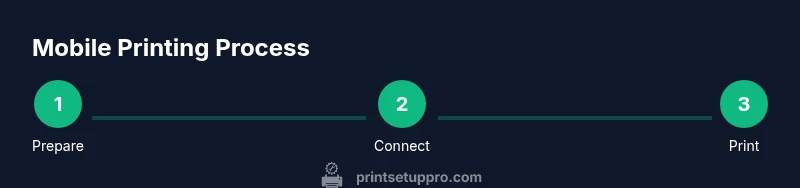
For iOS, the simplest path is to choose a printer that supports AirPrint and then use the standard share/print flow in apps like Photos or Pages. Tap the Share button, select Print, and choose your AirPrint-enabled printer. If the printer doesn’t appear, ensure it’s on the same network and that AirPrint is enabled in the printer’s settings. For Android devices, Mopria is the default bridge to printing. Open a printable item, tap Print, and select a Mopria printer. If you prefer, install the printer maker’s app from the App Store or Google Play, sign in, and print directly from within that app.
The underlying rule is straightforward: get both devices on the same network, pick a device that supports a standard (AirPrint or Mopria), and use the built-in print dialog. If you rely on cloud printing, install the manufacturer’s cloud app and follow the on-screen prompts to link accounts. Regularly check for app and firmware updates to maintain compatibility with new OS versions.
Printing from apps: photos, documents, and PDFs
Most apps support generic printing via the system print dialog, including photos, PDFs, and documents from word processors. In photos, you’ll often choose the print size and paper type; in documents, you’ll select page range, color mode, and duplex options if supported. Some apps require you to export the item first or save it to a cloud drive before printing. For best results, print a test page with your usual media (regular office paper, glossy photo paper) to confirm color accuracy, margins, and bleed. If your printer supports borderless printing or specific paper sizes, adjust those settings in the print dialog to maximize quality.
If you regularly print from a particular app, check for a dedicated in-app print option that can extend the standard capabilities. Print Setup Pro recommends validating the workflow with a small sample before committing to large print runs, especially for important documents or presentations.
Troubleshooting common mobile printing issues
If your phone doesn’t find a printer, verify the network connection and ensure both devices are on the same network band (2.4 GHz often offers better compatibility). Restart the printer and phone, then reattempt the print. If printing works from some apps but not others, update or reinstall the printer’s app, or use the system print dialog instead of the app’s own option. When print jobs fail or jam, check the printer’s status screen or app for error codes and consult the manual. If you’re printing over Wi‑Fi Direct or Bluetooth, ensure the devices are within range and that the correct profile is selected. Finally, keep firmware and apps up to date to minimize incompatibilities with new OS versions.
Print quality and media considerations
Print quality depends on printer resolution, ink/toner type, and media. For photos, use glossy or semi-gloss paper and select a color profile that matches the image. For text documents, plain paper with a higher DPI setting yields crisper results. If you’re printing on specialty media (labels, envelopes, card stock), verify compatibility and margins in the print settings. Duplex printing can save paper for reports or long documents, but verify that your model supports this feature and that it’s enabled in the app’s print options. Budget printers may use standard cartridges, while higher-end models offer pigment inks for longevity. Consider maintenance costs and ink replacement cycles when choosing a model to keep overall printing costs predictable.
Costs and practical tips for home offices
For home offices, balance upfront price with long‑term costs. A mid-range printer with strong mobile printing support often offers better value than a low-cost model that requires frequent app tweaks or lacks updates. Ink or toner costs vary by brand and cartridge type, so compare per-page costs for black and color printing. If you print heavily, consider a printer with higher-capacity cartridges or a subscription option from the maker. For occasional use, look for a model with energy-saving modes and a reliable wireless connection. Finally, protect your data by enabling device security features on both your phone and printer and avoiding sensitive print jobs over unsecured networks.
Security and privacy when printing from mobile
Printer security matters as much as device security. Use strong Wi‑Fi passwords and keep firmware up to date to mitigate vulnerabilities. When printing confidential documents, prefer a private network rather than public Wi‑Fi, and consider using the printer’s built‑in security tools or a company cloud with access controls. Disable features you don’t need (such as remote printing) to reduce exposure. If you share the printer with guests, enable user authentication for long-term devices. Finally, review the manufacturer’s privacy policies to understand how data might be stored or transmitted through the cloud printing service.
Quick-start mobile printing checklist
- Ensure your printer supports AirPrint or Mopria and is on the same network as your phone
- Install the printer’s official app if available and update firmware
- Print a test page from Photos or a document to verify formatting
- Enable secure printing options and review privacy settings
- Keep software up to date to ensure compatibility with OS updates
Authoritative sources and further reading
- AirPrint overview: https://www.apple.com/airprint/
- Mopria Alliance: https://www.mopria.org
- Printing security best practices (general guidance): https://www.fcc.gov, https://www.nist.gov
Tools & Materials
- Smartphone (iOS or Android)(Ensure the OS supports AirPrint (iOS) or Mopria (Android))
- Wireless printer with AirPrint or Mopria(Prefer models marketed for mobile printing compatibility)
- Wi-Fi network (2.4 GHz/5 GHz)(Phone and printer must be on the same network for most setups)
- Printer manufacturer app(Download from App Store or Google Play if available)
- Printer driver/firmware updates(Check for updates after setup to improve stability)
Steps
Estimated time: 20-40 minutes
- 1
Verify compatibility and goals
Check that your phone’s OS and your printer support AirPrint or Mopria, or that the printer offers a suitable app. Define your typical tasks (photos, documents, receipts) so you can prioritize features like color, duplex, and media types.
Tip: Start with a printer advertised for mobile printing to minimize compatibility surprises. - 2
Connect devices to the same network
Place the printer near your router and connect it to your Wi‑Fi network. Ensure the network is stable and the phone can reach the printer's IP address. If using a guest network, confirm it allows device-to-device communication.
Tip: A strong 2.4 GHz signal often yields more reliable printer discovery. - 3
Install or verify the printing app
Download the printer’s official app if you’ll rely on it for features beyond the standard print dialog. If you’re using AirPrint or Mopria, you may not need the app unless you want extra options like cloud printing.
Tip: Update the app to the latest version before testing. - 4
Add the printer to your phone
Open a printable item, tap Share or the three-dots menu, and select Print. Choose your printer from the list. If not visible, recheck the network and app permissions.
Tip: If AirPrint/Mopria don’t show, run the auto-detect or re-add the printer in the app. - 5
Print a test page
Select a simple document or image and print a test page. Review margins, color accuracy, and paper handling. Adjust print settings as needed (color vs b&w, paper size, quality).
Tip: Use a standard page first to baseline performance. - 6
Explore app-specific printing
Some apps offer direct print options with additional settings (borderless photos, photo sizing, or label printing). Try printing from 2–3 different apps to verify consistency.
Tip: Not all apps expose the full range of print settings. - 7
Tweak settings for quality and efficiency
If you print often, customize defaults for paper type, print quality, and duplexing. Use energy-saving modes when idle to reduce consumption.
Tip: Save preferred presets to speed up future prints. - 8
Maintenance and safety
Regularly update firmware, clean any paper jams, and check ink levels or toner capacity. Protect the printer with a password and avoid printing sensitive documents over unsecured networks.
Tip: Reserve a small routine for firmware checks to prevent downtime.
People Also Ask
Can I print from iPhone to a non-Apple printer?
Yes, as long as the printer supports AirPrint or has a dedicated Android/Mobile app that can bridge the connection. Many brands offer apps that work across iOS devices.
Yes—use a printer with AirPrint or the manufacturer’s app to print from iPhone.
Do all printers support AirPrint or Mopria?
No. Look for printers that advertise AirPrint (iOS) or Mopria (Android) compatibility, or use the maker’s app for broader support.
Not every printer supports AirPrint or Mopria; check the label or manual.
Is cloud printing still relevant?
Cloud printing can be convenient when devices aren’t on the same network, but it may add latency and privacy considerations. Use it if your workflow benefits from remote access.
Cloud printing helps when devices aren’t on the same network, but consider security and speed.
What file types can I print from mobile?
Most phones print photos and common document formats (PDF, DOCX, JPG). Some apps support additional formats; check the print options within the app.
Most file types from standard apps are printable via the system dialog.
My printer disappeared from the list. What do I do?
Restart the printer and phone, ensure both are on the same network, and reinitiate the print flow. If needed, re‑install the printer’s app.
If the printer doesn’t show up, reboot devices and re‑attempt the setup.
Watch Video
Quick Summary
- Start with AirPrint/Mopria-compatible printers as a baseline.
- Keep devices on the same network for reliable discovery and printing.
- Test print from multiple apps to confirm consistency and availability of options.
- Update firmware and apps regularly to preserve compatibility and security.
- Balance upfront cost with ongoing ink/toner and maintenance costs.