Wireless Printers for Phones: A Complete Setup Guide
Learn how to print from your smartphone to a wireless printer with step-by-step setup, quick tips, and security best practices. Covers AirPrint, Mopria, vendor apps, and troubleshooting for home offices and students in 2026.


According to Print Setup Pro, you can print from a smartphone to a wireless printer by connecting both devices to the same Wi‑Fi network and using the printer’s mobile app or native print support (AirPrint for iPhone, Android Print Service for Android). Ensure the printer is Wi‑Fi enabled, on the same network, and added to your device’s supported printing list before printing.
What wireless printing means for phones
Wireless printing from a phone lets you send documents, photos, and web pages directly to a printer without cables. The phone talks to the printer over your local Wi‑Fi network using standard protocols or the printer maker’s app. When both devices are on the same network, the phone can discover the printer and start a print job with just a few taps. This approach supports iPhone via AirPrint, most Android devices via Mopria or built-in print services, and manufacturer apps that unlock extra features. For home offices and dorm rooms, wireless printing reduces clutter and speeds up workflows, especially when you’re on the move or printing from a tablet or smart device. Print Setup Pro highlights two prerequisites for success: a reliable Wi‑Fi network and a printer that explicitly supports mobile printing. Keeping firmware up to date and using a dedicated network for printing tasks can improve reliability and security. By following the steps in this guide, you’ll select a compatible printer, configure it, and print from your phone with confidence. According to Print Setup Pro, wireless printing from a smartphone is a common, efficient solution for home offices.
Compatibility and choosing a wireless printer
Compatibility is the cornerstone of a smooth mobile printing experience. Look for printers that explicitly advertise AirPrint (for iOS), Mopria or Google Cloud Print compatibility, and robust vendor apps for Android. The best devices support both ecosystems, allowing you to print from iPhone, iPad, and Android phones without swapping hardware. Review the printer’s packaging and product page to confirm network requirements (2.4 GHz and/or 5 GHz bands), security features, and firmware update processes. Consider models with automatic firmware updates, built‑in cloud printing options (if you need remote access), and strong support for high‑quality photo prints if that’s part of your use case. Print Setup Pro notes that keeping your printer visible on the same home network and selecting a model with broad OS support will minimize cross‑device issues and keep your workflow consistent across devices.
Setups you can use: AirPrint, Android Print, and vendor apps
AirPrint is the easiest path for iPhone and iPad users, providing native support without installing drivers. Android users benefit from Mopria‑enabled printers or the manufacturer’s own app, which often adds features like color management, photo printing, and scan-to-mobile. Many printers offer both a universal print service and a dedicated Android app, letting you choose the simplest route or the most feature‑rich experience. If you rely on cloud access, check whether the printer’s app supports cloud printing to reduce desktop dependence. Always ensure you’ve granted the necessary permissions for the app to access files, photos, and the printer’s status indicators. The goal is to enable seamless printing with minimal taps, so pick models that align with your primary devices and everyday tasks.
Connecting phones to printers: stepwise plan and network basics
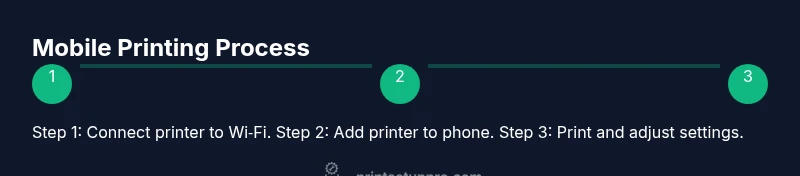
Start by powering on the printer and connecting it to your Wi‑Fi network. On your phone, ensure Wi‑Fi is on and connect to the same network. Add the printer to your phone’s print service or the manufacturer app; this usually happens automatically when the printer is detected or you can add it manually through the Settings > Printer menu. From here, select a document or photo and choose Print, then pick the new printer, set preferences (color, pages, size), and print a test page. If the printer does not appear, verify the network name (SSID), confirm the printer shows a steady connection, and ensure you’re not on a guest or isolated network. For best results, keep both the printer firmware and phone’s OS up to date.
Troubleshooting common wireless printing issues
If prints fail, start with a basic check: confirm the printer is on the same network, has sufficient ink or toner, and is not in sleep mode. If the printer does not appear on the list, restart both devices, re‑select the network, and re‑add the printer. Slow prints can indicate network congestion or large file sizes; try a smaller print job or adjust print quality. If colors look off, verify color profiles in the app and printer settings, and check ink levels. On‑going connectivity problems may require resetting the printer’s network configuration or updating firmware. Always consult the manufacturer’s app for device‑specific diagnostics and ensure your router firmware is current.
Security and privacy when printing from mobile
Printing from mobile devices can expose documents if you’re on public or shared networks. Use a private Wi‑Fi network, enable printer authentication if available, and avoid printing sensitive information over open guest networks. Regularly update firmware and app software to patch security vulnerabilities and monitor printer status remotely if the model supports it. For added protection, disable features you don’t use, such as cloud printing or remote printing, when not needed, and review printer access logs if available. Print Setup Pro recommends practicing good network hygiene to protect your data while enjoying the convenience of mobile printing.
Tools & Materials
- Smartphone (iOS or Android)(Ensure the device supports built-in printing or has the vendor app installed.)
- Wireless printer with Wi‑Fi(Check for AirPrint (iOS) or Mopria (Android) compatibility.)
- Stable Wi‑Fi network(Prefer a dedicated network for printing; ensure coverage in the printing area.)
- Printer app or native print support(Download from App Store or Google Play if not preinstalled.)
- Optional: USB cable for initial setup(Some printers require USB to configure before wireless setup.)
- Optional: Computer or tablet for network management(Helpful for router settings or firmware updates.)
Steps
Estimated time: 30-45 minutes
- 1
Verify printer compatibility
Check that the printer supports mobile printing with AirPrint (iOS) or Mopria (Android). Look for logos on the box or product page. Update the printer firmware to ensure compatibility with current mobile devices.
Tip: If in doubt, contact the manufacturer’s support to confirm Apple or Google compatibility before purchase. - 2
Connect the printer to Wi‑Fi
Power the printer and connect it to your home or office Wi‑Fi network. Enter the network password if prompted and confirm the printer shows a stable connection indicator.
Tip: If your printer can’t see your network, try a 2.4 GHz band instead of 5 GHz, or temporarily disable guest network isolation. - 3
Add the printer to your phone
On iOS, your device should detect AirPrint printers automatically. On Android, enable Mopria or the printer’s own app to add the device. Verify the printer appears in the print settings list.
Tip: Restart the phone and printer if the device does not appear after initial pairing. - 4
Print from an app
Open a document or image in a print‑capable app, choose Print, and select the newly added printer. Adjust color, page range, and quality as needed.
Tip: For photos, consider using the printer’s photo mode for best color fidelity. - 5
Test and adjust
Print a test page to confirm output looks right. If colors or margins are off, adjust the print settings or firmware. Save the preferred preset for quick future prints.
Tip: Create a shortcut or widget if your printer app supports it for faster access. - 6
Troubleshoot if needed
If the printer isn’t detected, verify network visibility, ensure sharing is enabled, and retry the add process. Check for firmware updates and consult the app’s diagnostics.
Tip: Document the exact error messages you see to speed up support calls.
People Also Ask
Can I print from both iPhone and Android to the same wireless printer?
Yes. Choose a printer that supports both AirPrint (iOS) and Mopria (Android), or use the printer’s app to enable cross‑platform printing. Adding the printer to each device’s set of available printers allows seamless printing from either platform.
Yes. Most modern wireless printers support both iPhone and Android printing, either through AirPrint, Mopria, or the manufacturer’s app.
Do I need a special app to print from Android or iPhone?
Not always. iPhone users can rely on AirPrint for direct printing, while Android users can use Mopria or the printer’s own app for additional features. Some models require the vendor app to unlock advanced options.
Usually you use AirPrint on iPhone or Mopria on Android, but some printers also offer a manufacturer app for extra features.
What if my printer doesn’t show up on my phone’s print list?
First verify both devices are on the same network and the printer is awake. Restart devices and re‑add the printer in the print settings. Check for firmware updates on the printer and OS updates on the phone.
If it doesn’t show up, reboot and re‑add the printer, then check for updates.
Is wireless printing secure on public networks?
Wireless printing on public networks can expose documents. Prefer private networks, enable printer authentication if available, and disable cloud printing if not needed.
Be cautious on public networks; use private networks and enable authentication if available.
How can I improve print speed and reliability?
Place the printer close to the router if possible, use 2.4 GHz when required, keep firmware updated, and limit other heavy network tasks during print jobs.
Move closer to the router and keep firmware up to date to improve reliability.
Watch Video
Quick Summary
- Connect both devices to the same Wi‑Fi network.
- Use AirPrint or Mopria plus the printer’s app for best results.
- Keep firmware and apps updated for reliability and security.
- Test print and customize presets to speed up future prints.