Printer to Print From Phone: A Practical Step-by-Step Guide
Learn how to print from your phone to a printer with ease. This guide covers compatibility, setup, apps, and troubleshooting for desktop-free printing from iPhone and Android.


This guide shows you how to print from your phone to a printer, using native print dialogs, compatible apps, and Wi‑Fi connections. You’ll check compatibility, connect devices on the same network, and complete prints from iPhone or Android. Expect clear, step‑by‑step instructions and troubleshooting tips for common issues, with practical examples you’ll use today.
Why mobile printing matters
In today’s connected world, the ability to print from a phone to a printer without wires saves time and enhances productivity. Whether you’re preparing a last‑minute assignment, sharing a receipt while traveling, or printing class notes, mobile printing keeps you efficient. According to Print Setup Pro, the most reliable approach starts with a compatible printer, a stable network, and using the built‑in print dialog or a vendor app. Emphasizing compatibility and a simple setup minimizes confusion and ensures consistent results for the task of printer to print from phone. In this section, you’ll see how these foundations translate into practical, everyday printing scenarios and what to verify before you begin.
Core methods for mobile printing
Mobile printing is supported through several paths. The most universal are native print dialogs on iOS (AirPrint) and Android (Print framework), which let you print documents, photos, and web pages directly from apps. Mopria, a cross‑vendor standard, also streamlines wireless printing across many printers. If your printer has a proprietary app, it may offer extended features like batch printing or cloud storage integration. Direct wireless methods, such as Wi‑Fi Direct or a printer’s own hotspot, can simplify printing when your network isn’t available. When you’re testing the path from a printer to print from phone, start with the simplest option—AirPrint or Mopria—and move to vendor apps if needed. Print quality, color management, and page size are controlled in the print dialog, so you don’t need a local driver on your phone.
How to verify compatibility with your printer
Compatibility is the key to smooth mobile printing. Check the printer’s user manual or manufacturer website for mobile printing support (AirPrint for Apple devices, Mopria for Android, or vendor apps). If your printer supports AirPrint or Mopria, you can print from Photos or a Word/PDF document directly. If not, you’ll rely on the manufacturer’s app to bridge the gap. Print Setup Pro recommends confirming firmware is up to date, ensuring the printer is discoverable on the network, and testing with a simple document before attempting more complex files. Knowing your printer’s capabilities helps you avoid run‑time surprises when you try to print from phone.
Network setup and security considerations
Most mobile printing relies on a stable Wi‑Fi connection. Ensure both your phone and printer join the same network, or use a secure guest network if needed. Avoid printing over unsecured public Wi‑Fi for sensitive documents. Update your printer firmware and phone OS to minimize compatibility issues. If you use a company or school network, check whether printing restrictions apply and whether a printer queue exists on the network. Print Setup Pro notes that keeping devices on the same network and using encrypted connections reduces the likelihood of interrupted prints or data exposure.
Common printing scenarios and quick fixes
You’ll encounter several common scenarios: printing photos from your phone, printing documents from cloud storage apps, or printing receipts and tickets from a browser. For photos, ensure the image is loaded in the Photos app and select Print from the share sheet. For documents, open the file in its app and choose Print. If the printer does not appear, re‑check network connectivity, confirm AirPrint/Mopria support, or restart the printer and phone. If colors look off, verify color mode and printer calibration; if pages jam, check paper type and tray alignment. Print Setup Pro’s practical approach is to test a trial print after any network change, then proceed to more complex tasks.
What to expect in the future of mobile printing
Mobile printing continues to evolve with better cross‑brand standards, improved firmware updates, and more seamless cloud integrations. Expect more printers to support universal print paths, faster discovery, and advanced options like secure printing and jobs management from your phone. The trend toward on‑device processing for higher efficiency will reduce reliance on PCs, making the phone the primary control point for printing workflows. Print Setup Pro anticipates broader compatibility across devices and ecosystems, with simpler setup processes that empower users to print from phone with confidence.
Tools & Materials
- Printer with mobile printing support(Check for AirPrint (iOS), Mopria (Android), or vendor app compatibility)
- Smartphone (iOS or Android)(Must be able to access print dialogs and apps)
- Active Wi‑Fi network(Both devices should be on the same network or use a direct method when available)
- Printer app (optional)(Install from App Store or Google Play if not using native print dialog)
- USB cable or bridging hardware (optional)(Leftover option if network setup is constrained)
- Credentials for cloud/enterprise printing (optional)(Needed for cloud print or enterprise queues)
Steps
Estimated time: 30-60 minutes
- 1
Check printer compatibility
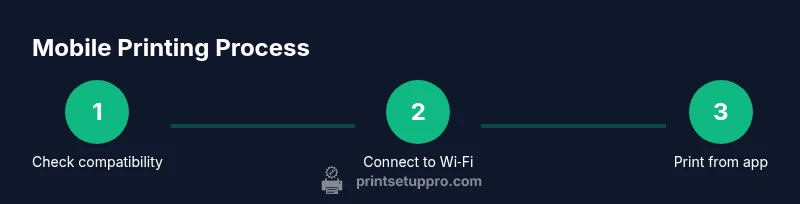
Confirm the printer supports mobile printing via AirPrint, Mopria, or a vendor app. Update firmware if available and verify the printer is discoverable on the network. This avoids wasted prints and ensures the phone can reach the printer.
Tip: Look for a dedicated mobile printing section in the printer’s menu or user manual. Time estimate: 5–10 minutes. - 2
Connect printer to Wi‑Fi
If the printer is not yet on Wi‑Fi, connect it to your home or office network using the printer’s control panel. Make sure the network name (SSID) is the same one your phone uses for best results.
Tip: If you’re using a dual‑band router, prefer 2.4 GHz for broader compatibility with older printers. Time estimate: 5–15 minutes. - 3
Prepare your phone for printing
On iPhone, ensure AirPrint is available by opening a document and choosing Print from the share sheet. On Android, access Print through the three‑dot menu or via Mopria. If the printer doesn’t appear, try reopening the app or restarting the printer.
Tip: For best results, enable the printer in the phone’s Print settings and keep apps up to date. Time estimate: 3–7 minutes. - 4
Open the file and access the print dialog
Navigate to the content you want to print (photo, document, or webpage) and select Print from the share/actions menu. Pick the correct printer and adjust options like page range, color, and copies.
Tip: Always preview the print job to confirm page layout and margins before tapping Print. Time estimate: 1–3 minutes. - 5
Choose printer and print settings
Set color or grayscale, paper size, orientation, and page range. If your printer supports two‑sided printing, enable it to save paper. Confirm the number of copies and print quality.
Tip: If a two‑page document prints oddly, try disabling two‑sided printing or updating the printer driver/app. Time estimate: 2–5 minutes. - 6
Test print and troubleshoot
Print a test page to verify results. If nothing prints, recheck network connectivity, restart devices, or try a direct Bluetooth/Wi‑Fi Direct option if available. Check for any firmware updates if issues persist.
Tip: Document the error message to speed up support if needed. Time estimate: 5–15 minutes.
People Also Ask
Can I print from a phone to any printer?
Not every printer supports mobile printing. Check AirPrint (iOS), Mopria (Android), or vendor apps. If not supported, use the printer’s app or alternative methods recommended by the manufacturer.
Most printers support mobile printing if they have AirPrint or Mopria. If not, use the manufacturer’s app for printing from your phone.
What if my printer isn’t AirPrint or Mopria capable?
Install and use the printer’s official app or a compatible printing extension. Some printers also offer cloud printing options via the manufacturer’s service.
If your printer doesn’t support AirPrint or Mopria, use the vendor’s app or cloud printing option.
Why is printing slow or failing?
Network issues, outdated firmware, or incompatible apps are common causes. Ensure both devices are on the same network, restart devices, and check for firmware updates.
Slow prints are usually network or firmware related; verify connectivity and update firmware.
Do I need a driver on my phone?
Generally no. Mobile printing uses the device’s built‑in print framework or vendor apps, which handle necessary communication.
You typically don’t install drivers on your phone; use the built‑in print dialog or the printer’s app.
Is mobile printing secure for sensitive documents?
Print over secure networks or direct connections when possible. Use printer authentication features and keep devices updated to minimize risk.
Printing over secure networks and enabling authentication helps protect sensitive documents.
Watch Video
Quick Summary
- Verify printer compatibility before starting.
- Use AirPrint or Mopria for universal support.
- Keep devices on the same network for reliability.
- Test prints to catch issues early.