Print to Printer from Android: A Step-by-Step Guide
Learn how to print from Android to a wireless or USB printer with a clear, step-by-step process. This guide covers native Android printing, Mopria, app-based methods, and troubleshooting to help home office users, students, and small teams print reliably—in 2026.


Goal: Print from Android to a printer using Wi-Fi, Bluetooth, or USB with straightforward setup. This guide covers native Android printing, popular third‑party apps, driver requirements, and common troubleshooting steps. You’ll learn how to print documents, photos, and emails from your Android device, optimize print quality, and resolve connectivity issues quickly.
How Android printing works: native Print Framework and Mopria
Android’s native printing is built on the Print Framework, allowing apps to render content as print jobs that the system sends to a PrintService. When you select Print from a supported app, Android negotiates with the chosen PrintService to discover printers, configure settings (copies, color, page size, layout), and transmit the job. Mopria Alliance compatibility helps devices discover printers across brands without extra drivers. Print jobs are queued and processed by the printer based on its capabilities and firmware. According to Print Setup Pro, modern Android devices support printing via Wi‑Fi, USB, and Bluetooth using standard protocols—making mobile printing accessible for home offices and classrooms. This section sets the stage for choosing a method that fits your workflow and equipment.
Native printing vs. third‑party printing apps: what fits your workflow?
Native printing via the Android Print Service provides a universal, low-friction experience across supported apps. In contrast, third‑party printing apps—whether vendor apps or cloud printing services—can offer advanced features like enhanced photo handling, large-format support, or direct access to printer-specific controls (duplex, color management, or borderless modes). For most daily tasks, the built‑in print dialog is safe and sufficient, as it relies on standard Android APIs and minimizes software clutter. Print Setup Pro notes that Mopria often yields broad compatibility across brands, while manufacturer apps can unlock exclusive capabilities when you need them. When choosing a path, assess your printer model, file types, and whether you require advanced features such as PDF catalogs, image optimization, or barcode printing.
Connectivity options: Wi‑Fi, Bluetooth, USB, and direct printing
Android supports multiple ways to reach a printer. Wireless printing over Wi‑Fi works well for most home networks, letting devices submit jobs without cables. Bluetooth printing is useful for nearby, paired devices and smaller printers. USB printing requires a direct connection (often via USB‑C OTG) to a compatible printer, which works well for single-device setups or desk-bound work. For best reliability, ensure both devices are on the same network (prefer 2.4 GHz for broader compatibility) and verify printer firmware is up to date. If available, enable Mopria Print Service and any official printer app to maximize discovery and control. Print Setup Pro observations show that consistent network configuration reduces print failures during day‑to‑day use.
Native print flow: what happens in the built‑in service
When you tap Print in an app, the Android Print Framework presents a print preview with options (printer, copies, color mode, page range). The system negotiates with the selected PrintService to render the content and send it to the printer. If discovery fails, Android may retry or prompt you to add the printer manually. You can monitor or cancel jobs from the notification shade until the task completes or fails. This flow keeps printing consistent across apps because most developers rely on the same Android APIs, reducing compatibility issues and providing a dependable user experience.
Step-by-step overview: Mopria and vendor apps for flexible workflows
Mopria Print Service provides cross‑brand discovery with a single control plane. To print using Mopria, open the document you want to print, choose Share or the print icon, select Mopria, pick your printer, adjust settings (paper size, color, quality), and tap Print. If you prefer a printer manufacturer’s app, install their tool, connect the printer, and use the app’s print function to access extended features (exclusive color profiles, specialty media support). This dual approach lets you leverage broad compatibility or tailor controls to a specific printer lineup.
Troubleshooting common issues: getting back on track quickly
If a printer isn’t discovered, confirm that the printer is on, connected to the same network, and that both devices have up‑to‑date software. If a print job stalls or fails, cancel the job, restart the printer and Android device, reselect the printer in the print dialog, and retry. For USB printing, ensure the cable is data‑capable and properly connected. If problems persist, update or reinstall Mopria or the printer’s official app, and verify any device‑level restrictions (battery saver, background activity limits). Regularly checking for firmware updates on the printer and software updates on the Android device minimizes recurring issues.
Best practices for reliable Android printing
To improve consistency, keep printer firmware current, use the built‑in Print Service or Mopria for wide compatibility, and place printers on a stable network whenever possible. Before printing long documents, run a quick test print to verify alignment and color. Use print preview to catch layout issues, and avoid wireless interference by minimizing other devices that compete for the same channel. Print Setup Pro suggests scheduling periodic checks of the print queue and performing routine maintenance to prevent quality degradation.
Tools & Materials
- Android device (phone or tablet)(Android 8.0+ recommended; keep OS up to date)
- Printer with Wi‑Fi or USB connectivity(Supports Mopria or a manufacturer Print Service)
- Stable network or USB cable(Both devices should have a reliable connection)
- Mopria Print Service app(Preinstalled on many devices; can be installed from Play Store if missing)
- Printer firmware and drivers(Update to the latest version from the manufacturer)
- Printer paper and basic supplies(Have appropriate stock for test and final prints)
Steps
Estimated time: 25-40 minutes
- 1
Prepare devices and network
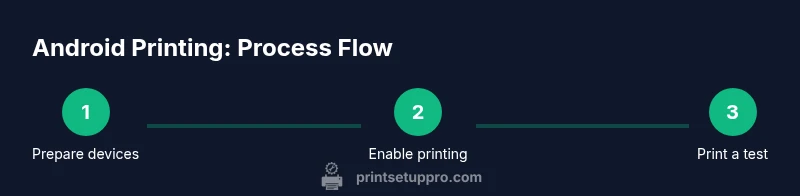
Verify that your Android device and printer are powered on and connected to the same network, or that a direct USB connection is available. Confirm the printer is online and accessible from other devices if possible. This foundation reduces discovery issues when you start printing.
Tip: Test discovery by checking if the printer shows up in the Android print dialog after a quick app print action. - 2
Enable printing on Android
Open Settings > Connected devices > Printing, then enable the Mopria Print Service or your printer’s own service. If not visible, install the Mopria app or the printer’s service from the Play Store and enable it. This step ensures Android can discover printers during print jobs.
Tip: Disable battery saver temporarily if the print service isn't appearing in the background. - 3
Add and select the printer
Go to Settings > Printing and select your active printer from the list, or add a new device if prompted. Ensure the printer status shows as online. If you’re using USB, connect the cable and choose the USB printer option when prompted.
Tip: If the printer isn’t listed, restart both devices and recheck the network settings. - 4
Print a test page
Open a document in any app, select Share or the Print option, choose your printer, and run a test print with default settings. Review the page and adjust color, margins, or copies as needed.
Tip: Start with a simple document to confirm the connection before printing complex layouts. - 5
Print photos or web content
For photos or web pages, use the share function and select Print. Choose the correct paper size and photo quality setting. If color accuracy matters, adjust the color profile in the print dialog or the printer app.
Tip: For photo prints, use higher resolution images to avoid pixelation. - 6
Troubleshoot and maintain
If issues persist, cancel the job, restart devices, and reselect the printer. Check for firmware updates and reinstall Mopria or the manufacturer app if needed. Regularly clean print heads and verify that there’s sufficient paper and ink.
Tip: Keep a short reference of your most-used printer settings for quick reprints.
People Also Ask
What printers work with Android printing?
Most printers that support Mopria or vendor Print Service will print from Android. Check your model’s specs to confirm compatibility.
Most printers support Android printing through Mopria or the manufacturer’s app. Check your model to confirm compatibility.
Do I need internet to print from Android?
Wireless printing generally uses a local network, but USB direct printing can work without internet connectivity. If you print over Wi‑Fi, devices communicate locally.
Usually you don’t need internet; printing happens over your local network or directly via USB when supported.
How do I print without Mopria?
Use your printer’s official app or built-in print service if available. Some printers offer direct printing options through their own software.
If Mopria isn’t available, try the printer’s app or the built‑in service for printing.
Why is my print job stuck in the queue?
Stuck jobs can be caused by driver mismatches, connectivity interruptions, or large file sizes. Cancel the job, restart devices, then retry with a smaller file if needed.
If a print is stuck, cancel it, restart devices, and try again with a smaller file.
Can I print photos from Android directly?
Yes. Native printing or Mopria supports photo printing. For best results, use high‑resolution images and choose appropriate print settings.
Yes, you can print photos using the standard print option with good results when you start from a high‑quality image.
Watch Video
Quick Summary
- Verify printer visibility before printing to prevent failures.
- Prefer Mopria or built-in Print Service for wide compatibility.
- Update firmware and drivers to maintain reliability.
- Use print preview to catch issues before printing.
- Leverage apps with advanced features for specific tasks when needed.