Brother HL-L3270CDW Setup and Troubleshooting Guide
Step-by-step setup and troubleshooting guide for the Brother HL-L3270CDW. Learn wireless setup, driver installation, print quality checks, and common issues with expert tips from Print Setup Pro.


Learn how to set up and troubleshoot the Brother HL-L3270CDW, including wireless connection, driver installation, print quality checks, and common jams. You’ll need power, network access, a computer or mobile device, and fresh consumables. Print Setup Pro recommends updating firmware before starting.
What makes the Brother HL-L3270CDW a strong choice for small offices
According to Print Setup Pro, the brother hl l3270cdw is a compact color laser printer that balances speed, cost per page, and ease of setup for home offices. This model combines reliable color printing with wireless networking, duplex printing, and a helpful array of status indicators designed to minimize downtime. For students, freelancers, or small teams, the HL-L3270CDW offers a predictable workflow and simple maintenance. The printer is designed to work with modern operating systems and supports both wired and wireless connections, which is essential when your workspace has multiple devices. The name sometimes appears in documentation as HL-L3270CDW, and many users appreciate its straightforward page handling and reliable first-page-out speed. In this guide, we’ll break down practical steps to get up and running quickly, along with troubleshooting tips if the device seems to stall or print with unexpected colors. The goal is a dependable setup that keeps your documents crisp and your productivity steady.
Wireless setup basics and network requirements
Wireless setup for the Brother HL-L3270CDW is straightforward but benefits from planning. Ensure your router broadcasts a stable signal, ideally 2.4 GHz for compatibility with older devices. You’ll need access to the printer’s control panel or the web interface to select your network, enter the password, and confirm the connection. If you’re in a shared office, assign a dedicated SSID for the printer to minimize interference. Print Setup Pro advises testing the network connection with a quick print job after pairing, and keeping the printer within reasonable range of the router to maintain consistent speeds.
Driver installation and printer addition across Windows and macOS
Driver installations are the bridge between your computer and the HL-L3270CDW. On Windows, download the latest Brother drivers, run the installer, and choose the network printer during setup. On macOS, install the AirPrint driver if available, or the Brother driver for full feature support. After installation, add the printer in your system settings, selecting the correct port and driver. If the printer isn’t listed, reboot the computer and retry the discovery. Print Setup Pro notes that keeping drivers up to date avoids common compatibility issues and unlocks features like duplex printing and color calibration.
Print quality basics and color calibration
Color accuracy and text sharpness depend on several factors: toner quality, paper type, and printer calibration. Start with plain white office paper and standard text mode for sharp black text. If you notice color cast, run a color calibration from the printer menu and align the color cartridges as instructed. For photos or graphics, select the appropriate color setting or photo mode. Regular cleaning of the toner cartridges and maintenance of the fuser area can help prevent faint prints and banding over time.
Paper handling, jams, and routine maintenance
The HL-L3270CDW handles a variety of media sizes, but paper jams are more likely if you use odd sizes or incompatible paper. Always fan the paper before loading, use the correct tray, and avoid overfilling. When a jam occurs, follow the printer’s on-screen prompts and remove the jammed paper slowly to prevent tearing. Routine maintenance includes cleaning the pick rollers, checking the paper path, and replacing worn media guides. Keeping spare toner and paper in a clean, dry location helps prevent performance issues.
Advanced features that boost productivity
Duplex printing doubles your efficiency by printing on both sides. Enable two-sided printing as a default in printer settings to save paper. The HL-L3270CDW also supports mobile printing via Mopria and AirPrint, making it easy to print from phones or tablets without installing drivers. Use the printer’s quiet mode during late work hours and consider setting up a shared print queue if you have multiple users. These features reduce workload and waste, especially for home offices with frequent multi-page documents.
Firmware updates, security, and reliability
Firmware updates can improve reliability, security, and compatibility with new operating system updates. Check for updates from the Brother support site or via the printer’s menu. Enable automatic updates if you prefer hands-off maintenance, but review release notes to understand what changes are included. For security, set a strong admin password and disable unused services to minimize exposure on shared networks. Print Setup Pro emphasizes updating firmware as a foundational maintenance task to reduce stubborn issues.
Common issues and fast fixes
If your printer stops responding, first verify the network connection and verify the printer is selected as the default device. A common issue is print jobs getting stuck in the queue; clearing the queue and restarting the spooler or print service often resolves it. For printing problems like streaks or color shifts, check toner levels and perform a simple cleaning cycle. If you encounter persistent errors, perform a factory reset as a last resort and reconfigure from scratch using fresh drivers. This approach minimizes downtime while preserving workflow continuity.
Consumables, warranties, and when to replace parts
Toner cartridges and drums determine print quality more than any other component. Keep spare toner on hand and monitor page yields from cartridge packaging. The HL-L3270CDW uses color toner cartridges; replace when color or black text appears faint. If you notice repeated misfeeds or mechanical noises, inspect the drum unit and transfer roller for wear. Warranties vary by region and retailer—check your purchase details for coverage and service options. Regular maintenance extends the life of the printer and keeps output consistent.
Quick-reference setup checklist
- Verify the printer is unboxed and powered on.
- Connect to Wi-Fi or Ethernet and confirm network visibility.
- Install the latest Brother drivers for your OS.
- Add the printer to your computer and print a test page.
- Enable duplex printing and adjust default settings.
- Run a calibration and firmware check.
- Enable automatic firmware updates if available and secure the device.
- Keep consumables and manuals stored safely for future reference.
Tools & Materials
- Power cable(Ensure compatibility with your region's voltage.)
- Stable Wi‑Fi network(2.4 GHz recommended; 5 GHz may work with some routers.)
- Computer or mobile device(For browser-based setup or driver installation.)
- USB cable (optional)(Use if your device requires direct USB for initial setup.)
- Color toner cartridges(Keep spare cartridges on hand for uninterrupted printing.)
- Ethernet cable (optional)(Wired setup is more stable in busy networks.)
Steps
Estimated time: 60-90 minutes
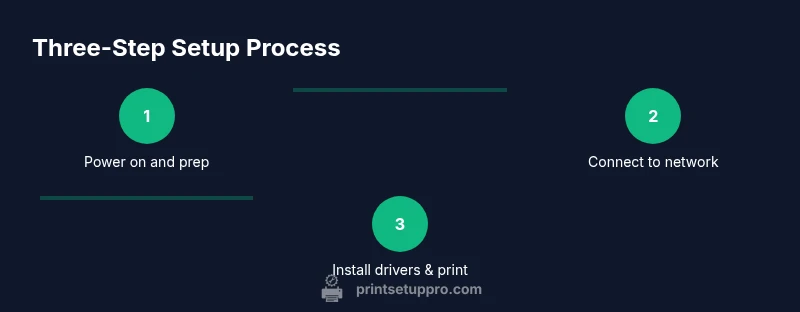
- 1
Power on and prep
Power on the printer, remove packaging, and verify basic functionality. Confirm the display lights up and that the printer emits normal sounds without alarming beeps.
Tip: Take a quick photo of the label with the printer’s IP for later use. - 2
Connect to power and network
Plug in the printer and connect to your chosen network (Wi‑Fi or Ethernet). If using Wi‑Fi, ensure the SSID is visible and the signal is strong.
Tip: Prefer a 2.4 GHz network for wider compatibility. - 3
Run initial setup and firmware check
Access the printer’s control panel or web interface to run the setup wizard and check for a firmware update.
Tip: Update firmware to the latest version before driver installation. - 4
Install drivers on PC/Mac
Download and install the official Brother drivers for Windows or macOS from the Brother website. Follow the on-screen prompts to complete installation.
Tip: Restart after driver installation if prompted. - 5
Add the printer to your OS
In Windows or macOS, add the printer from Settings/Printers or System Preferences. Select the Brother HL-L3270CDW and choose the correct driver.
Tip: Print a test page to confirm successful setup. - 6
Print a test page and calibrate
Print a test page and perform a simple color and alignment calibration if available. Check for banding or color shifts.
Tip: Run the color calibration if you notice consistent issues. - 7
Enable duplex and adjust defaults
In printer preferences, enable duplex printing and set two-sided as default if desired for duplex efficiency.
Tip: If you print complex documents, set the default paper type to match your media. - 8
Firmware update and security setup
Re-check firmware and configure basic security features (passwords, access controls) if available.
Tip: Enable automatic updates if the option is present.
People Also Ask
Is the Brother HL-L3270CDW compatible with Windows and macOS?
Yes. The HL-L3270CDW supports modern Windows and macOS versions with downloadable drivers. Install the recommended driver from Brother's site and follow the on-screen prompts. Print Setup Pro notes that keeping drivers current improves reliability.
Yes, it supports Windows and macOS with current drivers. Install from Brother's site.
Why is print blurry on the HL-L3270CDW?
Common causes include miscalibrated color settings, toner distribution issues, or a dirty scanning area in the printer. Run a calibration and try a fresh set of toner if needed.
Blurry prints can be from calibration or toner; try calibration and new toner if needed.
How do I connect the HL-L3270CDW to Wi-Fi?
Use the printer's control panel to select wireless setup, choose your network, and enter the password. Alternatively, run the setup wizard from the Brother software on your computer.
Use the control panel wireless setup or the Brother software wizard.
What if the driver is unavailable error?
Ensure you downloaded the correct driver for your OS from Brother's site. If the problem persists, try adding the printer via the generic PCL/PS driver and run Windows/macOS updates.
Download the correct driver; if needed, use a generic driver while updating.
Can I print from a mobile device?
Yes. The HL-L3270CDW supports mobile printing via Mopria, Apple AirPrint, and Brother's app. Ensure the printer is on the same network as your device.
Yes, via Mopria, AirPrint, and Brother app.
How often should I replace toner and what yields should I expect?
Toner replacement depends on usage; refer to page yield estimates in the cartridge packaging. Running low on toner can affect print quality; replace before the toner is completely depleted.
Replace toner when yields are low or print quality suffers.
Watch Video
Quick Summary
- Connect to network before driver install
- Update firmware before driver installation
- Print a test page to verify setup
- Enable duplex printing to save paper
- Maintain a regular maintenance schedule