Brother MFC-L5900DW Setup and Troubleshooting Guide
Learn how to set up and troubleshoot the Brother MFC-L5900DW all-in-one printer with this step-by-step guide. Covers network setup, driver installation, and common connectivity fixes for home offices and small workplaces.


With this guide you will set up and troubleshoot the Brother MFC-L5900DW all-in-one printer, covering network setup, driver installation, and common connectivity fixes. You’ll need a computer, access to the printer’s control panel, and a stable network (Wi-Fi or Ethernet). This step-by-step approach also helps you avoid common pitfalls and reduces downtime.
Introduction to the Brother MFC-L5900DW and what you’ll accomplish
The Brother MFC-L5900DW is a versatile monochrome all-in-one designed for small offices and busy home workspaces. It combines printing, scanning, copying, and fax functionality in a compact, network-ready package. In this guide, Print Setup Pro walks you through the complete setup and troubleshooting workflow, focusing on reliability, ease of use, and long-term maintenance. By following these steps, you’ll reduce setup friction, minimize downtime, and unlock features like wireless printing, mobile print support, and secure network access. Whether you’re upgrading from an older model or starting fresh, this guide keeps the process approachable and precise for you and your team.
Preparing your workspace and unboxing checklist
Before you touch a screw or cable, choose a stable, well-ventilated area with at least 4 inches of clearance around the printer for heat dissipation and paper handling. Unbox the printer carefully, remove all protective film, and verify that all standard contents are present (printer, power cord, user manuals, starter ink or toner, and setup CD if provided). Record the model serial number and keep the packaging until you’ve completed a successful setup. This initial preparation helps avert missing parts and makes later steps smoother, as Print Setup Pro consistently notes in its 2026 analysis.
Connecting the printer to your network (Wi‑Fi or Ethernet)
Network connectivity is the backbone of a reliable Brother MFC-L5900DW workflow. If you’re using Wi‑Fi, access the printer’s control panel and navigate to the Network or Wireless Settings menu to run the Wireless Setup Wizard. For a wired Ethernet connection, plug the Ethernet cable into both the printer and your router or switch, then select Network via Cable as the connection method. After selecting a method, print a Network Configuration Report to confirm the printer has obtained an IP address and is reachable on the network. This step is essential for smooth driver installation and mobile printing later on.
Installing or updating drivers on Windows and macOS
Visit Brother’s official support site to download the recommended drivers for the MFC-L5900DW. Choose the correct operating system and the connection type (USB, Ethernet, or Wireless). Run the installer and follow on-screen prompts to complete driver installation, then add the printer through System Preferences (macOS) or Devices and Printers (Windows). After installation, print a test page from your computer to verify the driver is communicating with the device. Keeping drivers current improves compatibility with software updates and reduces connectivity issues.
Configuring scan, copy, and fax features for everyday use
With the drivers installed, configure scanning destinations (PC folders, email, or network shares) from the software utility or the printer’s control panel. Create a default scan profile to streamline daily tasks, and enable scan-to-email or scan-to-folder if your workflow requires it. If you have a fax line, configure your fax settings and speed dial numbers. These configurations empower fast, repeatable workflows for documents, receipts, and forms.
Common connectivity issues and fixes you should know
If the printer appears offline, first verify the network connection and IP address on the printer’s display, then re-add the device on your computer. For intermittent print failures, check the queue, ensure the correct printer is selected, and update the firmware if available. If scanning fails, confirm the destination path is accessible and that the TWAIN/ICA drivers are properly installed. Regularly rebooting the router and printer can resolve many transient network issues.
Print quality, media handling, and load recommendations
Use the printer’s recommended paper types and sizes for best results. For everyday documents, standard 20–24 lb laser paper yields crisp text and consistent feeding. Avoid glossy photo media in a monochrome printer, which can cause smearing or smudges. Regularly check the paper tray alignment and re-fan stacks of paper to prevent paper jams. The MFC-L5900DW supports adjustable fuser and tray settings to optimize output depending on media type.
Maintenance, firmware updates, and best practices for long-term reliability
Schedule periodic maintenance: clean the glass scanner, wipe the exterior, and inspect the paper path for debris. Check for firmware updates from Brother’s site and apply them when available to improve performance and fix known issues. Develop a routine for replacing the toner cartridge with the recommended yield and check for firmware compatibility before major software upgrades. Building a simple maintenance calendar helps you stay on top of the printer’s health.
Security, backups, and optimizing your setup for teams
Protect network access with strong Wi‑Fi passwords and enable any built-in security features such as secure print or user authentication if available. Regularly back up printer settings and keep a record of configured destinations and scanning profiles. For shared environments, set user permissions that balance convenience with security. These practices reduce the risk of data exposure and ensure a smoother experience for everyone using the Brother MFC-L5900DW.
Quick-start troubleshooting checklist
If you’re short on time, use this rapid-start checklist: verify power and network connections, confirm the exact printer name in your OS, install the latest official drivers, run a test print, and test scanning to a local folder. If issues persist, consult the network report page on the printer and check for firmware updates. Keeping a simple, repeatable routine makes ongoing maintenance fast and predictable.
Tools & Materials
- PC or Mac computer(For driver installation and print/test tasks)
- Brother MFC-L5900DW printer(Unbox, place, and power on)
- Ethernet cable or stable Wi‑Fi network(Network connectivity is essential)
- USB cable (optional)(Use for direct USB connection if needed)
- Printed manuals or setup guide(Reference for model-specific steps)
- Smartphone or tablet (for mobile printing tests)(Verify AirPrint or vendor app support)
Steps
Estimated time: 60-90 minutes
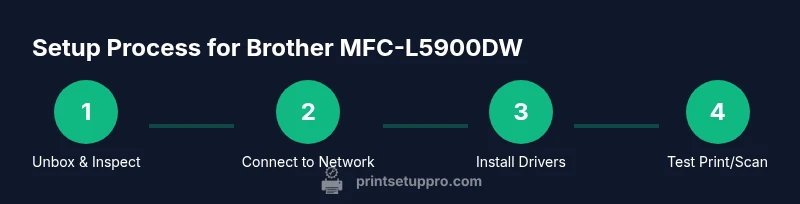
- 1
Unbox and inspect
Carefully remove the printer and all accessories from the box. Check the contents against the packing list and note any missing parts before proceeding. This prevents delays caused by missing components.
Tip: Keep the box and packing materials until you’ve confirmed the setup works. - 2
Place and prepare the printer
Choose a stable, level surface with adequate space for paper trays and access to the control panel. Remove protective films and install starter toner if applicable. Power on and wait for the welcome screen.
Tip: Avoid placing on carpet or unstable shelves to prevent jams. - 3
Reset network settings
If you’re reusing a network, reset the printer’s network settings from the control panel to ensure a clean slate. This reduces conflicted IP addresses and helps subsequent setup go smoothly.
Tip: Having the printer and router nearby minimizes connection aggravation. - 4
Connect to network (Wi‑Fi or Ethernet)
For Wi‑Fi, run the Wireless Setup Wizard from the printer’s network menu and select your network. For Ethernet, plug in the cable and confirm the printer reports an IP via the network report page.
Tip: Print a Network Configuration Page to verify IP address allocation. - 5
Install drivers on your computer
Download the official drivers from Brother’s site for your OS and connection type. Run the installer and follow prompts to complete installation.
Tip: Choose network or USB as the connection to ensure accurate printer discovery. - 6
Add the printer to your devices
In Windows, open Devices and Printers; in macOS, go to System Preferences > Printers & Scanners and add the MFC-L5900DW. Set as default if needed.
Tip: Restart the computer if the printer doesn’t appear after installation. - 7
Test print and scan
Print a basic page and perform a scan to a local folder to confirm both paths work. If scanning fails, verify scanning destinations and driver TWAIN/ICA settings.
Tip: Use a simple text document to test clarity before moving to complex files. - 8
Configure scanning and fax features
Set up default scan destinations, email or network folders, and save typical scan profiles. If you need fax, configure basic fax settings and speed dial.
Tip: Create a standard 2–3 destination profile for faster daily use. - 9
Perform maintenance and updates
Clean the glass and rollers, check for firmware updates on Brother’s site, and enable auto-update if available. Document any changes for future reference.
Tip: Schedule firmware checks monthly to avoid compatibility issues with new software.
People Also Ask
How do I connect the Brother MFC-L5900DW to Wi-Fi?
Use the printer’s control panel to access Wireless Settings and run the Wireless Setup Wizard. Select your network and enter the password if prompted. After connection, print a network configuration page to confirm the device is reachable.
To connect to Wi‑Fi, run the Wireless Setup Wizard on the printer, choose your network, and enter the password. Print a network page to verify connectivity.
Why is my Brother MFC-L5900DW showing offline?
Offline status usually means the printer can’t reach the network or wasn’t added correctly to your computer. Verify the printer’s IP address, re-add the printer to your OS, and ensure the network is stable.
The printer is offline because it can’t reach the network. Check the IP address, re-add the printer, and confirm your network is stable.
How do I update drivers for Windows and macOS?
Go to Brother’s official support site, download the latest drivers for your OS, and follow the installation prompts. After updating, print a test page to ensure proper communication.
Download the latest drivers from Brother's site and install them. Test print to confirm the update worked.
Can I scan to email or a network folder?
Yes. Configure scan destinations in the Brother software and on the printer. You can either set up scanning to email or to network folders, depending on your network setup and permissions.
You can configure scan destinations for email or network folders in the software and printer settings.
What routine maintenance does the MFC-L5900DW require?
Regularly clean the scan glass, remove paper dust from the tray and path, and check for firmware updates. Replacing toner or consumables according to the yield specification helps maintain print quality.
Clean the glass and paper path, update firmware as needed, and replace consumables per the yield specs.
What should I do if the printer won’t print after setup?
First, verify the printer is selected in the print dialog. Check the queue for stuck jobs, validate the network connection, and ensure drivers are current. If issues persist, reboot the printer and test again.
If it won’t print, check the selected printer, clear stuck jobs, verify the network, update drivers, and reboot if needed.
Watch Video
Quick Summary
- Prepare a stable workspace and verify all parts before starting
- Use official drivers and document network details for reliable setup
- Test print and scan early to catch issues
- Keep firmware up to date and schedule routine maintenance
- Secure printer access and document key settings for teams