How to Get WiFi From Your Printer: A Practical Guide
Learn how to connect a printer to Wi‑Fi or Wi‑Fi Direct, enable wireless printing across devices, and optimize for security and reliability in 2026 with Print Setup Pro guidance.


Yes. Most modern printers can connect to your home Wi‑Fi or use Wi‑Fi Direct to print from phones, tablets, and laptops without cables. You’ll need a wireless‑capable printer, a working network, and access to the printer’s setup wizard. The Print Setup Pro team recommends starting there and verifying device visibility on each computer or mobile device.
Understanding Wireless Printing: What It Is and Why It Matters
Wireless printing lets you print from devices without a USB cable by using Wi‑Fi networks or direct wireless links. The question can you get wifi from printer is common: most modern printers either join your home network or create a direct link to mobile devices. In this overview we define key terms, explain how it works, and why it matters for home offices, students, and small businesses. Print Setup Pro notes that wireless printing reduces clutter and makes shared access easier, especially when devices proliferate. You’ll typically encounter three options: connect the printer to your Wi‑Fi network so any device on that network can print; use Wi‑Fi Direct for device‑to‑printer communication without a router; or enable printing via a wired router to a network hub. For many users, the simplest path is to start with the printer’s wireless setup wizard and then confirm device visibility from each computer or phone.
Common Wireless Options: Wi‑Fi, Wi‑Fi Direct, and Network Printing
When you ask can you get wifi from printer, you are really choosing among several wireless modes. Wi‑Fi networking connects the printer to your router, so any device on that network can send jobs to the printer. Wi‑Fi Direct creates a direct peer‑to‑peer connection between printer and device without a router, which is handy for guest devices or temporary printing. Network printing is broader and often requires driver installation, but it enables shared queues and cloud printing options. Modern printers often support both Wi‑Fi and Wi‑Fi Direct, and some offer cloud print integrations. Print Setup Pro analysis shows that most consumer and small‑office printers include at least one wireless option, making wireless printing accessible to home offices and dorm rooms.
Step-by-Step Overview: Connecting to a Wireless Network
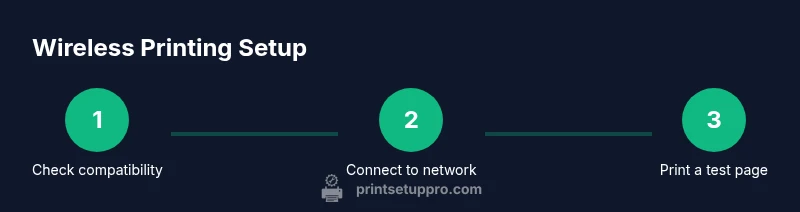
To connect, identify whether you will join an existing network or use direct printing. Start with the printer’s wireless setup wizard, then choose the network name from the list and enter the password. If you’re using Wi‑Fi Direct, enable direct printing and pair the device with the printer. After connecting, install any required drivers on your computer or mobile device and perform a test print to confirm that the device can see the printer. On Mac and Windows, add the printer via the system settings and select the correct port or driver. Finally, check for firmware updates to keep security and performance current.
Troubleshooting Common Connectivity Issues
If the printer shows offline or cannot be found, verify that the printer and the device are on the same network and that your router is broadcasting the 2.4 GHz band if required by the printer. Reboot the printer, router, and the host device if needed. Ensure the correct wireless method is selected (Wi‑Fi or Direct) and re‑enter credentials if mistakes occurred. Outdated drivers or firmware can block printing, so update those from the manufacturer’s site. If you still have trouble, consult the printer's onboard status page or the companion app for hints about the IP address and connection status.
Security, Privacy, and Maintenance for Wireless Printing
Wireless printing introduces new attack surfaces, so secure your setup. Use a strong Wi‑Fi password, enable WPA2/3, and keep the printer firmware up to date. Disable WPS if possible, as it can be vulnerable on some routers. Create a dedicated guest network for visitors and keep the primary network separate from sensitive devices. Regularly review connected devices on the printer’s web interface and remove old or unused devices.
Printing From Mobile Devices and OS Support
Most phones and tablets can print wirelessly via native features or manufacturer apps. iOS devices benefit from AirPrint support; Android devices commonly use Mopria Print Service or manufacturer apps; Windows and Mac users can add the printer through their operating systems. If you rely on cloud printing, confirm that the printer supports your chosen cloud service or app. Print Setup Pro suggests testing from multiple devices—iPhone, Android tablet, Windows laptop, and a Mac—to ensure universal compatibility.
What to Buy: Choosing the Right Wireless Printer for Your Needs
When selecting a wireless printer, consider device ecosystems (iPhone, Windows, Mac), supported protocols (AirPrint, Mopria), and network capabilities (2.4 GHz and 5 GHz bands, Ethernet). Look for robust mobile printing options, secure firmware update processes, and reliable maintenance support. If you share with a classroom or small office, check for guest network options and easy driver deployment for multiple users. Print Setup Pro recommends prioritizing a model with strong security features and regular firmware updates.
Tools & Materials
- Wireless-capable printer(Ensure Wi‑Fi or Wi‑Fi Direct is supported)
- Wi‑Fi router or access point(2.4 GHz is widely supported; 5 GHz is common in newer devices)
- Printer manual or setup guide(Bookmark the wireless setup section)
- Smartphone, tablet, or computer(For initial setup and testing)
- Optional: Ethernet cable for initial setup(Some printers require a wired connection to configure initial network)
Steps
Estimated time: 20-40 minutes
- 1
Verify printer supports wireless printing
Check the printer’s spec sheet or manual to confirm Wi‑Fi or Wi‑Fi Direct capabilities. If the printer can connect to a network, you are ready to proceed with setup.
Tip: If in doubt, contact support or check the product page for wireless indicators. - 2
Choose your connection method
Decide whether to join an existing home or office network or to use direct printing via Wi‑Fi Direct. Direct printing can be useful when a router isn’t available.
Tip: Direct mode is handy for quick ad hoc prints from a phone. - 3
Gather network credentials
Have your Wi‑Fi network name (SSID) and password handy. These will be entered during the setup wizard on the printer or via the printer’s web interface.
Tip: If your network uses a guest SSID, prefer the main secure network for better compatibility. - 4
Run the printer’s wireless setup
Access the printer’s control panel or web interface and start the wireless setup. Choose the network and enter credentials, then confirm the connection.
Tip: Use the WPS option only if you trust the router and the setup is in a secure environment. - 5
Add the printer to devices
On each device, add the printer through the OS print settings or the vendor app. Install relevant drivers if prompted.
Tip: For Mac users, ensure the correct AirPrint/Mopria support is selected. - 6
Test print and confirm status
Print a test page from a laptop and from a mobile device. Check the printer’s status indicators and ensure the job prints correctly.
Tip: If the test fails, recheck the password or try reconnecting to the network. - 7
Enable mobile printing features
Activate features like AirPrint, Mopria, or vendor‑specific mobile printing in the printer app or OS settings.
Tip: Keep the apps updated for best compatibility. - 8
Update firmware and secure your setup
Update the printer’s firmware to the latest version and review security settings. Consider isolating guest devices on a separate network.
Tip: Set up automatic firmware updates if available.
People Also Ask
Can all printers connect to Wi‑Fi?
Most modern printers support Wi‑Fi or Wi‑Fi Direct, but always check the model’s specs.
Most printers today offer wireless options; confirm your model supports Wi‑Fi or Direct printing.
What is Wi‑Fi Direct?
Wi‑Fi Direct lets devices talk directly to the printer without a router, ideal for quick ad hoc printing.
Wi‑Fi Direct enables direct printing without a network.
Do I need a router to print wirelessly?
Not always. Wi‑Fi Direct works without a router, but a router often makes printing across multiple devices easier.
You can print without a router using Direct mode, but a router helps with multiple devices.
Why can't I print from my phone?
Ensure both phone and printer are on the same network or connected via the appropriate app, and that the printer is added in the OS.
Make sure your phone and printer share the network and that the correct app is installed.
Is wireless printing secure?
Yes, when you use a secure network and keep firmware updated. Avoid weak passwords and disable unnecessary features.
Use a strong password and keep firmware updated for security.
How do I know if the printer is connected?
Check the printer’s display or run a network configuration page from the printer or app to confirm IP address and status.
Look for the connected status on the printer or in the app.
Watch Video
Quick Summary
- Connect the printer to a Wi‑Fi network for universal access
- Know the difference between Wi‑Fi and Wi‑Fi Direct
- Test print across devices to verify visibility
- Keep firmware updated for security and performance
- Use secure networks and enable device controls