Can You Print at the Post Office? A Step-by-Step Guide
Discover how to print at the post office, what you can print, what to bring, a clear step-by-step process, tips, and alternatives. A practical Print Setup Pro guide for home offices, students, and small businesses.


Can you print at the post office? Yes—many post offices offer printing services for shipping labels, documents, and photos. Availability varies by location, so call ahead to confirm. Bring your file in an accessible format (USB drive, email attachment, or cloud link) and be prepared for per-page or service fees. Some locations provide self-service kiosks, while others require counter assistance. Printing at the post office is a handy solution for last‑minute needs or when your printer is down.
What you can print at the post office
If you ask can you print at the post office, the answer is yes in many cases, especially for shipping-related needs. Many post offices offer printing services for mailing labels, customs forms, and basic documents, while some provide photo prints or scanned copies. Availability and hours shift by location, so call ahead or check the local post office page to confirm what's offered. In urban areas, you may find self-service kiosks that print labels from your device, or you can rely on counter staff to assist. Printing at the post office is a handy solution for last-minute shipments, travel plans, or when your printer is down, but plan for possible per-page fees or service charges.
Before you go: confirm services and costs
Before you visit, verify what services are available at your chosen post office. Some offices restrict self-service printing to certain file types or only offer it at the counter. Costs can vary widely based on location and service level, so ask for the price before you print. If you have a time window, check peak hours to avoid delays. Ensure you have a backup plan in case printing isn't possible on-site; Print Setup Pro recommends having a digital backup and knowing nearby alternatives. Having clarity on service availability helps you avoid a wasted trip, especially when you need a time-sensitive document printed.
What to bring and how to prepare files
Prepare by bringing the actual file you want printed, delivered in a widely compatible format such as PDF, JPEG, or PNG. If you plan to print from a USB drive, ensure the drive is clean, formatted, and clearly labeled. If you don’t have a USB, you can often email the file to the office or use a cloud link on a mobile device. Name your files clearly, including the date and purpose (e.g., Contract_2026-02-06). For sensitive documents, consider printing a test page first to ensure readability and correct margins. Also bring a government-issued photo ID if required by the office for certain types of prints.
Printing a shipping label at the post office
Printing a shipping label is one of the most common tasks. Start at the service desk or at a self-service kiosk if available. Enter or scan your shipment details (destination, weight, and service level), select the label size, and print a test page if possible. Make sure the barcode is crisp and fully legible; misprints can cause delivery delays. After printing, attach the label to your package, pay any applicable fees, and keep the receipt for tracking. If you encounter issues, ask staff for help promptly. This process is designed to be straightforward, but the exact steps can vary by office, so follow the on-site prompts.
Printing other documents and photos at the post office
Beyond shipping labels, some post offices offer printing of documents and photos, especially in busier urban locations. Color prints typically cost more than black-and-white, and larger sizes may require the counter rather than self-service. Prepare your files beforehand to minimize wait times, and verify paper stock and print quality before leaving. If privacy matters are important, consider printing documents in a private room or using a trusted print shop alternative. Also be mindful of file compatibility and security when using public printers.
Security, privacy, and data considerations
Public printing can raise privacy concerns, especially for sensitive documents. Before printing, remove any personal information that you do not want shared with others. If possible, delete files from the printer's memory and log out of cloud services after use. Use guest access only if required and avoid printing highly confidential material. If the post office offers a secure printing mode or password-protected queues, enable those features.
Troubleshooting common issues
If your file won’t print, check that the file format is supported, the printer has enough ink or toner, and you’ve selected the correct paper size. For blurry or faint prints, adjust brightness/contrast or ask staff for a test page. If the label or document prints with cut margins, reformat and resubmit. If you encounter timing issues, consider printing at a different post office or using a nearby library or print shop as a backup.
Alternatives if printing isn't available
If on-site printing isn’t available or convenient, consider alternatives: use a local library or university print center, stationary retailers with self-serve printers, or online print services that deliver to your door. You can also print at home or on the go using a mobile printing app with a cloud-based file. For shipments, many e-commerce platforms let you print labels from a browser and email the label to your device for printing elsewhere.
Practical next steps and tips
Can you print at the post office? Yes, with some planning. Create a quick checklist: confirm service availability, prepare your files, bring the right ID and payment method, and arrive a bit early. Print Setup Pro recommends saving a backup copy of your file, bringing it on USB, and having a digital copy on your phone. If you must print in a hurry, explain your needs politely to staff, and ask for the fastest option. Finally, after you print, double-check that the print looks correct and store the copies securely.
Tools & Materials
- USB drive(Bring your file(s) in PDF or other compatible format; label clearly)
- Printed file on email/cloud(Alternative delivery method if USB is unavailable)
- Government-issued photo ID(May be required for certain services)
- Payment method(Bring card or cash for any per-page or service fees)
- Phone or device access(For mobile cloud links or emailing documents on-site)
Steps
Estimated time: 30-60 minutes
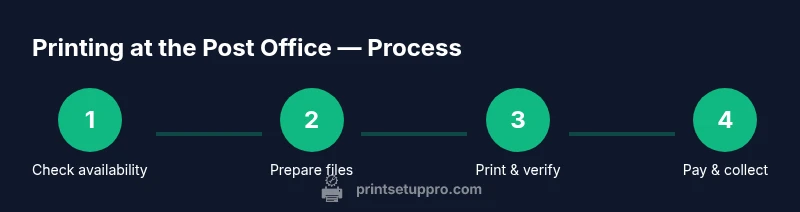
- 1
Check availability and prepare files
Call ahead or review the local post office page to confirm printing services and accepted file types. Gather your files, save as PDF or other widely supported formats, and rename with a clear, concise title.
Tip: Having a backup file in another format can save time if one format isn’t supported. - 2
Pack essential items
Assemble your USB drive, ID, and payment method. If you don’t use USB, ensure you can access the file via email or cloud link on a mobile device.
Tip: Keep the USB drive in a labeled bag to prevent loss. - 3
Go to the post office
Visit during non-peak hours if possible to reduce wait time, and bring your files ready to print to speed the process.
Tip: If you’re running late, call ahead to check if staff can reserve a printer for you. - 4
Access the printing service
Use the self-service kiosk or approach the counter. Select the file, confirm settings (color vs b/w, pages, size), and print a test page if available.
Tip: Double-check the file before printing to prevent waste. - 5
Print and inspect output
Review print quality, margins, and legibility. If something’s off, print a correction and reprint before paying.
Tip: If you see smudges or miscuts, ask for a fresh print before leaving. - 6
Pay and collect
Approve the final print, pay any fees, and collect your outputs. Obtain a receipt for tracking if shipping labels were printed.
Tip: Keep receipts until the shipment is delivered. - 7
Store or share prints
Safely store printed copies or scan them back to cloud storage for future access. Share the prints as needed with teammates or clients.
Tip: Consider digitizing printed documents for redundancy.
People Also Ask
Do all post offices offer printing services?
No—printing services vary by location and time of day. Some offices offer basic printing at the counter or via self-service kiosks, while others may not provide printing at all. Always check with your local post office before visiting.
Printing services vary by location, so check with your local post office before you go.
What file formats are accepted for printing?
Most post offices accept common formats such as PDF, JPG, and PNG. PDF is generally the most reliable for preserving layout and fonts across devices.
Common formats like PDF, JPG, and PNG are usually accepted; PDFs are typically best for layout.
Are there fees for printing at the post office?
Fees vary by location and service type and may apply per page or per print. Ask staff for the exact price before printing to avoid surprises.
Fees differ by location and service; confirm the price before printing.
Can I print photos at the post office?
Some busy locations offer photo printing with standard photo paper. Availability and color quality can vary, so confirm with staff before proceeding.
Some offices offer photo printing; check availability and quality with staff.
What should I do if I need color printing?
Color printing is often available but more expensive. Ensure your file is optimized for color output and request the correct color settings.
Color printing is usually available but pricier; confirm color settings first.
How can I protect my privacy when printing at the post office?
Avoid printing highly sensitive material in public printers. If possible, use private spaces or secure print options and delete files from the printer after use.
Be mindful of privacy; use secure options and delete files after printing.
Watch Video
Quick Summary
- Verify service availability before visiting.
- Prepare files in common formats and label clearly.
- Inspect prints before paying and leaving.
- Consider alternatives if on-site printing is unavailable.
- Protect privacy when using public printers.