Canon Megatank: Setup and Troubleshooting Guide
A comprehensive, Print Setup Pro-guided walkthrough for installing, fueling, and troubleshooting Canon Megatank printers. Learn safe setup, driver installation, ink priming, alignment, common issues, and cost-saving ink strategies for home offices and small teams.


In this guide, you’ll learn how to set up and troubleshoot a canon megatank printer. You’ll receive a clear, step-by-step workflow covering workspace prep, driver installation, ink filling, print-head priming, alignment, and basic troubleshooting. By following these steps, you’ll achieve reliable printing with minimal downtime and lower ongoing ink costs for a home office or small business.
What is the Canon Megatank system?
The canon megatank system is a refillable inkjet design that uses large-capacity ink tanks instead of traditional cartridges. This architecture is built to reduce the cost per page and streamline ink management, making it popular with home office users, students, and small teams who print frequently. At a high level, Megatank printers use transparent tanks that you fill with Canon-authorized pigment or dye inks and a simple sealing mechanism to minimize spills during refills. For new buyers and long-time users alike, understanding the Megatank’s refill process, alignment routines, and maintenance needs is essential. As you’ll discover in this guide, Print Setup Pro’s analysis emphasizes predictable ink flow, easy priming, and routine cleaning to preserve print quality over time. The goal is practical, repeatable results you can trust, not guesswork.
A core benefit is the potential for lower running costs and fewer cartridge replacements. That said, Megatank systems require careful refilling to avoid air pockets and alignment drift. With the right procedures, you’ll see consistent color accuracy and reliable output across document types—from text-heavy reports to photo-grade prints. The following sections translate the high-level concept into actionable steps you can perform in a typical home office or small-business setting, with checks to keep quality steady.
Benefits and limitations of Canon Megatank vs traditional cartridges
Megatank printers offer notable advantages for frequent printers: lower ink cost per page, reduced cartridge replacement frequency, and easier refills once you know the process. Because the ink is held in refillable tanks, you can choose larger ink bottles and minimize waste. For owners who print in large volumes or rely on bulk color prints, Megatank can significantly reduce running costs over time. Print Setup Pro’s observations from 2026 also point to fewer interruptions from cartridge shortages and more predictable maintenance cycles when you follow manufacturer guidelines for ink types and refill procedures.
However, there are trade-offs. Refilling tanks requires careful handling to prevent spills, air bubbles, or ink flooding the paper path. In some models, initial priming and head alignment can be a bit finicky until you settle into a routine. If you’re migrating from cartridge-based systems, you’ll need to update your expectations around ink capacity, refill intervals, and color calibration. The payoff—lower costs and higher capacity—depends on consistent maintenance and using genuine Canon Megatank inks.
Preparing your workspace and safety
Before you touch the printer, set up a clean, stable workspace with a protective mat or newspaper to catch any spills. Gather the essential tools: disposable gloves, paper towels, a small container for used tips, and a clean, lint-free cloth for surfaces. Ensure the printer is placed on a level surface near a power source and your computer. If you share the area with kids or pets, consider a barrier or a closed desk to minimize accidental contact with ink. In this section, you’ll also find safety reminders about handling ink—avoid skin contact and inhalation of fumes, and dispose of used wipes in a sealed bag.
From a best-practices perspective, Print Setup Pro notes that preparing your space reduces the risk of ink on clothes or furniture and helps you stay organized during refills. A well-prepared setup reduces friction in later steps and supports consistent print quality across sessions.
Unboxing and initial setup
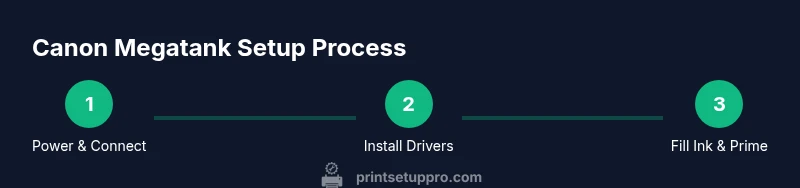
Unboxing a Canon Megatank printer should be straightforward: remove the protective packaging, verify that all included components are present (printer, power cable, user guide, and starter ink if included), and place the unit on a flat surface. Connect the power cable and turn on the device. When the printer comes up, you’ll typically be prompted to select a language and region, then connect to your computer or network. If your model supports wireless setup, a guided wizard will help you join your Wi-Fi network. If you prefer USB, connect the cable to your computer after the driver is installed. Keep the packaging materials for potential warranty documentation and future reference. A clean setup reduces the risk of misalignment and ensures accurate initial prints.
Remember to check for any firmware updates during the initial setup, as updates can improve ink-flow management and print quality. Print Setup Pro’s guidance emphasizes aligning early with the latest firmware to minimize drift later.
Installing drivers and software on Windows and macOS
Driver installation is the bridge between your computer and the Megatank printer. Start by downloading the latest Canon drivers from the official support site, ensuring you choose the exact model in your Megatank lineup. On Windows, follow the wizard prompts to install the printer driver and optional software suites such as scan utilities or cloud printing plugins. On macOS, you’ll likely be prompted to add the printer via System Preferences; you may also need to install a printer software package. After installation, print a test page to verify communication, ink status, and color accuracy. If you enable wireless printing, confirm the device appears in your printer list and that you can print from your preferred application.
From Print Setup Pro’s perspective, keeping drivers up to date helps maintain compatibility with newer ink configurations and color profiles. The 2026 analysis highlights the value of checking for firmware and driver updates before performing deeper maintenance.
Filling ink and priming the print head
Filling Megatank ink tanks is the heart of cost savings, but it must be done carefully to avoid spills or contamination. Begin by powering off the printer, then removing the ink tanks from the printer body. Prepare your ink bottles, snugly attach the filling nozzles, and slowly fill each tank to the recommended level. Cap or reseal any bottle tips to prevent drips and keep your work area clean. After filling, reinstall the tanks, ensuring they click into place. The printer will typically auto-detect each tank’s ID, but you may need to confirm the ink type in the printer’s maintenance menu.
Priming the print head is often part of the initial ink-fill routine. Run a nozzle check or print head cleaning from the maintenance menu if prompted. This helps remove air pockets and primes the system for stable ink flow. Print Setup Pro notes that minor air pockets can be normal during first fills; complete priming may require a few cycles.
Aligning and calibrating for best color accuracy
Color alignment is essential for sharp text and vibrant color prints. Use the printer’s built-in alignment utility or the driver software to perform an alignment page. If your printer has separate color cartridges or tanks, run a color calibration using a chart if your software provides one. Compare the printed alignment page to the expected color blocks and adjust brightness, contrast, and color balance as needed. If you notice persistent drift across the page, re-run the alignment and consider a deeper cleaning cycle or nozzle check.
Keep in mind that alignment settings may depend on the media type you’re using. For glossy photo paper, you might choose a different color calibration than for plain office paper. Print Setup Pro recommends performing alignment after any major ink refill to ensure consistency in future prints.
Common problems and quick fixes
Even reliable systems encounter hiccups. Common Megatank issues include air bubbles in ink lines, misaligned heads, and occasional drips during refilling. Quick fixes include performing a nozzle check, running a light printhead cleaning, and ensuring tanks are seated properly. If you see streaks or banding, try a stronger printhead cleaning followed by a test print. For wireless setups, re-check network credentials and ensure the printer has a stable connection. If the device does not appear on the network, reboot the router and printer, then reattempt the connection.
Print Setup Pro emphasizes that most problems can be prevented with routine maintenance: keep the print area clean, use genuine Canon Megatank inks, and avoid mixing ink brands in the same tank. If issues persist after several cleaning cycles, consult the user manual or contact Canon support.
Maintenance, cleaning, and ink management
Long-term Megatank success comes from ongoing maintenance. Schedule periodic nozzle checks and cleaning cycles, especially after long non-use periods. Wipe the exterior printer surfaces with a damp, lint-free cloth to minimize dust buildup that could be drawn into rolls or paper paths. For ink management, store leftover inks upright and sealed; label any bottles you refill into their tanks to avoid mixing wrong inks. Regularly inspect the seals on ink bottles and the tank caps; a loose seal can lead to leaks.
From a cost-management perspective, keep an ink-log to track refills, expected consumption, and refill intervals. This practice can reveal opportunities to adjust print settings (like draft mode for internal documents) to reduce ink usage without sacrificing readability or quality. Print Setup Pro’s 2026 recommendations stress routine checks and careful handling to preserve print quality while maximizing savings.
Cost considerations and ink-management strategies
Ink costs are a major factor in total ownership for Megatank printers. While per-page costs with Megatank inks are typically lower than cartridge systems, actual savings depend on usage patterns and ink volumes. A practical approach is to calculate an approximate per-page cost based on bottle price, bottle yield, and your monthly print volume. When possible, print in draft mode for internal documents and switch to normal mode only for finalized reports and client-facing materials. Keep an eye on waste from spilled ink and ensure you refill in a controlled environment to minimize waste.
Print Setup Pro’s guidance for 2026 emphasizes using manufacturer-recommended inks and following precise fill levels to maximize page yields. Efficient ink management also includes aligning ink usage with page types; for example, photos consume more ink than text-heavy pages, so color profiles and media choices should reflect your typical workloads. By building a simple routine—check ink levels weekly, perform a nozzle check monthly, and store ink properly—you’ll maintain cost efficiency and predictability in output.
Authoritative sources (for safety and standards)
For safety and best-practice standards related to ink handling and printer maintenance, consider consulting the following authoritative sources:
- OSHA: Printer safety and workplace practices (https://www.osha.gov)
- NIST: Measurement standards and calibration practices (https://www.nist.gov)
- EPA: Ink waste handling and environmental considerations (https://www.epa.gov)
These sources provide general safety and standards context that complements the practical, hands-on guidance provided in this Canon Megatank setup and troubleshooting guide.
Tools & Materials
- Canon Megatank printer(Main device for setup and testing)
- Power cable and a stable outlet(Ensure surge protection if possible)
- USB cable or Wi-Fi network access(Required for driver installation)
- Canon Megatank ink bottles(Use genuine Canon Megatank inks)
- Fresh paper towels and protective mat(Contain potential spills during refills)
- Latex or nitrile gloves(Prevent ink on hands during refills)
- Clean lint-free cloth(Wipe spills and surfaces)
- Scissors or utility knife(Optional for opening ink bottles if needed)
- Isopropyl alcohol (70% or lower)(For stubborn ink stains on surfaces)
Steps
Estimated time: 45-60 minutes
- 1
Power on and connect the Megatank
Place the printer near your computer or Wi‑Fi router, connect the power cord, and turn the device on. If prompted, select your language and region. Connect to your computer via USB or to your network for wireless printing. This establishes the initial communication channel essential for all following steps.
Tip: Verify the display shows ready status and no error lights before proceeding. - 2
Install the Canon drivers and software
Download the latest drivers from Canon’s official support site and run the installer. Follow the on-screen prompts to add the Megatank printer to Windows or macOS. If wireless, ensure the printer appears in your network and can be reached from your computer.
Tip: Install any recommended companion software; it helps with calibration and maintenance tasks. - 3
Open ink tanks and fill with genuine ink
Power off, remove the ink tanks, and prepare your ink bottles. Attach the fill nozzles and fill each tank to the marked level. Reinstall the tanks securely and return the printer to ready state. This is the core step for cost-control and long-term print economy.
Tip: Wipe any spills immediately with a lint-free cloth to prevent head contamination. - 4
Prime the print head and perform a nozzle check
From the printer menu, run a nozzle check. If gaps appear, perform a light printhead cleaning. Repeat until the nozzle pattern is solid. This ensures ink is flowing evenly and reduces streaks in print output.
Tip: Avoid over-cleaning; excessive cycles waste ink and may affect nozzles. - 5
Run alignment and color calibration
Print an alignment page and, if available, a color calibration sheet. Compare output to the target image and adjust brightness, contrast, and color balance as needed. If results vary by media type, choose a profile appropriate for your stock.
Tip: Record your preferred color settings for common tasks to speed future printing. - 6
Print a test page and validate results
Print a multi-page test document that includes text blocks, color blocks, and images. Review alignment, ink density, and color consistency. If issues persist, re-run nozzle checks or consult the maintenance menu for deeper diagnostics.
Tip: Use standard office paper for initial tests to reduce variability. - 7
Implement routine maintenance and storage
Set a regular maintenance schedule: nozzle checks monthly, alignments after long periods of non-use, and careful ink bottle storage. Store inks upright and sealed to maintain quality and minimize evaporation or contamination.
Tip: Label ink bottles with batch codes to track shelf life and usage. - 8
Troubleshoot common issues
If you encounter line streaks, color drift, or paper jams, follow a structured flow: check ink levels, run clean/align cycles, inspect cabling and connections, then re-test. For persistent hardware faults, escalate to Canon support with your printer’s serial and firmware version.
Tip: Keep a log of issues and resolutions to speed future troubleshooting.
People Also Ask
What is the Canon Megatank and why should I consider it for my home office?
The Canon Megatank is a refillable inkjet system designed to lower ink costs and simplify maintenance for high-volume printing. It uses large-capacity ink tanks instead of traditional cartridges. If you print frequently, Megatank can offer noticeable savings and a more straightforward refilling process when handled correctly.
Megatank is a refillable inkjet system that lowers per-page costs for frequent printing. It uses large ink tanks and is easier to refill than traditional cartridges.
How do I refill Megatank ink without making a mess?
Refilling involves opening the ink tanks and carefully pouring Canon-authorized ink into each tank until the indicated level. Use protective gloves and lay down paper towels. Always reseal bottles and wipe spills promptly to keep the workspace clean.
Refill slowly, use gloves, and keep towels ready. Wipe spills immediately to avoid staining.
Why is my printhead showing banding or color drift after a refill?
Banding or drift after refilling usually points to air pockets or inconsistent ink flow. Run a nozzle check, perform a light cleaning, and re-prime if needed. If the issue persists, re-check tank seating and seals, and consider a fresh color calibration.
Banding after refilling is often due to air pockets. Check lines, run cleaning, and re-prime as needed.
Can I use third-party inks with Canon Megatank?
Canon recommends using genuine Megatank inks to ensure optimal performance and avoid potential damage. Mixed or incompatible inks can cause clogging, color shifts, or warranty concerns.
Canon recommends sticking with genuine Megatank inks for best results and warranty support.
How do I align the print heads and calibrate colors?
Head alignment is done via the printer’s maintenance menu or driver software. Run the alignment page, compare the output to the guide, and adjust color balance as needed. Re-run if results are inconsistent across pages.
Use the printer’s maintenance tools to align heads and calibrate colors, then re-check until consistent.
What should I do if the printer won’t power on?
First, check the power connection and outlet. If there’s no response, try a different outlet and inspect the USB or network connections. If problems persist, consult the user manual or contact Canon support.
Verify power and connections; switch outlets if needed and seek support if it persists.
Watch Video
Quick Summary
- Be proactive with maintenance to prevent print quality issues.
- Use genuine ink for reliable performance and cost efficiency.
- Follow a repeatable refill and calibration routine.
- Keep a log of ink usage and alignments for consistent outputs.