Canon Pixma TR4720: Complete Setup and Troubleshooting Guide
Step-by-step instructions to set up the Canon Pixma TR4720, install ink, connect to Wi‑Fi, update drivers, and troubleshoot common printing issues. Ideal for home offices, students, and small businesses.


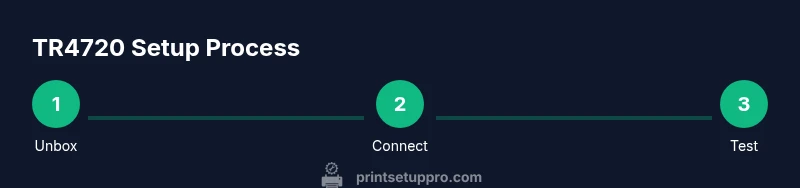
With this guide you will set up the Canon Pixma TR4720 from power on to a fully connected, working printer. You’ll learn how to install inks, load paper, connect to Wi‑Fi or a computer, and print a test page. This plan also covers common hiccups and basic maintenance to keep your TR4720 running smoothly. Follow the steps below for reliable results.
Setup overview and compatibility for the canon pixma tr4720
The canon pixma tr4720 is a compact, all-in-one printer designed for small home offices and study spaces. It supports printing, scanning, and copying with straightforward wireless setup, making it accessible for users who want a clutter-free workspace. According to Print Setup Pro, the TR4720 benefits from a clear initial setup: verify power, network readiness, and access to drivers before you start, and you’ll experience fewer configuration hiccups. This guide focuses on practical steps to get the device online, install cartridges, and confirm basic functionality across Windows, macOS, and mobile devices. You’ll also learn how to manage maintenance tasks that keep print quality high and downtime low, whether you’re printing assignments, invoices, or photos.
Unboxing and inspecting included accessories
When you first receive the canon pixma tr4720, check the box for the printer, power cord, starter ink cartridges, and the quick start guide. Inspect each item for any travel damage and ensure you have access to the setup software or Canon’s support page. If any component is missing or damaged, contact the retailer or Canon support before attempting setup. Keeping the workspace clean and dry will help prevent contamination of internal components during the initial setup.
Powering on and initial printer alignment
Plug the printer into a grounded outlet and press the power button. Allow the firmware to initialize; you may see indicator lights flash as it completes the startup sequence. The printer typically performs an initial print head alignment and a nozzle check page; this helps verify that ink channels are primed and ready for printing. Avoid turning the device off during this alignment, as interruptions can extend the setup time.
Installing ink cartridges and performing print head alignment
Open the ink cartridge access door and install the starter cartridges in their respective color slots. Do not force cartridges into place; they should click when properly seated. After installation, run the printer’s built-in alignment routine to ensure optimal print quality. If you notice misaligned lines on the alignment page, re-run the alignment from the printer’s maintenance menu.
Loading paper and configuring paper handling settings
Load a clean stack of standard letter or A4 paper and slide the paper guides to fit the stack width without binding. Use plain, uncoated paper for best results, especially when testing print quality. Check the printer settings to match the paper size and type in both the driver and the printer control panel, ensuring duplex printing is enabled only if you require double-sided output and the model supports it.
Installing drivers and software on Windows and macOS
Visit Canon’s official support site and download the latest drivers for Windows or macOS. Run the installer and follow on-screen prompts to add the printer. On Windows, you may be prompted to set the TR4720 as the default printer; on macOS, you can add the device through System Settings. If the computer cannot find the printer, try connecting via USB first, then switch to wireless once the drivers are installed.
Connecting to Wi-Fi and adding the printer to devices
From the printer’s control panel, choose the wireless setup option and select your home or office network. Enter the Wi-Fi password if prompted, then confirm the connection. Ensure devices (laptops, tablets, and phones) also connect to the same network. You can also use the Canon PRINT app to simplify mobile setup and management of print jobs from iOS or Android.
Printing a test page and performing a basic scan
Print a test page from the computer and again from the printer control panel to confirm both the driver and hardware are functioning. If the test page looks faded or inconsistent, run a print head cleaning cycle from the printer’s maintenance menu. Next, try a basic scan from the computer or directly from the printer scanner, saving the file to your preferred location.
Using mobile printing and cloud features with TR4720
Install Canon PRINT or use AirPrint (iOS) or Mopria (Android) to print directly from mobile devices. The TR4720 supports wireless printing from smartphones and tablets, and you can scan-to-email or cloud destinations if your firmware supports these features. Regularly check for firmware updates to access new features or improved compatibility.
Maintenance tips, cartridges, and when to replace supplies
Keep an eye on ink levels and replace cartridges promptly to avoid print head clogging. Store extra replacements in a cool, dry place and avoid exposing them to direct sunlight. Run periodic maintenance tasks such as nozzle checks and print head cleanings to preserve print quality over time. Print Setup Pro Analysis, 2026 notes that regular maintenance improves reliability and reduces overall downtime.
Troubleshooting common problems: no ink, driver errors, connectivity
If the printer does not print, verify the device is selected as the default printer and that the paper tray is loaded correctly. For driver errors, reinstall the software from Canon’s official site and restart both computer and printer. If connectivity is an issue, re-check your Wi-Fi password and network name, restart the router, and re-pair the printer to the network.
Next steps: optimization and long-term care
Plan a routine maintenance schedule—at least quarterly—to check ink levels, clean the print head, and update firmware. Keep the printer in a well-ventilated area away from extreme temperatures. By following these practices, your canon pixma tr4720 will remain reliable for years to come.
Tools & Materials
- Power outlet(Use a grounded outlet close to the printer)
- USB cable (optional)(For direct connection during setup)
- Canon ink cartridges (starter or replacement)(Use genuine Canon cartridges to avoid clogs)
- Printing paper (plain)(Standard letter or A4 size; avoid glossy stock for initial tests)
- Computer or mobile device(PC, Mac, iOS, or Android for setup and printing)
- Stable Wi-Fi network(2.4 GHz is most common; ensure internet is active during setup)
- Internet access for drivers(Download drivers from Canon support site)
Steps
Estimated time: 60-90 minutes
- 1
Unbox and inspect
Open the box and verify all components are present. Inspect for damage and ensure you have the printer, power cord, starter cartridges, and setup guide. Keep packaging for future reference in case you need to transport the printer.
Tip: Take photos of missing items or damage to share with support if needed. - 2
Power up and perform initial alignment
Connect to a power outlet and turn on the printer. Let it complete startup tasks and run the initial alignment that the printer prompts. Avoid turning off the device during this process to prevent misalignment.
Tip: If alignment page isn’t printed, start alignment from the maintenance menu. - 3
Install ink cartridges
Open cartridge access door and insert the starter cartridges in the appropriate color slots until they click. Close the door and allow the printer to recognize the cartridges. Run a nozzle check if available.
Tip: Avoid touching copper contacts on cartridges. - 4
Load paper
Place a stack of plain paper in the tray and adjust the guides to fit the width. Ensure the stack is flat and not overfilled. Confirm paper size in the printer settings.
Tip: Use a consistent paper type for best print quality. - 5
Install drivers on computer
Download the latest TR4720 drivers from Canon’s support site and run the installer. Follow prompts to add the printer to Windows or macOS, choosing USB first if needed.
Tip: Install both the driver and the printer utility for full feature access. - 6
Connect to Wi-Fi
From the printer’s control panel, select Wireless Setup and choose your network. Enter the password and wait for the connection to confirm. Add the printer on your computer or mobile device afterward.
Tip: If the network is hidden, manually enter the SSID after selecting the network. - 7
Print a test page
Print a test page from both the computer and the printer to verify hardware and driver function. Check text clarity and color accuracy, and adjust settings if needed.
Tip: If colors are off, run a print head cleaning from the maintenance menu. - 8
Enable mobile printing
Install Canon PRINT or use your device’s native printing service (AirPrint/Mopria) to print from smartphones or tablets. Ensure both devices and printer are on the same network.
Tip: Test a photo or doc from mobile to confirm seamless operation.
People Also Ask
How do I connect the TR4720 to Wi-Fi?
Navigate to the printer’s Wireless Setup, select your network, and enter the password. Then add the printer to your devices from your computer or mobile device. If you have trouble, restart the router and try again.
To connect, use the printer’s control panel to choose Wi‑Fi, enter your network password, and re-add the printer on your device.
Can I print from mobile devices using AirPrint or Canon app?
Yes. Use AirPrint on iOS or the Canon PRINT app on Android to print directly from your phone or tablet. Ensure both devices are on the same network and that the printer is selected in the print menu.
You can print from your phone using AirPrint or the Canon PRINT app once the TR4720 is on the same network.
What should I do if the printer won’t respond to a print job?
First check that the printer is set as the default device and connected to the correct network. Reinstall the driver if necessary and restart both the printer and computer. Confirm the printer’s queue is empty before retrying.
If it won’t print, verify the default printer, check the connection, and restart the devices before trying again.
How do I replace ink cartridges?
Open the cartridge access door, remove the old cartridge, and insert the new one until it clicks. Close the door and run a nozzle check and alignment if needed to restore print quality.
Open the access door, replace the cartridge until it clicks, then run a nozzle check.
How do I reset network settings if connectivity is broken?
On the printer, access the Network settings menu and choose Reset/Network Reset. Reconnect to Wi-Fi using the normal setup flow and re-add the printer to your devices.
Use the printer’s network reset option and then reconnect to Wi‑Fi.
Does the TR4720 support Windows and macOS simultaneously?
Yes. Canon provides drivers for both Windows and macOS. Install the appropriate driver for your computer and use the built-in printing tools for optimal results.
It supports both Windows and Mac via official drivers.
Watch Video
Quick Summary
- Connect to a stable network before printing
- Install official drivers for Windows and macOS
- Test print and test scan to confirm functionality
- Enable mobile printing for convenience
- Schedule regular maintenance and cartridge checks