Cloud Printer Setup & Troubleshooting Guide
Learn to set up a cloud printer, connect devices, secure data, and troubleshoot issues. Print from anywhere with confidence using reliable cloud printing workflows.


You will learn how to set up a cloud printer for reliable, remote printing. The guide covers prerequisites, selecting a cloud service, connecting the printer to Wi‑Fi, installing companion apps, and essential security and troubleshooting steps to keep print jobs flowing. It also highlights device compatibility and simple checks you can perform before printing.
What is a cloud printer and why it matters
A cloud printer is a device that accepts print jobs over the internet or via a cloud service rather than directly from a connected computer. This enables printing from multiple devices—laptops, phones, tablets—without installing drivers on each device. For home offices and students, a cloud printer provides flexibility, easier management, and the ability to share a single printer across a small team. In practice, you send a document to a cloud service, and the service queues the job to the printer. The result is a streamlined workflow where you can print from anywhere with internet access, while preserving local control over jobs and access.
In this article, we explore how cloud printers work, what you need to get started, and best practices for reliability and security. According to Print Setup Pro analysis, many modern printers offer built‑in cloud connectivity or companion apps that reduce setup friction and improve cross‑device printing consistency.
How cloud printing works: a high-level architecture
Cloud printing hinges on three core components: your device, the cloud service, and the printer. When you submit a job from a phone or computer, the app or browser sends the file to the cloud service, which authenticates your identity and queues the job. The printer maintains a secure connection to the cloud service, receives the job, and renders it locally. Security is typically managed via tokens, encryption in transit (TLS), and device-specific permissions. This architecture allows changes to printer settings or firmware to propagate to all connected devices without reinstalling drivers.
For small teams, this means printers can be shared as a resource, with centralized controls, usage analytics, and managed updates. For individuals, the main benefit is the ability to print from a tablet while away from the desk, without hunting for a wire or installing new software on every device.
Benefits of cloud printing for home offices and small businesses
• Flexibility across devices: Print from laptops, tablets, or smartphones without local driver installation. • Centralized management: Update firmware, track usage, and adjust permissions from a single dashboard. • Easy sharing: Grant or revoke access to family members, roommates, or teammates quickly. • Reduced IT burden: Fewer driver conflicts, simpler onboarding for new devices, and consistent print results. • Anywhere printing: Send jobs from any connected device to the same printer, even when you are not on the same network.
Print Setup Pro observes that cloud-enabled workflows typically improve overall productivity and reduce troubleshooting time in households and small offices.
Common cloud printing solutions and compatibility
Google Cloud Print was retired in 2020, and modern cloud printing relies on native cloud services from printer makers, Mopria, AirPrint (Apple), and similar ecosystems. Most printers offer one or more of the following: native cloud printing via the manufacturer app, AirPrint compatibility for iOS/macOS, or Mopria support for Android devices. When evaluating a printer, confirm which cloud services are supported and whether you can add the device to multiple ecosystems (e.g., iOS and Windows) without duplicating settings. Compatibility also depends on your router and network setup, so verify that the printer is reachable from all target devices through a stable Wi‑Fi network.
If you work across platforms, opt for a printer with multiple cloud interfaces to maximize flexibility and future-proof your investment. Print Setup Pro recommends checking the vendor’s support pages for current cloud capabilities and any required mobile apps.
Prerequisites to set up a cloud printer
Before you begin, ensure you have a functioning home or small office network, a cloud-enabled printer (or a model compatible with a cloud service), and a device to perform the onboarding (phone, tablet, or computer). Create or sign into the cloud service account you plan to use, and ensure your printer’s firmware is up to date. You should also have access to the printer’s admin credentials, a stable internet connection, and a few test documents to verify print quality and settings after setup. Finally, enable encryption and two-factor authentication on the cloud service where possible to protect sensitive documents.
During onboarding, allocate a simple but unique name for the printer to ease device pairing and avoid confusion when multiple printers exist in a household or small team.
Choosing a cloud printing service that fits your ecosystem
Start by mapping your devices to ecosystems: iOS/macOS users benefit from AirPrint; Android users gain from Mopria support; Windows users often work best with a vendor cloud or universal print service. Consider the following when selecting a service:
- Cross‑platform compatibility: Can you print from all target devices without installing multiple drivers?
- Security: Does the service offer strong authentication, encryption, and access controls?
- Simplicity: Are mobile apps and web dashboards intuitive for everyday use?
- Cost: Some cloud services are bundled with the printer; others may require subscriptions.
Print Setup Pro notes that a balanced approach—native cloud support plus a robust mobile app—tends to yield the best long‑term reliability. If you’re in a mixed-OS environment, look for services with broad device support and clear onboarding steps.
Setting up the printer: network, accounts, and onboarding
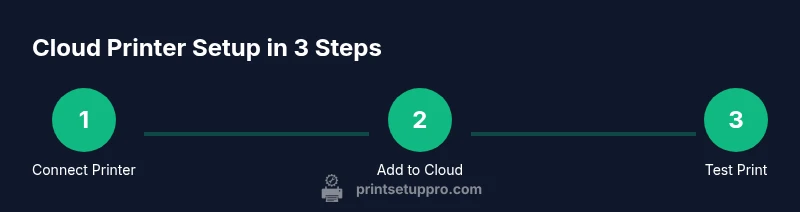
Connect the printer to a stable Wi‑Fi network using the printer’s control panel or web interface. Ensure you are on a secure network with a strong password and consider enabling guest networks for visitors to protect your main devices. Create or sign in to the cloud service account and add the printer as a new device. The onboarding flow typically involves granting permissions, selecting the printer from a list, and confirming the pairing code. After pairing, enable automatic firmware updates and initialize a test page to verify basic print functionality across devices.
Testing, multi-device printing, and common issues
Test printing from a range of devices to verify cross‑device consistency. Confirm color accuracy, page orientation, and default print settings. If a device cannot see the printer, recheck network visibility, confirm privileges, and ensure the correct cloud service is selected on that device. Common issues include authentication failures, stale tokens, and delayed job queuing. For each problem, first verify the device is on the same network and that the cloud service shows the printer as online. If problems persist, consult the vendor’s troubleshooting guides for re‑authentication steps and firmware checks.
Security and privacy considerations
Cloud printing involves transferring documents over the internet, so security is essential. Use TLS encryption for in‑transit data, enable two‑factor authentication, and regularly review who has access to the printer. Keep firmware up to date to mitigate vulnerabilities. If you print sensitive documents, consider enabling job encryption features or configuring device‑level privacy settings that purge jobs after printing. Be mindful of cloud storage policies and any automatic backups associated with the service.
Print Setup Pro emphasizes creating a minimal‑access user model for shared printers—only grant printing rights to individuals who need them and periodically audit permissions to minimize risk.
Best practices for reliability and cost management
- Maintain a clean network: place the printer within reliable Wi‑Fi range, reduce interference, and avoid crowded channels.
- Schedule firmware updates during off‑hours to minimize disruption.
- Consolidate print queues: prevent duplicate jobs and keep a single source of truth for settings.
- Use default print settings for common tasks to reduce waste and processing time.
- Keep a simple backup plan: have a local print option for offline scenarios and document recovery procedures.
According to Print Setup Pro, a well‑managed cloud printing environment reduces troubleshooting time and improves overall workflow efficiency in small offices.
Authority sources
For further reading on cloud printing best practices and security, consult these authoritative sources:
- https://www.cisa.gov
- https://www.nist.gov
- https://www.consumer.ftc.gov
Next steps and ongoing maintenance
After successful onboarding, schedule quarterly reviews of access controls, firmware versions, and device compatibility. Keep a log of printer models and cloud service changes so you can adjust your workflow as needed. Consider expanding cloud printing to additional devices or printers as your needs grow, while maintaining strong security practices and clear device ownership records.
Tools & Materials
- Cloud-enabled printer(Printer must support cloud printing or be compatible with a cloud service.)
- Reliable Wi-Fi network(2.4 GHz is common; 5 GHz provides better performance in busy environments.)
- Smartphone or computer for setup(Needed for onboarding and app installation.)
- Cloud service account(Account for the chosen cloud printing ecosystem.)
- Printer USB cable(Only needed for initial wired setup if the printer supports it.)
- Mobile apps or desktop software(Apps to submit and manage print jobs.)
- Printer admin credentials(Keep credentials secure for onboarding and maintenance.)
Steps
Estimated time: 25-40 minutes
- 1
Check printer compatibility
Verify that your printer supports cloud printing natively or can pair with a cloud service. Check the model number, firmware version, and vendor documentation to confirm compatibility.
Tip: If unsure, contact the manufacturer support page before purchasing an upgrade. - 2
Choose a cloud service
Evaluate options based on cross‑platform support, security features, and ease of onboarding for your devices. Select a service that aligns with your ecosystem (iOS, Android, Windows, macOS).
Tip: Prefer services with native mobile apps to simplify setup. - 3
Connect printer to Wi‑Fi
Use the printer control panel or web interface to join a stable network. Prefer a password‑protected 2.4 GHz or 5 GHz band with minimal interference.
Tip: Place the printer within good range of the router during setup. - 4
Sign in and add the printer
Create or sign in to the cloud service account and add the printer as a device. Complete pairing prompts and grant necessary permissions.
Tip: Enable two‑factor authentication on the cloud account. - 5
Install client apps on devices
Install the cloud service apps or enable printing from OS native features on each device you plan to print from.
Tip: Keep apps updated to prevent compatibility issues. - 6
Print a test page from each device
Send a test document from every device to confirm successful rendering, color accuracy, and correct defaults.
Tip: If print settings differ by device, standardize them for consistency. - 7
Configure access controls
Set who can print, assign roles, and remove devices when no longer needed. Review access at regular intervals.
Tip: Document and store the process for future users. - 8
Establish maintenance routines
Enable automatic firmware updates where possible and set up alerts for printer health, low ink, or connectivity issues.
Tip: Schedule quarterly checks to prevent surprises.
People Also Ask
What is a cloud printer and how does it differ from a traditional printer?
A cloud printer receives print jobs over the internet or a cloud service instead of a direct wired connection. This enables printing from multiple devices without installing drivers on each one, and it typically requires an online account and a compatible printer.
A cloud printer lets you print from anywhere by sending jobs to a cloud service instead of using a direct USB connection.
Do I need a cloud service to print from my mobile device?
Most mobile printing workflows rely on a cloud service or a native ecosystem (AirPrint, Mopria). Some printers offer direct Wi‑Fi printing without cloud, but cloud support generally improves cross‑device compatibility and ease of sharing.
In most setups, a cloud service or built‑in cloud support makes mobile printing easiest.
Can cloud printing work with Windows, macOS, and Linux?
Yes, many cloud printing solutions support Windows and macOS, and some also offer Linux compatibility through compatible apps or Mopria/AirPrint bridges. Always verify cross‑platform support before choosing a service.
Yes, but check compatibility lists for your operating systems.
Is cloud printing secure for sensitive documents?
Security depends on the service: look for encryption in transit, strong authentication, and access controls. Use devices and networks you trust, and enable two‑factor authentication where available.
Security depends on your cloud service and settings; enable strong protections.
What should I do if my printer appears offline?
First, check that the printer is connected to power and the network. Verify the cloud service shows the printer online, and re‑authenticate if tokens have expired. Restarting the printer and router can resolve many issues.
Check power, network, and re‑authenticate if needed; reboot devices if problems persist.
How can I remove a printer from my cloud service?
Access the cloud service dashboard, select the printer, and choose remove or forget. Confirm the action and re‑test printing with a different device to ensure no residual access remains.
Open the service, remove the printer from your account, and test with another device.
Watch Video
Quick Summary
- Leverage cloud printing for device‑agnostic workflows
- Choose cloud services with broad platform support
- Maintain security with strong authentication and updates
- Test from all devices to ensure consistent results
- Regularly review access and firmware health