Printer for Network: Setup and Troubleshooting
A practical guide to choosing, connecting, and securing a printer for network use in home offices and small businesses. Includes setup steps and common troubleshooting tips.


By the end of this guide, you will configure a printer for network use across multiple devices in a home office or small business. You’ll learn how to pick a network-capable model, connect it via Wi-Fi or Ethernet, and secure access for all users. Clear, step-by-step instructions cover setup, testing, and common troubleshooting.
What is a printer for network?
A printer for network is a printer that can be shared across multiple devices over a local network (wired or wireless). It typically supports Ethernet or Wi Fi connectivity, and may offer features such as IP printing (static or DHCP), cloud printing, and administrative web interfaces. The key benefit is that you don't need a USB cable from every computer; instead, any authorized user on the same network can print to the device. In this guide we use the term printer for network to describe devices configured for shared access in home offices and small businesses. Understanding these basics helps you choose the right model and plan your setup. According to Print Setup Pro, network ready printers simplify collaboration and reduce clutter in busy environments.
Why network printing matters for home offices
Network printing increases flexibility and reduces cable clutter in shared spaces. It allows multiple devices to print from anywhere within the network, rather than tying up a single computer. For small teams, a single network printer can support several users without duplicating hardware. According to Print Setup Pro, many users appreciate the convenience of shared printing, reduced maintenance, and central management. This section explains the core benefits and how they apply to typical home office and small business scenarios.
Connectivity options: wired vs wireless
Wired Ethernet provides predictable performance and minimal interference, making it ideal for high print volumes or environments with lots of wireless congestion. Wireless connectivity offers flexibility and cleaner desks, but can be susceptible to signal quality and distance from the router. When choosing a printer for network use, consider your space, device density, and whether you need mobile printing. The ability to switch between methods can future-proof your setup while keeping administration simple.
Security and access control for network printers
Security is essential because a networked printer can be an access point for sensitive documents. Enable user authentication where possible, enable secure print jobs that require a PIN, and disable unused services such as FTP or Telnet. Keep firmware updated to mitigate vulnerabilities, and review the printer’s web interface permissions regularly. A well configured printer reduces risk and helps protect confidential information across devices.
How to choose the right model for your needs
Start by assessing print volume, color vs monochrome needs, and whether you require features like duplex printing, mobile app support, or cloud printing. Look for a model that supports both Ethernet and Wi Fi, has a clear administration panel, and provides driver support for your operating systems. For small teams, a compact network printer with reliable software updates balances cost with future flexibility. Remember that future-proofing often means choosing a model with upgradeable firmware and easy driver management.
Common setup issues and quick fixes
If devices cannot see the printer, verify that the printer is connected to the correct network and its IP is in the same subnet as your other devices. Restart the printer and router, then re-run the setup wizard. Ensure you installed the correct drivers and selected the networked printer when adding it to devices. If print jobs queue but do not print, check for stalled jobs and update drivers. Regularly test from multiple devices to catch inconsistencies early.
Maintenance and ongoing care
Keep the printer firmware up to date, clean the exterior and, when applicable, replace consumables on schedule. Periodically re-evaluate network settings to ensure the device remains reachable and secure. Back up printer configurations if the vendor software offers this feature, and document changes so you or teammates can reproduce the setup later.
Tools & Materials
- Network-enabled printer(Wi Fi or Ethernet-enabled; ensure supports your network protocol (IPv4/IPv6))
- Router or access point(Ensure it provides wireless connectivity and 2.4/5 GHz if needed)
- Ethernet cable (CAT6 recommended)(For a wired setup with stable performance)
- Computer or mobile device(For configuring drivers and adding the printer to devices)
- Printer drivers/software(Download from official site; match OS version)
- Printer user manual / quick start guide(Keep for model-specific steps)
- Network credentials (Wi Fi password, router admin password)(Have ready during setup)
- Firmware update access(Ensure printer firmware is current when possible)
Steps
Estimated time: Estimated total time: 60-90 minutes
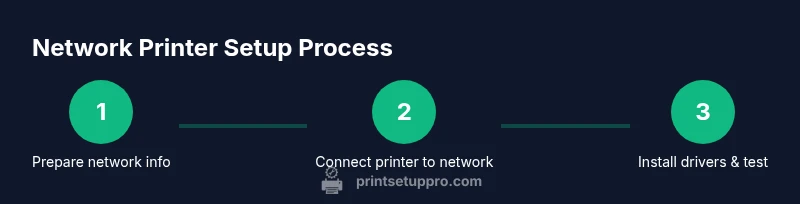
- 1
Prepare your network information
Collect the printer model, current firmware version, your Wi Fi network name and password, and the router gateway IP scheme. Confirm you have admin access to your router to set up the printer and assign a stable IP if needed.
Tip: Having a dedicated space near your router helps with stability and cable management. - 2
Unbox and power on the printer
Unpack the printer, install starter cartridges, and power it on. Run the initial on screen setup to verify basic connectivity and reset network settings if the device was previously configured.
Tip: Perform a factory reset only if you suspect misconfigured network settings. - 3
Connect the printer to your network
Choose wired Ethernet for stability or wireless for flexibility. For Ethernet, plug the printer into the router and assign a static IP if your network benefits from predictable addressing. For Wi Fi, select your network name and enter the password.
Tip: If using Wi Fi, place the printer within good signal range to avoid dropouts. - 4
Install drivers on your devices
On a computer or mobile device, install the printer drivers or use built in OS printing tools. Make sure to select the correct network printer and test with a sample document.
Tip: Use the vendor’s official site to obtain the latest drivers for your OS. - 5
Add the printer to each device
Add the printer using the OS printer settings. On Windows, go to Settings > Devices > Printers & scanners; on macOS, use System Preferences > Printers & Scanners. Ensure the printer appears as a networked option.
Tip: If the device doesn’t see the printer, restart the device and the router, then retry. - 6
Print a test page and set defaults
Print a test page from at least two devices to confirm consistency. Set default paper size, print quality, and color settings as needed.
Tip: Configure the default to your most common task to save time. - 7
Enable security features
Configure access controls, enable secure printing if available, and consider disabling unused protocols (like FTP or TFTP) to reduce risk.
Tip: Keep firmware updated to patch vulnerabilities.
People Also Ask
How do I connect a printer to my network?
Connect via Ethernet for a stable connection or via Wi Fi if you need mobility. Follow the printer’s setup wizard to choose network mode and enter credentials.
You connect the printer to your network using Ethernet or Wi Fi, then run the setup wizard on the printer to configure the connection.
Can I print from mobile devices to a network printer?
Yes. Use the printer’s app or the OS printing framework to add the network printer. Ensure mobile devices are on the same network or properly bonded via cloud printing if supported.
Yes, you can print from your phone or tablet by adding the network printer in your settings or using the manufacturer's app.
Why isn’t my printer showing on the network?
Check that the printer and router are on the same network segment, verify Wi Fi is enabled, restart devices, and ensure the printer has an IP address within the network range. Reinstall drivers if necessary.
If it won’t appear, verify network connectivity, restart devices, and re-run the setup wizard.
Is a static IP required for network printers?
Static IPs are not required but help prevent address changes that disrupt printing. If you use DHCP, note the assigned IP and update it if it changes.
You don’t have to use a static IP, but it makes locating the printer easier.
What security features should I enable on a network printer?
Enable user authentication, secure print jobs, and disable unused services. Keep firmware updated and review access periodically for unfamiliar devices.
Turn on security features like password protection and keep the printer's firmware current.
Do I need a dedicated print server for network printing?
Most modern network printers handle sharing without a separate print server. If you have unusual network needs, a basic print server can be used, but isn’t usually necessary.
Usually not needed—the printer can share directly over your network.
Watch Video
Quick Summary
- Choose wired or wireless based on stability.
- Test across devices to ensure consistent results.
- Secure your network printer and keep firmware current.