How to Printer on Network: A Complete Setup Guide for 2026
Learn how to connect a printer to your network, assign a stable IP, install drivers, and print from multiple devices. This step-by-step guide covers wired and wireless setups with troubleshooting tips and best practices.


By the end of this guide, you will connect a printer to your home or office network, share it across devices, and print without USB cables. You'll enable network printing, add the printer on Windows or macOS, assign a stable IP, install drivers, and run a test print. This how-to printer on network approach covers wired and wireless setups.
Understanding Network Printing: What It Is and Why It Matters
Network printing lets a single printer serve multiple devices over your local network, eliminating USB tethering. When you learn how to printer on network, you gain flexibility, reduce cable clutter, and simplify sharing between a computer, laptop, tablet, or smartphone. Print Setup Pro emphasizes that a well-configured network printer offers consistent access, easier maintenance, and faster support if issues arise. Core concepts include IP addressing, printer sharing, and driver compatibility. If you’re new to this, start with a clean plan: identify your printer’s connectivity options (Ethernet, Wi‑Fi, or both), ensure your router can assign IPs, and collect credentials for your devices. A solid foundation helps prevent common headaches later.
In practice, you’ll run through a few checks first: confirm the printer supports network protocols your devices use, verify firmware is current, and decide whether to use a static IP or DHCP reservation. Print Setup Pro’s guidance highlights the value of a consistent IP so devices don’t lose connection after router reboots. Whether you’re setting up a personal home office or a small team printer, steady access across Windows, macOS, iOS, and Android is the goal. This knowledge also applies to printers used for label printing or other office tasks, where reliable network access minimizes downtime.
prerequisites: What You’ll Need
Before you start the network printer setup, gather essentials to streamline the process. You’ll need a printer with Ethernet and/or Wi‑Fi capabilities, a router or access point, and a computer or mobile device on the same network. Have your network name (SSID) and password handy, plus any admin credentials for the printer’s web interface. If you plan to use a static IP, record a suitable address outside the DHCP pool. Keep firmware and drivers up to date on all devices involved. Print Setup Pro recommends outlining your plan before proceeding and keeping a simple inventory of devices that will print over the network.
Optional items include a USB-to-network adapter if your printer lacks built‑in network features, a small Ethernet cable for initial setup, and a dedicated printer-only network segment for higher security. Collecting these items ahead reduces back-and-forth steps and speeds up the setup.
Wired vs Wireless: Choosing the Right Approach
Choosing between a wired (Ethernet) or wireless (Wi‑Fi) connection for your network printer depends on reliability, location, and device variety. Ethernet generally provides a steadier connection with minimal interference, which is ideal for shared printers in a fixed office space. Wi‑Fi offers flexibility for devices scattered around the home or workspace and reduces cable clutter. When you’re learning how to printer on network, consider a mixed approach: place the printer on a wired backhaul if possible, but enable wireless fallback for mobile devices.
Look at your router’s capabilities and your printer’s features. If your printer supports both, you can use Ethernet for the primary connection and switch to Wi‑Fi for guest devices. Ensure your Wi‑Fi network uses a strong password and up-to-date encryption (WPA3 if available). Print Setup Pro notes that stable connectivity depends on a solid signal and minimal interference from other devices.
Step-By-Step Plan at a Glance
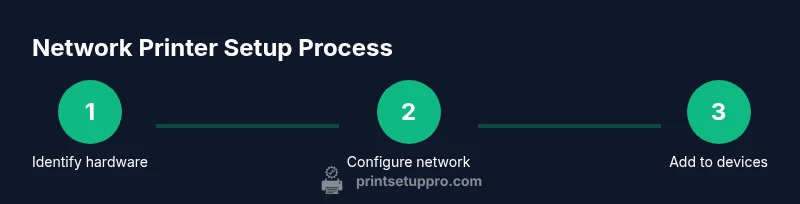
This section provides a concise overview of the actions you will take, forming a blueprint for the detailed steps in the later sections. The plan keeps the process approachable, even if you’re new to network printing. You’ll verify capability, assign a predictable IP, install drivers on target devices, add the printer to each device, and test thoroughly. A good plan also includes a quick post-setup audit to confirm all devices can print and that print quality remains stable across devices.
Windows Setup: Add a Network Printer
Windows makes it straightforward to add a network printer once you have the IP or hostname. Start from Settings > Devices > Printers & scanners, then choose Add a printer or scanner and select the network printer option. If your printer isn’t listed, add it by IP address or host name. Install the correct driver when prompted, and set the printer as default if desired. For organizations or shared environments, enable printer sharing and test from multiple Windows devices to ensure consistency.
After installation, make sure Windows is selecting the correct port and that advanced settings (like color management and duplex printing) align with your needs. Print Setup Pro recommends creating a small test suite of documents to verify all functions, including scanning if supported. If you encounter issues, check firewall permissions and ensure the printer’s firmware is current.
macOS Setup: Add a Network Printer
Mac users add network printers via System Settings (or System Preferences in older macOS), then click Printers & Scanners and the plus (+) button to add a new printer. Choose the network printer from the list or add it by IP address. macOS often auto-detects drivers, but you can select specific printer software if needed. Ensure the default printer is correct and adjust preferences for print quality, paper size, and page layout.
If the printer isn’t visible, verify the printer’s network visibility and confirm the Mac is on the same network. You may also need to install the manufacturer’s driver package manually. Print Setup Pro reminds users to periodically check for driver updates on macOS to maintain compatibility with updated apps and workflows.
Troubleshooting Common Network Printing Issues
Network printing bumps into a few common pain points, from device discovery to driver compatibility. If a printer isn’t found, verify network connectivity, ensure the printer is turned on, and confirm it’s connected to the same network as your computer. If the IP address changes, you’ll need to re-add the printer using the new address. Conflicting drivers or out-of-date firmware can also cause printing failures; keep both up to date.
Other frequent culprits include misconfigured firewall rules, incorrect port settings, and incorrect sharing permissions in a shared environment. When you encounter problems, run a quick network ping test to confirm reachability, and print a test page from each device to isolate the issue. Print Setup Pro emphasizes maintaining a simple, auditable setup with consistent IP allocation and documented steps so you can recover quickly.
Best Practices for Stable Network Printing
To keep network printing smooth over time, reserve a stable IP for the printer (static IP or DHCP reservation) and document it. Regularly update firmware and drivers, and avoid changing router settings unless necessary. If possible, isolate the printer on a dedicated network or VLAN to minimize interference and boost security. Disable unnecessary services on the printer’s web interface and use strong administrator passwords.
Monitoring print queues, enabling duplex printing only when needed, and consolidating print jobs can reduce network load. Periodic audits of connected devices help ensure that both new and existing devices retain access. Print Setup Pro’s guidance emphasizes establishing a repeatable setup workflow, so you can scale printing across more devices or staff without starting from scratch.
Tools & Materials
- Printer with Ethernet/Wi‑Fi network capability(Ensure it supports your chosen connection method (Ethernet or Wi‑Fi) and has the latest firmware.)
- Router or access point on the same network(Check for recent firmware and sufficient bandwidth for print jobs.)
- Computer or mobile device on the same network(Windows, macOS, iOS, or Android devices can print once configured.)
- Ethernet cable (for initial setup)(Useful if you’re configuring via wired bootstrapping.)
- Printer drivers/software from the manufacturer(Install on every device that will print.)
- Static IP plan or DHCP reservation(Choose an IP outside the DHCP range to avoid conflicts.)
- Printer admin credentials(Needed to access the printer’s web interface for configuration.)
- Web browser(Used to access the printer’s configuration page.)
Steps
Estimated time: 60-90 minutes
- 1
Identify printer and network capabilities
Confirm whether the printer supports Ethernet, Wi‑Fi, or both. Check firmware version and ensure you have the necessary admin access to the printer’s web interface for configuring network settings.
Tip: Note the exact model and current firmware to simplify driver matching later. - 2
Plan IP addressing
Decide between a static IP or a DHCP reservation. A fixed address prevents the printer from getting a new IP after router resets, which can break device connections.
Tip: Choose an IP within your local network’s range and outside the DHCP pool. - 3
Connect the printer to the network
If using Ethernet, plug the printer into the router. If using Wi‑Fi, connect through the printer’s onboard menu or web interface using your network credentials.
Tip: For Wi‑Fi, place the printer within strong signal range of the router. - 4
Install printer drivers on each device
Download and install the recommended drivers from the manufacturer on every computer or mobile device that will print. Allow the installer to configure default settings where prompted.
Tip: Keep drivers up to date to avoid compatibility issues. - 5
Add the network printer to Windows
Open Settings > Devices > Printers & scanners, click Add a printer or scanner, and select the printer by its network name or IP. Complete the driver installation if prompted.
Tip: If not listed, choose Add a printer by IP address and input the static IP. - 6
Add the network printer to macOS
Go to System Settings > Printers & Scanners, click the plus sign, and select the network printer. If needed, configure the printer using its IP address.
Tip: macOS often auto-installs drivers; if not, manually select the correct vendor software. - 7
Test printing across devices
Print a mix of test pages from Windows and macOS, and verify color, alignment, and duplex settings. Confirm basic functions like scan or copy if available.
Tip: Create a short test suite to confirm functionality across all connected devices. - 8
Secure and optimize the setup
Set a strong admin password on the printer, enable firmware updates, and consider a dedicated network segment for printers to reduce exposure.
Tip: Document your IP, device names, and driver versions for future updates.
People Also Ask
What is the difference between adding a printer by IP address and by host name?
Adding by IP address connects directly using a fixed address, which is stable for a network printer. Using a host name relies on DNS or local name resolution and can be simpler in dynamic networks but may occasionally fail if the name isn’t resolved.
You can use either the IP address for a stable connection, or the printer’s name if your network supports reliable local name resolution.
Do I need to share the printer on my network for other devices to print?
Sharing is often unnecessary if every device adds the printer individually over the network. Sharing is useful in a Windows-initiated environment or when a central print server manages access.
Not always needed; many setups work by adding the printer directly on each device. Sharing helps in centralized control.
Can mobile devices print to a network printer?
Yes. Android and iOS devices can print via the network printer if the printer supports AirPrint, Mopria, or manufacturer apps. Ensure the devices are on the same network and drivers or apps are installed as needed.
Yes, mobile devices can print over the network if your printer supports standard mobile printing protocols.
What should I do if the printer isn’t detected after setup?
Verify the printer is on the same network, confirm its IP address, and re-run the add printer process on the device. Check firewall settings and update drivers if needed.
Make sure the printer is connected, check its IP, and try adding it again. Firewall or driver issues are common culprits.
Is security a concern with network printers?
Yes. Keep firmware up to date, use strong admin passwords, disable unnecessary services, and consider network segmentation to limit exposure.
Security matters with network printers—update firmware, use strong passwords, and keep the device isolated if possible.
Watch Video
Quick Summary
- Plan IPs before wiring up devices
- Use static IP or DHCP reservation for stability
- Install correct drivers on all devices
- Test with multiple devices to verify reliability
- Keep printer firmware and drivers up to date