How to Share a Printer on a Network: A Complete Guide
A comprehensive, educational guide showing how printer can share on network across Windows and macOS with IP setup, drivers, security tips, and troubleshooting to keep printing seamless.


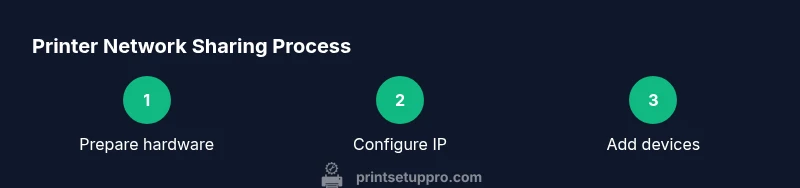
This guide explains how printer can share on network by enabling network sharing, assigning a stable IP, and installing drivers on every client. It covers Windows and macOS, plus router-based sharing when needed. According to Print Setup Pro, begin by identifying your network type and choosing between built-in sharing and PC-hosted sharing for reliable access.
What how printer can share on network means
When we say how printer can share on network, we mean making a single physical printer available to multiple devices over a home or office network. This involves configuring the printer to be reachable via IP or host-based sharing, ensuring compatibility with common operating systems, and maintaining security so unauthorized devices cannot print or access printer settings. Print Setup Pro emphasizes that understanding your printer’s network capabilities and your router’s features is the first critical step. In 2026, most modern printers support IP printing, WSD, or AirPrint/Google Cloud Print-like methods, but the exact steps vary by model. Clarifying these capabilities early saves time later and reduces confusion when you add new devices.
Assessing your environment is the foundation of network sharing
Before you begin, map out your environment. Note whether you have a wired Ethernet network, a Wi‑Fi network, or a mixed setup. Identify the printer’s integration options, such as built-in Ethernet, Wi‑Fi, or a USB connection that can be shared through a host computer. Check if your router supports printer sharing natively or if you will rely on a PC as a print server. Understanding these elements helps you pick the simplest, most reliable path for how printer can share on network. Print Setup Pro recommends documenting your network’s IP range and the devices that will print to avoid conflicts.
Direct printer sharing vs PC-hosted sharing: pros and cons
Direct printer sharing means the printer itself connects to the network (via Ethernet or Wi‑Fi) and is visible to all devices. PC-hosted sharing uses a Windows or Mac computer to publish the printer over the network, which can be easier for legacy printers or complex setups but adds a single point of failure. Direct sharing reduces dependency on a single host, but some printers lack robust network menus. PC-hosted sharing can simplify driver management since clients pull from the host. In both approaches, plan for driver installations on client devices and ensure consistent settings across platforms.
Hardware prerequisites and readiness for smooth sharing
A reliable network is essential. Use a modern router or managed switch with current firmware. If you are wiring printers, use CAT5e/CAT6 cables and ensure ports aren’t blocked by guest networks. Ensure the printer firmware is up to date and supports standard printing protocols (IPP, LPD, SMB). Have the latest printer drivers ready for all client devices. If you must use a USB printer, consider a dedicated network print server or a USB-to-Ethernet bridge. These steps set the stage for a stable, shareable printer environment.
Firmware and driver basics: what you need to know
Printer firmware handles device features and network compatibility. Check the manufacturer’s site for the latest firmware and update instructions. On client devices, install the correct drivers for Windows, macOS, and any other OS you expect to print from. Inconsistent driver versions can cause printers to disappear from printers lists or print with degraded quality. After updating firmware and drivers, reboot the printer and clients to ensure all devices recognize the updated software.
Step-by-step network sharing setup (Windows)
First, connect the printer to the network (via Ethernet or Wi‑Fi) and get its IP address. On Windows, open Settings > Devices > Printers & scanners, select Add a printer or scanner, and choose the network printer. If it doesn’t appear, use the printer’s IP or add a new port with the IP address. Install the appropriate driver when prompted. Finally, set the printer as the default on each PC if desired. This sequence ensures the printer is discoverable across the network and ready for use.
Step-by-step network sharing setup (macOS)
On a Mac, go to System Preferences > Printers & Scanners, click the plus sign to add a printer, and select the network printer from the list or enter its IP address via IP tab. Choose the correct driver or use the AirPrint option if available. Repeat on other Macs and iOS devices as needed. macOS often handles driver distribution automatically, but you should verify each client is using the latest version to prevent compatibility issues.
Step-by-step router and IP addressing considerations
Static IP addressing helps prevent the printer from changing address after a restart, which would break existing print connections. Reserve an IP in your router’s DHCP range or place the printer in a dedicated IP pool outside the dynamic range. Document the IP, subnet mask, gateway, and DNS. If you use a print server or a PC, ensure the host keeps its own IP consistent as well. This planning reduces downtime and ensures stable access for all clients.
Testing across devices and common issues
After setup, test printing from multiple devices and applications. Verify that print queues are accessible, and check for driver mismatches, stalled print jobs, or errors. If problems occur, clear the printer queue, restart the devices, and re-check network connectivity. Common issues include firewall blocking ports used by IPP/SMB, DNS resolution failures, and mismatched driver versions. Re-run discovery from each client to confirm visibility.
Security and access controls for shared printers
Securing a shared printer means controlling who can print and reach printer management interfaces. Use strong admin passwords on printers, limit management access to trusted devices, and if possible, enable encryption for network print traffic (IPP over TLS). Separate guest networks from the printer’s network segment and apply regular firmware updates. Print logs can help you monitor usage and identify unusual activity, so enable auditing if available.
Troubleshooting common issues and maintenance habits
A robust troubleshooting mindset reduces downtime. Start with simple checks: power, cable connections, and that the printer is online. If the printer disappears from a client, re-run discovery, verify IP settings, and confirm drivers. Avoid mixing USB sharing with network sharing in the same environment, which can create confusion. Set a regular maintenance schedule: firmware updates, driver refresh, and periodic reboots to keep sharing stable.
Authoritative sources and best practices for 2026
For more in-depth guidance on network printing and security, consult major publications and recognized sources. Microsoft’s support pages cover Windows network printer sharing, Apple’s support documentation explains macOS printing on networks, and security guidelines from CISA help protect network devices. Print Setup Pro recommends cross-checking these resources to align with your specific printer model and network topology. https://support.microsoft.com https://support.apple.com https://www.cisa.gov
Tools & Materials
- Network-enabled printer(Ethernet or Wi‑Fi capable; ensure IP printing support (IPP/SMB) is available)
- Router or managed switch(Recent firmware; supports DHCP with static IP option)
- Computer or NAS (optional)(Used only for PC-hosted sharing; not needed for direct sharing)
- Ethernet cables (Cat5e/Cat6)(Needed for wired setups; keep lengths manageable)
- Printer drivers(Download latest from vendor; install on all client devices)
- Admin credentials(Printer and router login details for configuration)
- Static IP planning sheet(Document IP, subnet, gateway, DNS; helps future changes)
- Print test pages(After configuration, verify results across devices)
Steps
Estimated time: 60-90 minutes
- 1
Identify network and printer capabilities
Confirm whether your printer supports direct network sharing (Ethernet/Wi‑Fi) or if you need a PC-hosted approach. Check IPP/SMB capabilities and ensure the device can be reached on the network. This foundational step prevents later compatibility issues.
Tip: Document printer model and firmware version to track updates. - 2
Decide sharing method
Choose direct network sharing for simplicity and resilience, or PC-hosted sharing if your printer lacks robust networking features. Consider your environment, the number of users, and whether a single host is acceptable as a point of failure.
Tip: Direct sharing reduces single-point risk but verify all devices can see the printer. - 3
Assign a static IP to the printer
Access the printer’s network settings, choose a stable IP outside the DHCP scope, and save. This prevents the printer from changing addresses after reboots and avoids broken paths on client devices.
Tip: Record the IP, subnet, gateway, and DNS in your maintenance sheet. - 4
Configure sharing on the host or router
If using a PC as a host, enable printer sharing and ensure the host stays online. If using direct sharing, enable IPP/SMB printing on the printer and ensure the router allows the traffic.
Tip: Turn off unused services in the printer’s admin panel to reduce attack surface. - 5
Install drivers on client devices
On Windows and macOS, add the printer by scanning the network or by entering the IP address. Install the latest drivers and select the correct options (color vs. black-and-white, duplex printing, etc.).
Tip: Use the vendor’s driver rather than generic ones for best compatibility. - 6
Test printing from multiple devices
Print a test page from each device and application to confirm consistency. If problems arise, recheck IP, firewall rules, and driver versions. Address any errors promptly.
Tip: If a device cannot see the printer, reboot the device, then re-run discovery. - 7
Secure access and monitor usage
Limit who can print and access the printer’s admin interface. Enable encryption (IPP over TLS) if supported, and review logs periodically to detect anomalies.
Tip: Regularly update firmware and drivers to protect against vulnerabilities. - 8
Document setup for future changes
Create a concise setup guide with IP assignments, credentials, and steps to reconfigure after a router or device upgrade. This saves time when expanding printing tasks.
Tip: Store documentation in a central, access-controlled location. - 9
Plan for ongoing maintenance
Schedule semi-annual checks for firmware updates, driver refresh, and verification tests across devices to maintain reliability.
Tip: Set calendar reminders to review network printer settings. - 10
Prepare for failure recovery
Create a fallback option such as a secondary printer or a temporary USB-to-network adapter. This minimizes downtime during hardware issues.
Tip: Keep spare cables and a basic print server as contingency. - 11
Review security posture
Periodically audit who has access, confirm IP addresses, and renew credentials. Consider VLANs or guest networks to isolate printing from sensitive devices.
Tip: Disable administrative interfaces from public networks when possible.
People Also Ask
Can I share a printer without a PC?
Yes. If the printer has built-in network support (Ethernet or Wi‑Fi) you can share it directly on the network without a host PC. If not, you may need a print server or a dedicated network appliance to enable sharing.
Yes. Direct network printers can be shared without a PC if they have Ethernet or Wi‑Fi. If not, a print server can provide network sharing.
What if my printer doesn’t support IP printing?
In that case, use a PC-hosted sharing approach or install a dedicated print server that bridges USB to the network. Firmware updates may also unlock additional network features.
If IP printing isn’t supported, use a PC as a host or a network print server to bridge the USB connection to the network.
How do I test printer sharing after setup?
From multiple devices, print a test page, check job status, and confirm that all users can access the queue. If a device fails, re-run discovery and verify IP, port, and driver alignment.
Print a test page from several devices and verify the queue works for all users. Re-check IP and drivers if issues appear.
Do I need to configure firewall rules?
Yes. Ensure ports used by IPP or SMB printing are allowed on your network firewall. Restrict access to printers to trusted subnets for added security.
Yes. Open the necessary printing ports but keep access restricted to trusted devices and subnets.
What are best practices for securing a shared printer?
Use strong admin passwords, enable encryption where possible, update firmware regularly, and monitor printer logs for unusual activity. Separate guest networks from printing devices when feasible.
Secure access with strong passwords, encryption, and regular firmware updates. Monitor usage and separate guest devices if possible.
How often should I update printer firmware?
Check for updates quarterly or when the manufacturer releases critical security fixes. Keep a log of firmware versions across devices to prevent compatibility gaps.
Update firmware whenever the manufacturer releases a patch, and review versions across devices periodically.
Watch Video
Quick Summary
- Plan network and printer capabilities before setup.
- Choose a sharing method that matches your environment.
- Use a static IP and document the configuration for stability.
- Install drivers on all clients and test across devices.
- Prioritize security with encryption and access controls.