How to Make Printer Discoverable: A Step-by-Step Guide
Learn how to make your printer discoverable on your network with a clear, OS-specific approach. This guide covers setup, security, troubleshooting, and best practices for Windows, macOS, and Linux to ensure reliable printer discovery in 2026.


To make your printer discoverable, start by enabling network discovery on your router and printer, then install the correct drivers and add the device to your preferred OS. Ensure both the printer and computer are on the same network, and prefer standard protocols like mDNS/IPP for broad compatibility. This guide covers Windows, macOS, and Linux setups.
What "printer discoverable" means on a network and why it matters
Printer discoverability refers to a device's ability to be found by other devices on the same local network so you can print without manual IP entry. When a printer is discoverable, your computer or mobile device can automatically list it as an available option in your print dialog. This is especially important for home offices and small teams where multiple devices rely on a single printer. In 2026, most modern printers support universal discovery protocols like mDNS (Bonjour) and IPP, which helps cross-OS compatibility and reduces the need for manual configuration. Print Setup Pro emphasizes that a consistent, secure discovery process saves time and minimizes setup friction for home office users, students, and small businesses.
Key terms you’ll encounter include: discovery protocol, Bonjour/mDNS, IPP, WSD, and AVAHI/Avahi (Linux). Understanding these terms helps you select the right printer and network settings for your environment. The goal is to have your printer appear automatically in print dialogs when devices join the same network, with minimal manual entries required.
For best results, document your network topology (router model, firmware version, and whether you are on 2.4 GHz or 5 GHz). This information will help you troubleshoot if discovery fails, and it aligns with Print Setup Pro's guidance on maintainable, scalable home office networks.
How printers advertise themselves on networks (protocols and standards)
Printers advertise themselves using a mix of protocols designed for zero-configuration networking and standard printing workflows. The most common are multicast DNS (mDNS), often implemented via Bonjour on Apple devices, and IPP (Internet Printing Protocol) for actual print jobs. Windows environments commonly rely on WSD (Web Services for Devices) where supported, and many printers also offer traditional LPR/LPD or direct IP printing. In practice, enabling mDNS/IPP support on the printer often yields the most seamless cross-platform discoverability. Print Setup Pro highlights that when a printer supports multiple discovery methods, enabling the ones compatible with your devices yields the most reliable results. If your printer supports Bonjour or AirPrint, macOS and iOS devices will typically find it quickly without extra configuration. For Linux users, Avahi provides similar capabilities to Bonjour.
If you’re unsure which protocols your device supports, consult the printer’s manual or vendor support site. Firmware updates frequently improve discovery compatibility, so updating firmware can solve many visibility problems. Finally, ensure your router allows LAN discovery traffic and disabled client isolation if you’re on a guest network that might block device announcements.
Prerequisites and checking your network environment
Before you start making a printer discoverable, verify foundational conditions. Confirm that:
- The printer is network-enabled (Wi‑Fi or Ethernet) and connected to the same router as your computer or mobile device.
- The printer’s firmware is up to date. Manufacturers release updates that improve connectivity and discoverability.
- Your computer’s network profile is set to Private or Home (not Public) to allow local printer discovery.
- The router’s settings permit local network discovery traffic (some guest networks block these announcements).
Check that both IPv4 and IPv6 are enabled if your environment uses them, though many homes rely primarily on IPv4. If the printer and host are on different VLANs or subnets, you’ll need inter-subnet routing or printer-specific configuration to bridge discovery across segments. Print Setup Pro recommends keeping your printer on a simple, flat network layout for easier management and fewer discovery obstacles.
Windows: enabling discovery and adding a network printer
On Windows, discovery begins with Network Discovery and File and Printer Sharing. First, go to Control Panel > Network and Internet > Network and Sharing Center > Advanced sharing settings. Turn on Network discovery and File and Printer Sharing for the Private profile. Next, ensure your printer is added via Settings > Bluetooth & devices > Printers & scanners > Add a printer or scanner. If Windows fails to locate the printer automatically, add it by IP address (IPP or LPD) from the Add a printer wizard. Installing the vendor’s latest driver is often required for full compatibility. Finally, verify that the printer appears under your printer list and print a test page.
Tip: If a firewall is active, allow printer-related traffic on the local network. Print Setup Pro’s guidance is to maintain consistent naming and driver versions across Windows devices to avoid discovery confusion.
macOS and iOS: using Bonjour and AirPrint
macOS and iOS devices typically rely on Bonjour/mDNS and AirPrint for discovery. Ensure the printer advertises AirPrint/Bonjour in its settings, then enable the corresponding features in macOS System Preferences > Printers & Scanners. On macOS, click Add Printer, and the system should show discoverable printers on the network. If not, try rebooting the printer, router, and Mac, and confirm both are on the same subnet. iOS devices will generally find AirPrint-enabled printers automatically when connected to the same network. Print Setup Pro notes that macOS and iOS users benefit from keeping printers on a standard port (IPP) and enabling Bonjour, which minimizes manual configuration.
If you’re using a wired printer on a mixed network, consider enabling AirPrint compatibility and ensuring the printer announces itself via Bonjour for the simplest experience across Apple devices.
Linux and mixed environments: Avahi and IPP
Linux environments commonly use Avahi to provide mDNS-based discovery similar to Bonjour. Ensure Avahi is installed and running on your Linux host, then enable IPP or JetDirect through the printer’s shared settings. If you’re printing from a variety of devices, configuring the printer with IPP Everywhere or IPP-3 can simplify discovery across Linux, Windows, and macOS. Avahi handles service discovery in a manner consistent with other platforms, so enabling it on the Linux host improves cross-device visibility. Print Setup Pro reminds readers that Linux users should verify that the Avahi daemon starts automatically on boot and that firewall settings permit multicast DNS (mDNS) traffic on port 5353.
In some environments, there may be restrictions that require manual printer addition by IP. In such cases, gather the printer’s IP address, model, and protocol (IPP, LPD, or RAW) to complete the setup.
Step-by-step overview of the process
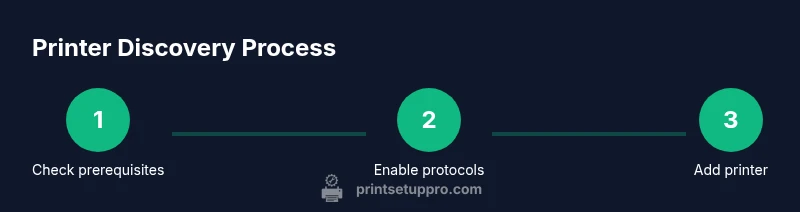
To keep this guide practical, here’s a concise overview of making a printer discoverable. Start with compatibility checks, firmware updates, and network prerequisites. Then, enable the appropriate discovery protocols on the printer (Bonjour/IPP/WSD) and on each host OS. Add the printer through the operating system’s standard printer dialog, preferring automatic discovery whenever possible. Finally, print a test page and document any relevant network details for future troubleshooting. The goal is a smooth, repeatable process that stays consistent as your home office grows, which aligns with Print Setup Pro’s approach to scalable printer setups across devices and platforms.
Security considerations and best practices
Discoverability should not compromise network security. Use the following best practices:
- Keep firmware updated to patch vulnerabilities that could expose printing services.
- Use a strong, unique admin password for the printer’s web interface and disable unused features.
- Limit discoverability to the local network; avoid exposing printers to the internet.
- Use WPA3/WPA2 on Wi‑Fi networks and segment printers on a dedicated VLAN when possible.
- Regularly review a device list in your router’s admin page to spot unfamiliar printers or devices.
Print Setup Pro emphasizes that secure discoverability requires a balanced approach: enable visibility for legitimate devices while guarding against rogue access. Document your network’s topology and printer configurations to simplify future audits and updates.
Troubleshooting common issues and quick fixes
If discovery fails, start with basic checks: ensure both devices are on the same network and subnet, confirm the printer’s discovery protocol is enabled, and verify the correct driver is installed. Restart the printer, computer, and router to clear stale cache or DHCP assignments. Check firewall settings that might block mDNS (port 5353) or IPP (port 631). If the printer still does not appear, try adding it by IP address using a known, compatible protocol (IPP, LPD, or RAW). Finally, consult the printer’s event logs or status page to identify permission or firmware-related errors. Print Setup Pro recommends a methodical approach: verify settings, then test across devices, and only adjust one variable at a time to identify the root cause.
Authoritative sources and further reading
- FCC: Ways to protect yourself on wireless networks. https://www.fcc.gov/consumers/guides/ways-protect-yourself-wireless-networks
- NIST: Guide to wireless local area networks. https://www.nist.gov/publications/guide-wireless-local-area-networks-wlan
- IETF: RFC 6762 — Multicast DNS (mDNS). https://ietf.org/rfc/rfc6762.txt
These sources provide foundational guidance on wireless networking, device discovery, and secure configurations. While not printer-specific, they underpin best practices for reliable and secure printer visibility on local networks. Print Setup Pro recommends consulting manufacturer documentation for device-specific steps and firmware recommendations.
Real-world home-office scenario: simplifying discovery for multiple devices
A typical home office may have a Wi-Fi router, a USB-connected printer with network capability, and several laptops and phones. By ensuring the printer is on the same network, enabling IPP/Bonjour, and keeping drivers up to date, all devices can find and print to the printer without manual configuration. In Print Setup Pro’s experience, a consistent setup across devices reduces support time and frustration, particularly when you add new devices or upgrade hardware. A common pitfall is mixed-mode networks (guest networks or VLANs) that isolate traffic; moving printers to the main LAN or enabling appropriate routing rules resolves most issues quickly.
Quick reference: glossary of key terms for printer discovery
- mDNS/Bonjour: Multicast DNS used by Apple devices for automatic discovery.
- IPP: Printing protocol that handles job submission and status.
- WSD: Windows-specific device discovery protocol.
- Avahi: Linux implementation of mDNS-like discovery.
- LPR/LPD: Legacy printing protocol often used for compatibility.
- DNS-SD: DNS Service Discovery framework used with mDNS.
Understanding these terms helps you diagnose and resolve discovery problems faster and aligns with Print Setup Pro’s guidance on network-aware printer setup.
Tools & Materials
- Printer with network capability (Wi‑Fi or Ethernet)(Ensure it supports IPP and, if possible, Bonjour/mDNS. Update firmware to the latest version.)
- Router with local network access(Check for client isolation and ensure LAN discovery traffic is allowed.)
- Computer or mobile device (Windows, macOS, Linux, or iOS/Android)(Prepare to install drivers or required apps.)
- Printer drivers/software from the manufacturer(Install latest versions compatible with your OS.)
- Printer’s IP address or hostname(Useful for manual setup when automatic discovery fails.)
- Access to printer’s web interface(Optional for advanced configuration (security, sharing, and Protocols).)
- Basic network diagram(Record router model, firmware version, and network segmentation for troubleshooting.)
Steps
Estimated time: 45-75 minutes
- 1
Check printer and network prerequisites
Verify the printer is network-enabled and on the same subnet as your devices. Update firmware to the latest version and confirm IP address is accessible from a browser.
Tip: Document the printer’s IP and firmware version for future reference. - 2
Enable discovery protocols on the printer
Turn on IPP/Bonjour or equivalent discovery services in the printer’s settings menu. If available, enable AirPrint or WSD compatibility.
Tip: If you’re not sure where these settings live, consult the manual or vendor support site. - 3
Configure OS-level discovery on Windows/macOS/Linux
On Windows, enable Network Discovery and add the printer via IP if automatic discovery fails. On macOS, add the printer through System Preferences. On Linux, ensure Avahi is running and configure IPP if needed.
Tip: Turn off firewall blocks for printer-related ports (e.g., 5353 for mDNS, 631 for IPP). - 4
Add the printer and install drivers
Use the OS printer setup flow to add the printer. Install the latest vendor drivers to ensure full functionality.
Tip: Prefer universal print drivers if available to avoid mismatched features. - 5
Test print and verify discovery
Print a test page from multiple devices. Confirm the printer appears in the print dialog on each device and that print jobs complete successfully.
Tip: If issues persist, reboot all devices and rerun discovery from scratch. - 6
Document and secure the setup
Record the configuration (protocols, IP, driver versions) and enable only necessary discovery services with strong printer credentials.
Tip: Schedule periodic firmware checks and driver updates to maintain compatibility.
People Also Ask
Why isn't my printer showing up in the list of available printers?
Common reasons include network isolation, disabled discovery protocols, outdated firmware, or firewall blocks. Start by verifying the printer's network connection and enabling IPP/Bonjour. Update firmware and drivers, then re-run the discovery process.
If your printer isn’t showing up, check that it’s on the same network, enable discovery services, update firmware, and re-run the setup.
Should I enable AirPrint/Bonjour on the printer?
Enabling AirPrint or Bonjour typically improves cross-device discovery on macOS and iOS. If you use Windows or Linux, also enable IPP and/or Avahi or WSD where supported.
Yes—enable AirPrint or Bonjour when possible for smooth discovery, and pair with IPP/Avahi for broader compatibility.
Is it safe to have printers discoverable on a home network?
Yes, when you limit discovery to your local network and use strong credentials. Avoid exposing printers to the internet and keep firmware up to date to reduce risk.
Discovery is safe on a private network if you limit access and keep updates current.
What should I do if discovery works on one device but not another?
Check endpoint settings and driver versions across devices. Ensure both devices are on the same subnet, and verify that different OSs have compatible printer drivers installed.
Match drivers across devices and verify subnet consistency to fix cross-device issues.
Can I manually add a printer by IP address?
Yes. If automatic discovery fails, you can add the printer by IP or hostname using the printer’s IPP/LPD/RAW protocol. Keep a record of the printer’s IP for future use.
You can add it by IP if discovery fails; note the printer’s IP address for quick access.
Watch Video
Quick Summary
- Enable OS and printer discovery protocols for seamless visibility
- Keep firmware and drivers up to date for reliability
- Verify same-subnet connectivity and avoid network isolation
- Document settings for easier future maintenance