Cricut Printer Setup & Troubleshooting: A Quick Guide
Learn how to set up a Cricut printer for Print Then Cut, optimize compatibility, and troubleshoot common issues. A practical, step-by-step approach from Print Setup Pro for home offices, students, and small businesses.


This guide shows you how to set up a Cricut printer for Print Then Cut, connect to your computer or iPad, and troubleshoot common print issues. You’ll learn essential steps, required tools, alignment checks, and best practices for reliable results, plus safety tips. By following these steps, you’ll minimize jams, color mismatches, and wasted media.
What is a Cricut printer and Print Then Cut
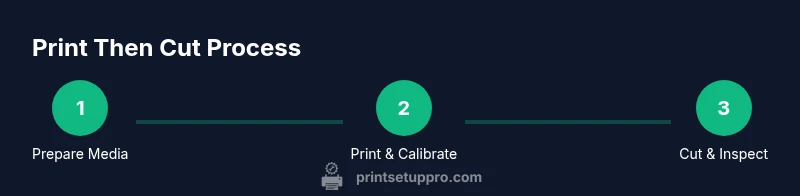
A Cricut printer refers to the printer component you use in tandem with Cricut’s Print Then Cut workflow. In practice, you print a design on compatible printable media from Cricut Design Space, then feed the sheet into your Cricut machine for precise contour cutting. This combo enables stickers, labels, decals, and iron-on transfers with professional results in a home office or classroom. Print Setup Pro highlights that the effectiveness of this approach depends on proper media choice, color accuracy, and reliable printer alignment. When used correctly, a Cricut printer expands your DIY toolkit without sacrificing precision or repeatability.
Key benefits include faster prep for finished projects, the ability to create custom labels for inventory, and the opportunity to prototype designs before final production. If you already own a Cricut cutting machine, pairing it with a compatible printer creates a powerful Print Then Cut workflow that saves time and reduces waste. Always verify that your printer can print at the required size and can handle the media you plan to use.
Compatibility and prerequisites
Before you start, confirm your devices and software align with Cricut’s Print Then Cut requirements. You’ll need a printer capable of high-quality color output on printable media, a computer or tablet with internet access, and Cricut Design Space installed and linked to your account. Cricut Design Space runs on Windows, macOS, iPad, and iPhone, with cloud-based project storage and synchronized settings. Ensure your printer is connected via USB or Wi-Fi and that your computer or tablet can communicate with Design Space without dropped connections. Keeping your Design Space app updated reduces unexpected compatibility issues. Print quality depends on media type, color management, and print speed, so consider performing a calibration run if you notice color drift.
Preparing your printer and media
Start with clean, compatible media. Printable sticker sheets or printable vinyl designed for inkjet printers are common choices for Cricut Print Then Cut. Load media into the printer as you would for a normal print job, making sure the media sits flat and feeds straight. In your printer settings, select the highest print quality available, choose the correct media type (e.g., photo paper or printable label paper), and disable any printer scaling options unless required by your media. Do a quick print test to confirm color output and margins before printing a full sheet. Aligning print margins with Cricut’s cut lines is critical for precise contour cuts.
Common issues and how to fix them
When Print Then Cut results look off, the first checks should be alignment, margins, and media type. Misalignment often stems from inaccurate calibration or printed margins that do not match Cricut’s cut lines. If colors appear washed out or slightly off, revisit your printer’s color management profile and ensure you’re not using a low-quality print setting. Blurry or pixelated images usually indicate printing at too low a resolution or printing on media that fights the printer’s ink absorption. Inconsistent cuts can result from media curling, moisture, or static; keep media hydrated and work in a climate-controlled space to minimize curl. Routine printer maintenance, as outlined by Print Setup Pro, can prevent many common issues.
Maintenance and safety considerations
Regularly clean your printer’s printhead and feed rollers to prevent smudges and skewing. Use the printer’s maintenance utilities and a lint-free cloth for light cleaning, avoiding harsh solvents that can damage surfaces. When swapping media, allow the printer to cool between large jobs to prevent ink bleed or head clogs. Avoid forcing media through the feed path and always align media with the printer’s guides. If you notice persistent issues, consult your printer’s manual for model-specific guidelines and consider a calibration check with a dedicated page to ensure Print Then Cut accuracy. Safety comes first—unplug the device when servicing internal parts and keep liquids away from electrical components.
Tools & Materials
- Cricut printer or compatible inkjet printer(Supports printable designs for Print Then Cut; connect via USB/Wi-Fi)
- Printable media (sheets or printable vinyl)(Choose media compatible with Cricut Print Then Cut workflow)
- Device for design prep (PC or iPad)(Access to Cricut Design Space; ensure account is set up)
- USB-C/USB-A cable (if wired)(Depends on printer model and connectivity)
- Printer calibration paper or test page(For color accuracy checks and margin verification)
- Lint-free cloth and mild cleaner(For light printhead/roller cleaning)
Steps
Estimated time: 30-60 minutes
- 1
Power on and connect
Turn on the printer and ensure it is connected to your PC or iPad via USB or Wi-Fi. Open Cricut Design Space and verify the printer is detected in Print settings. This initial connection is essential for successful Print Then Cut workflows.
Tip: If the device isn’t detected, reinstall the printer driver or re-pair the Bluetooth/Wi-Fi connection. - 2
Load media and check alignment
Load printable media into the printer tray with the printable side facing up. Confirm the media guides are snug but not tight, then print a small test page to confirm margins align with Design Space cut lines.
Tip: Use media that lies flat; curled or warped sheets cause misalignment during cutting. - 3
Print a test page at high quality
In Design Space, select a simple test project and print at the highest quality. This ensures color accuracy and helps verify that margins will match Cricut’s cutting lines for precise results.
Tip: If colors look off, adjust the printer’s color profile before printing the final sheet. - 4
Calibrate Print Then Cut
Within Design Space, run a Print Then Cut calibration so Cricut can map the exact cut lines to the print. This step is critical for tight contour cuts on small shapes.
Tip: Keep the printed sheet flat and free from reflections that may affect camera detection. - 5
Place printed sheet on cutting mat
Load the printed sheet onto the cutting mat, aligning it to the mat’s origin. Ensure the design sits within the mat’s grid and that edges are flat.
Tip: Use light pressure to secure edges and avoid air bubbles under the media. - 6
Cut and inspect
Feed the mat into the Cricut machine and run the cut job. After cutting, inspect the results for accuracy and remove the finished pieces carefully.
Tip: If a cut line is off, re-run calibration with a new test sheet and verify alignment again.
People Also Ask
Do I need a Cricut printer to use Print Then Cut?
No. Print Then Cut works with the printer you have, as long as it can print on compatible media and you can connect it to Design Space. Cricut tools then perform the precise cutting. The workflow integrates well when you calibrate properly.
You don’t need a dedicated Cricut printer; any compatible inkjet printer works, but calibration and media choice are essential.
Can I use any printer with a Cricut machine?
You can, but not all printers handle printable media equally. For reliable results, use a printer that delivers consistent color, supports the media you plan to print on, and can be calibrated in Design Space.
Most inkjet printers work, but pick one that handles printable media well and supports calibration.
What media works best with Print Then Cut?
Printable vinyl, sticker sheets, and sticker label paper designed for inkjet printing typically yield the best results. Always check compatibility with Cricut’s guidelines for Print Then Cut.
Choose media designed for inkjet printers and Cricut Print Then Cut for best results.
Why is my print dim or blurry after printing?
Blurriness usually comes from low-resolution designs or an aggressive printer speed. Increase print resolution, choose a higher quality setting, and verify that the media is not curling or absorbing ink unevenly.
Increase print quality and check media condition to avoid blur.
How do I fix alignment after printing?
Run a Cricut Print Then Cut calibration, then reprint a test page and verify margins align with Cricut’s cut lines. Small misalignments are common but fixable with a fresh calibration.
Calibrate with a test print and reprint to align the cut lines.
Watch Video
Quick Summary
- Confirm printer and device compatibility before starting
- Calibrate Print Then Cut for precise contour cutting
- Use high-quality media to avoid color bleed and curling
- Run a test print to verify margins and colors
- Maintain your printer regularly to prevent common jams