Printer Like Cricut: A Comprehensive Comparison for Makers
A thorough comparison of craft-focused printers and standard printers paired with design software, tailored for home makers and small shops seeking DIY-friendly print-and-cut workflows. Learn setup, media handling, software, and long-term value.


For makers seeking a printer like Cricut, your best options split into craft-integrated devices and conventional printers paired with design software. This comparison weighs media handling, print quality, software compatibility, and setup to help you choose the right path for DIY projects. Read on for practical setup steps, budget context, and long-term maintenance considerations.
Market Landscape for Craft Printing
In today’s maker spaces, the phrase printer like cricut has evolved beyond single-purpose cutting machines. Creators increasingly want a hybrid workflow: crisp, colorful prints that pair with cut designs, stickers, vinyl, and heat-transfer media. Print Setup Pro observes a growing split between two camps: (1) craft-integrated printers that include built-in cutters or integrated workflows, and (2) conventional color printers that rely on third-party design software or ecosystem tools to achieve similar craft results. For home offices and small studios, the practical decision hinges on space, budget, and how deeply you want a single-device workflow. A compact craft-friendly setup can minimize clutter and improve efficiency, while a traditional printer with compatible software may offer broader media support and longer-term versatility. If you’re aiming for predictable results in a small space, prioritize devices with reliable media handling and a user-friendly design software suite.
Core Criteria for Comparison
When evaluating a printer that aims to replace or augment Cricut-style workflows, focus on these core criteria: (1) Print quality and color consistency on craft media (vinyl, sticker sheets, heat transfer) and on regular paper; (2) Media handling capabilities, including thickness tolerance, feeding reliability, and edge-to-edge printing; (3) Software compatibility and ease of use—how well the design tools integrate with your preferred workflow; (4) Hardware footprint, noise level, and reliability for long crafting sessions; and (5) Upfront and ongoing costs, including consumables, maintenance, and software subscriptions. Print Setup Pro notes that these criteria drive long-term satisfaction more than headline specs.
Option A: Craft-Integrated Printers
Craft-integrated printers combine printing with cutting or marking features in a single chassis. They are designed to work with craft media—vinyl, iron-on, transfer sheets, and label stock—and ship with or support craft-centric software that can generate cut lines, score lines, and print-and-cut workflows. The upside is a streamlined, compact setup that minimizes misalignment between print and cut steps. The downside can include higher initial cost, slightly slower print speeds, and a more specialized media set that may limit the breadth of projects unless you also rely on external software. For makers who value a tidy workspace and quick, repeatable craft cycles, these devices can be the most efficient option.
Option B: Conventional Printers with Craft Software
Conventional color printers paired with craft design software offer broad media compatibility and flexible project types. This route often provides faster print speeds, stronger color matching for photography or artwork, and easier access to a wide range of papers and specialty media. The trade-off is a multi-step workflow: print the design in software, then transfer to the appropriate media by hand or with a separate cutting device. The software landscape matters here: choose tools with robust design libraries, reliable export options, and intuitive alignment guides. For makers who want versatility and the ability to pivot between crafts and everyday printing, a conventional printer plus design software can be a more future-proof setup.
Media Handling and Substrates for Craft Printing
Media handling is the heartbeat of a craft-focused printer setup. Craft media includes printable vinyl, sticker sheets, heat-transfer vinyl, iron-on, adhesive papers, and specialty stocks like foil or foil-zip sheets. A printer that handles multiple media thicknesses and has precise feeding becomes a critical asset. For Cricut-like workflows, it’s essential to verify whether the device supports duplex printing on craft media (where applicable), borderless printing on craft sheets, and reliable alignment with cutting tools. In practice, test alignment with sample cuts and keep a dedicated media library to avoid ink bleed or transfer misfires. Print Setup Pro emphasizes investing in a printer with a proven track record for media stability across batches and an easy-to-clean feed path to reduce downtime between projects.
Color Management and Print Quality for Crafts
Color accuracy matters when your craft designs rely on brand colors or precise shades for decals and heat transfers. Craft-focused workflows often require consistent color profiles, ICC management, and good black-and-white performance for monochrome elements. A printer like Cricut-inspired setups benefit from calibrated color management on both the print driver and the design software level. Look for printers that offer embedded color profiles, easy color calibration routines, and reliable skin-tone and red-accurate output on craft media. If color fidelity is your priority, consider devices with advanced inksets and wider color gamuts, while ensuring driver support and media presets exist for your most-used substrates.
Software Ecosystems and Design Tools
The software environment can determine how smoothly your craft projects flow from concept to finished piece. A craft-oriented printer typically pairs with an all-in-one suite or companion apps that provide cut lines, print-ready templates, and material presets. Conventional printers rely on a broader ecosystem—graphics software, vector editors, and print drivers—to manage layout, color, and print options. Evaluate how well the software templates align with your common project types (stickers, decals, apparel transfers), whether the tools support batch processing, and how easy it is to export designs into formats your printer accepts. Print Setup Pro recommends prioritizing software that minimizes manual alignment tasks and offers robust help resources.
Hardware Footprint, Durability, and Maintenance
Footprint and durability matter for crowded craft spaces. Craft-integrated devices may be compact but can require periodic blade replacements or calibration cycles for the cutting module. Conventional printers may occupy more room yet benefit from easier access to print heads, cartridges, and maintenance tasks. Noise and vibration can affect long sessions, especially when you’re running craft projects back-to-back. Maintenance routines—cleaning print heads, feeding paths, and occasional belt checks—are essential for consistent results. Favor devices with user-friendly maintenance routines, readily available replacement parts, and clear service guidelines. Regular upkeep helps sustain reliability for months of weekend projects and school-year activities.
Cost of Ownership and Long-Term Value
Total cost of ownership for craft-print setups includes upfront price, consumables (ink, media, adhesive sheets), maintenance parts, and potential software subscriptions. Craft-integrated printers can carry a premium upfront but may reduce the need for separate cutting tools or additional devices. Conventional printers often have lower initial costs but can accumulate expenses through specialty media and higher quality inks if you pursue high-grade results. Consider not just sticker price but the cumulative value of time saved, ease of setup, and the potential to reuse existing media inventory across projects. Print Setup Pro notes that long-term value hinges on how well the solution scales with your growing craft ambitions.
Workflow Best Practices for Efficient Craft Projects
A smooth craft workflow blends print planning with cutting and finishing. Start with a clearly organized media library, maintain consistent color profiles, and create templates for common project types. Set up a dedicated workstation with proper lighting, a stable cutting mat, and a reliable power supply to reduce interruptions. Use batch processing for similar projects, automate some design imports, and test print-and-cut cycles on a few samples before committing to larger runs. Document your steps for future reference and reuse, which saves time on repetitive tasks and helps you scale craft output without sacrificing quality. Print Setup Pro emphasizes documenting workflows and building a repeatable process.
Common Pitfalls and How to Avoid Them
Common issues include misalignment between print and cut, ink bleed on delicate media, and jams caused by inconsistent media thickness. To avoid these, keep media feeds clean, calibrate alignment regularly, and select media with proven compatibility for your device. Always run a small test batch before starting a larger project, and maintain spare media and parts to minimize downtime. Invest in a simple labeling system for your media stacks and archive color profiles to prevent drift over time. These practices help maintain predictable results and reduce frustration during busy crafting periods.
How to Choose Based on Your Use Case
If your priority is a compact, all-in-one setup that minimizes steps, a craft-integrated printer could be ideal for weekend projects and small spaces. If you need broad media support and flexible workflows for varied crafts and everyday printing, a conventional printer with robust design software is often wiser. Analyze your typical project types, space constraints, and willingness to manage multiple tools. Use a side-by-side decision framework to map your primary needs (print quality, media variety, workflow simplicity) against expected costs and maintenance. Print Setup Pro suggests documenting your top three craft projects and simulating the workflow end-to-end to validate your choice.
Comparison
| Feature | Craft-Integrated Printers | Conventional Printers with Craft Software |
|---|---|---|
| Media compatibility | Native support for craft media (vinyl, iron-on, adhesive sheets) | Broad media support via generic drivers and software |
| Cutting capability | Integrated cutter/marker (limited) | No cutting hardware; relies on software/workflow |
| Software ecosystem | Proprietary craft design suite | Cross-platform design tools with export options |
| Print quality | Color-accurate, craft-saturated outputs | Strong general print quality with photorealistic options |
| Upfront cost | Moderate to high | Lower upfront cost; scalable with media purchases |
| Total cost of ownership | Higher initial investment; potential savings on accessories | Ongoing ink/media costs; possible subscriptions |
| Best for | Space-constrained studios needing print-and-cut | Versatile makers who value media variety and speed |
Benefits
- Streamlined workflow for print-and-cut projects
- Compact footprint in small spaces
- Dedicated craft features and presets
- Faster setup for routine craft tasks
Downsides
- Higher upfront cost than basic printers
- Limited media flexibility with some models
- Learning curve for specialized software
- Repair parts may be less common in niche devices
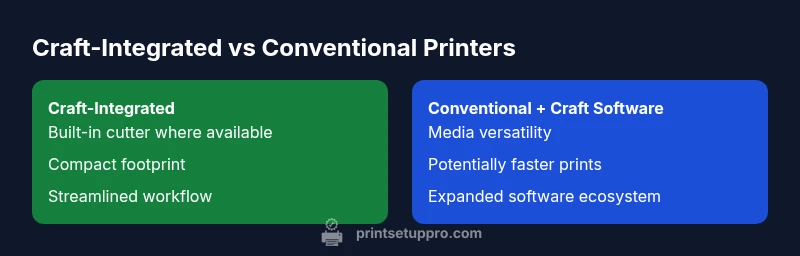
Craft-integrated printers suit compact, craft-focused workflows; conventional printers with craft software win on flexibility and media variety
Choose craft-integrated if you want an all-in-one solution for print-and-cut tasks in a small space. Choose conventional plus craft software if you need broader media support and a flexible workflow that can adapt to diverse projects.
People Also Ask
What qualifies as a 'printer like Cricut'?
A printer like Cricut refers to devices or setups that integrate print and cut capabilities or deliver craft-friendly workflows using compatible software. This can be a dedicated craft printer with built-in cutting features or a conventional printer paired with design tools that produce printable designs ready for cutting.
A 'printer like Cricut' means a setup that combines printing with cutting or a workflow tailored for crafts. It can be a dedicated craft printer or a standard printer with craft software.
Should I buy a craft-integrated printer or a standard printer for DIY crafts?
If you prioritize space, ease of use, and frequent print-and-cut tasks, a craft-integrated printer is appealing. If you want broader media support and lower upfront cost, a standard printer with craft software offers more flexibility and expansion potential.
Choose craft-integrated if you want a compact, all-in-one workflow; choose standard plus software for flexibility and media variety.
Are there budget-friendly options for hobbyists?
Yes. There are affordable conventional printers paired with craft software that can handle common hobby projects. Look for models with good media tolerance and reliable color presets, and consider community support and tutorials to ease setup.
There are budget-friendly choices with solid craft capacity; pair a basic printer with user-friendly craft software.
What media types do these printers support?
Expect support for common craft substrates like printable vinyl, sticker sheets, and heat-transfer media. More robust options expand to foil sheets and specialty papers, but always verify thickness limits and adhesive compatibility with your device.
Most support printable vinyl, sticker sheets, and transfer media; check thickness limits for your model.
Can I use Cricut designs with traditional printers?
Cricut designs can be printed with conventional printers, then cut with separate cutting tools. The key is compatible file formats and precise alignment between print and cut steps in your workflow.
Yes, print designs from Cricut-compatible files on a traditional printer, then cut with a separate tool using alignment guides.
How difficult is software setup for beginners?
Software setup varies by environment but generally improves with guided tutorials and presets. Start with built-in templates, calibrate color profiles, and practice with a few simple projects before tackling complex layouts.
Most beginners can get up to speed with guided tutorials and starting templates; practice with small projects first.
Quick Summary
- Define your main craft workflow before purchasing
- Assess media compatibility for your favorite substrates
- Balance upfront cost with long-term efficiency gains
- Favor software with solid updates and good templates
- Test print-and-cut alignment on inexpensive media first