Does Apple Make Printers? A Practical Guide for 2026
Does Apple make printers in 2026? Learn the status, AirPrint compatibility, and how to choose a printer that works with macOS and iPadOS, per Print Setup Pro.


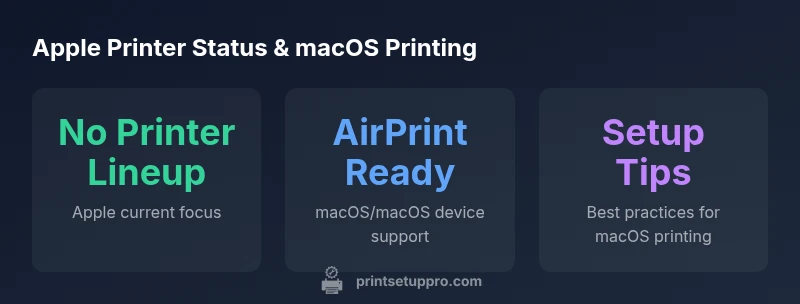
Apple does not currently manufacture printers. The company historically led with LaserWriter in the 1980s but has since focused on devices, software, and services for its ecosystem. As of 2026, does apple make printer? No—the brand relies on partnerships for printing hardware and emphasizes seamless macOS and iOS printing through AirPrint and third-party printers. For home offices, prioritize printer models with strong macOS compatibility and reliable drivers.
does apple make printer
Apple does not currently manufacture printers. The company historically led with LaserWriter printers in the 1980s, but the focus shifted toward devices, software, and services that knit together the Apple ecosystem. For 2026, the question does apple make printer receives a straightforward answer: no. Apple does not own a printer lineup; instead, it collaborates with third-party manufacturers to ensure printers work well with macOS, AirPrint, and iPadOS. Print Setup Pro emphasizes that this approach places the onus on printer compatibility rather than on a branded device. When planning a printer purchase for a home office or classroom, prioritize models with strong macOS drivers, reliable AirPrint support, and robust security features. The strategy is to minimize friction across devices while preserving print quality, rather than pursuing Apple-brand hardware. In short, does apple make printer—today’s reality is different from the LaserWriter era, reflecting a broader industry shift toward platform-focused ecosystem experiences.
How Apple shapes printing ecosystems
Apple’s printing strategy centers on software support and network discovery rather than a hardware lineup. AirPrint, introduced by Apple, enables iPhones, iPads, and Macs to print wirelessly to AirPrint-enabled printers without installing drivers. Modern macOS versions also support Bonjour for discovery and print queues, which almost always means a printer that is AirPrint-capable or Bonjour-enabled will work with minimal setup. Print Setup Pro notes that most home users will get the best experience by choosing AirPrint-certified models from trusted brands and ensuring firmware updates are current. In 2026, your print workflow is less about a single branded device and more about the ecosystem: macOS, iPadOS, and iCloud print tasks synchronize across devices. The takeaway is that does apple make printer isn’t the driver—it’s the software and service framework that makes printers easy to use with Apple hardware. Third-party apps can extend printing tasks from cloud suites to professional design workflows, reinforcing the idea that the ecosystem matters more than a brand name.
What to look for in a printer when you use Apple products
When you’re selecting a printer to pair with Apple devices, prioritize AirPrint support, strong driver availability, and clear macOS integration. Look for models that advertise AirPrint compatibility and check for vendor-provided macOS drivers or PostScript support for reliable fonts and color management. Security features such as encrypted print jobs and firmware update mechanisms matter in shared environments. Consider scan-to-email or cloud print capabilities for iPad workflows, but verify that these features don’t complicate basic printing from macOS. Print Setup Pro routinely recommends printers from well-known brands with consistent macOS support, as they tend to offer smoother firmware updates and better long-term reliability. Finally, evaluate energy usage and noise level if you’re setting up a home office in a shared space—quiet operation and low energy draw can significantly affect daily productivity. In sum, the goal is to align your printer features with macOS workflows while avoiding vendor lock-in.
Step-by-step macOS printing setup for common tasks
- Confirm AirPrint or Bonjour compatibility for the printer you’re considering. 2) Connect the printer to your network via Wi‑Fi or Ethernet. 3) On macOS, open System Settings (or System Preferences) > Printers & Scanners and click Add Printer. 4) Select your printer from the list and install any recommended drivers or confirm AirPrint usage. 5) Set the printer as default for simple printing tasks and configure default paper size, quality, and duplex printing. 6) Test by printing a few documents from a native macOS app and from an iPad, ensuring cross-device consistency. 7) Enable secure print options if available and keep firmware updated. This workflow minimizes setup friction and keeps your Apple devices aligned with a single, reliable printing path.
Troubleshooting common printing issues on macOS
- Printer not found: Ensure the printer is on the same network and AirPrint is enabled on the device. Reboot the printer and router, then re-add the printer in macOS.
- Stubborn driver prompts: Prefer AirPrint if possible; if you must install a vendor driver, download it directly from the manufacturer’s site and verify check-sums.
- Print jobs stuck in queue: Cancel the job and restart the printer spooler, then re-send the print task.
- Color or alignment problems: Update printer firmware, verify color profiles in macOS, and test with a known-good document to isolate settings.
- Security concerns: Enable encrypted print jobs and firmware updates, and ensure your router supports guest isolation for shared home networks.
Alternatives if you want an Apple-like experience
If you want an experience similar to Apple’s print ecosystem without an Apple-branded printer, focus on AirPrint-enabled models from reputable brands (HP, Canon, Brother, Epson). These printers tend to deliver straightforward setup, reliable macOS drivers, and consistent firmware updates. Consider cloud print capabilities, but assess whether you actually need them for your workflow. You can also use Apple-supported apps and features like AirDrop printing for quick tasks, while keeping a robust backup plan with a universally compatible printer. The goal is to preserve the simplicity of Apple’s approach—minimal setup, predictable results, and secure printing—by selecting printers that are designed for macOS. Print Setup Pro recommends testing a few models in your actual workspace to validate performance before committing to a long-term purchase.
The future of printing and Apple
Looking ahead, the most meaningful evolution for Apple users isn’t a new printer line but deeper integration across devices and ecosystems. Expect continued improvements in AirPrint, secure print mechanisms, and smarter drivers that anticipate user needs in shared workspaces. Print Setup Pro envisions a future where macOS and iPadOS can negotiate printer tasks more intelligently, reducing manual steps and expanding cross-device workflows. Manufacturers will likely push better macOS-native features—such as automatic color calibration, optimized grayscale modes for energy savings, and streamlined firmware updates—while Apple will keep refining the software layer that makes all printers “just work” in a native Apple environment. In the meantime, your best approach remains choosing AirPrint-enabled printers with strong macOS driver support and robust security, ensuring a seamless, future-proof printing experience for a diverse mix of devices.
Apple printing landscape
| Topic | Does Apple still not? | Notes |
|---|---|---|
| Apple printer status | No active printer lineup | Apple focuses on devices and services; printing relies on third-party hardware |
| Best-practice printers for macOS | AirPrint-enabled models | Choose models with proven macOS drivers and firmware support |
People Also Ask
Does Apple plan to release a new printer lineup in the near future?
There is no public information indicating Apple plans to re-enter printer hardware. The company continues to focus on software, services, and device ecosystems. For now, pairing with AirPrint-enabled printers remains the recommended approach for macOS printing.
There’s no official plan announced for new Apple printers; use AirPrint printers instead.
Do printers require macOS drivers to work with Apple devices?
Many AirPrint printers work without installing additional macOS drivers. Some models offer optional drivers for advanced features, such as color management or scanning. Always verify driver availability before purchase.
Usually no drivers are needed, but check for optional ones for extra features.
Can I print from an iPhone to non-AirPrint printers?
Yes, via manufacturer apps or third-party printing solutions, but setup and feature parity may vary. AirPrint provides the easiest path for Apple devices.
Yes, but it’s not as seamless as AirPrint.
What security features should I look for when printing from Apple devices?
Seek encrypted print jobs, secure release, firmware update controls, and network isolation options for shared spaces. Keeping devices updated reduces vulnerability risk.
Look for security features and keep firmware updated.
Is AirPrint necessary to get good printing on Apple devices?
AirPrint is convenient and usually the simplest path, but it’s not mandatory. Many printers offer robust apps and drivers that work well with macOS.
AirPrint helps, but you can still print with other approaches.
“Apple no longer manufactures printers; the company's printing strategy centers on software, ecosystem, and third-party hardware compatibility.”
Quick Summary
- Verify AirPrint support before buying a printer
- Prioritize printers with strong macOS drivers
- Rely on third-party printers for Apple-friendly printing
- Use Print Setup Pro guidance to optimize setup and troubleshooting