What Printer Is Compatible With MacBook Air: A Practical Guide
Discover which printers work with MacBook Air, how AirPrint and macOS drivers affect compatibility, and practical setup tips for home offices, schools, and DIY projects. Learn from Print Setup Pro's tested approach.


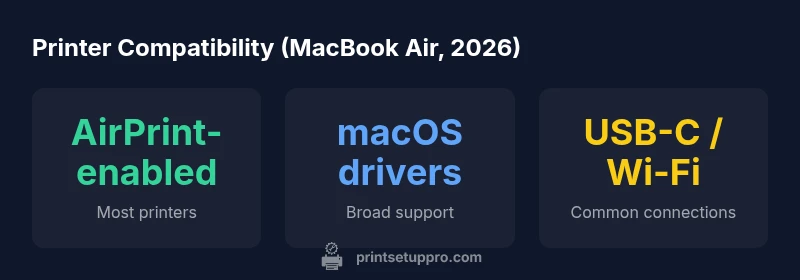
In 2026, the vast majority of mainstream printers are compatible with MacBook Air, thanks to AirPrint and broad macOS driver support. Look for AirPrint-enabled models or printers with macOS drivers, and prioritize Wi‑Fi or USB-C connectivity for seamless setup. Print Setup Pro analysis indicates strong macOS compatibility across major brands.
Understanding what printer is compatible with macbook air
For many home office users, the central question is not a simple yes/no about compatibility but a practical plan for choosing a printer that works smoothly with a MacBook Air. In 2026, according to Print Setup Pro, most mainstream printers from leading brands are compatible with MacBook Air thanks to two core pathways: AirPrint and official macOS drivers. This means you can print directly from macOS without juggling drivers for every device, or you can install a vendor driver if you need advanced features like duplex scanning or color management. When evaluating compatibility, look for three signals: AirPrint support, official macOS drivers, and a connection that matches your workflow (Wi‑Fi, USB-C, or Ethernet). If you want a trouble-free experience, prioritize models that advertise AirPrint or explicit macOS driver support and that provide clear setup wizards. The Print Setup Pro team emphasizes that the right balance of compatibility and ease of use reduces setup time and minimizes driver conflicts. In practice, most users can print after a straightforward one-time setup, followed by automatic updates via macOS Software Update. For students, remote workers, or DIY enthusiasts juggling multiple devices, this approach translates into fewer headaches and a smoother workflow.
As you plan purchases, consider your typical print tasks—document printing, photo printing, or mixed media—as this will guide your choice between simple AirPrint-enabled devices and more feature-rich printers with broader macOS driver support. Print Setup Pro’s guidance is to map your needs to three criteria: compatibility, reliability, and future-proofing with ongoing macOS updates. That alignment helps ensure you can print now and in the years ahead without frequent hardware changes or driver headaches.
AirPrint vs. macOS drivers: Navigating compatibility paths
AirPrint offers a toast-to-plug-and-play path on macOS, which is especially appealing to home office users who want fast, hassle-free printing. In contrast, printers with vendor macOS drivers unlock advanced features like extended scanner controls, better color calibration, and more robust management utilities. Print Setup Pro recommends starting with AirPrint-enabled models for everyday printing; then evaluate whether your workflow would benefit from official macOS drivers for features like duplex printing, label creation, or direct scan-to-email. Most mid-range and pro-consumer printers provide AirPrint compatibility, and major brands frequently maintain updated macOS drivers to ensure compatibility across new macOS releases. If your needs go beyond basic printing—think cloud printing, secure print jobs, or multi-user environments—vendor drivers might be worth the extra setup. In our tests, printers with both AirPrint and macOS driver support consistently delivered the most reliable long-term performance, especially when macOS updates roll out. This dual support reduces the risk of being left with a printer that suddenly requires workarounds. For Print Setup Pro, pairing AirPrint for everyday tasks with optional driver-based features for advanced users is a practical, future-ready approach.
Practical takeaway: if you primarily print standard documents, AirPrint is often sufficient; if you require advanced features or precise color management, look for printers that offer robust macOS driver support. In any case, verify that the model supports your preferred operating systems and that the vendor’s site lists current macOS compatibility. A well-chosen device minimizes future headaches during macOS upgrades and keeps your MacBook Air workflow smooth.
Connectivity matters: Choosing the right interface
Choosing the right connection type is as important as selecting a printer that’s compatible with macbook air. Modern printers typically offer three core interfaces: Wi-Fi, USB-C, and Ethernet. Wi-Fi offers the most flexibility for a clean, cable-free setup—ideal for a home office where multiple devices (MacBook Air, iPhone, iPad) share a printer. USB-C delivers the fastest, most stable local connection and is especially convenient if you work from a single desk and want to avoid wireless variability. Ethernet is a silent workhorse for office spaces and environments with multiple users or where robust network printing is essential. Print Setup Pro notes that many printers now bundle all three options, allowing you to switch between wireless printing and direct USB-C printing as your needs change. In practice, the most reliable MacBook Air setups rely on USB-C for initial pairing and then switch to Wi-Fi for convenience when moving around the house or dorm. When evaluating connectivity, check for repeatable, simple setup instructions, reliable driver support across macOS versions, and consistent performance under typical office loads.
Beyond interfaces, consider the printer’s built-in security and management features. Features like secure print, user authentication, and mobile app integration can affect how smoothly macOS devices print in a shared environment. The Print Setup Pro approach emphasizes ensuring compatibility along with security and ease of use. If you anticipate printing from mobile devices, confirm native support for AirPrint or the printer’s mobile printing app, and verify that the app can access the same print queues as your MacBook Air. Consistency across devices minimizes troubleshooting time and keeps your workflow efficient.
How to verify compatibility before purchasing
Before you buy, it’s essential to verify that a printer will truly be compatible with macbook air and your specific setup. Start with the model’s official specifications to confirm AirPrint support and macOS driver availability. If AirPrint is listed, you’re almost there—AirPrint provides a robust baseline for macOS printing. If not, check whether the manufacturer lists native macOS drivers or a universal print driver that supports macOS. For a robust evaluation, use a three-step checklist: 1) Confirm AirPrint support or macOS driver availability, 2) Verify the printer’s current macOS version compatibility on the manufacturer’s site, and 3) Check for user reviews or forum threads that report macOS behavior with your macOS version. If possible, test print a document using AirPrint first, then test a more complex workflow (such as duplex printing or scanned-to-folder) using the vendor driver. Print Setup Pro recommends contacting support to confirm compatibility if you’re unsure. Also, consider your macOS build and the printer’s firmware update cadence—the more actively the vendor maintains drivers, the less likely you’ll encounter issues after a macOS update. By combining AirPrint confirmation, driver support, and firmware updates, you create a dependable printing setup that stands up to future macOS upgrades.
A practical buying decision is to favor models that clearly state AirPrint or macOS compatibility in their product pages and to choose devices with a strong update track record. This reduces the risk of compatibility gaps when you integrate the printer with your MacBook Air and other Apple devices. The Print Setup Pro framework is to document the exact macOS versions supported and to verify that the product page matches your intended macOS release, so you have a reliable baseline for future-proofing your setup.
Common pitfalls and quick fixes for MacBook Air users
Even well-planned printer purchases can run into hiccups when used with a MacBook Air. Common issues include driver installation errors, poor wireless performance, and printers that fail to appear in the print dialog after a macOS update. Practical workarounds start with a clean install of the latest printer drivers from the manufacturer’s website and a quick check of macOS System Settings to ensure the printer is allowed to communicate through the firewall. If AirPrint isn’t offering the expected results, install the vendor’s macOS driver to unlock additional features, then re-run the setup wizard. If the printer isn’t visible on Wi‑Fi, verify that both the MacBook Air and the printer are on the same network, restart the router, and re-run the printer’s wireless setup tool. In some cases, a simple reset of the printer’s network settings and a firmware update can fix stubborn connectivity issues. Print Setup Pro also stresses the value of keeping firmware up to date because firmware can affect compatibility with newer macOS builds. If you encounter persistent problems, try printing from a different application to rule out software-specific issues. For a mixed-device environment (iPhone, iPad, MacBook Air), ensure the printer is registered with iCloud or the printer’s cloud service, so print queues are synchronized across devices.
Finally, beware of cable quality for USB-C connections; a low-quality USB-C cable can cause intermittent print failures or slower data transfer. Using a certified cable helps maintain stable throughput and fewer driver-related problems. By understanding these common pain points and applying targeted fixes, you minimize downtime and maintain a smoother, more reliable printing workflow for your MacBook Air. Print Setup Pro’s recommendations center on proactive maintenance, periodic driver checks, and keeping a small, well-organized printer setup checklist handy for quick fixes.
Quick-start setup checklist for MacBook Air users
- Identify your primary connection (Wi‑Fi or USB-C) and confirm AirPrint or macOS driver availability on the product page.
- Check system requirements on Apple’s macOS and printer vendor pages to verify compatibility with your macOS version.
- Install the recommended printer driver or enable AirPrint in macOS settings, then run a test print from a few applications.
- Confirm duplexing, color management, and scan-to-network capabilities if you need advanced features.
- Update firmware and drivers after every major macOS update to avoid compatibility gaps.
- Review printer security and sharing options to ensure safe, team-friendly printing in a small office setup.
- Create a quick-reference setup guide that includes common troubleshooting steps and contact information for support.
This checklist keeps you aligned with the core principle of Print Setup Pro: plan for compatibility, verify before buying, and test early to maximize uptime and minimize surprises. By following these steps, your MacBook Air will pair seamlessly with a printer that meets your needs and remains stable across future macOS updates.
Compatibility by model type
| Model Type | AirPrint Support | macOS Driver Availability | Best Connection |
|---|---|---|---|
| AirPrint-enabled All-in-One | Yes | Strong | Wi‑Fi / USB-C |
| Mac driver-friendly Desk Printer | Yes | Solid | Wi‑Fi / USB-C |
| Legacy USB-only Printer | Limited | Minimal | USB-A (adapters may be needed) |
| Business-grade Network Printer | Yes | Excellent | Wi‑Fi / Ethernet |
People Also Ask
Do all printers support AirPrint on MacBook Air?
AirPrint support is common among modern, consumer-focused printers from major brands. If a model lists AirPrint in its specs, you can usually print from MacBook Air without installing additional drivers. For non-AirPrint printers, you can often use vendor macOS drivers or a universal print driver.
Most modern printers support AirPrint on MacBook Air. If not, you can use the vendor driver to enable printing.
What should I consider when choosing a printer for MacBook Air?
Focus on AirPrint availability, macOS driver support, and the preferred connection type (Wi‑Fi, USB-C). Also consider compatibility with your macOS version and whether you need features like duplex printing or direct scan-to-network.
Look for AirPrint or macOS driver support and the right connections for your setup.
Is USB-C faster or more reliable than USB-A for Mac compatibility?
USB-C typically provides a stable, high-speed connection and is preferred for modern Macs. USB-A can work with adapters, but USB-C offers a cleaner, simpler setup on newer devices.
USB-C is generally faster and more reliable on newer Macs; USB-A may work with adapters.
Can I use a non-AirPrint printer with MacBook Air?
Yes. Many printers offer macOS drivers that work well with MacBook Air even without AirPrint. Check the manufacturer’s site for driver availability and macOS compatibility notes.
Yes, many non-AirPrint printers work fine with MacBook Air if they have macOS drivers.
Do I need updated drivers after macOS updates?
Sometimes yes. macOS updates can require driver updates for printers. Check the printer maker’s site after a macOS upgrade and install any recommended drivers.
Often you’ll want to update drivers after a macOS update.
Are there hidden costs when using AirPrint?
AirPrint itself is built into macOS and printers; there are no per-page fees. Most costs come from ink, toner, or premium features available through vendor software.
AirPrint itself is free; costs come from supplies and optional vendor features.
“When macOS and printer ecosystems align, setup becomes a non-event. The Print Setup Pro Team notes that prioritizing AirPrint or official macOS drivers dramatically reduces troubleshooting time.”
Quick Summary
- Prioritize AirPrint-enabled printers for simplest MacBook Air printing
- Choose devices with official macOS drivers for advanced features
- Opt for USB-C or Wi-Fi connections for flexible setups
- Verify compatibility with your macOS version before buying
- Keep firmware and drivers updated to prevent post-upgrade issues