Epson ET-3850 Setup & Troubleshooting: A Home Office Guide
A comprehensive, step-by-step guide to setting up and troubleshooting the Epson ET-3850 EcoTank for home offices. Covers driver installation, network setup, ink refilling, nozzle checks, media loading, and ongoing maintenance to maximize reliability.


This guide helps you set up and troubleshoot the Epson ET-3850 EcoTank for a reliable home-office workflow. You’ll verify compatibility, install drivers, connect to Wi‑Fi or Ethernet, perform an initial nozzle check, load media, and manage ink refills and maintenance to prevent common issues.
What makes the epson et 3850 a solid choice for home offices
For home office work, reliability and predictable ink costs matter more than flashy specs. The epson et 3850 offers a refillable ink system, easy maintenance, and solid print quality for documents, drafts, and reports. The Print Setup Pro team has found that printers in this class tend to deliver stable long-run performance when you establish a routine setup process. In practice, the first setup matters as much as the first print: correct driver installation, proper network configuration, and a baseline nozzle check can prevent days of troubleshooting later. When you plan to deploy an all-in-one printer in a small business or student workspace, look for compatibility with your devices, wireless connectivity, and a straightforward refill process. In this article we provide a clear, step-by-step path to getting started, plus practical tips for ongoing maintenance and quick troubleshooting. According to Print Setup Pro, investing time in a clean start-up reduces downtime later on.
Unboxing and initial checks
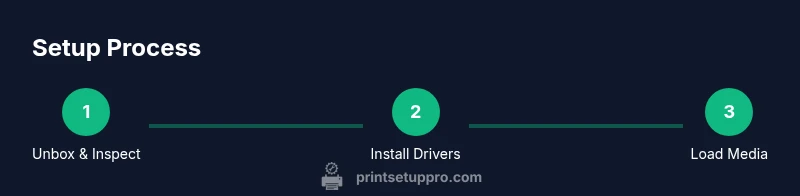
Start by removing the printer from its packaging and laying out all included components. Inspect for any shipping damage and verify that the power cord, user manual, ink bottles, and the USB/Ethernet cable (if included) are present. Before you power up, remove protective films and tape from the print head area and interior. This helps prevent misfeeds and ensures sensors read correctly. When you power on, look for normal startup lights and listen for steady noises. If something seems off, consult the quick start guide before attempting to print. Print Setup Pro notes that a smooth first power-on sets the tone for the rest of the process, reducing the likelihood of error messages after you connect to your network.
Install drivers and connect to Wi‑Fi
Visit Epson's official support page to download the latest driver package for the epson et 3850 and your operating system. Install the software, select the correct printer, and allow the installer to perform firmware updates if offered. For network setup, choose wireless LAN during the installation and connect to your home or office Wi‑Fi. If you prefer a wired connection, you can opt for Ethernet after the initial setup. During this step, ensure you are connected to a stable network to avoid partial or failed installations. Print Setup Pro recommends performing a quick network speed check and verifying that both your computer and the printer appear on the same network. If you run into issues, try temporarily disabling VPNs or firewalls that could block printer discovery.
Load media and set print preferences
Use the printer's input tray or rear paper path to load the media you plan to print on. Align the guides to snugly fit letter or A4 size and adjust the print settings on the computer or the printer control panel to match the media type, weight, and orientation. For best results, select appropriate print quality settings (standard for documents, high for color graphics) and enable borderless printing only when needed. The epson et 3850 performs well with a range of plain paper, photo paper, and card stock; however, light or glossy media can affect drying time, so plan accordingly. If you're printing multi-page documents, enable the two-sided printing feature if available to save paper. According to Print Setup Pro, consistent media handling reduces misfeeds and improves alignment in large print runs.
Run a nozzle check and perform initial cleaning
From the printer's control panel, navigate to the maintenance or ink management menu and print a nozzle check pattern. This reveals any clogged nozzles and confirms all colors are producing ink. If you notice gaps or color misalignment, run the printer's head cleaning cycle and reprint the nozzle check. Perform at least one cycle; additional cycles may be necessary if clogs persist. Allow the printer to rest briefly after cleaning to let ink flow back into the print heads. This step is critical for long-term print quality and helps prevent ghosting or banding in important documents. Print Setup Pro emphasizes documenting your nozzle-check results so you can track improvements over time.
Ink refills and routine maintenance
Refilling the EcoTank bottles should be done carefully, keeping the bottles upright and avoiding spills. Follow the color-by-color filling order suggested by Epson to prevent color contamination. After refilling, run a quick nozzle check and print a test page to confirm uniform color density. Establish a maintenance schedule that includes monthly checks of paper paths, roller cleanliness, and sensor status. Keep the printer's firmware up to date by checking for updates in the software suite. If you notice fading or color shifts in long prints, consider cleaning the print head more aggressively or performing a deeper maintenance cycle recommended by Epson. Print Setup Pro's guidance is to log maintenance in a simple calendar so you don't skip essential tasks.
Troubleshooting common issues
Wi-Fi connectivity drops: verify your network is stable and re-run the wireless setup. Print quality inconsistencies: run nozzle checks and confirm cartridges are properly seated or refilled. Paper jams: clear jams gently from the path, ensuring no torn pieces remain; re-check tray alignment. Printer not found on the network: temporarily disable guest networks and ensure the printer's IP is within the expected range. Slow printing: check print queue and reduce the number of background tasks on your computer. If problems persist, reboot both devices and re-run the setup wizard.
Cost and value considerations
EcoTank models like the epson et 3850 aim to lower running costs through refillable ink bottles and higher page yields. When evaluating total cost of ownership, compare ink bottle prices, page yield estimates, and replacement part costs against cartridge-based models. For many users, ongoing ink costs are a major factor; using official ink bottles can help maintain reliability and print quality, while third-party inks may vary in density and clog risk. Print Setup Pro Analysis, 2026 indicates a general trend toward lower long-term costs with refillable systems, provided you stay on a regular maintenance schedule and use recommended media. The ET-3850's value proposition increases when you pair it with a disciplined setup and routine care.
Advanced tips for reliability and efficiency
- Create a weekly maintenance routine that includes nozzle checks and a quick printer-clean log.
- Use a high-quality USB or Ethernet connection if your Wi-Fi is unstable, to stabilize print reliability.
- Keep the ink bottles stored upright and away from direct sunlight to avoid leaks or drying out.
- Set up automatic firmware updates if available to maintain compatibility with modern drivers.
- Schedule a monthly media audit to remove dusty paper and ensure smooth feeding. According to Print Setup Pro, proactive monitoring reduces the number of urgent support calls during peak printing weeks.
Final checks and getting started next
Before you begin regular printing, re-run a complete setup check: confirm your network status, verify that the printer is visible to your devices, perform a fresh nozzle check, and print a small color and black-and-white test page. Save the settings you used, so you can recreate them quickly if something changes. Finally, bookmark Epson's support resources and set your own maintenance reminders. The Print Setup Pro team recommends keeping a simple log of ink levels, print volume, and any issues observed so you can track trends over time, ensuring the epson et 3850 stays reliable for months to come.
Tools & Materials
- Power outlet and power cord(Use a grounded outlet; avoid daisy-chaining through power strips)
- Stable Wi-Fi network or Ethernet connection(2.4 GHz or 5 GHz acceptable; Ethernet is ideal for stability)
- PC or mobile device with internet access(Needed to download drivers and run setup)
- USB cable (optional for USB setup)(Only needed if you choose USB setup)
- Epson driver and software package(Download from Epson support site; keep it updated)
Steps
Estimated time: 60-90 minutes
- 1
Unbox and prepare the printer
Remove the printer from its box, lay out accessories, and check for packaging damage. Remove protective tapes and films from the print head area and interior. Position the printer on a stable surface near power and network connections.
Tip: Keep the original box and inserts until you complete the setup for easy returns. - 2
Power on and perform a basic sanity check
Plug in the printer, turn it on, and verify the status lights. Look for any error indicators during startup. If anything looks abnormal, consult the manual before proceeding.
Tip: A smooth power-on reduces mysterious error messages later. - 3
Connect to network (Wi‑Fi or Ethernet)
Choose your preferred connection: Wi‑Fi via the setup wizard or an Ethernet cable for stability. Confirm the printer appears on your network and can be reached from your computer.
Tip: If Wi‑Fi is unstable, temporarily switch to Ethernet while finishing setup. - 4
Install drivers and software
Download the latest driver package from Epson, run the installer, and select the ET‑3850. Allow any firmware updates to install and restart as prompted.
Tip: Always use the official driver package from Epson for best compatibility. - 5
Load media and set print preferences
Load the chosen paper in the input tray, align guides, and set media type and size in the driver. Choose standard quality for documents and higher quality for color graphics when needed.
Tip: Avoid overloading the tray to prevent jams. - 6
Run nozzle check and initial cleaning
Print a nozzle check pattern from the maintenance menu. If gaps appear, run the cleaning cycle once and re-check.
Tip: Do not over-clean; multiple cycles can waste ink. - 7
Refill ink and prime system
Refill the EcoTank bottles according to Epson’s order (color-by-color). After refilling, print a test page to confirm color density.
Tip: Pour slowly and keep bottles upright to avoid spills. - 8
Print test page and calibrate
Print a color and grayscale test page to assess alignment and color balance. Make any minor adjustments in print settings if needed.
Tip: Document the final settings for future reference. - 9
Set up maintenance reminders
Use the software or printer panel to schedule monthly nozzle checks, ink level monitoring, and firmware updates.
Tip: Automated reminders prevent skipped maintenance.
People Also Ask
Is the Epson ET-3850 compatible with macOS and Windows?
Yes. The ET-3850 supports Windows and macOS when you install the official Epson drivers. For macOS, you can also use built-in printing features where applicable. Ensure you download the latest driver package from Epson's support site.
The ET-3850 works with Windows and Mac after you install the official Epson drivers.
Can I use third-party inks with the ET-3850?
Epson recommends using official EcoTank ink bottles. Third-party inks can affect print quality and nozzle performance and may not be covered by support.
Third-party inks can affect print quality; use Epson EcoTank inks for best results.
What should I do if the printer won't connect to Wi‑Fi?
Run the Wi‑Fi setup wizard again, verify password accuracy, and ensure the printer is on the same network as your computer. If needed, try a wired Ethernet connection temporarily.
Re-run the Wi‑Fi setup, verify the network, and consider a wired connection if issues persist.
How often should I perform nozzle checks?
Perform a nozzle check at the start of a printing session and after any cleaning cycles. Frequent checks help catch clogs early and protect print quality.
Do nozzle checks at the start of a session and after cleanings.
Where can I find maintenance reminders?
Use the printer's software or the control panel to set monthly reminders for head cleaning and ink refills. This keeps the ET-3850 running smoothly.
Set monthly reminders in the printer software to stay on track.
What media types are supported by the ET-3850?
The ET-3850 supports a variety of plain, photo, and specialty papers. Check the owner's manual for compatible weight and size limits.
It supports many papers; check the manual for weights and sizes.
Watch Video
Quick Summary
- Set up drivers and network first to prevent later issues
- Regular nozzle checks and cleanings protect print quality
- Maintain ink levels with proper refills to avoid clogs
- Keep firmware updated for compatibility and security
- Document settings and maintenance to track performance