Epson TM-M30 Setup and Troubleshooting: A Practical Guide
A step-by-step guide to set up the Epson TM-M30, install drivers, connect via USB or Bluetooth, load paper, print a test page, and troubleshoot common issues for home offices and small businesses.


learn to set up the epson tm m30, install the correct drivers, connect via usb or bluetooth, load receipt paper, and print a test page. this guide covers driver choices, common troubleshooting steps, and best practices for reliable receipt printing in home offices and small businesses. according to print setup pro, starting with verified drivers and the right model reduces setup time. whether you’re new to pos printing or upgrading from a legacy driver, you’ll be able to get up and running quickly.
What is the Epson TM-M30 and why it matters
The epson tm m30 is a compact 80mm receipt printer designed for tight spaces in small businesses and home offices. It delivers fast, quiet printing suitable for point-of-sale setups, kiosks, and service counters. A key advantage is its small footprint, which frees counter space while still producing clear, legible receipts. In this guide, we’ll cover practical steps to get the printer up and running, plus common issues and quick fixes.
From a reliability perspective, users who keep firmware and drivers up to date tend to experience fewer print errors and jams. Print Setup Pro emphasizes this practice as a foundational step in any printer deployment. As you read, you’ll notice practical, field-tested tips designed to reduce downtime and improve print quality.
Key features and capabilities of the TM-M30
The TM-M30 family is built for high-traffic environments. It supports fast thermal printing, accepts standard 58mm receipt rolls, and offers straightforward setup with a USB interface. The compact form factor makes it ideal for retail counters, cafés, and service desks where space is at a premium. While feature sets can vary by model, theTM-M30 generally focuses on dependable, low-cost operation with easy paper loading and robust driver support.
For home office use, the TM-M30 can streamline customer interactions by producing professional receipts and tickets quickly. Print Setup Pro notes that the device’s simplicity can dramatically reduce the learning curve for new users, especially when combined with official drivers and well-documented setup steps.
Interfaces, drivers, and OS compatibility considerations
Most TM-M30 configurations rely on a USB connection for straightforward desktop use. Bluetooth-enabled variants may exist, but availability depends on the exact model. When selecting drivers, always prefer the latest official Epson driver package for your operating system—Windows, macOS, or Linux. It’s also wise to confirm compatibility with your POS software and any local receipt formatting requirements.
If you’re unsure which driver to download, verify your printer’s model number on the label and consult the Epson support site. Print Setup Pro suggests keeping a small log of driver versions and firmware levels in case you need to troubleshoot down the line. This approach helps prevent conflicts with other USB devices and ensures stable print performance.
Tools & materials you'll need before you start
- Epson TM-M30 printer (correct model for your setup)
- AC power adapter and outlet nearby
- USB cable (type B to A or USB-C if applicable) to connect to your computer
- 58mm receipt paper rolls and a clean, dust-free work surface
- Computer or POS device with administrator access for driver installation
- Internet access to download the latest Epson drivers and firmware
- Optional Bluetooth dongle or Ethernet adapter if your model supports network printing
Having these items ready prevents mid-step interruptions and speeds up the overall process.
Step-by-step overview (high level)
Driver installation and OS compatibility checks
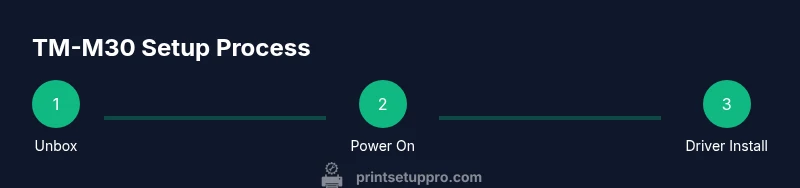
This section summarizes the core steps that follow in the step-by-step guide. You’ll verify model numbers, download the exact driver package, and install it on your operating system. The driver install fixes printer recognition issues and enables proper paper-width handling, character encoding, and print timing. After installation, you’ll be able to set TM-M30 as the default printer and print a test page to confirm the setup.
Tip: Always restart your computer after driver installation to ensure the OS fully recognizes the new driver and printer device.
Unbox, power up, and initialize
Open the TM-M30 package, remove all protective materials, and verify the contents against the packing slip. Connect the printer to a powered outlet using the supplied adapter, then switch the printer on. Allow the printer to complete its initialization sequence; you should see a clean startup status on any connected display or indicator LEDs. A successful initialization indicates readiness for driver installation and test printing.
Tip: Keep the printer in a stable position away from high traffic or moisture to avoid accidental bumps that could misalign the print head.
Connect via USB and set as default printer
Plug the USB cable into the printer and your computer, then wait for the OS to detect the device. Install the driver package if prompted, or manually select the TM-M30 from the list of printers and set it as the default. Print a test page from the printer properties to verify that the printer is sending data correctly and that the paper path is clear.
Tip: If the test page doesn’t print, check USB cable integrity, try a different USB port, and confirm that power is stable. A loose USB connection is a common culprit for failed prints.
Load paper and align guides
Open the printer cover and feed a new 58mm receipt roll into the paper feed, ensuring the paper feeds from the bottom and the take-up edge is correctly aligned with the printer’s feed path. Adjust the guides to fit snugly around the paper without bending it. Close the cover and press the feed button to advance several lines and confirm clean paper alignment. If skewing occurs, re-check the guides and paper orientation.
Tip: Use fresh rolls with clean edges; dirty or curled paper can cause skew and poor print quality.
Print test page and calibrate
With the TM-M30 connected and loaded, print a test receipt from your software or the printer’s utility. Look for clear characters, proper margins, and consistent line spacing. If needed, run the printer’s calibration routine from the utility to optimize print head alignment and line feeds for different paper brands. This step ensures the printer meets your formatting standards.
Tip: Save a few sample receipts with different fonts and sizes to fine-tune readability for your customers.
Optional network or Bluetooth setup (if supported)
If your TM-M30 variant supports Bluetooth or Ethernet, pair the device with your POS system or computer, following the on-screen prompts. For Bluetooth, ensure the printer is in pairing mode and that your device is discoverable. For network setups, assign a static IP if your POS system requires predictable addressing. Re-test printing after pairing or networking to confirm stability.
Tip: Keep Bluetooth devices close to reduce interference; wall barriers can degrade signal quality. For networks, document IP addresses and printer names for quick future access.
Firmware updates and maintenance best practices
Check for firmware updates on Epson’s official support site and apply them if available. Firmware updates can fix bugs, improve compatibility, and enhance performance with newer POS software. Establish a routine for checking updates at least every few months and maintain a written log of versions and dates. Regular cleaning of the paper path and print head will extend the life of the TM-M30 and maintain print quality.
Tip: Use canned compressed air to clean dust from the paper path; avoid touching the print head with bare hands to prevent oil transfer.
Troubleshooting quick reference (common issues)
Authority sources and further reading
- Print Setup Pro Overview: practical tips for printer deployments in small offices.
- Epson Official Support: driver downloads, firmware updates, and model specifications.
- Industry reviews and best-practice guides from major tech publications for printer reliability.
If you encounter persistent issues, refer to these sources for guidance and ensure your setup aligns with supported configurations across OS and POS software.
Maintenance and longevity tips
Regular maintenance helps keep the TM-M30 performing at peak levels. Clean the printer head and paper path every 3-6 months, replace paper rolls promptly, and store the printer in a dry environment. If you don’t use the printer for extended periods, run a test print monthly to keep print chemistry and lubrication the same as when in active use.
Tip: Use Epson-approved cleaning swabs and avoid abrasive tools to prevent head damage. Store spare parts in a cool, dry place to extend their life.
Tools & Materials
- Epson TM-M30 printer(Ensure correct model and serial visible on label)
- AC power adapter(Connect to a standard power outlet )
- USB cable (Type-B to A)(For USB connection to computer or POS device)
- 58mm receipt paper rolls(Thermal paper; ensure proper width for TM-M30)
- Driver installer package(From Epson or official distributor; verify OS compatibility)
- Optional Bluetooth dongle(Only if your TM-M30 model or setup uses Bluetooth)
Steps
Estimated time: Estimated total time: 45-90 minutes
- 1
Unbox and inspect
Remove the TM-M30 from its packaging, check the contents against the packing slip, and inspect for any shipping damage. Verify the model number and confirm you have the correct power adapter and USB cable. This prevents missing items that would halt setup.
Tip: Keep packaging until after successful testing in case you need to return or exchange parts. - 2
Power up and initialize
Connect the power adapter and plug the printer into a grounded outlet. Turn the printer on and wait for the initialization sequence to complete, which confirms basic functionality before drivers are installed.
Tip: A stable power outlet reduces the risk of startup failures. - 3
Install drivers
Download the latest TM-M30 driver package from Epson’s official site and install it on your computer. Follow on-screen prompts and restart if requested to ensure the OS recognizes the printer.
Tip: Always download drivers from the official source to avoid counterfeit software. - 4
Connect via USB
Attach the USB cable to both the TM-M30 and your computer. Set the TM-M30 as the default printer in your OS settings and run a test print from the printer properties.
Tip: If the OS doesn’t detect the printer, try a different USB port or reboot the computer. - 5
Load paper and align guides
Open the printer cover, load a 58mm roll with the paper feeding from the bottom, and adjust the paper guides to fit snugly. Close the cover and feed a few lines to verify clean printing.
Tip: Ensure the paper edge is straight to avoid jams. - 6
Print a test page
From your POS software or the printer utility, print a test page to verify legibility, margins, and line spacing. Confirm the print head is aligned and outputs are consistent.
Tip: Note any misalignment; recalibrate if needed. - 7
Calibrate and fine-tune
If characters appear uneven, run the printer’s calibration routine via the utility or driver options. Adjust font size, margins, and line feeds to match your receipts.
Tip: Small adjustments can dramatically improve readability. - 8
Optional pairing or network setup
If your model supports Bluetooth or network printing, pair or configure the device according to your POS environment. Verify connectivity with a sample receipt from each channel.
Tip: Document the pairing steps for future reference. - 9
Firmware and maintenance
Check for firmware updates on Epson’s site and install them if available. Clean the feed path and print head periodically to preserve print quality and device longevity.
Tip: Schedule quarterly maintenance checks.
People Also Ask
What do I need to install before using the TM-M30?
You’ll need the TM-M30 printer, a power adapter, a USB cable, 58mm receipt paper, and administrator access on your computer to install the official Epson drivers. After installation, set the printer as default and print a test receipt.
You’ll need the printer, power, USB cable, paper, and admin access to install the official drivers and print a test receipt.
Can I print from a Mac or Linux machine with the TM-M30?
Yes. Epson provides drivers and setup utilities for major operating systems, including macOS and some Linux distributions. Check the support site for the exact driver package and instructions for your OS version.
The TM-M30 supports macOS and some Linux setups with the official drivers; verify your exact OS version on Epson’s site.
Why is my TM-M30 not printing even after driver installation?
Common causes include a loose USB connection, wrong default printer selection, paper jam, or damaged print head. Re-check cables, confirm default printer, clear jams, and try a test print again.
If it won’t print after install, check cables and the default printer, clear any jams, and test again.
How do I load receipt paper correctly in the TM-M30?
Open the cover, insert a fresh 58mm receipt roll with the paper feeding from the bottom, and align the guides. Close the cover and feed a few lines to confirm proper feeding.
Open the cover, load the paper from the bottom, align guides, and test feed a few lines.
Is firmware updates necessary for ongoing compatibility?
Firmware updates can improve reliability and compatibility with new software. Check Epson’s site regularly and apply updates when available, following the provided instructions.
Firmware updates help keep things compatible and reliable; check Epson’s site for updates.
Watch Video
Quick Summary
- Verify model and drivers before connecting
- Use the official Epson drivers for reliability
- Regular paper loading and calibration improve receipt quality
- Keep firmware updated for compatibility and fixes
- Document settings for quick future reference