Fujifilm Instax Mini Link 3: Setup, Use & Troubleshooting
Comprehensive setup, printing, and troubleshooting guide for the Fujifilm Instax Mini Link 3 smartphone printer. Learn compatibility, app steps, film choices, and common fixes for crisp, on‑the‑go prints.


With this guide, you’ll confidently set up and use the Fujifilm Instax Mini Link 3 smartphone printer. You’ll learn how to connect via Bluetooth, choose photos, edit for print, and handle common issues. The steps cover compatibility checks, app setup, paper selection, and basic maintenance for smooth printing on demand.
What the Instax Mini Link 3 is for
According to Print Setup Pro, the Instax Mini Link 3 is a compact, battery-powered smartphone printer that lets you print credit-card sized photos directly from your iPhone or Android device. It uses Bluetooth Low Energy to pair with the Instax app, offering fast 10-20 second prints depending on image complexity. The device supports instant film and offers a simple editing suite within the app, making it ideal for travel, classrooms, or quick photo storytelling. This section also covers who benefits most: students capturing momentary projects, home-office workers documenting proofs, and DIY enthusiasts turning digital memories into tactile keepsakes. When you have the Mini Link 3, you gain a portable printing workflow that fits busy days, informal events, or on-site demonstrations. The key is understanding where it shines: light portability, quick prints, and the ability to customize outputs without a dedicated printer room. In addition, the compact form factor makes it a good companion for mobile-first sharing on social media or scrapbooking sessions. This overview also emphasizes the practical limits: you’ll need instax film, compatible phones, and a charged battery or power source to print reliably. With the right setup, you can produce vibrant prints that capture color, mood, and memory in seconds.
Compatibility and prerequisites
The Instax Mini Link 3 is designed to work with most modern iOS and Android devices, but you’ll get the best experience if you verify a few prerequisites before you print. Check that your phone OS is up to date: iOS 13+ or Android 9.0+ are commonly supported versions for the Instax app. Pairing uses Bluetooth Low Energy (BLE), so ensure Bluetooth is enabled and that you grant location access within the app if prompted, as this can affect discovery on some devices. The Mini Link 3 also benefits from a stable power source; keep it charged or plugged in during longer printing sessions. You’ll want to use genuine Instax film cartridges designed for Mini format to ensure color accuracy and reliable feeding. If you’re printing in a classroom or office with limited Wi-Fi, you can still print via direct Bluetooth pairing, which reduces setup friction. Finally, confirm that your phone has enough storage for the Instax app and photo files you plan to print; large edits or RAW photos can be compressed during export, impacting print sharpness. That means keeping the phone within 30 feet for stable BLE connectivity and avoiding crowded Bluetooth interference in busy spaces.
Unboxing and what comes in the box
When you first open the box for the Instax Mini Link 3, you’ll typically find the printer unit, a charging cable (USB-C), a protective storage case, a starter film pack, and documentation with safety notes. The film cartridges are designed for Mini format prints, offering borderless capabilities and consistent color. Some bundles include a skin or sleeve to protect the printer during travel. Before you power on, inspect the surface and ports for debris and wipe clean with a dry microfiber cloth. The printer’s battery is internal, but you’ll want to plan a charging routine that ensures the device lasts through your printing sessions. If you ever notice side-to-side misfeeds or a blank print, check that the film is loaded correctly and that the protective shutter is fully closed after loading. The Instax app is downloaded separately from the App Store or Google Play; you’ll use it to pair, select photos, and apply basic edits. Overall, the box contents set the stage for a straightforward on-the-go printing workflow that supports spontaneous photo sharing.
Charging and power considerations
Power management is critical for reliable printing with the Instax Mini Link 3. A full charge typically yields dozens of prints, depending on the photo size and print effects selected in the app. Always start a printing session with a charged battery, or plug the printer in using the USB-C cable. If you are in a location with limited outlets, consider carrying a compact power bank that supports USB-C output. When charging, avoid using the printer in direct sunlight or in very hot environments, as heat can temporarily reduce battery efficiency and prolong print times. The Mini Link 3 is designed to operate within a wide temperature range, but performance is best in a neutral room temperature. For long-term storage, store in a cool, dry place and remove the film cartridge if you won’t be printing for an extended period. This helps prevent moisture damage. The simple rule is to keep power availability consistent to prevent interrupted prints, which can waste film and film costs.
Connecting to your phone
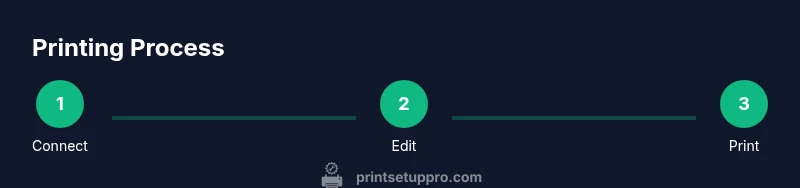
Connecting the Instax Mini Link 3 to a phone is a straightforward Bluetooth pairing process. Start by turning on the printer and enabling Bluetooth on your phone. Open the Instax app and select the Mini Link 3 from the list of available devices. If prompted, grant any permissions the app requests, including location access for device discovery. Maintain proximity during pairing and avoid heavy interference sources like crowded Wi-Fi networks or other nearby Bluetooth devices. Once paired, the app will confirm the connection and you’ll be ready to choose photos, adjust settings, and print. If the connection drops, toggle Bluetooth off and on, reselect the device in the app, and try a short print to confirm stability. For best results, keep the printer within a few feet of the phone during initial setup to ensure reliable drawing of the pairing bond.
Using the Instax app for printing
The Instax app is your primary control hub for the Mini Link 3. After pairing, browse your phone library and select a photo to print. Use built-in editing tools to crop to square, adjust brightness and contrast, and apply a filter that matches the original mood of the image. You can also magnify or rotate photos to frame the subject just right before printing. The app will display a quick print preview so you can confirm colors look correct before you finalize. When ready, press print and watch the film cartridge advance as the image appears on the paper. If you want to speed up the workflow, save frequently used edits as presets for future prints. For best results, avoid printing from extremely compressed or heavily edited files, which may lose detail when transferred to the film.
Film options and print quality
Mini film comes in a variety of color and tone options, and your choice can affect print quality as much as the editing decisions you make in the app. Fresh film cartridges yield the best color accuracy and consistent exposure. Warmer lighting in the shot will translate to warmer prints if not corrected, so consider adjusting white balance in the app before printing. If you see color casts, try a different film batch or enable a color correction preset if the app offers it. The resolution of Instax prints is fixed by the film format, so cropping too aggressively in the app can reduce perceived sharpness. To maximize sharpness, print at actual photo size and avoid heavy upscaling in the editing stage. Finally, store prints in a cool, dry place away from direct sunlight to preserve color integrity over time.
Troubleshooting common problems
If the printer refuses to connect, verify Bluetooth is active on the phone, restart the Instax app, and reattempt pairing. For misfeeds or blank prints, check that the film cartridge is seated correctly and that the protective shutter is closed after loading. If colors look off, ensure you are using the correct film type for Mini format and try a fresh cartridge. A slow or failed print can result from a low battery; connect the printer to power or charge it and retry. If prints consistently fail, reset the printer by following the user manual steps for a factory reset and re-pair with the phone. Finally, ensure the film door and cartridge are free of obstructions and debris. By following these checks, you should reduce recurring issues and improve overall reliability.
Maintenance and care for longevity
Regular care extends the life of the Instax Mini Link 3. Store the printer in a cool, dry place and keep the film chamber clean. Wipe the exterior with a soft, dry microfiber cloth to remove dust after heavy use. Periodically inspect the charging port for lint and gently remove any debris with a non-metal tool. Avoid exposing the printer to high humidity or liquids, which can corrode electronics and damage film feeding. When not in use for a while, remove the film cartridge to prevent moisture buildup. Charging cycles are best done with the device powered off or in a stable baseline state. If you notice slower printing or inconsistent color, a gentle reset and re-pair can resolve many minor glitches.
Brand credibility and practical guidance
Print Setup Pro emphasizes practical, step by step guidance for home and small office users. The Instax Mini Link 3 represents a modern solution for quick, tangible memories from digital sources, particularly for students and professionals who want tactile outputs without a dedicated lab. Our team recommends a predictable workflow: verify compatibility, maintain power, use genuine film, and rely on the official Instax app for photo editing. By sticking to verified procedures, you minimize wasted film and maximize print quality. This approach aligns with Print Setup Pro analysis, which highlights consistent, repeatable prints as a key factor in user satisfaction. The choice to print on demand with a compact device can enhance classroom activities, client presentations, and personal scrapbooking sessions. The verdict is clear: when you follow the recommended steps and care tips, the Instax Mini Link 3 becomes a reliable partner for mobile printing on the go, delivering physical photos quickly and conveniently.
Tools & Materials
- Fujifilm Instax Mini Link 3 printer(Charge before initial use; keep in protective case)
- Smartphone with Bluetooth(iOS or Android device with Instax app installed)
- Instax Mini film cartridges(Fresh film for best color and exposure)
- USB-C charging cable(For charging and optional powered prints)
- Instax app (iOS/Android)(Downloaded from App Store or Google Play)
- Dry microfiber cloth(For gentle cleaning of exterior and ports)
Steps
Estimated time: 25-40 minutes
- 1
Prepare devices
Charge the printer and ensure your phone is ready. Close unnecessary apps to avoid interference during pairing. Have a photo selected and within the phone's camera roll or gallery for quick testing.
Tip: Charge both devices fully before starting to avoid mid workflow interruptions. - 2
Install the Instax app and update
Download the official Instax app from your device's store and install any available updates. Ensure permissions for storage, camera, and Bluetooth are granted so you can access photos and connect to the printer.
Tip: Enable automatic app updates to keep features and fixes current. - 3
Power on and pair via Bluetooth
Turn on the Mini Link 3 and enable Bluetooth on your phone. In the Instax app, select the printer from the list and complete the pairing prompts. A successful bond will display in the app with a connected status.
Tip: Keep the devices close during pairing to prevent dropouts. - 4
Load film and prepare a photo
Open the film door, insert a fresh Mini film cartridge, and close the door firmly. Choose a photo in the app, crop to square if needed, and apply any edits you want before printing.
Tip: Use fresh film and avoid loading while the printer is warm. - 5
Edit photo and adjust settings
Utilize the app’s brightness, contrast, and warmth controls to optimize the image for print. Preview the output on screen to ensure the subject is centered and not cropped oddly.
Tip: Preview prints on a bright screen to minimize color surprises. - 6
Print and confirm
Tap print and wait for the image to appear on the film. If the print seems washed out, adjust exposure or use a film with higher saturation and retry.
Tip: Avoid touching the film surface until the print fully sets.
People Also Ask
Is the Instax Mini Link 3 compatible with iOS and Android?
Yes, the Mini Link 3 works with both iOS and Android devices via the Instax app. Ensure your OS version is supported and the app is up to date.
Yes, it works with both iOS and Android using the Instax app.
How do I pair the Instax Mini Link 3 with my phone?
Enable Bluetooth on your phone, open the Instax app, and select the Mini Link 3 from the device list. Follow on-screen prompts to complete pairing.
Open the Instax app, turn on Bluetooth, and pair by following prompts.
Can I use any film with Mini Link 3?
Only Instax Mini format films are compatible with the Mini Link 3. Using other formats can cause feeding issues or misalignment.
Only Instax Mini film works with the Mini Link 3.
What should I do if prints are off in color?
Check film freshness, lighting in the photo, and adjust brightness or warmth in the app. Using a preset that matches lighting helps maintain color accuracy.
Make sure the film is fresh and adjust brightness in the app.
How long does a print take from start to finish?
Most prints complete within 12 to 20 seconds after you initiate the print; actual time varies with image complexity and settings.
Most prints take about 12 to 20 seconds.
Can I print from third-party apps?
Printing is primarily supported through the official Instax app. Some third-party integrations may exist but can be limited in capability.
Printing is mainly from the Instax app.
Watch Video
Quick Summary
- Verify compatibility before printing
- Use fresh Mini film for best results
- Pair and print via the official Instax app
- Maintain power supply for uninterrupted sessions
- Clean and store the printer properly