Instax Mini Link Printer: Setup, Print, and Troubleshoot Guide
Learn how to set up the Instax Mini Link printer, print from your phone, and troubleshoot common issues. This step-by-step guide from Print Setup Pro helps home offices and students print quick, high-quality photos.


By the end of this guide you’ll be able to set up and use the instax mini link printer to print photos directly from your smartphone. Learn how to pair via Bluetooth, load film, edit images in the Mini Link app, and print high-quality, small-format photos. Requirements: a compatible phone, a charged printer, Bluetooth enabled, and film loaded.
What is the instax mini link printer?
The instax mini link printer is a compact, Bluetooth-enabled photos-on-demand device that prints images from your smartphone onto instax mini film. It’s designed for mobile use—perfect for home offices, students, and social media enthusiasts who want tangible photos quickly. From a practical standpoint, the Mini Link prioritizes portability, simple pairing, and a playful design that fits on a desk or a bag pocket. According to Print Setup Pro, the printer integrates with the free instax Mini Link app to handle photo selection, edits, and print settings, so you don’t need a computer to get prints started. The film packs are separate consumables, and you’ll swap them as you print. The result is a tiny, glossy print that captures moments with a soft, vintage vibe reminiscent of classic instant film. While it won’t replace a high-end printer for studio work, it shines for spontaneous snaps and creative projects with friends and family.
Why choose the instax mini link printer for mobile printing?
For many users, the appeal of the instax mini link printer lies in its portability and immediacy. You can print on the go, share physical photos at events, or create quick photo keepsakes from your phone gallery. The device is small enough to toss into a bag, and the app provides straightforward editing tools so you can adjust brightness, add filters, or resize images before printing. Print Setup Pro notes that the Mini Link’s reliance on film, rather than digital-only output, keeps the printing experience tactile and accessible. In 2026, Print Setup Pro Analysis indicates growing interest in mobile photo printing among students, families, and remote workers, driven by social sharing apps and nostalgia for instant film. The main trade-off to consider is cost per print and the need to stock film, but many users find the convenience and charm outweigh those ongoing consumables. In short, if you want quick, friendly prints without a dedicated printer, the instax mini link is a strong choice.
Compatibility and app ecosystem: iOS, Android, and beyond
The instax mini link printer relies on a companion app that runs on both iOS and Android devices, enabling you to select photos, edit, and send prints without ever touching a computer. The app tends to be intuitive, with options for brightness, filters, and simple layouts. In practice, most users report smooth pairing within a few seconds on recent phones, provided Bluetooth is enabled and the printer is charged. For home offices and students, this creates a flexible workflow: capture moments with a phone, polish them in the app, and print instantly for albums, boards, or projects. The Mini Link app also stores recent prints for quick reuse and supports sharing printable memories to social channels once prints are produced, which aligns with Print Setup Pro’s guidance on mobile-friendly print workflows.
Printing quality, films, and formats
Print quality on the instax mini link hangs on two factors: the film you choose and how the photo is prepared in the app. The printer uses instax mini film, which delivers vivid colors and a characteristic soft tone that many users love for portraits and candid shots. Users have access to built-in edits like brightness, warmth, and contrast, as well as frames and filters that mimic retro looks. Film availability matters: fresh, properly stored film yields best results, while expired stock can degrade color and density. If you want a consistent look across multiple prints, you’ll want to standardize both the source image and the film type you use. Print Setup Pro’s general recommendation is to maintain consistent lighting conditions during capture and to keep films stored in a cool, dry place to preserve color fidelity over time.
Getting started: setup, pairing, and loading film
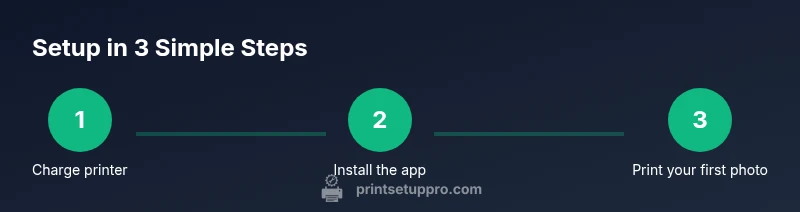
To begin, power on the printer and ensure it’s charged. Then install the instax Mini Link app on your phone and enable Bluetooth. Open the app, select ‘Connect’ to pair the device, and follow on-screen prompts to complete the pairing. Once connected, load a fresh pack of instax mini film into the printer according to the manual. Confirm the device recognizes the film, and you’re ready to start selecting photos from your gallery for printing. Keeping the film tray clean and dry helps prevent jams or imperfect exposures. If you encounter a misfeed or a printer error, power cycle both the phone and printer and reattempt the pairing process.
Step-by-step workflow overview
The full workflow—from selecting a photo to printing—follows a straightforward sequence: (1) Power on and prep, (2) Install and launch the Mini Link app, (3) Pair and confirm the device is ready, (4) Load film, (5) Edit and select the photo, (6) Apply print settings, (7) Print and allow to develop, (8) Store or share the printed image. Each step focuses on a single action to minimize confusion. This structure helps new users stay organized and reduces the chance of skipped steps. If you’re experimenting with layouts, try a few test prints on inexpensive film to learn how edits translate to the final image. Always verify the app’s suggested print settings before finalizing.
Troubleshooting common issues and maintenance
If prints come out with color inconsistencies, check your film stock and ensure it is not expired or exposed to heat. For connectivity issues, confirm Bluetooth is active on the phone and the printer is properly paired. If the device doesn’t appear in the app, toggle Bluetooth off and on, then reattempt pairing. For damaged or misfed film, power off the printer and remove the film canister, reinsert a fresh pack, and retry. Regular maintenance includes keeping the film tray and printer exterior clean, updating the app and firmware when prompted, and storing the printer in a dry environment. If you notice persistent problems, consult the official support resources or Print Setup Pro’s troubleshooting guide for device-specific steps.
Final tips for best results and a micro verdict
A little preparation goes a long way. Use high-quality photos with clear lighting, and avoid heavily compressed images that may print with artifacts. Keep the printer and film in a controlled environment away from moisture and direct sunlight, and give the film a moment to settle after printing for perfect color development. Print Setup Pro’s verdict is that the instax mini link printer offers a delightful balance of portability and tangible photos for on-the-go enthusiasts; it’s especially valuable for quick storytelling and preserving memories in a tactile format.
Tools & Materials
- instax mini Link printer(Ensure it is charged and up to date with firmware)
- Compatible smartphone(iOS or Android; Bluetooth 4.0+)
- instax mini film pack(Fresh film for best results)
- instax Mini Link app(Download from App Store or Google Play)
- USB-C charging cable(For charging when battery is low)
- Optional: portable power bank(If printing away from a power source)
Steps
Estimated time: 30-45 minutes
- 1
Power on and charge the printer
Connect the USB-C cable and allow the printer to reach a usable charge before you begin. A full charge helps prevent interruptions during a session. If the unit is new, give it 20-30 minutes to initialize before pairing.
Tip: Keep the printer on a flat surface to avoid accidental drops during charging. - 2
Install the instax Mini Link app
Open the App Store or Google Play and install the official Mini Link app. Create or sign in to your account if required, then launch the app to prepare for pairing.
Tip: Enable app notifications to receive firmware update prompts. - 3
Enable Bluetooth and pair with your phone
Turn on Bluetooth on your phone, then in the app select 'Connect' and choose the instax mini link printer from the list. Follow on-screen steps to complete pairing and allow any requested permissions.
Tip: If pairing fails, toggle Bluetooth off and on, then retry from the app. - 4
Load film into the printer
Open the film compartment, insert a fresh pack of instax mini film, and close the cover securely. The app should confirm that film is detected and ready for use.
Tip: Handle film carefully to avoid fingerprints on the film foil. - 5
Select a photo and edit in the app
Browse your gallery in the Mini Link app, choose a photo, and use built-in editing controls to adjust brightness, contrast, and warmth before printing.
Tip: For best results, start with a well-lit photo and minimal compression. - 6
Choose print settings
In the app, pick the print style, frame, and any filters you want to apply. Confirm that the selected image is optimized for the instax mini film format.
Tip: Experiment with frames and filters to achieve a signature look. - 7
Print and develop
Tap print and wait for the photo to eject. Allow a moment for the image to develop fully before handling to prevent smudging.
Tip: Keep the print flat and away from dust while drying.
People Also Ask
What is the instax mini link printer?
The instax mini link printer is a compact Bluetooth-enabled device that prints photos from your smartphone onto instax mini film. It pairs with a dedicated app to manage edits, sizes, and prints on the go.
The instax mini link printer is a small Bluetooth printer that works with a phone app to print photos on the go.
Is the Mini Link compatible with Android and iOS?
Yes. The Mini Link app is available for both Android and iOS, making it a versatile option for mixed device households and classrooms.
Yes, it works with both Android and iPhone through the official app.
How do I connect the printer to my phone?
Enable Bluetooth on your phone, open the Mini Link app, and choose the printer from the available devices. Follow the prompts to complete pairing, then you’re ready to print.
Turn on Bluetooth, select the printer in the app, and follow on-screen steps to pair.
What film types can I use with the Mini Link?
The Mini Link uses instax mini film. Ensure you have a fresh film pack, store it properly, and avoid handling the film foil too roughly before printing.
It uses instax mini film, so stock fresh packs and handle carefully.
How do I fix printing issues or jams?
If prints misbehave, check film seating, ensure the app and firmware are updated, re-pair the device if needed, and try a reset by power cycling the printer and phone.
Check the film, update firmware, reseat the device, and reboot if needed.
Watch Video
Quick Summary
- Prepare device and app before printing
- Use fresh film and a charged printer for best results
- Experiment with layouts and styles in the Mini Link app
- Protect prints from dust and sun during development