How to Connect a Printer to a Computer: Complete Setup Guide
Learn how to connect a printer to a computer using USB, Wi-Fi, or Bluetooth, with driver installation and troubleshooting tips for Windows and macOS. This Print Setup Pro guide covers common setups for home offices and small businesses.


This guide answers how can printer be connected to a computer, covering USB, network, and Bluetooth options, driver installation, and basic troubleshooting. According to Print Setup Pro, start with a wired USB connection for reliability, then explore wireless methods if needed. The steps apply to Windows and macOS, with tips to test and verify print readiness.
Why connectivity matters
In a busy home office, the method you choose to connect your printer to a computer directly affects reliability, speed, and troubleshooting time. Proper connectivity reduces misprints, driver conflicts, and sharing headaches across devices. If you’re asking how can printer be connected to a computer, the answer depends on the printer hardware and your goals: USB for simplicity and reliability, or network/Wi‑Fi for flexible multi‑device printing. According to Print Setup Pro, most users begin with a wired USB connection to verify basic printing, then expand to wireless or network sharing if needed. Building a solid foundation now saves time and makes future upgrades easier, whether you’re printing homework, invoices, or photos.
Prerequisites and compatibility
Before you start, confirm the printer supports the interfaces you’ll use. Check OS compatibility, available drivers, and required permissions for installation. Gather essential items: a printer with a supported interface, a computer running Windows or macOS, a USB cable suitable for your ports, and the latest driver software. If you plan wireless printing, ensure you have reliable Wi‑Fi access. Keeping a quick reference of your printer model and driver version helps during future installations and reduces troubleshooting time. Print Setup Pro emphasizes starting with the simplest viable method to establish a baseline.
Connection methods at a glance
USB connections deliver plug‑and‑play simplicity and strong reliability for single‑user setups. Wireless options (Wi‑Fi or Bluetooth) enable device sharing and location flexibility, but may require configuring the printer’s network settings and matching the correct network. Ethernet on a router or switch can also provide a stable home office setup when Wi‑Fi signals are weak. In practice, begin with USB for a fail‑safe baseline; migrate to wireless only if you need multi‑device access or mobility. If your printer supports multiple interfaces, you can enable USB while keeping Wi‑Fi as a backup path.
Installing drivers and adding the printer to your computer
Driver software acts as the translator between your computer’s operating system and the printer hardware. Start by downloading the latest driver from the manufacturer’s site, or use your OS printer database if the model is widely supported. Install the driver with the printer disconnected when possible, then reconnect when prompted. On Windows, navigate to Settings > Devices > Printers & scanners and click Add a printer. On macOS, go to System Preferences > Printers & Scanners and use the + button to add the device. Selecting the correct driver ensures full functionality, including color management and duplex printing.
USB connection workflow
Begin by plugging the USB cable into both the printer and the computer. Power on the printer and wait for the OS to recognize the device. If the printer isn’t detected, try a different USB port or cable, and check that the printer isn’t in a special mode like “Offline” or “Pause.” Once detected, the OS may prompt you to install drivers; complete this step and set the printer as the default if desired. Testing with a simple document confirms basic printing works before exploring network options.
Wireless setup and network sharing tips
To connect via Wi‑Fi, ensure the printer is on the same network as the computer and use the printer’s control panel to select Wireless setup or Wi‑Fi Protected Setup (WPS) if supported. Enter your router’s SSID and password if prompted, or connect through a browser-based setup page if required. For Ethernet, connect the printer to your router or switch and use the printer’s IP address for manual setup. After configuring the network, add the printer to your computer as a network device and ensure the correct drivers are installed to enable all features.
Testing and validation
Print a test page from the printer’s control panel or from the OS to verify basic functionality, color accuracy, and alignment. Check pages with text and graphics to confirm that both black‑and‑white and color printing perform as expected. If issues arise, verify that the correct driver is installed, the printer is set as the default, and the chosen connection method is active. Document settings you used for future reference, including IP addresses or USB port numbers, to streamline troubleshooting.
Maintenance, security, and best practices
Keep firmware and driver software up to date, and periodically verify connectivity when you change networks or devices. Use strong Wi‑Fi security settings and avoid exposing printers to untrusted networks. For shared printers, set appropriate permissions to limit access and protect sensitive documents. Scheduling regular tests helps catch issues early and ensures continued compatibility with new operating systems.
Tools & Materials
- Printer(Any model with USB or network interfaces)
- Computer(Windows or macOS with admin rights)
- USB cable(Appropriate USB type for ports (A/B, C))
- Wi‑Fi network access(If using wireless setup)
- Ethernet cable or network access(If using wired network setup)
- Printer drivers/software(Download latest version from manufacturer)
- Adapter/port dongle (if needed)(For port compatibility (USB-C, etc.))
- Router or access point(Needed for wireless networking)
Steps
Estimated time: 30-60 minutes
- 1
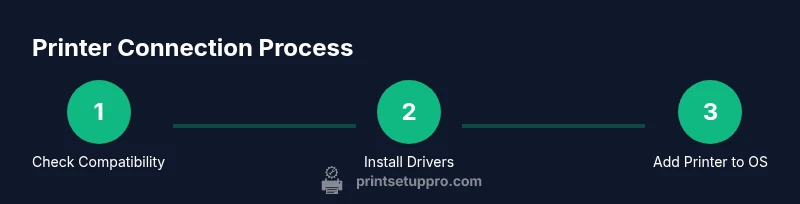
Check compatibility
Verify printer and computer support the desired connection method (USB, Ethernet, or Wi‑Fi). Confirm OS version and required drivers exist before starting. This prevents wasted time on incompatible configurations.
Tip: Consult the printer manual for interface availability and firmware requirements. - 2
Choose connection method
Decide between USB, wired Ethernet, or Wi‑Fi based on layout, reliability needs, and device sharing goals. USB is simplest for a single PC; wireless is best for multiple devices.
Tip: If you’re unsure, start with USB to establish a baseline. - 3
Install drivers
Download the latest driver from the manufacturer’s site and install it with administrator privileges. If prompted, allow the installer to update system preferences. A fresh driver reduces compatibility problems.
Tip: Restart the computer after installation for a clean baseline. - 4
Connect via USB
Plug the USB cable into the printer and PC, then power‑cycle the printer if needed. The OS should detect the device and prompt for driver setup. If not detected, try another USB port or cable.
Tip: Use a direct USB connection instead of through a hub when possible. - 5
Set up network printing
For Wi‑Fi, configure the printer to join the same network as the computer. For Ethernet, connect to router/switch and note the IP address if required. Ensure the printer is visible on the network.
Tip: Static IPs simplify future maintenance and avoid IP conflicts. - 6
Add printer to OS
On Windows, Settings > Devices > Printers & scanners > Add a printer. On macOS, System Preferences > Printers & Scanners > +. Choose the correct driver and complete setup.
Tip: If the OS asks for a driver package, point to the downloaded file. - 7
Print a test page
From the printer or OS, print a simple test page to confirm basic text, color, and alignment. If issues appear, revisit driver settings and connection type.
Tip: Check for paper jam, low ink, or misfeed as quick culprits. - 8
Troubleshoot and finalize
If the printer isn’t functioning, recheck cables, power, and network status. Review firewall settings for network printing and ensure firmware is up to date.
Tip: Document your steps for future installs and consider a printer sharing profile if many users need access.
People Also Ask
Can I connect multiple computers to the same printer?
Yes. Most printers support network sharing or Bluetooth, allowing multiple devices to print. You’ll typically enable sharing on the host computer or connect the printer to a network. Ensure drivers are installed on each device for full functionality.
Yes—most printers can be shared over a network. Install drivers on all devices and enable printer sharing on the host computer.
What should I do if the printer is not detected by my computer?
First, verify power and cables, then run the OS printer troubleshooter. Ensure the correct USB port or network configuration is selected and that the driver is installed. If needed, remove and re-add the printer in the OS settings.
Check power, cables, and drivers. Use the OS troubleshooter and re-add the printer if necessary.
Is Bluetooth a reliable option for printers?
Bluetooth can work for nearby devices but is typically less reliable and slower than USB or Wi‑Fi for printers. Use Bluetooth only if your setup requires close, one‑to‑one printing and there are no alternative options.
Bluetooth can work, but USB or Wi‑Fi is usually more reliable for printers.
Do I need to install drivers on both Windows and macOS?
Yes, most printers require drivers on both Windows and macOS. Some basic printing may work with built-in drivers, but full features and color management usually require vendor software appropriate for each OS.
Yes, drivers are typically needed on Windows and macOS for full functionality.
How do I find the printer’s IP address on a network?
You can print a network configuration page from the printer or check the router’s attached devices list. Some printers reveal IP during a basic network setup test. Record the IP if you’ll manage the printer remotely.
Print a network configuration page or check your router for the printer’s IP.
What if I get a driver compatibility error?
Ensure you have the correct driver version for your OS (32‑bit vs 64‑bit, correct major release). If needed, reinstall with the latest driver from the manufacturer and verify the OS compatibility matrix.
Make sure you have the right OS version and reinstall with the latest driver.
Watch Video
Quick Summary
- Identify supported connection methods before starting
- Install drivers before adding the printer in OS
- USB is reliable; Wi‑Fi offers flexibility for multiple devices
- Test prints and record settings for future use