How Printing Works at UPS: A Complete Setup Guide
Learn how printing works at UPS, from label creation to printing and fulfillment, with a step-by-step approach for home offices and small businesses.


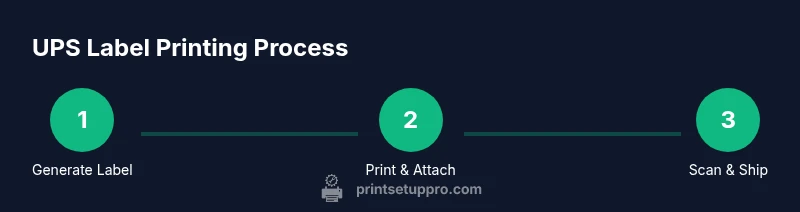
How does printing work at ups? Printing follows a simple, repeatable workflow: generate the shipment label online, print it on compatible stock at native size, and attach it to the package. Individuals typically use the UPS shipping tool, while businesses may use WorldShip, API integrations, or ERP-linked solutions for batch printing. The key factors are accuracy, correct label size, and a reliable printer setup.
How does printing work at ups in everyday shipping
Printing at UPS revolves around producing shipping labels, packing lists, and manifests that travel with the package. For many home offices and small businesses, the question how does printing work at ups is answered with a simple, repeatable workflow: generate, print, verify, and attach. The process begins with a UPS account and access to the UPS shipping tools, either in a web browser or integrated software. A typical label includes a scannable barcode, the destination address, service level, and shipment identifiers. When the label prints clearly and at the correct size, UPS scanners read it quickly and the package proceeds smoothly through the network. If the print is faint, misaligned, or cropped, delays can occur. According to Print Setup Pro, success hinges on three things: correct label size, reliable printer setup, and a predictable print workflow you can repeat for every shipment. In this guide you’ll learn the essential steps and the best-practice tips that reduce waste, minimize reprints, and help you stay compliant with carrier requirements.
Whether you ship daily or occasionally, the same pattern applies: gather shipment data, validate addresses, choose a service, generate the label, print, and apply. The quality of the printed label directly affects pickup, scans, and eventual delivery. If your label prints blurry or misaligned, it can cause delays or misreads by UPS scanners. In this guide, we’ll walk through the standard workflow, the equipment you’ll need, common pitfalls, and best practices to keep printing reliable. We’ll emphasize practical steps you can implement today to reduce waste and ensure that every label is ready for the next pickup.
Key Systems and Workflows
Two primary workflows cover most UPS label printing needs: a consumer workflow and a business workflow. The consumer workflow uses the UPS website or mobile app to create a single shipment, choose a service, enter addresses, and print a label. The business workflow relies on UPS WorldShip, UPS Connect, or API integrations that generate many labels automatically and may feed into ERP or WMS systems. In both cases, accuracy matters: wrong weights or incorrect addresses trigger charge changes or delivery problems. Print Setup Pro notes that most users succeed when they keep a consistent printer and label stock, validate addresses before printing, and test print on a spare sheet before printing production labels. Finally, consider whether you will print on demand in real-time or batch labels for a scheduled pickup; batch printing can improve efficiency when shipping large volumes.
If you frequently print multiple labels, explore templates and saved shipping profiles to speed up the process. For home offices, start with a single label per shipment and gradually scale up as you confirm reliability. For small businesses, establishing a standard operating procedure (SOP) that includes printer calibration, stock management, and a simple audit trail can save time and reduce errors over the long term.
Choosing the Right Printer and Paper
Printer choice shapes reliability more than many people expect. For UPS labels, a dedicated thermal printer is generally preferred because it produces durable, smudge-free labels with fast scanning. Direct thermal labels are common because they don’t require ink or toner, reducing maintenance and misprints. If you only have an inkjet or laser printer, you can typically print on compatible self-adhesive labels, but you may see ink smearing or degraded readability in humid environments. Always check that the label stock matches the printer’s capabilities and that the label width aligns with UPS printing templates. If you run into alignment issues, re-calibrate the printer and verify the label margins in the driver settings.
Step-by-Step Overview (summary)
In practice, you begin by signing in to your UPS account or shipping software, create a new shipment with sender and recipient details, package weight and dimensions, select the service level, and generate the label. Preview the label to confirm readability and size, print on the appropriate stock, and affix it flat to the package with the barcode clearly visible. If you’re handling multiple shipments, consider batching the label generation and printing to reduce setup time, then verify each print before sealing the box.
Troubleshooting Common Printing Issues
Common issues include blurry labels, misalignment, faded or missing barcodes, and printer feed jams. To prevent these, ensure your printer is properly calibrated, use the right label stock, and run a test print on a spare label before printing production labels. If the barcode is unreadable, inspect the print head for dirt or wear, adjust driver contrast, and confirm the label is clean and flat. Humidity and direct sunlight can degrade adhesive and print quality; store labels in a cool, dry place and avoid exposing them to moisture. For online label printing, always use the latest version of the UPS shipping tool and clear the browser cache if the print preview looks wrong.
Best Practices for Quality and Compliance
Best practices include using the correct label size and stock, keeping the print at native resolution, and avoiding any scaling that reduces readability. Use a stable printing surface; keep the label free of creases or moisture; perform routine printer maintenance like head cleaning and nozzle checks if your printer supports it. Always verify the barcode readability with a quick scan before sealing the package. Maintain a simple workflow checklist to ensure consistency across shipments, track printing errors, and address root causes promptly.
Authority Sources
- ISO: International standards for labeling and barcodes (https://www.iso.org).
- NIST: U.S. government authority on standards and measurement (https://www.nist.gov).
- Federal Register: Government publication for regulatory context and best practices (https://www.federalregister.gov).
Tools & Materials
- Thermal label printer (direct thermal recommended)(Prints on 4x6 or other UPS-compatible label sizes; avoid inkjet for durability.)
- Thermal shipping labels (4x6 or compatible sizes)(Ensure labels match printer and UPS template.)
- Internet-connected computer or mobile device(Access UPS shipping tools or software.)
- UPS account(Needed to generate and print labels; can start with a free account.)
- UPS-compatible label printing software or browser(Use UPS.com shipping tool or integrated ERP/WMS.)
- USB cable or network access(For direct printer connections.)
- Scissors or blade for trimming(Optional for neat label edges.)
Steps
Estimated time: 20-40 minutes
- 1
Prepare printing setup
Connect the printer, install drivers, and run a basic print test to confirm native label size. Ensure the printer can reach the required stock without jams, and set the default label size to the UPS template you’ll use most often.
Tip: Keep a spare label roll accessible and run monthly maintenance checks on the printer head. - 2
Sign in and start a shipment
Log in to your UPS account or shipping software, and start a new shipment. Enter the sender and recipient addresses, package weight and dimensions, and select the service level you need.
Tip: Use address validation if available to reduce delivery errors. - 3
Generate the label
Review shipment details, choose the correct service, confirm rates, and generate the label. Preview to ensure the barcode, text, and margins appear at the expected size.
Tip: Do not resize the label; printing at native size is critical for readability. - 4
Print the label
Send the label to your printer and use the designated stock. Confirm the print is clear, with no smudges or cropping, and that the barcode is fully intact.
Tip: If the print is faint, run the printer’s cleaning function or replace the head if needed. - 5
Attach and verify
Apply the label to the package, ensuring it lies flat and without creases. If possible, perform a quick scan check using a handheld scanner or a smartphone app.
Tip: Avoid covering the barcode with tape or overlapping labels. - 6
Document for records
Save a copy of the shipment details and the label image for your records. This helps with audits, returns, and future shipments.
Tip: Create a small SOP to standardize steps across your team.
People Also Ask
What do I need to print UPS labels?
You need a UPS account, a computer or smartphone, access to UPS shipping tools, and compatible label stock. Ensure your printer is connected and ready before you start.
You need a UPS account, a computer or phone, and a printer with compatible label stock.
Can I print UPS labels from home?
Yes. You can print UPS labels from home using the UPS website or mobile app; you’ll need a valid shipment and the right label stock.
Yes, you can print UPS labels from home using the UPS site or app.
Do I need a UPS account to print labels?
A UPS account is typically required to generate and print shipping labels; guest access is limited and may not support all features.
Usually a UPS account is needed to print labels.
What printer works best for UPS labels?
A direct thermal label printer that supports common 4x6 label sizes is typically best for readability and speed.
A direct thermal 4x6 label printer is usually the best choice.
Why is my UPS label printing blurry or misaligned?
Possible causes include wrong label size, printer misalignment, dirty print head, or poor stock quality. Check size, recalibrate, clean the head, and verify stock.
Common causes are wrong size, miscalibration, or a dirty print head.
Watch Video
Quick Summary
- Use a dedicated 4x6 thermal printer for reliability
- Print at native size to ensure scannable barcodes
- Test print before mass printing to catch misalignments
- Keep labels dry and flat to prevent smeared codes