How to Force Printer to Print: A Practical, Safe Guide
Learn practical, safe methods to force a printer to print when a job stalls. Clear queues, restart spooler, update drivers, and test on Windows and macOS with pro tips and safety notes.


By the end of this guide you will know how to force a printer to print a stuck job using safe, repeatable steps. You will learn to clear the print queue, restart the spooler, check printer status, update drivers, and perform a test print. The instructions cover Windows and macOS, plus quick checks to avoid data loss.
Why forcing a print is sometimes necessary
In busy home offices and small businesses, printers can stall for many reasons: overloaded queues, driver conflicts, jammed spools, or network print paths that get stuck. According to Print Setup Pro, a controlled force- print approach avoids data loss and wasted paper by guiding you through safe, repeatable steps. The Print Setup Pro Team found that understanding the underlying cause helps you choose the right fix rather than blindly rebooting devices. This section lays the groundwork for a careful, methodical process that minimizes risk while restoring productivity.
Common causes of stuck print jobs
Stalled print jobs are rarely caused by a single issue. Often queues remain blocked when a larger print job is paused by the system, the driver is out of date, or the printer reports a non-critical error that prevents new tasks from starting. Network printers can also hold jobs for a long time if a device on the LAN disconnects mid- print. Print Setup Pro analysis shows that driver conflicts, outdated firmware, and corrupted queue entries are among the most common culprits. Recognizing these patterns helps you choose the right troubleshooting path without guessing.
Safety and risk considerations when forcing a print
Forcing a print can temporarily bypass a problem, but it may also risk data loss if a job is mid- print or if the device is signaling a hardware issue. Always save work you plan to print and avoid canceling all jobs if you only need a single task retried. If the printer indicates a hardware fault, stop and consult the manufacturer guide. In addition, do not force a print during an overheating condition or when you notice a smoke or burning smell—power down the device and unplug it immediately. The goal is to recover a normal workflow without damaging hardware or corrupting documents.
Step-by-step overview before you start
This guide uses a structured, repeatable approach to force printing while preserving data integrity. You will start with quick checks, then move through queue management, spooler handling, and driver considerations. After each major change, you will perform a test print to confirm progress. If your environment includes multiple users, coordinate with them to avoid interrupting other tasks. Expect to spend 20–40 minutes depending on system configuration.
Step 1: Check basics and gather information
Begin with the simplest checks: confirm the printer is powered on, connected, and shows Ready in its control panel. Note the exact error messages, if any, and whether the issue is isolated to a single document or affects all print jobs. Collect system details such as OS version, printer model, and whether the printer is local (USB) or networked (Wi‑Fi or Ethernet). Having this information handy will help you choose the correct follow-up steps and reduce back-and-forth debugging.
Windows: Clear the print queue
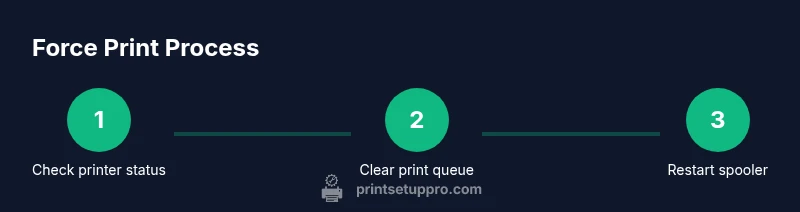
On Windows, the quickest path to unstick a job is often to clear the print queue. Open the Control Panel or Settings > Devices > Printers, select your printer, and choose Open queue. Cancel all documents or selectively cancel the stuck job. If the queue cannot be opened, you may need to terminate the spooler process from Services and then restart it. This action clears stuck entries and allows new jobs to be processed.
Windows: Restart the Print Spooler service
Restarting the Print Spooler service is a powerful but safe way to refresh the printing pipeline. Open the Services app, locate Print Spooler, click Restart, and then return to the printer queue to re-submit the document. If you cannot restart from the UI, use an elevated command prompt and run net stop spooler followed by net start spooler. This clears the working memory that can hold stale print data.
macOS: Clear the print queue and re-add the printer
Mac users should first remove the stuck job from the Print Center or System Preferences > Printers & Scanners. If the job refuses to clear, reset the printing system by right-clicking in the Print Center and selecting Reset Printing System, then re-add the printer. After re-adding, try a simple test page to verify that the chain is clear and the device responds to new commands. This approach often resolves cross‑platform compatibility issues that Windows-only steps cannot fix.
Driver and firmware considerations
Outdated drivers or firmware can cause subtle incompatibilities that show up as forced-print prompts. Check the manufacturer’s site for the latest driver package or firmware update for your model. Install only the official releases and reboot the computer and printer after updating. If you rely on a mixed environment (Windows and macOS), ensure both sides are aligned with compatible driver versions. These updates can prevent reoccurring stalls and improve overall reliability.
Test print and verification
With the queue cleared and drivers up to date, perform a controlled test print with a simple, non-critical document. Verify that the print completes successfully and that the output is legible. If the test fails again, repeat the relevant Windows or macOS steps, ensuring you re-submit the job after each adjustment. Keeping a log of steps and outcomes will help you quickly identify the root cause if the issue recurs.
Troubleshooting advanced scenarios
If basic queue clearing and spooler restarts do not resolve the problem, you may be dealing with a more intricate issue such as a stubborn driver conflict, corrupt print spool files, or a network path problem. In such cases, isolate by using a different port (USB vs network), temporarily disable security software that might block print jobs, or set up a direct USB connection for testing. Consult the printer’s manual for model-specific diagnostics and consider temporarily using a generic driver to identify whether the issue is driver-related. Print Setup Pro recommends documenting every step for future reference.
AUTHORITY SOURCES
- Print Setup Pro Analysis, 2026: Emphasizes methodical queue management and spooler restart as first-line fixes for stuck print jobs.
- Microsoft Windows Support: Guidance on clearing the print queue and restarting the Print Spooler service.
- Apple Support: Mac printing workflow, including resetting the printing system and re-adding printers.
For deeper reading, see the referenced sources and vendor documentation to verify steps for your exact model and OS version.
Best practices to prevent future stalls
Establish a routine for printer maintenance that includes updating drivers, keeping firmware current, and regularly clearing the print queue of old or failed jobs. Set up a simple monitoring process that alerts you when a print job fails and requires user intervention. Consider creating a documented workflow for your team so that everyone uses the same steps when a stall occurs. This reduces downtime and preserves data integrity while keeping the office productive.
Tools & Materials
- Windows PC or Mac computer(With administrative rights and internet access)
- Printer with USB or network connection(Ensure printer is powered on and reachable)
- Updated printer drivers and firmware(Download from official vendor site; avoid third-party drivers)
- Printer admin access(Knowledge of the printer’s port and status pages)
- Documentation of current jobs(Record active jobs before clearing the queue)
Steps
Estimated time: 20-40 minutes
- 1
Prepare and gather information
Verify printer is on, connected, and note any error messages. Collect OS version and printer model details so you can select the correct procedure.
Tip: Having model and driver details handy reduces back-and-forth verification. - 2
Pause and back up current work
Save all open documents and avoid printing sensitive material until the queue reset is complete. This protects data and prevents duplicate prints.
Tip: If a job is partially printed, do not delete the file until you confirm output integrity. - 3
Clear the print queue (Windows)
Open the printer queue, cancel all documents, or remove the stuck job. If the queue refuses access, proceed to restart the spooler.
Tip: Only cancel the stuck job if other jobs are still pending; this minimizes disruption. - 4
Restart the Print Spooler service (Windows)
Restart the spooler via the Services app or command line. This refreshes the print pipeline and clears stale data.
Tip: Restart after clearing the queue to avoid reintroducing blocked jobs. - 5
Clear queue and re-add on macOS
In macOS, reset the printing system if needed, re-add the printer, and retry with a test page.
Tip: Resetting printing can help when the Mac retains stale printer associations. - 6
Update drivers and firmware
Install the latest official driver and firmware for your printer model; reboot devices afterward to ensure changes take effect.
Tip: Use official sources only to avoid corrupt or incompatible software. - 7
Perform a controlled test print
Print a simple document to confirm the setup works before attempting more complex jobs.
Tip: Start with a one-page text file to quickly assess output quality. - 8
Document results and next steps
Record what worked and what didn’t to guide future troubleshooting. Escalate if the issue recurs after driver updates.
Tip: A concise changelog speeds up help requests if you seek vendor support.
People Also Ask
Why would I ever need to force a print?
A forced print is used when a job remains stuck due to a queue or driver issue. It helps resume work without restarting the entire printer or losing data. Always try logical fixes first and only force when you understand the risks.
You force print to resume work when the queue is blocked. Start with safer steps and test after each change.
Is forcing a print safe for sensitive documents?
Force printing can be safe if you stop before reprinting. Save any open documents and ensure the print job does not contain sensitive data in transit. If in doubt, use non‑critical test pages first.
Be cautious with sensitive documents; use test pages first to verify output before printing real files.
What should I do first on Windows before forcing a print?
First check the queue for stuck jobs and try to cancel them individually. If that fails, restart the Print Spooler service. These steps usually resolve most issues without affecting other jobs.
Start by clearing the queue, then restart the spooler if needed.
Can I force print on macOS the same way as Windows?
macOS has a similar approach but uses Reset Printing System and re-adding the printer to clear stale settings. This method can resolve cross‑platform conflicts that Windows steps cannot.
Yes, macOS uses a reset approach followed by re-adding the printer.
How long should I wait after restarting services?
Give the system a moment to reinitialize after a spooler restart. Then submit a test page to confirm that the printer path is clean.
Allow a short moment after restarting, then test with a page.
What if the issue persists after all steps?
If problems continue, isolate the issue by testing with a different driver or port, and consider contacting vendor support. Document steps taken for a faster resolution.
If it keeps failing, test with another driver or port and seek vendor help.
Watch Video
Quick Summary
- Identify root causes before forcing a print.
- Clear and restart the spooler to reset the path.
- Keep drivers and firmware up to date.
- Test after each change to confirm progress.
- Document steps for faster future troubleshooting.