How to Stop Printer: Safe, Step-by-Step Guide
Learn how to stop a printer safely, cancel stuck jobs, clear queues, and power down without risking jams. Print Setup Pro guides you step-by-step toward reliable printer control and maintenance, with practical checks and safety tips.


To master printer stoppage, you’ll learn how to safely cancel a print job, pause or stop the queue, and power down without risking jams. This guide covers both device-based and computer-based stops, plus precautions for jam-prone models. According to Print Setup Pro, following proper shutdown steps reduces the risk of damaged print heads and data loss. You’ll be able to prevent feed errors, wasted paper, and unnecessary downtime.
Why stopping a printer safely matters
Properly stopping a printer is about preserving hardware, protecting data, and minimizing downtime. When you cancel a job or shut down incorrectly, you risk damaged print heads, misfeeds, or partially printed pages that waste ink and paper. The Print Setup Pro team emphasizes that controlled stops reduce wear on rollers and fusers and help prevent stubborn jams. In addition, a calm, documented process makes it easier to reprint correctly without repeating errors. According to Print Setup Pro Analysis, many users overlook the importance of a clean cancel sequence, which can compound problems over time. By following a consistent routine, you protect your work and extend the life of your printer.
Quick checks before you stop
Before taking any action, verify what is currently happening on screen and physically on the printer. Check the display for a “Job Cancelled” or similar status. If the printer is actively feeding sheets, pause briefly and confirm you are ready to proceed. Make sure there are no hotspots of danger (hot surfaces, exposed rollers) and that you are wearing minimal protective gear. Keep a log of the current job, the time, and the user who initiated it. These steps help you troubleshoot later if a print fails.
Stopping a print job from a computer (Windows/macOS)
From your computer, open the print queue and cancel the active job. On Windows, open Settings > Devices > Printers & Scanners, select your printer, and click Open queue; then choose Cancel. On macOS, use System Preferences > Printers & Scanners, select the active job, and click the x button to cancel. If the queue is stuck, restart the print spooler service after stopping the queue to clear stuck data. Print Setup Pro notes that safe cancellation reduces corrupted files and wasted paper.
Stopping via the printer's physical controls
If the computer is unresponsive, use the printer’s control panel to stop the current job. Navigate to the Job Center or equivalent area, choose Cancel or Stop, and confirm. For devices with a touchscreen, a long-press on the Cancel icon often yields a list of recent jobs. Always avoid pulling power during active printing; instead, use the proper Cancel/Stop function first. This preserves firmware state and reduces the chance of feed issues on the next print.
After stopping: reset queues and prepare for reprint
Once the job is stopped, verify the queue is clear, and print heads are idle before resuming. Run a quick nozzle check if your device supports it and perform a test print on blank paper to confirm alignment. If you have a persistent jam, check for foreign objects in the paper path and reseat media guides. Document your steps so future operators know the exact sequence used.
Authority sources and best practices
For authoritative guidance, refer to trusted sources and model-specific manuals. See: United States National Institute of Standards and Technology (NIST) on safety practices, the Occupational Safety and Health Administration (OSHA) guidelines for electrical equipment, and FTC consumer guidance on service and safety. These sources support best practices in device handling, power management, and data protection.
Tools & Materials
- Printer power switch(Turn OFF to stop all activity; unplug after powered down if safe.)
- Control panel / on-device interface(Use Cancel/Stop to terminate current job.)
- Computer or mobile device(Used to cancel from the OS print queue.)
- Access to printer manual(Model-specific steps and safe handling notes.)
- Gloves or protective cloth(Only if you are dealing with a jam that requires contact with the feed area.)
Steps
Estimated time: 25-40 minutes
- 1
Power down safely
If possible, use the power switch to turn the printer OFF and wait 10-20 seconds before turning it back ON. This helps reset transient states without harming internal components.
Tip: If you have to unplug, do so only after the device is OFF and cool. - 2
Cancel the active job from the OS
Open the print queue on your computer or mobile device and cancel the current job. Confirm the printer returns to an Idle state before proceeding.
Tip: Take a screenshot or note the job name for future reference. - 3
Pause the queue if needed
If there are multiple jobs, pause the queue to prevent new ones from starting while you troubleshoot.
Tip: Pausing avoids sending new data to the printer mid-check. - 4
Check the display and indicators
Observe the printer's display for a ready or idle message and listen for motor noises that indicate activity.
Tip: Look for error codes in the display and have the manual handy. - 5
Inspect the paper path and jam area
Gently inspect the paper path for obstructions without forcing the paper through a blocked area. Remove misfed sheets carefully.
Tip: Use tweezers or needle-nose pliers to lift small bits; never yank. - 6
Test print and re-enable queue
Run a small test page to verify the printer returns to normal operation, then resume normal print queue operation.
Tip: If the test page misbehaves, recheck the media settings and alignment.
People Also Ask
How do I stop a print job on Windows?
Open the print queue for your printer, select the active job, and click Cancel. If the queue is stuck, restart the print spooler service. Always ensure the printer is idle before performing maintenance.
Open the printer queue, cancel the active job, and restart the spooler if needed.
How do I stop a print job on macOS?
In macOS, go to System Preferences > Printers & Scanners, choose the active job, and click the Cancel button. If necessary, restart the print system from the same panel.
Go to Printers & Scanners and cancel the active job.
What if the printer won’t stop printing?
If a device refuses to stop, power down safely, then unplug after shutdown. Wait, plug back in and retry from the queue. If it persists, check for jam or firmware issues.
Power down safely, unplug after shutdown, and retry.
How do I clear the entire print queue?
Open the print queue and cancel every pending job. If necessary, reboot the computer or restart the spooler service to ensure the queue is cleared.
Cancel all queued jobs and restart the spooler if needed.
Is it safe to unplug a printer while printing?
No. Always try to stop the job using Cancel or Stop before powering down. Unplugging during print can cause data loss and hardware damage.
Don’t unplug during printing; stop the job first.
What safety steps should I take during maintenance?
Power off the device, disconnect from power, and wait for all moving parts to stop before touching any internal components.
Power off and unplug before maintenance.
Watch Video
Quick Summary
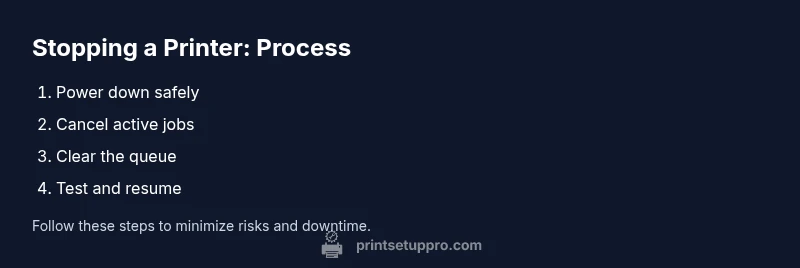
- Cancel active jobs from the OS first
- Use the printer panel if the computer is unresponsive
- Power down safely and test with a blank page
- Clear the queue before resuming work
- Document steps for troubleshooting future jams