How to Install a Printer on iPhone
Learn how to connect and print from your iPhone to AirPrint-enabled or supported printers. This comprehensive guide covers compatibility, setup, troubleshooting, and best practices for reliable wireless printing on iOS in 2026.


This guide helps you install and use a printer with your iPhone. You’ll verify compatibility (AirPrint or vendor app), connect the printer to your Wi‑Fi network, and print from any iPhone app. The process is straightforward on modern iOS devices, with most setups completing in under 30 minutes.
What you’ll need to print from
AirPrint vs Manufacturer apps: Which works for you?
AirPrint provides a built‑in, app‑less experience that works with most
Compatibility checklist: Ensure your printer can be found
Before you start, run a quick compatibility check. Make sure both devices are on the same Wi‑Fi network, the printer is powered on and awake, and the printer firmware is up to date. Confirm your
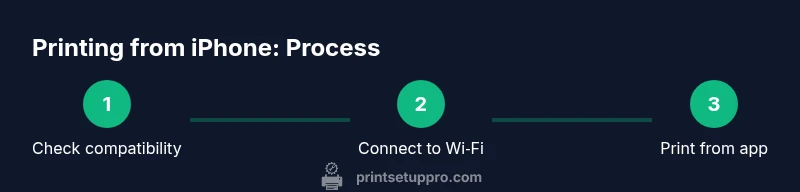
Step-by-step overview of the printing flow (high level)
Printing from
Troubleshooting common issues
If your
Best practices for reliable mobile printing
- Keep
Tools & Materials
- iPhone (with latest iOS)(Ensure automatic updates are enabled for security and compatibility.)
- Printer with AirPrint support or vendor app(AirPrint is preferred for simplicity; vendor apps unlock advanced features.)
- Wi‑Fi network (2.4 GHz and/or 5 GHz)(Both devices must be on the same network for discovery.)
- Printer password/Wi‑Fi credentials(Needed to connect the printer to your network.)
- Optional vendor printing app(Install from the App Store if you need features beyond AirPrint.)
Steps
Estimated time: 15-30 minutes
- 1
Verify printer compatibility
Check the printer manual or manufacturer site to confirm AirPrint support or available companion apps. This initial check prevents fruitless setup attempts if the device isn’t compatible with iPhone printing.
Tip: If in doubt, contact support to confirm AirPrint compatibility before purchasing new hardware. - 2
Connect printer to Wi‑Fi
Power on the printer, access its network settings, and join your home or office Wi‑Fi network. Note the network name and password for later use on the iPhone.
Tip: If your printer has a built‑in display, use it to navigate the Wi‑Fi setup wizard to avoid misconfigurations. - 3
Update firmware and apps
Ensure the printer’s firmware is up to date and that any required printer apps on your iPhone are current. Firmware updates fix bugs and improve AirPrint discovery.
Tip: Check for updates immediately after initial connection to prevent avoidable issues later. - 4
Trigger the Print command from iPhone
Open a document or image in an app, tap the Share icon or the Action button, and select Print. The iPhone will present a printer list if a compatible printer is detected on the network.
Tip: If you don’t see a printer, refresh the list by returning to the previous screen and re‑opening the Print dialog. - 5
Select printer and adjust settings
In the Print dialog, choose your printer, specify copies, page range, color options, and paper size if available. These settings can affect cost and speed.
Tip: For photos, choose 'Best for Photo' if your printer supports it to optimize color and clarity. - 6
Print and verify
Tap Print and inspect the first page to confirm alignment, margins, and color accuracy. If the result isn’t correct, adjust the settings or try again. If you have a vendor app, you can often fine‑tune quality there.
Tip: Keep a quick test sheet handy when configuring new printers or changing paper types.
People Also Ask
Can I print from iPhone without AirPrint?
AirPrint makes printing from iPhone straightforward and typically requires no extra apps. If your printer isn’t AirPrint-enabled, you can still print using the manufacturer’s app or cloud printing solution. This approach may involve additional setup steps but can work for legacy printers.
Yes, you can print from iPhone without AirPrint by using the manufacturer’s app, though AirPrint offers the simplest path.
What should I do if my iPhone can't find the printer?
First, ensure both devices are on the same Wi‑Fi network and that the printer is awake. Disable VPNs that might block discovery and refresh the Print dialog. If needed, update the printer firmware and re‑connect to the network.
Make sure your devices are on the same network, then refresh the print dialog or restart devices if the printer isn’t seen.
Is a wired USB printer compatible with iPhone printing?
Most iPhones rely on wireless printing via AirPrint or a vendor app. USB-only printers are generally not discoverable unless the printer itself supports wireless bridging or has an app that enables network printing.
USB-only printers usually won’t print directly from iPhone unless the printer supports wireless features.
Can I print from iPhone to multiple printers?
Yes. As long as each printer is accessible on the same network or via respective apps, you can select a different printer per print job from within the app’s Print dialog.
You can choose different printers per print as long as they’re on the network or supported by apps.
Do I need to install the printer’s app on my iPhone?
Not always. AirPrint works without apps, but manufacturer apps can unlock extra features like better photo handling, scanning, or advanced color controls.
Apps aren’t always required, but they can give you more features.
How do I print photos from iPhone to a printer?
Open the photo, tap Share, choose Print, select your printer, adjust settings, and print. For best results, use a printer that supports photo modes or use the vendor app for enhanced options.
Print photos by using the Share option, then Print, and choose your printer.
Quick Summary
- Connect iPhone and printer to the same Wi‑Fi network.
- Use AirPrint for the simplest setup and best reliability.
- Update firmware and iOS for optimal compatibility.
- Test prints to verify quality and correct settings.