Where Is Printer on iPhone: A Practical AirPrint Guide
Discover how to locate and use printers from your iPhone with AirPrint. This guide covers compatibility, setup, troubleshooting, and tips for home, school, and small offices.


Find and use the native printing path on your iPhone by locating AirPrint-enabled printers on the share sheet. You’ll print from apps by tapping the share icon, selecting Print, and choosing a compatible printer on the same Wi‑Fi network. No drivers required for AirPrint, and most home printers work with iPhone printing.
How your iPhone finds printers on the same network
When you initiate printing from an iPhone app, the system uses AirPrint to discover printers that are on the same Wi-Fi network. If you don’t see a printer, the issue is usually network-related rather than a problem with the iPhone itself. According to Print Setup Pro, most visibility issues arise when devices are on separate networks, the printer is in sleep mode, or the firmware is out of date. The Print Setup Pro team found that a simple restart of the printer or router, or a firmware update, often resolves the problem quickly. Remember, not all printers are AirPrint-enabled, so you may need a firmware update or a manufacturer app for full compatibility. Where is printer on iphone commonly becomes clear once both devices are on the same network and the printer supports the AirPrint protocol. The guidance here blends practical steps with network hygiene to keep your printing routine smooth.
Prerequisites for AirPrint printing
Before you begin, ensure two fundamental conditions are met: (1) your iPhone runs a recent version of iOS with AirPrint support, and (2) your printer is AirPrint-capable and connected to the same Wi‑Fi network as the iPhone. If the printer isn’t found, check that the printer is powered on, awake, and not in sleep mode. Update the printer’s firmware to the latest version and verify that it appears in the printer list on your iPhone’s Print dialog. Print Setup Pro emphasizes that firmware updates often unlock better device discovery and compatibility across brands. Maintaining a clean network (no guest isolation) also helps devices see each other reliably.
Locating the printer in iPhone: step-by-step from an app
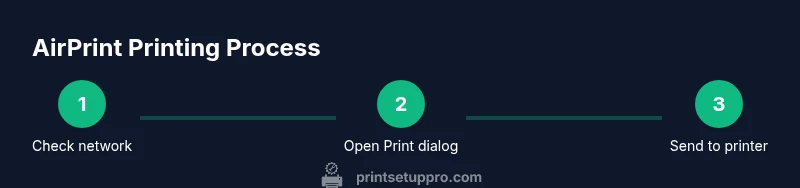
When you’re ready to print, open the document or photo in the app, tap the share icon or the action menu, then choose Print. In the Print dialog, tap Printer to view available devices. If you don’t see your printer, return to Settings > Wi‑Fi to confirm network membership, or restart the printer and iPhone to refresh the AirPrint discovery cache. In many cases, simply turning the printer off for a few seconds and back on can bring it back into the list. This is a common point of failure that is surprisingly easy to fix. Print Setup Pro notes that keeping both devices on 2.4 GHz or 5 GHz networks with stable router performance reduces discovery time and improves reliability.
Common issues and quick fixes
The most frequent problems involve network connectivity, AirPrint compatibility, or printer sleep states. If the printer doesn’t appear, verify that AirPrint is enabled in the printer’s settings and that the printer is not set to a private network segment. Rebooting the router and the printer often resolves temporary network conflicts. If the printer still doesn’t show up, check for a firmware update, verify that the printer is on the same network as the iPhone, and confirm that there are no firewall rules blocking mDNS/Bonjour traffic. Print Setup Pro’s practical guidance emphasizes avoiding VPNs or guest networks for direct printing tasks, as they can isolate devices and prevent discovery.
Printing options and app-specific behavior
Once the printer appears, you can tailor print settings such as copies, page range, color versus black-and-white, and paper size. Some apps allow direct printing from within the document window via the Share or Print option, while others require you to export or save to a compatible format first. For photos, you’ll typically see print options from the Photos app as well as third-party camera apps. If your printer supports it, you can also use features like double-sided printing or page scaling. The key is to verify the printer’s capabilities in the Print dialog before sending the job, so you don’t waste paper or ink. Print Setup Pro recommends testing with a single-page document first to confirm that formatting transfers correctly to the printer.
Security, privacy, and best practices for iPhone printing
Printing from a mobile device can reveal sensitive information if you’re on a shared network. Always ensure you’re printing over a trusted network and avoid public Wi‑Fi for confidential documents. Keep your iPhone and printer firmware up to date to mitigate security vulnerabilities. When finished, detach the AirPrint session by closing the Print dialog and locking the iPhone if you’re in a public space. Practicing these steps reduces exposure to unintended prints and helps protect your data integrity. Print Setup Pro highlights that routine maintenance, including firmware checks and network hygiene, is part of responsible printing.
What to do if AirPrint isn’t your only option
Some printers offer companion apps or cloud printing methods that extend capabilities beyond AirPrint. If AirPrint isn’t visible or fully functional, check the printer manufacturer’s app for direct printing or alternative connections (like Wi‑Fi Direct or cloud print). These apps can also enable scanning, photo editing, or job management features that AirPrint does not provide. Remember, you don’t need to abandon AirPrint; use the manufacturer app as a supplementary pathway when you need advanced options or troubleshooting help.
Tools & Materials
- iPhone with latest iOS(Ensure Wi-Fi is on and AirDrop isn’t disabled.)
- AirPrint-enabled printer(Verify model compatibility and enable AirPrint.)
- Stable Wi-Fi network(Prefer a 2.4 GHz or 5 GHz band with good coverage.)
- Printer firmware updated(Check for updates before you start.)
- Printer manual or model number(Helpful for firmware and settings.)
Steps
Estimated time: 15-25 minutes
- 1
Check network readiness
Ensure the iPhone and printer are on the same Wi‑Fi network and that the printer is powered on. Verify that AirPrint is enabled in the printer’s settings. If the printer doesn’t appear, power cycle the router and printer, then retry.
Tip: A quick router reboot can clear discovery issues in under a minute. - 2
Open the print dialog from your app
In the app, tap the share or action icon, then select Print. Tap Printer to see available devices. If your printer isn’t listed, move to the next step and verify network settings.
Tip: Make sure the document you’re printing is in a compatible format for AirPrint. - 3
Choose print options
Select copies, page range, color mode, and paper size. Use the preview to confirm that the output matches your intent before sending the job.
Tip: Favor single-page tests to confirm layout and margins before large print runs. - 4
Send the print job
Tap Print to start the job. Observe the printer status and wait for a confirmation or any error message. If an error occurs, take note of the code or message.
Tip: If you see an error, restart both devices and retry the print command. - 5
Troubleshoot common failures
If printing fails, check network stability, reselect the printer, and ensure no other device is queuing jobs. Update firmware if available and retry. Consider resetting network settings on the iPhone as a last resort.
Tip: Documenting the error message helps with faster troubleshooting in future attempts. - 6
Explore advanced options (optional)
If you need features beyond AirPrint, install the printer manufacturer’s app for scanning, cloud printing, or additional controls. Follow the app’s setup prompts and integrate with cloud services if supported.
Tip: Always obtain apps from official App Store pages to avoid counterfeit software.
People Also Ask
What is AirPrint and does it work with all printers?
AirPrint is Apple’s built-in printing framework that lets iPhone users print directly from apps without installing drivers. It requires an AirPrint-capable printer on the same network. If your printer isn’t AirPrint-enabled, look for a manufacturer app or firmware update that adds compatibility.
AirPrint lets you print directly from iPhone apps without extra software, as long as your printer supports AirPrint and is on the same network.
Why can't I see my printer on my iPhone?
If your printer doesn’t appear, verify that both devices are on the same network, confirm the printer is powered on and not in sleep mode, and check for a firmware update. Restarting the router and printer also helps refresh AirPrint discovery.
If the printer isn’t visible, first check network connection, then try rebooting the printer and router to refresh discovery.
Can I print on a guest network or public Wi‑Fi?
Printing over guest networks can be unreliable due to device isolation. If possible, connect both iPhone and printer to the primary home or office network to ensure visibility and stability.
Guest networks may block devices from seeing each other, so use the main network for printing when you can.
Do I need to install the printer manufacturer app?
No, AirPrint does not require a manufacturer app. Apps can provide extra features like scanning or cloud printing, but they are optional and not needed for basic printing.
You don’t need the app for basic AirPrint printing, but apps can unlock additional features.
How can I print multiple pages or photos from iPhone?
In the Print dialog, select the desired page range or choose multiple items in the Photos app. For photos, you may print multiple images in a single job by selecting all the images in the share sheet.
Use the print dialog to specify pages or select multiple photos, then print.
What should I do if printing is slow or inconsistent?
Check network stability, ensure no other devices are hogging bandwidth, update printer firmware, and consider restarting devices. If issues persist, test with a simple document to isolate complexity from bandwidth or driver problems.
If printing is slow, verify network health and update firmware; try a simple test print to isolate issues.
Watch Video
Quick Summary
- Check that iPhone and printer share a network.
- Use the share sheet to access Print from apps.
- AirPrint reduces the need for drivers.
- Update firmware for best compatibility.
- Consider manufacturer apps for advanced features.