Can You Get a Printer for Your iPhone? A Practical Guide
Learn how to print from your iPhone using AirPrint and printer apps. This guide covers compatibility, setup, troubleshooting, and tips for home offices with Print Setup Pro.


Can you print from your iPhone? Yes. By using AirPrint-enabled printers or your printer manufacturer’s app, you can print photos, documents, and web pages directly from your iPhone over Wi‑Fi. This guide shows how to check compatibility, connect safely, and print with confidence—whether you’re at home or in a small office.
Can you print from your iPhone: AirPrint basics and setup
Printing from an iPhone is surprisingly straightforward once you understand the basics. The core idea is to use AirPrint-compatible printers or the printer’s own app to send documents, photos, or web pages from your iPhone over your home or office Wi‑Fi. If you’re wondering can you get a printer for your iphone, the answer is yes, and it’s simpler than you might expect. Print Setup Pro recommends starting with AirPrint-capable devices for the most seamless experience, especially for home offices and students. In this section we cover what AirPrint is, what you need to check, and how to prepare your network for smooth printing.
According to Print Setup Pro, choosing a device with strong mobile app support reduces setup time and frustration.
AirPrint vs third-party printing options
Two main paths exist for iPhone printing: AirPrint and third-party printing apps. AirPrint is built into iOS and needs no extra software in most cases. Third-party apps from printer brands unlock features like scanning, cloud printing, and advanced layout options. If your printer is not AirPrint-enabled, you can still print using the manufacturer’s app or via cloud-based services. Print Setup Pro notes that the right choice depends on your devices, the level of control you want, and whether you print frequently from mobile devices.
How to choose a printer that works with your iPhone
Start by confirming AirPrint compatibility. Look for the AirPrint logo in product specs, or check the manufacturer’s site. Consider printer speed, color accuracy, and cost per page for your typical documents. For home offices or small teams, a compact all-in-one with solid mobile app support often delivers the best value. Also review the app’s interface—some brands offer easier photo printing and job history management than others. Finally, ensure the printer can connect to your Wi‑Fi network reliably and supports your phone’s OS version. This is especially important if you plan to upgrade iOS soon. According to Print Setup Pro, choosing a device with strong mobile app support reduces setup time and frustration.
How the iPhone printing workflow typically looks
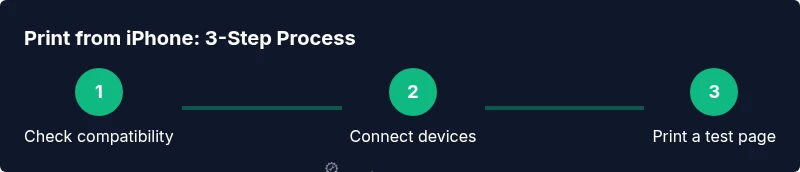
In most setups, you browse to the item you want to print on your iPhone, tap the share or action sheet, and select Print. The system then lists compatible printers on the same network; you choose your printer and adjust options like color, page range, and number of copies. If you’re printing from Photos, Files, or Safari, you’ll see familiar print options tailored to the content type. For best results, print a test page after setup to ensure margins and color match your expectations. This section explains the standard flows you’ll rely on day to day.
Common mobile printing workflows
- AirPrint workflow: Print instantly from any compatible app. Use the iPhone's share menu to pick Print, then select your AirPrint printer and adjust options.
- Manufacturer app workflow: Open the printer brand’s app for advanced controls (double-sided printing, photo enhancements, job history).
- Cloud printing workflow: Some printers support cloud printing; you can submit jobs via the cloud and print from iPhone even if the printer is not on the same network, but this may add latency.
Troubleshooting connectivity and print queues
If your iPhone cannot find the printer, ensure both devices are on the same network and that the printer is powered on and awake. Restart the printer and iPhone if needed, forget and reconnect to the network, and verify software updates. Check for firmware updates on the printer and iOS updates on the iPhone; sometimes a mismatch causes Print not available errors. If printing still fails, try printing a test page from another device to isolate the issue.
Security, privacy, and maintenance considerations
Print from mobile devices with an eye toward security. Keep printer firmware up to date, use strong Wi‑Fi passwords, and enable secure print features when available. Avoid sending sensitive documents over public networks, and consider using private printing if your printer supports a password or PIN. Regularly review app permissions and uninstall unused printer apps to minimize exposure. This helps protect your content as you print from iPhone or other devices.
Tools & Materials
- iPhone with latest iOS(Ensure your device supports printing features (Share/Print).)
- AirPrint-enabled printer(Confirm the printer supports AirPrint or has an updated firmware for mobile printing.)
- Stable Wi‑Fi network(Both devices should be on the same network; 2.4 GHz or 5 GHz networks both work, depending on the router.)
- Printer manufacturer app (iOS)(Useful for advanced features and cloud printing; not required for AirPrint.)
- Cables/adapters for initial setup (optional)(Some printers need a USB setup before enabling wireless printing.)
- Charger or power bank for iPhone(Helpful for longer print sessions away from power outlets.)
Steps
Estimated time: 25-45 minutes
- 1
Check compatibility and network readiness
Verify your printer supports AirPrint or has an iOS-compatible app. Confirm both devices can reach the same Wi‑Fi network.
Tip: If you’re unsure, visit the manufacturer site to confirm AirPrint compatibility and recommended network settings. - 2
Connect iPhone to the printer's network (or ensure same network)
If the printer creates its own network, join it from the iPhone settings. If both are on the same home/office network, skip to the next step.
Tip: A stable 2.4 GHz network often yields fewer intermittent drops than a crowded 5 GHz network. - 3
Enable AirPrint or install the manufacturer app
Turn on AirPrint on the printer if required or install the corresponding iOS app for enhanced features.
Tip: Update firmware and app to the latest versions before printing. - 4
Open the content you want to print on the iPhone
Navigate to Photos, Files, or Safari, tap Share/Print, and select Print.
Tip: If you don’t see Print, check that the content supports printing from the app. - 5
Choose printer and adjust print options
Select your printer, then set copies, color, size, and pages. Confirm preview looks correct.
Tip: Review margins and scale settings to avoid cropping. - 6
Print and verify output
Send the job and check the printed page for accuracy. If needed, reprint with adjusted settings.
Tip: Print a quick test page after switching to a new printer model. - 7
Keep devices updated for ongoing compatibility
Regularly check for iOS and printer firmware updates to maintain smooth printing.
Tip: Enable automatic updates where possible to reduce future issues.
People Also Ask
Can I print from iPhone without AirPrint?
Yes. If your printer isn’t AirPrint-enabled, you can still print by using the manufacturer’s mobile app or cloud printing options, though this may require more setup time.
If your printer isn’t AirPrint-enabled, use the manufacturer's app or cloud printing to print from your iPhone.
Do I need Wi‑Fi to print from iPhone?
Most mobile printing relies on Wi‑Fi to connect the iPhone and printer. Some printers support direct wireless connections, but the easiest path is both devices on the same network.
Usually yes, you’ll want both devices on the same network for reliable printing.
What printers work best with iPhone printing?
Printers with robust AirPrint support and a well-designed iOS app tend to provide the best experience. Look for models with frequent firmware updates and clear documentation.
Look for AirPrint-capable models with strong iOS apps and regular updates.
How do I print from iPhone to a USB-connected printer?
USB-connected printers generally require a computer or a network bridge to print from iPhone. If you must, check the printer manual for supported connection methods.
Direct USB printing from iPhone is uncommon; most setups use network or cloud printing.
Why isn’t my iPhone finding the printer?
Verify both devices are on the same network, confirm the printer is awake, and restart both devices if needed. Check for firmware and iOS updates.
Make sure everything is on the same network and up to date, then retry.
Is cloud printing better than AirPrint?
Cloud printing can work when devices are on different networks or when AirPrint is unavailable, but it may introduce latency and depends on the printer’s cloud service reliability.
Cloud printing offers options when AirPrint isn’t available, but expect potential delays.
Watch Video
Quick Summary
- Check printer compatibility first before purchasing.
- Use AirPrint for simplest mobile printing workflow.
- Keep all devices on the same network during setup.
- Update firmware and apps to maintain compatibility.
- Leverage manufacturer apps for advanced printing features.