How to Print Without Margins: A Complete Guide
Learn how to print without margins on common home printers. This guide from Print Setup Pro covers borderless settings, paper choices, and step-by-step workflows to achieve edge-to-edge prints with confidence.


Learn how to print without margins on most printers by configuring borderless settings, selecting the right paper size, and using compatible software. This quick guide covers what you need before you start, and highlights common limitations, so you can achieve edge-to-edge results with confidence for photos, labels, and documents. We'll walk through hardware, software, and workflow tweaks you can apply today.
Why margin control matters
Margin control is not just a cosmetic detail; it affects how your content aligns on the page, how much of the page you can use, and whether a print edge runs off the paper. For many home-office tasks— from student handouts to personal photo projects—marginless or edge-to-edge printing can create cleaner layouts and more professional results. However, achieving true marginless prints depends on your printer’s capabilities and the software you use. The phrase how to print without margins isn’t a universal feature on every device, but with the right checks and settings, most users can push their hardware toward borderless output where supported. Print Setup Pro recommends starting with your printer’s documentation and testing a few pages on scrap stock to calibrate expectations and avoid wasted paper.
Understanding your needs and tools
Before diving into marginless printing, clarify your goal: are you printing photos, labels, or a full-page document? Each use case may require different paper types and settings. A borderless print for photos often yields the best results on glossy or satin photo stock, while documents may require cropping and bleed handling to appear edge-to-edge on the finished piece. Gather the essentials: a printer that supports borderless printing for your chosen paper size, compatible driver software, the correct paper stock, and a computer or device with your preferred design or word processing software. The Print Setup Pro team suggests starting with a lightweight test project to confirm alignment across different pages and to identify any printer-specific limitations early in the process.
Checking printer capabilities and margins
Not all printers can print to the exact edge of a page. Borderless printing is typically available for select paper sizes (e.g., standard photo sizes like 4x6) and sometimes for A4 or Letter with certain settings. To determine what your printer can do, consult the user manual, then run a print test using a basic shape or photo on the target paper. If the printer reports a printable area smaller than the paper size, you’ll need to adjust expectations or choose a size the device supports. This upfront check saves you from chasing a feature your hardware can’t deliver. Print Setup Pro emphasizes documenting your printer’s minimum margins and supported paper sizes so you can tailor your projects accordingly.
Software and driver configuration: borderless vs minimum margins
Software settings often govern whether you can print without margins. In Windows and macOS, you typically access a Print dialog or Page Setup panel to choose a borderless option for supported sizes. If the borderless option is unavailable, you may still achieve near edge-to-edge output by setting margins to the minimum allowed by the software and printer, then using a bleed area in your design. The key is to align the content within the printable region, preview the output, and ensure the final trim area won’t affect critical elements like text. Print Setup Pro recommends keeping track of the minimum margin values surfaced by each driver and platform for future projects.
Borderless printing for photos vs. text-based documents
Edge-to-edge output is most common and reliable for photos and graphic-heavy content. Text-heavy documents, reports, or e-books often rely on margins for readability and binding. When marginless printing is not supported for a given size, consider printing on larger stock and trimming, or using a bleed-compatible layout so the content still reads cleanly when cropped. The distinction matters: borders can help with legibility on documents, while photos benefit from a clean, full-bleed presentation. By understanding the difference, you can choose the right approach for each project.
Practical workarounds when marginless printing isn’t available
If your printer cannot print to the edge on your chosen paper size, there are several practical workarounds. First, scale your content slightly so the important elements stay within the printable area. Second, use a bleed design approach where you extend colors or graphics beyond the final trim line, ensuring no white edges appear after cropping. Finally, wholegone margins can be mimicked by cropping or trimming after printing, though this requires precise measurement and alignment. Print Setup Pro notes that many users find success by planning for a small trim area and designing with safe margins away from critical content.
Paper selection and printer settings that reduce margins
The type of paper substantially affects margin results. Heavier weight photo paper or specialty media may have different feed characteristics that influence alignment. Always select the paper size exactly as it appears in the printer’s settings, and confirm the media type in the driver. For borderless output, using the recommended stock for your printer helps minimize feeding irregularities and misalignment. Print Setup Pro also suggests testing multiple paper brands and finishes to identify which combination yields the best edge-to-edge result on your device.
Tools & Materials
- Printer with borderless/edge-to-edge capability(Check model supports borderless printing for your target paper size)
- Compatible paper stock (borderless-capable sizes)(Select sizes your printer explicitly supports (e.g., 4x6, A4, Letter))
- Printer driver/software capable of borderless printing(Keep drivers up to date to access borderless options)
- Calibrated test sheets(Plain white stock helps verify alignment before using specialty media)
- Computer or device with design software(Software should offer precise margins and bleed settings (e.g., PDF editors, layout apps))
- Measuring tools for trim(Ruler or cutting mat for accurate post-print trimming if needed)
Steps
Estimated time: 1 hour 15 minutes
- 1
Verify hardware capabilities
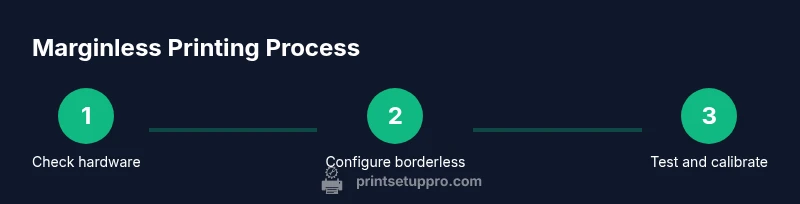
Check your printer model for borderless printing support and confirm the paper sizes it can handle. Refer to the manual or manufacturer website for official guidance. If borderless is not supported for your chosen size, plan to use a supported size or prepare for trimming.
Tip: If borderless isn’t listed, contact support or choose a supported size to avoid misprints. - 2
Prepare the paper and printer
Load the correct paper into the tray, ensuring the paper guides are snug and aligned with the selected size. Use the back tray if available to improve feed accuracy for edge-to-edge outputs.
Tip: Use a fresh stack of paper to prevent feeding issues during a test print. - 3
Enable borderless printing in the driver
Open the printer properties or preferences and select the borderless option for the target size. Verify the media type matches the paper you’re using. If the option is not visible, update the driver or check for an alternate paper size that supports borderless output.
Tip: Double-check that you’re saving settings for the correct paper size to avoid defaults reappearing. - 4
Set margins to minimum in software
In your document or layout software, set margins to the minimum allowed by the program or to zero if permitted. Preview the page to ensure content sits within the printable area. Save a template for future projects.
Tip: When margins are inaccessible, use guides to align content within the printable zone. - 5
Preview and adjust before printing
Use the print preview feature to check alignment and edge coverage. If edges appear off, adjust scale or content placement and re-check the preview. Make sure the page orientation and size match the printer settings.
Tip: Enable show print margins in the preview to catch issues early. - 6
Print a test page and calibrate
Print a test sheet on plain white stock and inspect the edges for alignment and coverage. If needed, re-run with adjusted margins or paper type. Document any recommended changes for subsequent prints.
Tip: Always start with a small test run before committing to final stock. - 7
Troubleshoot margins reappearing
If margins reappear, revisit driver settings, ensure you selected the correct paper size, and confirm there’s no automatic scaling. Update or reinstall drivers if necessary and test again.
Tip: Reset printer preferences to defaults and reapply borderless settings as a clean start.
People Also Ask
Can every printer print without margins?
No. Borderless printing is supported on select models and sizes. Always check your printer’s manual or support site to confirm compatibility for your chosen paper size.
Not every printer can print edge-to-edge. Check your model's borderless options in the manual or online support.
Which paper sizes support edge-to-edge printing?
Borderless output is common for 4x6 photos and certain paper sizes like A4 or Letter on specific models. Availability varies by model and region.
Borderless is usually available for common photo sizes; verify your printer's supported sizes.
Why do margins crop even after enabling borderless?
The printable area is limited by the printer’s hardware and driver. Some pages still reserve margins for feeding or alignment even when borderless is selected.
Margins crop because the printer’s printable area is smaller than the paper size.
How do Windows and macOS differ for borderless printing?
Both OSs provide a borderless option in the print dialog for supported sizes. On Mac, you may adjust Page Setup margins to zero; on Windows, select the borderless option in Printer Preferences.
Windows and Mac both offer borderless options, but the steps differ by OS.
Are there safe workarounds if borderless isn’t available?
Yes. Scale content to fit, use bleed designs that extend beyond the trim line, or print larger and trim after printing.
If borderless isn’t available, you can scale or bleed content and trim afterward.
What role does paper type play in marginless printing?
Paper weight and finish influence feed accuracy and alignment. Choose media type recommended by the printer and test with your specific stock.
Paper choice matters; use the printer’s recommended media for best results.
Watch Video
Quick Summary
- Check printer borderless capability before starting
- Use compatible paper sizes and updated drivers
- Preview carefully and test print before final output
- Know when to crop or trim for true edge-to-edge results
- Document your marginless templates for future projects