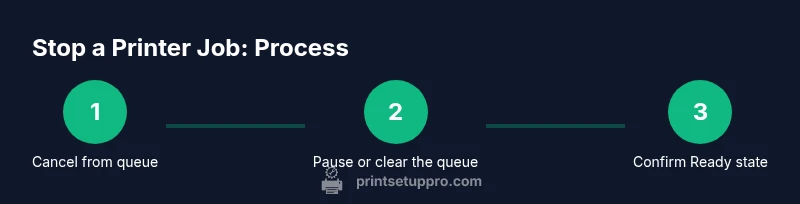
How to Stop a Printer Job: Quick, Safe, Step-by-Step
Learn how to stop a stuck printer job quickly across Windows, macOS, and printer interfaces with a reliable, safe approach. This guide from Print Setup Pro helps home offices, students, and small businesses.


You can stop a printer job by canceling from the print queue, pausing the job, or safely disconnecting the printer. This guide covers methods for Windows, macOS, and direct printer interfaces, plus tips to avoid repeat interruptions. Whether the job is stuck due to a driver hiccup, a jam, or a software error, you will learn reliable, safe steps you can follow.
Why stopping a printer job matters
In a busy home office or classroom, stuck print jobs waste paper, ink, and time. The moment you notice a print is misbehaving, stopping the job reduces damage and frees up the queue for legitimate work. According to Print Setup Pro, early intervention is the most reliable way to minimize waste and prevent downstream issues such as partial prints or paper jams. The steps below apply whether you're dealing with a single-page document or a long print job. Most modern printers, drivers, and operating systems support multiple ways to cancel a job, from software queues to on-device control panels. Understanding when and how to stop a job helps you stay productive and protects equipment from unnecessary wear. You’ll find practical, safe actions that align with standard industry practices.
Print Setup Pro’s guidance emphasizes safety, especially avoiding forced power cycles that can corrupt queues or damage memory in a printer controller. By following the recommended steps, you can preserve the printer’s health while quickly reclaiming your work.
Common scenarios that prompt cancellation
Print jobs get stopped for a variety of reasons, including a misprint, a software hang, a jam, or simply that you realize you need a different document. Other times the printer is stuck due to a conflicting background task, a duplex setting error, or a corrupted data packet from the computer. In shared-office environments, users may cancel one job to start another, leading to brief queue conflicts. The important part is to intervene calmly and in a controlled way rather than unplugging or repeatedly sending new jobs. In all cases, the goal is to clear the current task without affecting other queued work or the printer’s internal memory. By knowing typical causes, you can choose the most effective stopping method and prevent damage to the print system or hardware.
When a stop is mishandled, you can trigger a cascade of issues across devices and drivers. Print Setup Pro analysis shows that most problems stem from stale queue data, incompatible driver states, or a printer reporting an error state that prevents clean cancellation. The guidance here keeps the process predictable and safe, reducing the chance of corrupted files or partial prints.
Immediate stop methods: queues, pause, and cancel
There are several fast ways to stop a printer job, depending on where you manage the queue. On a Windows PC, open the printer's queue, right-click the active document, and choose Cancel. If the queue is busy, you can use Pause before Cancel to prevent the file from advancing while you troubleshoot. On macOS, open System Preferences > Printers & Scanners, select the printer, click Open Queue, and cancel the document. If you’re printing from a mobile device, swipe in the app’s job list and tap Cancel. If the document won’t cancel, try clearing the entire queue and restarting the driver service. Finally, if the hardware panel is responsive, you can use the printer’s own control panel to stop the job and reset the display to a ready state. Note that some devices show a Cancel button that cancels only the current page; use Cancel All or Cancel Job if available.
These steps minimize the risk of leaving partially printed pages in the printer or the software, which reduces waste and avoids confusing the next job in line.
Step-by-step approaches for Windows, macOS, and printer panels
Windows steps
- Open the Start menu and go to Settings > Devices > Printers & scanners. Open the queue for the target printer. 2) In the queue window, locate the active job and click Cancel. Confirm if prompted. 3) If the job resists cancellation, choose Pause first, then Cancel, and refresh the queue (F5) to ensure the action is registered. 4) If the problem persists, restart the Print Spooler service to reset the queue without rebooting the PC.
macOS steps
- Open System Preferences > Printers & Scanners. Select the target printer and click Open Print Queue. 2) Right-click the active job or control-click and select Cancel. If multiple items exist, choose Cancel All. 3) If the queue remains stubborn, quit the printer software and relaunch it, then reopen the queue and cancel again. 4) After cancellation, print a tiny test page to confirm normal operation.
On-printer panel steps
- Use the device’s control panel to reach the job or queue screen and select Cancel or Stop. 2) Confirm the action and wait for the display to show Ready or Idle. 3) If available, perform a quick calibration or test page to verify normal operation.
Tip: If you commonly encounter stuck jobs, keep the printer’s firmware and drivers up to date and avoid sending files with unusual characters or large data blocks that can confuse the driver.
Troubleshooting when a stop fails
If cancellation fails, after attempting the OS and panel methods, check for underlying issues that might keep the job in limbo. Ensure the document isn’t locked by a program or a background process, and verify there are no pending maintenance tasks (like a firmware update) that would block the queue. Check the printer’s display for error codes and refer to the user manual for specific reset steps. In persistent cases, a clean restart of both the computer and the printer can clear odd states, followed by a fresh attempt to cancel the current job. If the printer is part of a shared network, confirm there are no other devices reissuing the same print job. Print Setup Pro notes that most failure cases are resolved with a proper queue reset rather than hardware power cycling, which can create new problems.
Preventing future issues: maintenance and best practices
Preventing stuck print jobs starts with routine maintenance, correct driver use, and thoughtful print settings. Keep firmware up to date, install official drivers from the manufacturer, and avoid using third-party apps that bypass the driver’s queue. Regularly clean the printer’s feed path and check for paper jams in the paper tray and output bin. Use correct media types and avoid mixing incompatible media in a single print job. If your printer supports it, enable Smart Print or similar features that verify data integrity before sending a job. The Print Setup Pro team recommends documenting standard procedures for your workspace so everyone follows the same safe cancellation method, reducing confusion and mistakes during busy periods.
Tools & Materials
- Computer or mobile device with access to printer queue(Windows, macOS, or mobile app capable of managing print jobs)
- Printer drivers and software installed(Use official manufacturer software )
- Printer control panel access(If OS-based cancellation fails, you must use the device panel)
- Access to the printer queue(Ensure you can view and manage active jobs)
- Documentation or manual(Reference for specific error codes)
Steps
Estimated time: 15-25 minutes
- 1
Cancel the active job from the queue
Open the printer queue on your computer, locate the active document, and choose Cancel. If there are multiple jobs, cancel only the one you intend to stop. This action prevents the file from continuing to print and reduces waste.
Tip: Confirm the job disappears from the list before proceeding. - 2
Pause then Cancel if the job resists
If the job remains after Cancel, use Pause first to halt data flow, then issue Cancel again. Pausing helps stabilize the queue and avoids partial prints.
Tip: Pausing briefly can give the system time to catch up without forcing a hard stop. - 3
Restart the printer spooler or printing service
On Windows, open Services, locate Print Spooler, and click Restart. This resets the queue without rebooting your computer. On macOS, restart the printer software or the entire print subsystem if needed.
Tip: Only restart service when the queue is not cancelling after multiple attempts. - 4
Cancel from the printer panel
If the computer cannot cancel, use the printer’s own control panel to stop the current job. Confirm any prompts and wait for the device to show Ready or Idle.
Tip: Avoid unplugging the printer during this step to prevent queue corruption. - 5
Test with a simple document
Print a small, single-page file to verify that the queue is clear and the printer is responding normally. This confirms the stop was successful and the device is ready for new tasks.
Tip: If the test page fails, check for error indicators or refer to the manual. - 6
Document the steps for future use
Record which method worked on your specific setup so colleagues or students can reproduce the same successful result. A simple checklist reduces repeated issues.
Tip: Keep this checklist near the work area for quick recall.
People Also Ask
What should I do if the print job won't cancel?
First try canceling from the print queue again. If it still won't cancel, reboot the printer, then clear the queue from the computer. If necessary, use the printer's control panel to stop the job.
Try canceling from the queue again; if it won’t cancel, reboot the printer and clear the queue. Use the printer panel if needed.
Can I stop a printer job from my phone or tablet?
Yes, if your printer supports mobile printing apps or cloud print queue management. Open the app and cancel the active job.
Yes, cancel from the app if supported.
Will stopping a print job harm the printer or paper?
Stopping a job does not typically damage hardware when you use proper cancel or pause actions. Abrupt power cycles can cause issues, so avoid them.
Stopping safely won’t harm hardware when you use proper cancel controls.
What are the steps to stop a job on Windows?
Open Settings > Devices > Printers & scanners, select your printer, open the queue, and Cancel the active job. If needed, Pause first and then Cancel. Restart the spooler if it remains.
Cancel from the Windows printer queue, using Pause first if needed.
What are the steps to stop a job on macOS?
Open System Preferences > Printers & Scanners, select the printer, click Open Queue, and Cancel the active job. If necessary, Cancel All and retry with a new document.
Cancel from the macOS printer queue and retry with a fresh document.
Watch Video
Quick Summary
- Cancel the current print job from the queue to prevent waste.
- Use the printer UI or OS tools to stop the job safely.
- Verify the queue is cleared before retrying a new print.
- Regular maintenance reduces future print-job interruptions.