How to Use a Printer Scanner: A Step-by-Step Guide
Master how to use a printer scanner with this comprehensive, home-office guide. Learn setup, scanning, printing, and troubleshooting to streamline tasks and improve document workflows in 2026.


How to use a printer scanner effectively starts with selecting the right all-in-one device, updating drivers, and choosing correct scan settings. According to Print Setup Pro, this quick guide will show you how to set up the hardware, scan documents, print clean copies, and troubleshoot common issues so you can complete tasks quickly and accurately.
What a printer scanner is and why it matters
According to Print Setup Pro, a printer scanner is a versatile all-in-one device that can print, copy, and scan documents. In today’s home offices and classrooms, these devices form the backbone of efficient document workflows. Understanding the basics of how to use a printer scanner helps you move from paper to digital with less friction, enabling faster sharing, easier archiving, and reduced desk clutter. Most modern units support wireless or USB connectivity, touch controls, and software that enables direct scanning to email, cloud storage, or local folders. By knowing what your device can do and how to access its primary functions, you gain immediate control over everyday tasks—printing class syllabi, scanning receipts for expense reports, or saving school assignments as searchable PDFs.
Key capabilities you’ll rely on
- Print, copy, and scan from a single device
- Scan to computer, email, USB drive, or cloud storage
- Move between color and grayscale, and set resolution for print quality or OCR
- Use automated document feeders (ADF) for multi-page scans
- Access embedded apps for quick-send to folders or cloud services
Together these features support faster workflows and better organization, especially in environments with frequent document handling.
Quick-start mindset and safety
Before you touch the device, place it on a stable surface, power it with a grounded outlet, and ensure it has good ventilation. Keep small objects away from the scanner glass to avoid scratches and misfeeds. If you’re setting up a wireless connection, be prepared to enter your home network’s SSID and password. As you begin, keep the user manual handy for model-specific steps, but remember that most manufacturers share a common setup flow: connect, install drivers, configure preferences, and test with a sample page.
Setting up your printer scanner for the first time
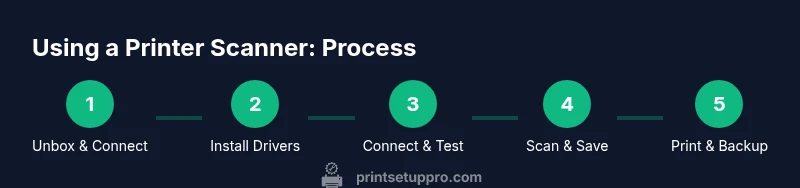
Starting fresh means validating several steps to ensure reliable operation. First, unbox the unit and verify all included accessories. Next, connect the power cable and turn the device on. Follow the on-screen prompts to install drivers on your computer or mobile device; if you prefer, use the manufacturer’s website to download the latest software. Enable your preferred connection method (USB for direct PC use, or Wi‑Fi for wireless access). When prompted, select the correct region, language, and default scan destinations. If a software suite offers cloud integration, consider enabling it to simplify saving and sharing scanned files.
Connecting and drivers: get your device talking to your computer
Driver installation is the bridge between hardware and software. Start by downloading the latest version from the manufacturer’s site or using the bundled CD if provided. On Windows, run the installer and allow permission prompts; on macOS, you may need to grant accessibility and printing permissions. Restart the computer if requested. Once installed, print a test page to confirm hardware functionality. If your printer shows up as offline, restart the printer and router, then re-run the setup wizard. Keeping drivers up to date minimizes compatibility issues and improves scanning reliability.
How to print from a computer or mobile device
Printing from a computer or mobile device is typically straightforward once the printer is connected. On a PC or Mac, open the document, choose Print, and select your all-in-one device. Check page size, orientation, and color mode before sending the job. For mobile devices, use the printer’s app or the system print dialog. Ensure the device and printer are on the same network for seamless wireless printing. Some apps support direct printing from cloud storage, which can save time by bypassing local saves.
How to scan a document: step-by-step
Scanning is the core feature of a printer scanner and can be done in several ways. Place the document face-down on the scanner glass or load it into the ADF if your unit supports it. Choose Scan from the control panel or your computer app, then pick destination (computer folder, email, or cloud storage) and file format (PDF, JPEG, TIFF). For multi-page documents, use the ADF and select OCR (optical character recognition) if you need searchable text. After scanning, review the saved file and rename it for easy retrieval. Keeping a consistent scanning workflow makes future tasks faster and less error-prone.
Common issues and quick fixes
If scans come out blurry, verify the glass is clean and the document is flat. If the printer won’t connect, check network settings and re-run the installation wizard. Paper jams during scanning are usually caused by misfed sheets or wrong paper type. In that case, remove the jammed pages carefully, reset the tray, and adjust the paper settings to match the media. If color looks off, recalibrate the scanner via the software utility provided by the manufacturer. Remember to restart devices after driver updates to ensure proper communication.
Advanced tips for better quality and productivity
Use the highest practical resolution for scans that require OCR or archival quality, but balance with file size. For large print runs, enable the ADF and set a batch destination to keep your workflow moving. If you frequently scan to email or cloud storage, set up profiles within the scanning software to automate naming and routing. Regular maintenance such as cleaning the scan bed and updating firmware improves longevity and reduces downtime. Consider enabling proactive alerts from the device’s app to catch issues before they disrupt work.
Security, privacy, and maintenance considerations
When scanning sensitive documents, choose encrypted destinations and password-protect PDFs. Regularly update firmware and software to patch vulnerabilities. Store scanned files in secured folders and avoid sharing access via unsecured networks. Clean the scanner glass with a soft, lint-free cloth and avoid harsh chemicals that could damage coatings. Schedule periodic maintenance checks to keep the mechanism aligned, preventing misfeeds and preserving scan accuracy.
AUTHORITY SOURCES
For deeper dives on printer usage and best practices, consult established sources:
- https://www.pcworld.com
- https://www.consumerreports.org
- https://www.cnet.com
These sources provide useful guidance on device setup, performance, and reliability that complements hands-on practice with your printer scanner.
Tools & Materials
- Printer Scanning All-in-One(Model with USB and/or wireless networking; ensure it supports scanning to email or cloud if needed)
- Power cable(Legitimate grounded outlet; avoid extension cords for safety)
- USB or network cable(Use if you’re not using wireless setup; otherwise rely on Wi‑Fi)
- Computer or mobile device(Windows, macOS, iOS, or Android with compatible apps)
- Printer drivers/software(Download from manufacturer or use included media; keep up to date)
- Printer paper(Plain white A4/Letter for tests and everyday scans)
- Cloud storage access or email access(Helpful for direct saving and sharing of scanned files)
Steps
Estimated time: 40-60 minutes
- 1
Unbox and position
Unbox the unit and place it on a stable surface near power and your network. Remove tapes and protective films, then connect the power cable. Ensure the device has adequate space around it for cooling and scanner lid movement.
Tip: Check that the paper tray is clean and aligned to avoid misfeeds. - 2
Install drivers and software
Connect the device to your computer or mobile device and install the latest drivers from the manufacturer’s site. Follow the prompts to authorize permissions and complete the setup wizard. Restart the computer if requested.
Tip: Download drivers directly from the official site to get the latest fixes and features. - 3
Choose a connection method
Decide between USB and Wi‑Fi. For shared access, use a network connection and run the setup wizard to place the device on your home or office network. Confirm the printer appears in your system preferences or control panel.
Tip: A wired USB connection can be more stable for high-volume scans. - 4
Load paper and test the printer
Insert paper into the tray and print a test page to verify basic printing functions. Check alignment and margins; adjust if necessary. This confirms the printer is communicating correctly with your device.
Tip: Print a blank page to test alignment if the margins look off. - 5
Configure scanning destinations
Open the scanning software and set your default destination (computer folder, email, or cloud). Choose your preferred file format (PDF or image) and resolution suitable for OCR or archiving.
Tip: Enable OCR if you want searchable text in your PDFs. - 6
Scan a document
Place your document on the scanner bed or in the ADF. Start the scan from the device or the software, select color vs grayscale, and ensure auto-deskew is enabled if available. Save to your chosen destination.
Tip: For multi-page documents, use the ADF to speed up the process. - 7
Save and organize scans
Rename files consistently and file them in a well-organized folder structure. Consider adding dates to filenames for easy retrieval. Create a cloud backup if you rely on remote access.
Tip: Use a naming convention like YYYY-MM-DD_ProjectName_PageNumber. - 8
Test print and scan workflows
Run a few test tasks to confirm both printing and scanning work reliably across devices. Verify that saved scans open correctly and that transfers to cloud or email succeed.
Tip: Document any quirks you notice to share with teammates or for your own future reference. - 9
Perform regular maintenance
Clean the scan glass with a microfiber cloth, update firmware, and check for paper dust. Replace consumables as recommended by the manufacturer and run diagnostic tests if available.
Tip: Schedule quarterly maintenance reminders to keep performance high.
People Also Ask
Will my printer scanner work with both Windows and macOS?
Most modern printer scanners offer drivers for both Windows and macOS. Install the appropriate drivers for your operating system and use the built-in printing and scanning options to access basic functions. If issues arise, check the manufacturer’s support page for platform-specific tips.
Most modern printer scanners support both Windows and macOS. Install the drivers for your OS and use the built-in tools to print and scan; if problems occur, consult the manufacturer’s support page for guidance.
How do I know if my scanner supports OCR?
OCR support is typically included in higher-end models or available via software. Check the product specs or the scanning software options to enable text recognition. If OCR isn’t available, you can install a separate OCR program or use cloud-based OCR services.
Check the product specs or scanning software to enable OCR. If not available, you can add OCR with a separate program or a cloud service.
Can I scan directly to email or cloud storage?
Yes. Many all-in-one printers support destinations like email, network folders, or cloud storage. Configure a destination in the scanning software and test with a small file to ensure it arrives correctly.
Yes, you can scan to email or cloud by configuring destinations in the software and testing with a small file.
What should I do if the scanner glass is blurry?
Clean the glass with a microfiber cloth and check that the document lies flat. If the problem persists, recalibrate the scanner using the manufacturer's software utility.
Wipe the glass with a microfiber cloth, keep documents flat, and recalibrate if needed.
Do I need specialized software to use scanning features?
Many devices include built-in scanning utilities; some offer additional features via vendor software. You typically don’t need extra software for basic scanning, but advanced options like OCR or cloud destinations may require it.
Basic scanning often uses built-in utilities, while advanced features may need vendor software.
Watch Video
Quick Summary
- Understand the all-in-one device’s core roles: print, scan, and share.
- Install the latest drivers and configure destinations before scanning.
- Use ADF for multi-page tasks to save time and reduce handling.
- Keep firmware updated and perform periodic maintenance.
- Prioritize security when saving or sharing scanned documents.