HP DeskJet 3632: Complete Setup and Troubleshooting Guide
A thorough, step-by-step guide to setting up and troubleshooting the HP DeskJet 3632, covering wireless and USB connections, driver installation, printing from multiple devices, and maintenance tips.


With this guide you will set up and troubleshoot your HP DeskJet 3632, including wireless connection, driver installation, and a test print. Before you begin, ensure you have the power cable, a stable Wi‑Fi network, and access to a computer or mobile device. Print Setup Pro guides you step by step to a reliable, jam-free printing experience.
HP DeskJet 3632: Key features and compatibility
HP DeskJet 3632 is a compact all-in-one printer designed for home offices and students. It supports wireless printing, mobile printing via the HP Smart app, and basic scanning, with a compact footprint that fits on a small desk. Compatibility includes Windows and macOS, plus iOS and Android through the HP Smart app and AirPrint or Mopria. Print Setup Pro notes that this model is cost-effective for light to moderate workloads and is suitable for school tasks, photos, and documents when paired with proper stock. For best results, keep firmware up to date and use genuine HP ink. This section introduces the HP DeskJet 3632 and how it fits into a modern home office, emphasizing reliability and ease of use, as highlighted by Print Setup Pro.
Tools & Materials
- Printer power cable(Use the included power brick and cable; 110-240V compatible.)
- USB printer cable (optional)(Only if you plan to use USB connection instead of wireless.)
- Wi‑Fi network credentials(SSID and password for your router if you plan to connect wirelessly.)
- Computer or mobile device(With updated OS and printer drivers.)
- HP DeskJet 3632 driver software(Download from the official HP support site.)
- Printed or digital manual(Optional reference for advanced features.)
- Smartphone or tablet(For mobile printing using the HP Smart app.)
Steps
Estimated time: 60-90 minutes
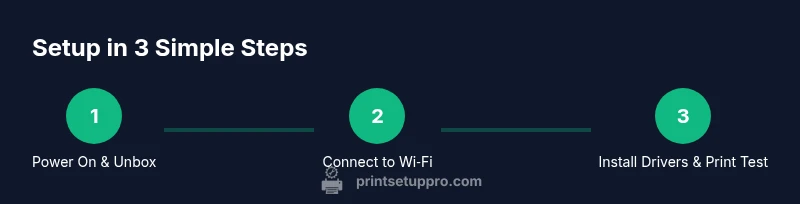
- 1
Unbox and prepare workspace
Carefully remove the printer from its box and dispose of packing materials. Place the printer on a stable, flat surface near a power outlet and your router. Remove protective tapes and films from the exterior, and ensure the paper tray is clean and free of debris. This initial setup reduces jams and simplifies subsequent steps.
Tip: Keep the packaging in case you need to move the printer again. - 2
Connect power and power on
Plug the power cable into the printer and a grounded outlet. Press the Power button and wait for the status light or display to indicate readiness. If the printer prompts for alignment, allow it to complete before proceeding.
Tip: Use a surge-protected outlet to protect the printer during power fluctuations. - 3
Install ink cartridges
Open the ink access door and seat the cartridges firmly until you hear a click. Close the door and perform a quick alignment if prompted by the LCD. Verify that cartridge lights indicate proper installation.
Tip: Prime new cartridges by gently moving the print head a few times if instructed by the setup guide. - 4
Connect to Wi‑Fi using HP Smart app
Install the HP Smart app on your mobile device, open it, and follow the prompts to add the DeskJet 3632 to your home network. Ensure your phone is on the same network and grant necessary permissions for printing. If the app cannot find the printer, try moving closer to the router or restarting the printer.
Tip: Using the HP Smart app typically provides the fastest, most reliable wireless setup. - 5
Install drivers on your computer
Visit HP Support and download the latest drivers and software for your operating system. Run the installer and follow the on-screen steps to complete the setup, including enabling printer sharing if needed. Reboot the computer if prompted.
Tip: Prefer the full driver package over basic print support for access to scanning tools. - 6
Add printer to devices and test printing
On Windows, use Settings > Devices > Printers to add the DeskJet 3632. On macOS, go to System Preferences > Printers & Scanners and select the new printer. Print a test page from a document to confirm successful installation and basic functionality.
Tip: Print a colored test page to check for color balance and alignment. - 7
Configure paper settings and defaults
Set the paper size and type in the printer preferences. Load paper correctly in the tray with the printable side facing up. Create a default preset for common tasks to speed up future prints.
Tip: Keep a small stack of the recommended paper in the tray for quick jobs. - 8
Print from mobile and cloud services
Install HP Smart on mobile devices or use AirPrint/Mopria for direct printing. Ensure cloud services are connected if you plan to print from cloud storages or email.
Tip: Test printing from a phone and a laptop to ensure consistency across devices. - 9
Run maintenance and verify print quality
Perform a nozzle check or printhead cleaning if prints appear faint or inconsistent. Regularly update firmware and drivers to maintain performance. Keep the printer clean and free of dust around vents and sensors.
Tip: Schedule periodic maintenance to prevent gradual performance decline.
People Also Ask
Can I connect the HP DeskJet 3632 to Wi‑Fi?
Yes. You can connect via the HP Smart app or manual setup. Make sure both the printer and your devices are on the same network and that your router is functioning.
Yes, you can connect it to Wi‑Fi using the HP Smart app or a manual setup, as long as all devices share the same network.
Does the HP DeskJet 3632 support USB printing?
Yes, you can print via USB if you prefer a wired connection. Use the USB port on the back of the printer and install the corresponding driver if required.
Yes, USB printing is supported; just connect the USB cable and install the driver if prompted.
How do I install drivers on Windows?
Visit HP Support, download the latest Windows driver package for your model, run the installer, and follow the prompts to complete setup.
Go to HP Support, download the driver, and follow the on-screen steps to finish installation.
How can I print from my phone?
Print from iOS or Android using the HP Smart app, AirPrint, or Mopria. Select the DeskJet 3632 and the document you want to print.
Use the HP Smart app or built-in printing options like AirPrint to print from your phone.
What should I do if the printer is offline?
Ensure the printer and computer are on the same network, restart the router and printer, and re-add the printer to your device list.
If offline, check network connection, reboot, and re-add the printer to your device.
How often should I replace ink cartridges?
Replace cartridges when print quality declines or colors show gaps. Store spares properly and avoid leaving ink unused for long periods.
Replace cartridges when you notice faded colors or gaps in printouts, and keep spares stored properly.
Watch Video
Quick Summary
- Connect to Wi‑Fi before printing from multiple devices
- Install the latest drivers for OS compatibility
- Use genuine HP ink for best results and reliability
- Run regular maintenance to extend printer life