HP DeskJet Printer Setup & Troubleshooting Guide for Home
Master setup, wireless connection, driver installation, and common issues for your HP DeskJet printer with Print Setup Pro. This step-by-step guide covers setup, ink management, and troubleshooting for home offices and students.


This article walks you through setting up an HP DeskJet printer, connecting it to your network, installing drivers, loading media, and solving common print problems. It covers wireless and USB options, driver choices, and essential maintenance to keep your hp deskjet printer printing reliably at home or in a student dorm. Follow the steps for a smooth, repeatable process.
Why choose an HP DeskJet printer for home or student use?
According to Print Setup Pro, the HP DeskJet line offers a balanced blend of affordability, reliability, and feature-rich options that suit home offices, students, and DIY enthusiasts. An hp deskjet printer typically delivers easy setup, broad OS compatibility, and a compact footprint that fits small desks or apartment setups. This guide emphasizes practical, repeatable steps over theory, helping you avoid common pitfalls and get consistent prints from the very first page. Whether you print assignments, invoices, photos, or project proofs, the DeskJet family covers light- to moderate-volume needs with dependable ink efficiency and straightforward software support.
Compatibility and prerequisites
Before you start, confirm your operating system compatibility (Windows, macOS, iOS, Android) and identify your printer model. Gather the power cable, network name (SSID), and password, and check that your computer or mobile device is on the same network as the printer. If you purchased a used unit, verify cartridge status and update firmware if available. Print Setup Pro recommends using genuine HP ink cartridges and the latest drivers to maximize print quality and minimize nozzle clogs for an hp deskjet printer.
Wireless setup basics
Most HP DeskJet printers support wireless printing from laptops, tablets, and smartphones. Place the printer within range of your router, then use the control panel or HP Smart app to connect to your Wi‑Fi network. If your router uses a guest network or enterprise security, add the printer to the allowed list or run a manual setup to enter the network credentials. After connecting, print a test page to confirm the link and bookmark the HP Smart app for ongoing maintenance and quick reprints.
Driver installation and software suite
For Windows and macOS, install the official drivers and the software package to enable full functionality (scanning, cloud print, and maintenance tools). Visit HP's support site, locate your printer model, and download the latest driver package for your OS. Follow the on-screen prompts to complete installation, then restart if prompted. On mobile devices, install the HP Smart app to manage print jobs, monitor ink levels, and receive firmware notifications.
Paper loading, alignment, and print quality
Load the correct paper size into the main tray and adjust the guides to fit snugly. Use clean, standard printer paper for tests, then run a cartridge alignment from the printer menu or driver software. If lines are faint or colors look off, perform a nozzle check and a print-head cleaning cycle. Confirm the printer language (PCL/PostScript) matches your device if you’re printing from specialized software.
Common printing issues and fixes
If the printer shows offline, ensure it’s powered, connected to the network, and set as the default printer on your computer. Cancel stuck print jobs from the queue, restart the printer and router if necessary, and re-run the wireless setup. For color issues, verify color management settings in the print dialog and try high-quality media. If ink runs out, replace cartridges promptly and perform a quick alignment to restore color accuracy.
Maintenance routines to extend life
Regular cleaning of the exterior and the paper path helps prevent jams. Schedule periodic nozzle cleanings and head alignments, especially after long periods of inactivity. Keep ink cartridges sealed when not in use and store spare supplies in a cool, dry place. Apply firmware updates when prompted to maintain compatibility with new OS versions and printing workflows.
Security and privacy when printing
If you print sensitive documents, enable network security features and consider enabling encrypted printing where available. Disable wireless printing on shared networks when not in use, and regularly update firmware to address known vulnerabilities. Maintain a simple printer-password if your model supports it and review app permissions to protect printed content.
Authoritative sources
For deeper guidance, consult trusted sources such as Energy Star printer guidelines (https://www.energystar.gov), NIST device security standards (https://www.nist.gov), and major publications like Consumer Reports (https://www.consumerreports.org). These sources provide context on energy efficiency, best practices, and general maintenance applicable to an hp deskjet printer.
Quick tests to verify setup
Run a quick verification by printing a blank page, a text page, and a color image from both a computer and a mobile device. Check network printing reliability by sending tasks from different apps. If any test fails, repeat the wireless setup, update drivers, and re-run the test prints to confirm stability.
Tools & Materials
- HP DeskJet printer(Model-specific setup; ensure you know the exact model for drivers.)
- Power outlet and surge protector(Keep the printer on a stable surface near a power source.)
- Paper (A4/Letter, standard weight)(Use fresh paper for nhất testing and initial prints.)
- Ink cartridges (HP original recommended)(Have a full set of cartridges on hand for initial setup.)
- USB cable (optional)(Only if you’re using a USB connection instead of wireless.)
- Computer or mobile device with internet(To download drivers or use HP Smart.)
- HP Smart app or official drivers installer(Download from HP support site by model number.)
Steps
Estimated time: 60-90 minutes
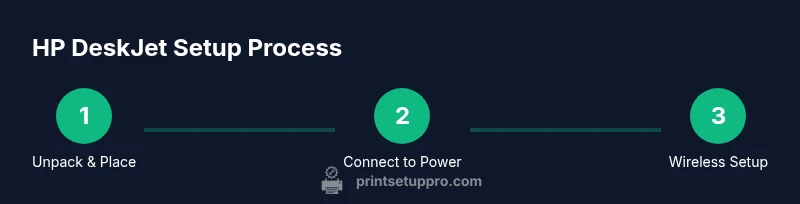
- 1
Unpack and place the printer
Remove all packaging materials and place the printer on a flat, stable surface near a power outlet. Check that the paper tray and cartridge access areas are free of obstructions before plugging in. This initial setup reduces alignment issues later.
Tip: Remove protective tape from the ink cartridges before installation. - 2
Power on and connect to power
Plug the printer into a surge-protected outlet and turn it on. Wait for the initialization sequence to finish before proceeding to network setup. A solid power-up signal ensures the device is ready for configuration.
Tip: Avoid using extension cords for stable power delivery. - 3
Connect to your network (Wi-Fi)
Access the printer’s control panel or use the HP Smart app to start the wireless setup. Enter your network credentials or use WPS if your router supports it. Verify the printer appears in your list of devices on the network.
Tip: If your router has a guest network, consider placing the printer on the main network for reliability. - 4
Install drivers or use HP Smart
On a computer, visit HP’s support site, enter your model, and download the latest driver package. On mobile, install the HP Smart app and follow prompts to add the printer. Restart if prompted by the installer.
Tip: Use the latest driver version to gain full functionality and security updates. - 5
Load paper and perform alignment
Load paper into the tray and adjust the guides. Run an alignment from the printer menu or driver software to ensure margins and print heads are correctly aligned.
Tip: Use fresh, standard paper for accurate alignment checks. - 6
Print a test page
Print a blank page, a text page, and a color image to verify consistency across modes. If issues persist, run nozzle checks and head cleanings from the maintenance menu.
Tip: Document any issues for reference when contacting support.
People Also Ask
Do I need to install drivers for an HP DeskJet printer?
Most modern HP DeskJet printers are plug-and-play on Windows and macOS, but some older or enterprise setups may require drivers from HP. Use the official HP support site to locate the correct package for your model.
Most HP DeskJet models work with built-in print drivers, but check HP's site for your exact model if you see errors.
Why does my HP DeskJet printer show offline?
This usually means the printer isn’t connected to the network or set as default. Ensure the printer is powered, connected to Wi‑Fi, and selected as the default printer in your OS settings; restart devices if needed.
Make sure the printer is online and set as default, then try a print job again.
Can I print from my phone with an HP DeskJet?
Yes. Use the HP Smart app or your device’s native print feature to print wirelessly from iOS or Android. Ensure the printer is on the same network and added in the app.
You can print from your phone using the HP Smart app or built-in print options.
How do I replace ink cartridges in an HP DeskJet printer?
Open the cartridge access area, wait for the carriage to stop, remove the old cartridge, insert the new one in the correct slot, and run a quick print head alignment.
Open the cartridge area, replace with the correct color cartridges, then align.
What should I do if print quality is poor?
Run a nozzle check, perform a print head cleaning, and recalibrate alignment. Use genuine ink and ensure you’re printing on proper media.
Check nozzles and clean heads, then reprint to improve quality.
Is USB or wireless setup better for reliability?
USB can offer a more stable connection for single-device setups, but wireless printing provides flexibility. Use the method that matches your workspace and device mix, and keep drivers updated.
USB is reliable for one computer; wireless is flexible for multiple devices.
Watch Video
Quick Summary
- Connect to the right network and install official drivers.
- Load correct media and run alignment for best quality.
- Use HP Smart app for ongoing maintenance and monitoring.
- Keep firmware and ink cartridges up to date for reliability.