HP DeskJet 4100e Setup, Troubleshooting, and Tips
Learn how to set up, troubleshoot, and optimize the HP DeskJet 4100e. This Print Setup Pro guide covers wireless connections, driver installation, jams, maintenance, and mobile printing for reliable home-office printing in 2026.


You will be able to set up and troubleshoot your hp deskjet 4100e, connect to Wi‑Fi, install drivers, and resolve common printing issues. Essential tools are a USB cable (if needed), your computer or mobile device, and a stable power source. This guide assumes a standard home setup and will help you print from both Windows and macOS.
HP DeskJet 4100e: Overview and Compatibility
According to Print Setup Pro, the hp deskjet 4100e is a compact, affordable all-in-one printer ideal for home offices and students. It handles print, scan, and copy tasks with reliable performance and supports USB and wireless connectivity. For many users, the 4100e is the gateway to color documents, photo prints, and school assignments without tying up a desktop. In this guide, Print Setup Pro outlines a practical path to install, configure, and maintain the hp deskjet 4100e. The model supports common printing standards and works across Windows and macOS; a mobile-friendly approach lets you print from smartphones and tablets. If you’re upgrading from an older printer or switching from another brand, you’ll appreciate the upfront setup tips and ongoing maintenance routines that minimize downtime.
Unboxing, placement, and initial checks for the hp deskjet 4100e
Before you power up, lay out the box contents and verify that all items are present: printer, power cable, quick-start guide, and starter ink or cartridges. Place the hp deskjet 4100e on a stable surface near a power outlet and within reasonable reach of your router if you plan to print wirelessly. Remove protective tape and shipping blocks, then plug in the power and wait for the printer to initialize. If the setup doesn’t begin automatically, press the power button. This phase is critical because improper placement can cause jams or connectivity issues later. Print Setup Pro recommends performing a quick alignment after the first print head initialization to ensure color accuracy and to verify that the device recognizes the paper size you’ll use most often.
Power, cartridges, and initial alignment for the hp deskjet 4100e
Power on the printer, then install fresh ink cartridges following the on-screen prompts or the manual. Most users will benefit from performing a basic printhead alignment to ensure crisp text and accurate color. Inexpensive maintenance steps early on can prevent blurry prints or misalignment after days of use. If you encounter a cartridge error, reseat the cartridge and check for protective tape removal. The hp deskjet 4100e uses standard ink cartridges, so stocking a couple of spares is wise. After installation, run a test print to confirm that the color balance and grayscale prints appear correct.
Driver installation and software setup for the hp deskjet 4100e
On Windows or macOS, visit HP's official support site to download the latest drivers for the hp deskjet 4100e. Choose the full feature software package if you want additional scanning tools and printer management options. Follow the installer prompts, accept the license terms, and allow the program to add the printer to your system. After installation, print a test page from the driver dialog to verify that the connection is stable and the printer responds promptly.
Connect to Wi-Fi and enable mobile printing
Most users connect the hp deskjet 4100e to a home or small business network using a standard 2.4 GHz Wi-Fi connection. You can set this up via the printer control panel or using the HP Smart app. The app guides you through adding the printer to your iPhone, iPad, Android devices, or Chromebook. By enabling cloud printing or AirPrint (for Apple devices) or Mopria (for Android), you unlock wireless printing without a USB cable.
Print settings, media, and quality management
For best results, configure default print settings such as paper size, print quality, and color options. Confirm that you’re using the right type of paper and adjust margins to prevent cropping. The hp deskjet 4100e can handle standard letter, A4, and photo media; if you’re printing photos, choose the appropriate photo paper profile. Frequent users should save custom presets for your most common tasks (draft budgets, school reports, photos, etc.). Monitor ink levels and replace cartridges promptly when colors start to fade.
Printing from Windows and macOS: practical steps
On Windows, open the document, select Print, and choose the hp deskjet 4100e from the list. Check duplex options if your model supports it and set page range. On macOS, use the system print dialog, choose the same printer, and enable scaling options to fit content. The hp deskjet 4100e supports AirPrint on Macs and iPhones, enabling seamless cross-device printing.
HP Smart app and cloud features
Install HP Smart on your mobile device to manage print jobs, scan documents, and reorder supplies. The app offers printer status alerts, remote printing, and quick access to troubleshooting guides for hp deskjet 4100e. You can also enable cloud printing with services like Google Drive and OneDrive for convenient file access.
Troubleshooting common issues with the hp deskjet 4100e
Paper jams: gently remove jammed paper along the feed path, pulling straight and avoiding tearing. Streaks or misprints: run the printhead cleaning and alignment from the printer software, and verify that ink cartridges are properly seated. Wireless connection drops: verify your router settings, reconnect the printer to the network, and ensure firmware is up to date. Slow or stalled prints: check the print queue and disable any heavy background tasks.
Maintenance and longevity
Regular maintenance includes exterior cleaning, clearing paper jams, updating firmware, and performing printhead alignments when prompted by the software. Replace cartridges before they run completely dry to prevent clogging and poor print quality. Keep the hp deskjet 4100e in a cool, dry environment and away from direct sunlight; use quality paper to reduce feed issues. Periodic maintenance reduces downtime and extends the device life.
Safety and environmental considerations
Follow standard electrical safety: unplug before cleaning and avoid liquids near the printer. Dispose of used ink cartridges responsibly; many municipalities offer recycling programs. The EPA recommends recycling ink and toner cartridges to reduce waste and protect the environment. If you have children or pets, secure cords and place the printer out of reach to prevent accidents.
Final checklist and next steps
Review unboxing and setup steps, confirm driver installation, validate wireless printing, and perform a final test page. Save a few printer presets for common tasks, and bookmark the HP Smart app guidance for hp deskjet 4100e. If issues persist, consult HP support resources or contact Print Setup Pro for personalized troubleshooting.
Tools & Materials
- Power cord(Essential for initial setup)
- USB cable (optional)(Use if you prefer USB setup when wireless isn't available)
- Smartphone, tablet, or computer(Device to run setup, drivers, and printing)
- Printer paper (various sizes)(Test pages and everyday printing)
- Replacement ink cartridges(Stock spares for ongoing use)
Steps
Estimated time: 30-45 minutes
- 1
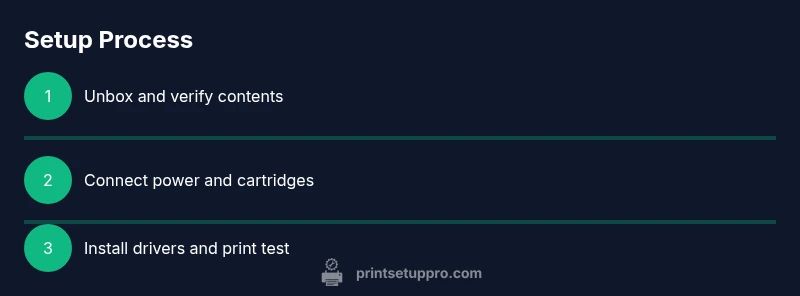
Unbox and verify contents
Unpack the hp deskjet 4100e and confirm all items are present. Check the printer for any transport damage and remove packing materials before powering on.
Tip: Photograph the box contents for warranty claims. - 2
Connect power and install cartridges
Plug in the printer, power it up, and insert new cartridges as directed by the on-screen prompts. Perform a basic printhead alignment if offered.
Tip: Ensure cartridges are seated firmly to avoid misfeeds. - 3
Run initial printhead alignment
If the printer prompts you to align, accept and let it complete before first print. A quick alignment improves color accuracy.
Tip: Do not power off during alignment. - 4
Download and install drivers
From the HP support site, download the latest hp deskjet 4100e drivers. Run the installer and add the printer to your OS.
Tip: Choose Full Feature software for extra scanning tools. - 5
Connect to Wi-Fi
Use the printer panel or HP Smart app to join your home or office network, preferably on 2.4 GHz for compatibility.
Tip: If the signal is weak, move the router or printer closer together. - 6
Print a test page
Print a test page from the driver dialog or HP Smart app to verify the connection and color accuracy.
Tip: If colors are off, re-run calibration from the software. - 7
Create presets and plan maintenance
Save common paper sizes and print settings as presets; schedule regular firmware checks and cartridge replacements.
Tip: Label presets for quick access.
People Also Ask
How do I install drivers for hp deskjet 4100e?
Download the latest drivers from HP's support site and run the installer. Follow prompts to add the printer to your OS, then print a test page.
Install the latest drivers from HP's site and run the installer to add the printer, then print a test page.
How do I connect hp deskjet 4100e to Wi‑Fi?
Use the printer control panel or the HP Smart app to connect to your network. Ensure you select the 2.4 GHz band for compatibility.
Connect via the control panel or HP Smart app, choosing the 2.4 GHz network for best compatibility.
Why won’t the hp deskjet 4100e print?
Check for a paper jam, verify ink levels, ensure the printer is online, and confirm the correct printer is selected in the app or OS.
Check for jams, ink levels, and online status, then confirm the correct printer is selected.
How to fix paper jams on hp deskjet 4100e?
Gently remove jammed paper along the feed path. Avoid tearing; reseat any partially fed sheets and reset the printer.
Gently pull out the jammed paper along the feed and reseat what remains.
Can I print from my phone with hp deskjet 4100e?
Yes, use the HP Smart app or built-in AirPrint/Mopria support for wireless printing from mobile devices.
Yes—use HP Smart app or AirPrint/Mopria for wireless printing.
Watch Video
Quick Summary
- Unbox and verify hp deskjet 4100e contents before setup
- Install drivers and align printhead for best quality
- Connect to Wi‑Fi and test printing on multiple devices
- Print from mobile with HP Smart app or AirPrint/Mopria
- Recycle cartridges and keep firmware up to date