HP Envy 5660 Setup and Troubleshooting Guide
Comprehensive guide to set up, connect, print, scan, and troubleshoot the HP Envy 5660 all-in-one. Includes wireless setup, driver installation, maintenance tips, and common fixes for home offices.


This guide shows you how to set up and troubleshoot your HP Envy 5660 all-in-one printer for reliable home-office printing. You'll configure wireless printing, install drivers, scan-to-email, and resolve common jams. Before you start, ensure you have a USB or network connection, power, ink, and access to a computer or mobile device.
HP Envy 5660: Key capabilities and use cases
The HP Envy 5660 is a compact all-in-one designed for homes and small offices that need printing, scanning, and copying without clutter. It supports wireless printing, mobile-friendly apps, and a straightforward setup process. According to Print Setup Pro, hp envy 5660 best serves households that prioritize ease of use and integrated scanning as part of daily workflow. The device delivers crisp color printing for photos and documents, while its flatbed scanner handles occasional originals with reliable clarity. When choosing this model, consider the size of your workspace, the volume of pages you typically print, and whether you will rely on wireless or USB connections. While not the fastest printer in its class, it offers a balanced feature set and a friendly user experience that appeals to students, freelancers, and small business owners who want a single device for printing, scanning, and copying.
Installation prerequisites and connection options
Before you unwrap the printer, gather essential items and pick a connection method. You can set up the HP Envy 5660 over Wi‑Fi, via USB, or with a wired Ethernet connection depending on your router and office layout. A stable power source, fresh ink cartridges, standard paper stock, and a computer or mobile device to run the software are required. If you plan a wireless setup, ensure your network name (SSID) and password are handy. For USB or Ethernet connections, you may need the correct cable type and, in some environments, a short network adapter. The goal is to create a reliable path between the printer and your devices so drivers and apps can communicate without interruptions.
Wireless setup: Wi‑Fi, WPS, and network considerations
Connecting to Wi‑Fi is usually the easiest route for the HP Envy 5660. Start from the printer’s control panel, navigate to Wireless Settings, and choose your network. If your router supports WPS, you can press the WPS button on the router and then on the printer to pair automatically. For most home networks, you’ll enter the Wi‑Fi password manually and select the 2.4 GHz band if your router is dual-band. Keep in mind that weak signal strength or busy networks can slow printing or cause disconnects, so position the printer within solid range of the router and minimize interference from cordless phones or routers on adjacent channels.
Driver installation and software suite
Download the latest drivers from HP's official support site or install the HP Smart app on your computer or mobile device. The drivers enable print, scan, and copy functions and ensure your operating system recognizes the device. Save the installer to your desktop, run it, and follow on-screen prompts to complete the installation. You may be asked to connect the printer during setup or to confirm a wireless or USB connection. After installation, open the HP Smart app to manage print jobs, scan-to-email, and cloud printing features from a single interface.
Printing tips: quality, color management, and paper types
To achieve high-quality prints from the hp envy 5660, start with good paper. Choose plain 20‑lb paper for documents and heavier photo or matte inkjet paper for photos. In the printer settings, select the appropriate print quality and color mode based on your task. Use the 'Best' or 'Photo' setting for images, and the standard or draft setting for drafts. Calibrate color by using the printer’s color management features if available in your OS or app. Remember to set the correct paper size and orientation before printing to avoid margins or cropping.
Scanning features and email-to-scan basics
Use the flatbed scanner for single-page originals or the automatic document feeder (if equipped) for multi-page scans. In the HP Smart app or printer software, select Scan, then choose destination such as email, cloud storage, or a local file. When emailing scans directly from the printer, enter the recipient address and optional subject/body, then press Scan. Regularly check for scanner alignment issues, and clean the glass and rollers as part of routine maintenance to maintain sharp scans.
Troubleshooting common jams and errors
Printer jams are usually caused by misfed paper, overloaded trays, or foreign matter on the rollers. Open the printer cover and remove jammed paper gently, following the path of least resistance. Check for creases, torn pieces, or small scraps that might trigger further jams. If you see error codes on the display, consult the HP support site for a map of codes and steps to clear each one. Ensure you’re using the correct paper size and type and that the paper guides are snug. A recent firmware update can also resolve stubborn errors, so consider updating firmware when connected to the internet.
Maintenance and long-term care
Routine maintenance keeps the hp envy 5660 reliable over time. Clean the exterior panels with a soft, lint-free cloth; avoid moisture near electrical components. Periodically check ink cartridge levels and replace cartridges promptly to prevent clogs and print head damage. Run a small cleaning cycle or nozzle check if you notice faint lines or color misalignment. Store the printer away from excessive heat, sunlight, and humidity to extend its life, and schedule firmware updates to stay current with features and security improvements.
Security and energy considerations
Enable automatic firmware updates to guard against vulnerabilities and keep your printer compatible with new drivers and apps. Use secure wireless printing features where available, and disable web services you don’t use to minimize exposure. If you share the printer across devices, set a simple access control policy and avoid exposing the device to public networks. Finally, conserve energy by using Sleep or Auto-Off modes during extended idle periods.
Tools & Materials
- Power cable(Use the original AC power cord supplied with the printer)
- Ink/toner cartridges(Use genuine HP Envy cartridges compatible with the model)
- Printer paper(Standard 20 lb bond paper or higher-quality stock for photos)
- USB cable(Only if connecting the printer directly to a computer)
- Ethernet cable(Optional for wired network connection)
- Computer or mobile device(Windows/macOS or iOS/Android to install drivers/apps)
- Network access(Wi‑Fi router or stable network for setup)
- HP Smart app or drivers(Install from HP's official site or app store)
Steps
Estimated time: Total time: 60-90 minutes
- 1
Power on and prepare
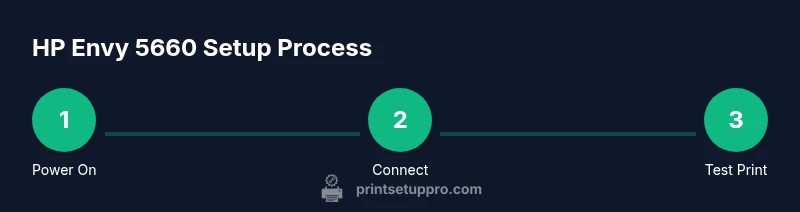
Unbox the printer, connect the power cable, and turn on the device. Remove protective materials and install initial ink cartridges if prompted. This step ensures the printer is ready for configuration and avoids startup errors.
Tip: Verify power outlet is stable and that the printer is on a flat, dust-free surface. - 2
Choose your connection method
Decide between Wi‑Fi, USB, or wired Ethernet. If you plan to print from multiple devices, wireless is typically the most convenient. For stable, high-speed environments, USB or Ethernet may be preferable.
Tip: If unsure, start with a wireless setup to maximize flexibility. - 3
Install drivers and software
Download the latest HP Envy 5660 drivers from HP's official site or install the HP Smart app. Follow on-screen prompts to complete installation and allow the program to detect the printer on your network.
Tip: Use the official HP site to avoid outdated or incompatible software. - 4
Add the printer to your device
On Windows, open Settings > Devices > Printers & scanners and add the HP Envy 5660. On macOS, go to System Preferences > Printers & Scanners and click the plus button. Ensure the printer appears as connected over the chosen interface.
Tip: If the printer doesn’t appear, reboot the computer and printer, then retry. - 5
Configure wireless printing
In the printer menu or HP Smart app, select your Wi-Fi network and enter the password. Verify the printer obtains an IP address on your network for stable printing.
Tip: Avoid crowded networks; use the 2.4 GHz band if the 5 GHz is unstable. - 6
Test print a page
Print a simple text page to verify the connection, color balance, and alignment. If issues arise, repeat driver installation or check ink levels and paper settings.
Tip: If colors are off, run a nozzle alignment from the maintenance menu. - 7
Test scan and email
In HP Smart, run a scan and save to file or send via email as a test. Confirm that the scanning features are working smoothly before regular use.
Tip: Clean the glass before scanning to avoid marks on scans.
People Also Ask
How do I connect the HP Envy 5660 to Wi‑Fi?
Use the control panel to navigate to Wireless Settings and select your network. Enter the password and confirm. If your router supports WPS, you can use the WPS button for automatic pairing. Ensure the printer shows an IP address on the network.
Go to Wireless Settings, choose your network, enter the password, and confirm. If available, use WPS for faster setup.
Why won't my HP Envy 5660 print from my computer?
Check that the printer is set as the default printer in your OS, verify the connection type (USB or network), and ensure drivers are up to date. Reboot the printer and your computer if necessary.
Make sure the printer is selected as default and the drivers are current.
How can I update the firmware on the HP Envy 5660?
Open the HP Support site or the HP Smart app to check for firmware updates. If an update is available, follow on-screen prompts to install it. Keep the printer connected to power during the update to prevent failures.
Check for firmware updates via the HP app or HP's site and install as directed.
Can I use third-party ink cartridges with the Envy 5660?
HP recommends using genuine HP ink cartridges for optimal color quality and reliability. Some third-party inks may work but can void warranties or cause print head issues. Proceed with caution and monitor results.
HP recommends genuine cartridges; third-party inks can be risky.
How do I reset the network settings on the printer?
Use the printer control panel to navigate to Network or Wireless settings and select 'Restore Network Defaults' or a similar option. Reconnect to your network after the reset.
Reset network settings from the printer menu, then reconnect to Wi-Fi.
Where can I download the latest HP Envy 5660 drivers?
Visit HP's official support site and search for HP Envy 5660. Download the appropriate driver package for your OS and follow the installation prompts.
Get drivers from HP's official site tailored to your OS.
Watch Video
Quick Summary
- Power up and connect using your preferred method.
- Install the latest drivers for reliable operation.
- Configure wireless printing for multi-device access.
- Test print and scan to verify setup success.