HP Envy Pro 6420 Setup and Troubleshooting Guide
A comprehensive, step-by-step guide to setting up, configuring, and troubleshooting the HP Envy Pro 6420 for home offices and small businesses. Learn driver installation, wireless setup, maintenance, and optimization.


By the end of this guide, you will have the hp envy pro 6420 fully set up and ready to print from multiple devices. You’ll learn how to install drivers, connect to Wi‑Fi, and run a test page, plus practical maintenance tips to extend life. This quick-start overview targets home offices and small teams who rely on reliable printing and scanning without hassle.
What is the hp envy pro 6420?
The hp envy pro 6420 is a compact all-in-one printer designed for home offices and small businesses. It combines printing, scanning, copying, and sometimes photo features in a single device with color-rich output and modern connectivity options. When you approach setup, think of the 6420 as a system that blends drivers, firmware, and network settings into a reliable workflow. The model supports both wired USB and wireless printing, and it integrates with mobile printing ecosystems like Apple AirPrint and HP’s own app. In practice, its performance depends on proper driver installation, firmware up-to-date status, and a stable network. For many users, the 6420 delivers dependable printing without requiring intensive IT support, especially when you stick to official HP software and routine maintenance. According to Print Setup Pro, following a structured setup reduces misfeeds and jams and improves long-term reliability, especially in busy home offices.
Why the hp envy pro 6420 is a solid choice for a home office
Choosing the hp envy pro 6420 for a home office makes sense when you need an all-in-one device that balances speed, print quality, and ease of use. In environments with variable paper sizes and mixed media, the 6420’s automatic document feeder and color capabilities help maintain productivity. Compatibility with Windows, macOS, iOS, and Android makes it versatile for households with multiple devices. The printer’s compact footprint fits atop a desk without crowding, while its user-friendly control panel reduces the learning curve for non-technical users. Print Setup Pro’s analysis emphasizes consistent driver support and reliable wireless configuration as key factors for minimizing downtime and maximizing print quality over time.
Preparing your workspace and prerequisites
Before you unbox, designate a stable, level surface near a power outlet and your network router. Gather your devices, including a computer or mobile device for installation, and ensure you have a modern web browser for driver downloads. Verify that your Wi-Fi network uses a supported frequency (2.4 GHz or 5 GHz) and has a stable signal in the printer’s location. It’s also wise to have a clean area for cartridges and media; keep extra paper stocked and ensure the working environment is free of temperature extremes that could affect print quality. This preparation helps streamline the entire process and reduces the likelihood of being interrupted by connectivity prompts.
Unboxing and initial inspection
Carefully remove the 6420 from its packaging, checking that all components are present: power cord, setup guide, starter ink or cartridges, and any cables. Inspect the printer for transit damage, especially around the lid and paper feed areas. If you notice any loose parts, contact support before proceeding. Remove protective tapes and packaging materials, then plug the power cord into a grounded outlet. Power on the device and watch for the initial setup screen, which guides you through language selection and basic calibration. Keeping the area clean and organized speeds up the subsequent steps and reduces handling mistakes.
Step-by-step setup: install drivers and connect
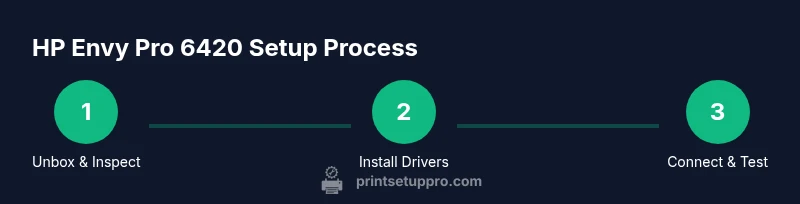
Connect the printer to your computer via USB for a quick initial setup, then install the latest drivers from HP’s official site. If you prefer wireless setup, use the printer’s control panel to select your Wi‑Fi network and enter the password. When drivers install, choose the appropriate software components (print, scan, and cloud print utilities) and set your default printer in the operating system. After installation, print a test page to verify color accuracy and alignment. If issues occur, note error codes and consult the HP support site for targeted troubleshooting steps.
Wireless vs USB: network setup considerations
Wireless setup is usually the most convenient path for multi-device environments. Ensure your router’s firmware is up to date and that your printer is within a strong range of the access point. If you encounter intermittent connectivity, consider assigning a static IP to the printer, updating the printer’s firmware, and disabling VPNs on the network during initial setup. USB remains a reliable option when wireless is unstable or when you want a direct connection to a single computer for initial calibration and testing.
Printing workflow: testing, calibration, and profiles
After drivers are installed, run a thorough print test covering text, color graphics, and photos if needed. Use built-in calibration tools to adjust alignment and color balance. Create or select print profiles for common tasks (draft, normal, high quality) to optimize speed and ink usage. For multi-page documents, check duplex settings and paper type to prevent jams and misfeeds. Document any observed discrepancies, such as color shifts or banding, and adjust color profiles or re-run calibration as needed to achieve consistent results.
Maintenance, consumables, and cost optimization
Plan for routine maintenance: keep the print path clean, replace cartridges only when needed, and store spare media in a cool, dry place. Use genuine HP ink to maintain print quality and prevent clogging or leaks. Consider enrolling in HP’s maintenance reminders or a consumables recycling program to reduce long-term costs. For color-heavy workloads, estimate ink usage per page and compare with supplier prices to optimize your budget. Regular firmware checks help maintain compatibility with new features and security updates.
Troubleshooting common issues
Common issues include print quality problems (fading, misalignment), connectivity drops, and occasional driver conflicts. Start with a simple power cycle and reconnection to the network if the device becomes unavailable. Verify that media types and sizes are supported and that you are using the correct driver version for your operating system. If a jam occurs, safely remove the paper and inspect the feed path, clearing any obstructions. If issues persist, consult HP’s knowledge base and Print Setup Pro’s troubleshooting tips for targeted steps.
Advanced tips: firmware updates, security, and longevity
Keep firmware up to date to gain performance and security enhancements. Enable automatic updates if available and periodically check HP’s support site for new releases. For long-term safety, apply basic printer security practices: enable secure print, set a strong admin password for the printer, and restrict network access to trusted devices. Finally, schedule periodic maintenance checks and document print volumes and cartridge replacement intervals to anticipate replacements before downtime occurs. Print Setup Pro recommends a quarterly review to maintain peak reliability.
Tools & Materials
- Printer power cable(Use the original or a certified compatible cord)
- USB data cable(Only for wired setups if wireless is unavailable)
- Stable Wi‑Fi network(2.4 GHz or 5 GHz band with sufficient signal)
- Computer or mobile device(For driver installation and testing)
- Ink cartridges or starter supply(Use genuine HP cartridges if possible)
- Printer paper/media(Assorted sizes as needed for testing)
Steps
Estimated time: 60-75 minutes
- 1
Unbox and inspect
Carefully remove the printer and all components. Check for transit damage and confirm all parts are present. Remove protective tapes and packaging to prepare for setup.
Tip: Inspect under good lighting and note any missing items before proceeding. - 2
Place and power on
Position the printer on a stable, level surface near a power outlet. Connect the power cord and turn on the device to start the initial setup screen.
Tip: Allow the printer to complete its warm-up calibration before continuing. - 3
Install cartridges
Open the ink cartridge access area and install the starter or replacement cartridges as indicated by the on-screen prompts. Ensure a snug fit without forcing components.
Tip: Handle cartridges by the edges to avoid touching print heads. - 4
Connect to computer (USB)
If using USB, connect the printer to your computer and allow automatic driver installation. If prompted, grant permission for the installer to modify the system.
Tip: Use a direct USB connection rather than a long hub for stability. - 5
Install drivers and software
Visit HP’s official site to download the latest drivers and software tailored to your OS. Follow the installer prompts to complete the setup, including scanning utilities.
Tip: Select only the components you need to minimize bloat. - 6
Set up wireless (Wi‑Fi)
From the printer's control panel, navigate to Wireless > Setup, then select your network and enter the password. Confirm the device obtains an IP address.
Tip: If the signal is weak, reposition the router or printer to a better line-of-sight location. - 7
Print a test page
Use the printer menu or the driver software to print a test page. Check for proper alignment, color accuracy, and, if needed, re-calibrate.
Tip: Capture a photo of the test page for later comparison when you adjust settings. - 8
Configure mobile printing
Install the HP Smart app or enable AirPrint/Google Cloud Print as supported. Add the printer and perform a sample print from a mobile device.
Tip: Verify mobile prints go through the same network to avoid cross-network issues. - 9
Enable updates and backups
Turn on automatic firmware updates if available and create a simple backup of printer settings via the app or desktop utility.
Tip: Document your preferred settings to reapply after updates.
People Also Ask
How do I connect the HP Envy Pro 6420 to Wi-Fi?
Open the printer's control panel, choose Wireless setup, select your network, and enter the password. If the connection fails, try restarting the router and printer, or temporarily connect via USB to complete driver installation before switching back to wireless.
Open Wireless settings on the printer, join your network, and enter the password. If it fails, restart both devices and try again; you can also install via USB first.
Why won’t my printer print after cartridge installation?
Check that the cartridges are seated correctly and that you used authentic cartridges. Run a cartridge alignment after installation and verify there are no protection plugs left in the cartridge ports.
Ensure cartridges are properly seated and aligned. If printing still fails, re-seat and run alignment, then check supply status in the printer software.
How can I update the printer firmware?
Visit HP’s official support site and download the latest firmware for your model. Install it via the printer’s interface or the bundled software, and reboot the device after updating.
Go to HP’s support page, download the latest firmware for the Envy Pro 6420, install, and restart when prompted.
What should I do if the printer is offline?
Check network connectivity, ensure the printer is powered on, and verify the IP address in the printer settings. Re-add the printer to your computer’s devices list if needed and restart the print spooler service.
Verify power and network, reconnect the device, and re-add it to your computer if it shows offline.
Is it possible to print from mobile devices?
Yes. Use AirPrint on iOS or the HP Smart app on Android/iOS to print from mobile devices. Ensure both devices are on the same network and that the printer is discoverable.
You can print from mobile using AirPrint or the HP Smart app. Both need to be on the same network as the printer.
What media types are supported by the HP Envy Pro 6420?
The printer supports a range of paper sizes and types, including standard writing paper, envelopes, and photo media. Refer to the printer's manual for exact specifications and recommended media to avoid jams.
It supports common papers, envelopes, and photos. Check the manual for exact sizes and media guidelines.
Watch Video
Quick Summary
- Set up with a stable network for best results
- Install official drivers for compatibility
- Print tests to calibrate color and alignment
- Maintain cartridges and clean paths to prevent jams