HP LaserJet Pro M102w: Setup, Troubleshooting, and Tips
Comprehensive, step-by-step setup and troubleshooting for the HP LaserJet Pro M102w. Learn USB and wireless installation, driver setup, mobile printing, paper jams, and maintenance for reliable home office printing.


This guide shows you how to set up and troubleshoot the HP LaserJet Pro M102w. You’ll learn how to connect to Wi‑Fi or USB, install drivers, share printing, and resolve common issues like paper jams or cartridge errors. Follow the steps below to get reliable printing quickly.
Overview and model specifics
The HP LaserJet Pro M102w is a compact monochrome printer designed for small offices and home workspaces. It supports both USB and wireless connectivity, making it flexible for different setups. According to Print Setup Pro, this model is ideal for users who need dependable, straightforward printing without color or complex features. The M102w is known for a small footprint, fast first-page-out times, and a simple control panel that keeps setup approachable for non-technical users. While it lacks color printing, its strength lies in dependable black-and-white output for documents, drafts, and business communications. If you plan to share a printer across devices, ensure you have either a wired USB connection or a reliable 2.4 GHz wireless network. Print quality, cost per page, and energy efficiency are competitive for its class, making it a solid choice for budget-conscious households and small teams.
Connectivity options and initial setup
There are two main paths to get the M102w printing: USB and wireless. If you’re connecting via USB, simply plug the printer into your computer and install drivers from HP’s website. For wireless setup, use the printer control panel to select Wireless Setup Wizard and connect to your 2.4 GHz network. Place the printer close to the router during setup to minimize signal dropouts. Print Setup Pro notes that many users encounter initial wireless configuration questions, so keep the network name (SSID) and password handy. Once connected, you can designate the printer as the default on each computer and enable printing from mobile devices via the HP Smart app.
Installing drivers on Windows and macOS
Driver installation is a critical step; choose the correct package for your operating system. On Windows, download the latest HP LaserJet Pro M102w driver bundle from HP’s official site and run the installer, following on-screen prompts to complete the setup. On macOS, access System Preferences > Printers & Scanners, then add the M102w using the driver provided by HP or Apple’s built-in printer support if compatible. In both cases, opt for a full-feature driver package if you want access to scanning and management utilities. After installation, print a test page to verify the connection and print quality. Print Setup Pro’s guidance emphasizes using official drivers to maintain compatibility and security.
Printing from mobile devices and cloud services
Mobile printing is straightforward with the HP Smart app, available for iOS and Android. Install the app, connect to the same network as the printer, and follow the prompts to add the M102w. You can print photos, documents, and web pages directly from your mobile device, with options to adjust basic print settings within the app. For cloud printing, you can use compatible services that support HP printers or print via email when supported by your firmware. The goal is to provide a simple, reliable route to print from your phone or tablet without tethering your device to a computer.
Common issues and troubleshooting steps
Frequent issues include the printer appearing offline, driver conflicts, jammed paper, and toner-related errors. Start by confirming the printer is powered on and connected via USB or wireless. If the device is offline, re-run the wireless setup or reconnect the USB cable, then set the M102w as the default printer. For paper jams, gently remove jammed sheets in the direction of the paper path, check for torn pieces, and ensure the paper type and size settings match the loaded paper. If print quality looks faint, replace the starter toner cartridge with a recommended model and run a toner calibration if available in the driver software. Print Setup Pro recommends keeping drivers up-to-date and performing regular maintenance checks to prevent recurring issues.
Maintenance best practices and extended life tips
Regular maintenance helps extend the life of your M102w. Keep the printer clean by wiping dust from the exterior and feed path with a soft, lint-free cloth. Use good quality paper to avoid feed issues and toner fallout. Schedule periodic firmware updates to ensure compatibility with operating systems and improved performance. When not in use, keep the printer powered off or in a low-power state to reduce wear on internal components. Print Setup Pro suggests establishing a routine: monthly checks for paper quality, belt wear, and connector integrity to prevent unexpected downtime.
Verifying print quality and calibration
Run a basic print quality check after setup and any major change (driver update, cartridge replacement, or network change). Print a standard test page and a page with text and lines to verify crispness, alignment, and consistency across margins. If alignment appears off, run a quick calibration from the printer’s control panel or the driver software. Use plain, white paper for accurate results, and avoid reusing damp or glossy stock for standard documents. Regular calibration helps maintain professional output and reduces the need for reprints.
Security considerations and firmware updates
Keep the printer’s firmware up to date to mitigate security vulnerabilities and improve compatibility with newer OS versions. Enable secure printing options where available, and review network sharing settings if the printer is exposed to a broader network. When updating firmware, use the official HP support site and follow the vendor’s instructions carefully to prevent bricking the device. Print Setup Pro emphasizes limiting access to the printer from unknown devices and regularly reviewing connected devices for suspicious activity.
Tools & Materials
- HP LaserJet Pro M102w printer(Must include power cable and user guide)
- Power cable(Essential for initial power-up and calibration)
- USB cable (printer-end USB-B to USB-A)(Use if connecting via USB instead of Wi-Fi)
- 2.4 GHz Wi-Fi network(Required for wireless setup path)
- Computer or mobile device(Windows/macOS for drivers; iOS/Android for mobile printing)
- Internet access(Needed to download drivers and app)
- Printer paper (plain letter/A4)(Used for test print and jams prevention)
- Starter toner cartridge (included with the printer)(Has enough toner for initial prints; replace as needed)
- HP Smart app (optional for mobile printing)(Use if you prefer mobile printing workflow)
Steps
Estimated time: 45-60 minutes
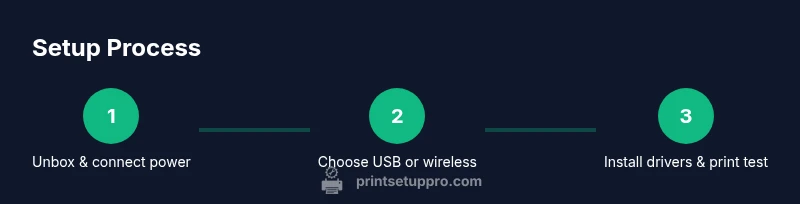
- 1
Unbox and place the printer
Remove the printer from its box, check contents, and place it on a stable surface near a power outlet. Remove protective film and run a quick inspection to ensure there are no transport damages. Plug in the power cord and power on the unit to allow initial warm-up.
Tip: Keep packaging materials until you finish the setup in case you need to repackage for transport. - 2
Connect power and initialize
Connect the printer to an electrical outlet and wait for the status lights to stabilize. If the printer shows an error, reset by turning it off, waiting 10 seconds, and turning it back on. Confirm that the display shows ready status before proceeding.
Tip: Use the default tray for the first test print to ensure feed path alignment. - 3
Choose USB or wireless connection
If using USB, connect the USB cable from the printer to your computer and skip to driver installation. For wireless, run the Wireless Setup Wizard on the printer, select your 2.4 GHz network, and enter the password. Verify the printer appears in your device’s list of available printers.
Tip: If wireless setup fails, move the printer closer to the router during setup. - 4
Install drivers on Windows or macOS
Download the latest HP LaserJet Pro M102w drivers from HP’s official site. Run the installer and follow the prompts to complete the setup. On macOS, use the Printers & Scanners pane to add the M102w and select the driver for full functionality.
Tip: Choose the full-feature driver package to enable extra utilities. - 5
Print a test page and configure defaults
Print a test page from the computer or HP Smart app to verify print quality and alignment. Set the M102w as the default printer on each device you plan to use. Adjust paper size and print quality settings for regular documents to optimize results.
Tip: If colors look off or lines are misaligned, re-run a calibration from the driver or printer menu. - 6
Troubleshoot common issues
If the printer goes offline, re-check network settings or USB connection and re-add the device. Clear paper jams gently along the feed path and confirm there are no torn pieces. If print quality is poor, replace the toner cartridge and perform a page alignment.
Tip: Always use the recommended HP toner; avoid refilled or third-party supplies that can cause issues.
People Also Ask
Is the HP LaserJet Pro M102w wireless?
Yes, the M102w supports wireless connectivity via a 2.4 GHz network. You can connect it using the printer’s Wireless Setup Wizard and then print from multiple devices.
Yes, it supports wireless connectivity via 2.4 GHz networks, set up with the Wireless Setup Wizard.
Can the M102w print in color?
No. The M102w is a monochrome laser printer, suitable for black-and-white documents and drafts.
No color printing; it’s a black-and-white printer.
How do I install drivers on Windows 11?
Visit HP’s official site, download the Windows driver package for M102w, and run the installer. Follow prompts to complete the setup and print a test page.
Download the Windows driver package from HP and run the installer, then print a test page.
What should I do if the printer shows offline?
Check the connection (USB or network), ensure the printer is powered on, and re-add the device in your OS printer settings. If needed, run the HP Print & Scan Doctor to diagnose issues.
If it shows offline, verify the connection and re-add the printer, or run HP Print & Scan Doctor for diagnostics.
How to print from a Mac?
On macOS, go to System Preferences > Printers & Scanners, add the M102w, and select the HP driver. Print a test page to verify device functionality.
Add the M102w in Printers & Scanners and print a test page.
Does it support automatic duplexing?
The HP LaserJet Pro M102w does not support automatic duplex printing. You’ll need to manually reprint for two-sided documents if needed.
No, it doesn’t support automatic duplexing; you must manually print on both sides if required.
Where can I find firmware updates?
Firmware updates are available on HP’s official support site for the M102w. Follow HP’s instructions to download and install safely.
Firmware updates are on HP’s site; download and install per their steps.
Watch Video
Quick Summary
- Connect via USB or Wi‑Fi and install drivers.
- Print a test page to confirm setup and quality.
- Keep firmware updated and perform regular maintenance.
- Use HP Smart for mobile printing and troubleshooting.