HP Printer Smart: Setup, Use, and Troubleshooting Guide
Learn how to set up, use, and troubleshoot hp printer smart features with Print Setup Pro. Step-by-step guidance, mobile printing, security, and maintenance for a smooth printing experience.


This guide helps you set up and use hp printer smart features, connect the printer to your Wi‑Fi network, print from mobile devices, and troubleshoot common issues. You’ll learn how to leverage the HP Smart app for streamlined setup, cloud printing, and secure workflows. According to Print Setup Pro, a well-structured hp printer smart workflow reduces setup time and support requests.
What hp printer smart means for your workflow
The term hp printer smart refers to a connected ecosystem where HP printers integrate with the HP Smart app and cloud-based services to simplify setup, printing, scanning, and maintenance. When you enable smart features, you can print from mobile devices, schedule tasks, and manage printer settings remotely. For home office users, students, and small businesses, this translates to fewer manual steps and more consistent results. The Print Setup Pro team notes that embracing HP Smart features can streamline day-to-day printing, reduce errors, and improve efficiency across devices. As you explore, you’ll discover that the hp printer smart experience is as much about reliable connectivity as it is about accessible controls from your phone or computer.
Getting started: prerequisites for HP Smart setup
Before you begin, verify that your printer supports wireless or network printing and that you have a smartphone or computer with the HP Smart app installed. Ensure your Wi‑Fi network is stable and that you can reach the printer from your device. Create or sign in to your HP account to access cloud features, and check for any firmware updates on the printer. If you use a corporate network, consult your IT team to confirm printer permissions and firewall settings. This preparation helps prevent common setup delays and ensures a smooth, hp printer smart experience from day one.
HP Smart features you’ll likely use first
The hp printer smart ecosystem includes printing from mobile devices, cloud printing, scanning via the app, and device management features like status checks and firmware updates. You can print from iPhone, iPad, and Android devices, and you may access your printer remotely through your HP account. Understanding these core features early helps you tailor your workflow to your needs, whether you’re printing assignments, invoices, or labels. Print Setup Pro observes that users who map out required features before setup tend to have faster onboarding and fewer follow-up questions.
Security, privacy, and maintenance considerations
Security is a key aspect of hp printer smart usage. Enable secure printing options, require authentication for sensitive jobs, and keep firmware up to date to minimize exposure to vulnerabilities. Regular maintenance, like cleaning print heads and updating drivers, helps preserve print quality and reliability. Consider setting up user access controls for shared devices in a small office to protect sensitive documents. Print Setup Pro recommends reviewing printer activity logs periodically to catch unusual print events early.
Troubleshooting common hp printer smart issues
Most issues with hp printer smart relate to connectivity, authentication, or driver compatibility. If the printer doesn’t appear in the HP Smart app, retry the network connection, verify you’re on the correct Wi‑Fi band, and ensure the app has the necessary permissions. If print quality deteriorates, run a diagnostic via the app and update firmware if prompted. For scanning problems, check that the scanner is enabled in the app and that your device is granted access to the printer. Keeping a simple checklist helps resolve frequent problems quickly.
Maintenance tips for longevity and reliability
Regular maintenance keeps hp printer smart performing at a high level. Clean the paper path, check ink or toner levels, update firmware, and review print settings to optimize efficiency. Schedule periodic firmware checks and back up printer configurations if your environment relies on consistent defaults. For shared devices, establish a routine for user awareness about secure printing and basic troubleshooting to minimize downtime.
Tools & Materials
- HP printer with wireless/network capability(Ensure it supports HP Smart setup and is connected to power.)
- Smartphone or computer(Needed to install and operate the HP Smart app.)
- HP Smart app(Available on iOS and Android; sign in with an HP account.)
- Stable Wi‑Fi network(Prefer a reliable 2.4 GHz or as-supported network during setup.)
- Printer firmware (optional upgrade)(Update if the app prompts you; improves compatibility.)
- USB cable (optional for wired initial setup)(Use only if your printer supports USB during initial configuration.)
Steps
Estimated time: 25-40 minutes
- 1
Power on and prep the printer
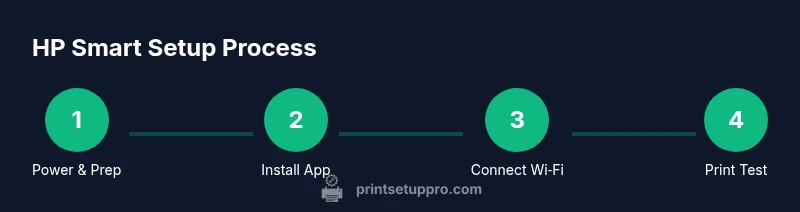
Power the printer and ensure it is idle. Check that it has enough paper and ink or toner. This step prevents misreads during network setup and ensures the device is ready for wireless configuration.
Tip: Have the printer's control panel handy to verify network indicators before moving on. - 2
Install and sign in to the HP Smart app
Download the HP Smart app from your device’s app store and sign in or create an HP account. The app will guide you through adding and managing printers.
Tip: Use a strong password for your HP account and enable two-factor authentication if available. - 3
Connect the printer to Wi‑Fi via HP Smart
In the app, choose Add Printer and follow prompts to connect to your home or office Wi‑Fi network. Ensure the device and printer are on the same network for discovery.
Tip: If the printer doesn’t appear, restart the router and printer, then retry the discovery scan. - 4
Add the printer to your HP account
Associate the printer with your HP account in the app so you can access cloud features and manage settings remotely.
Tip: Linking your account helps with future firmware updates and shared device management. - 5
Print a test page and adjust settings
Use the app to print a test page, then tweak print quality, paper size, and layout to match your needs.
Tip: Save preferred profiles as presets for quick recalls on future jobs. - 6
Enable mobile printing and cloud features
Turn on mobile printing and cloud storage integration if you rely on files from email or cloud drives. This completes a basic hp printer smart workflow.
Tip: Review app permissions and disable any unnecessary access to protect privacy.
People Also Ask
How do I install the HP Smart app on my device?
Download the HP Smart app from your device’s app store, then sign in with an HP account. The app will guide you through adding your printer and configuring essential settings.
Download HP Smart from your app store, sign in, and follow the on-screen prompts to add your printer.
Is HP Smart compatible with all HP printers?
HP Smart is supported on many modern HP printers with wireless or network capabilities. Some legacy models may have limited features or require firmware updates.
Most newer HP printers work with HP Smart, but older models may have reduced features or require updates.
How can I print from an iPhone or Android phone?
Install HP Smart on your phone, ensure the printer is on the same network, and use the app to select and print documents or photos. You can also print directly from many apps that support share-to-print.
Use HP Smart to print from your phone. Select the printer in the share menu and print your document.
What should I do if the printer won’t connect to Wi‑Fi?
Verify network credentials, ensure the printer’s wireless is enabled, and retry discovery in the HP Smart app. Reboot the router and printer if the issue persists.
Check credentials, reset wireless on the printer, and try again. Reboot devices if needed.
How secure is HP Smart printing?
HP Smart includes authentication, encrypted connections where available, and options for secure printing. Regularly update firmware and review app permissions.
HP Smart offers authentication and encryption where possible; keep firmware up to date.
Watch Video
Quick Summary
- Connect via HP Smart for mobile-friendly setup.
- Keep firmware updated for reliability and security.
- Name printers clearly and set presets for efficiency.
- Use secure printing features to protect sensitive jobs.
- Regular maintenance extends printer life and reduces downtime.