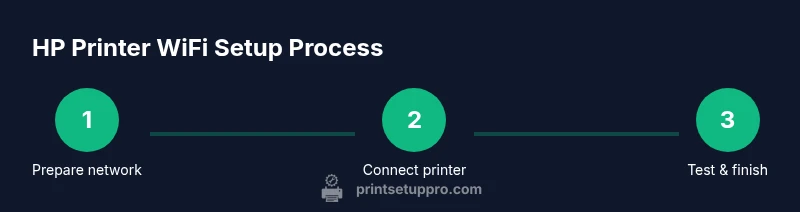
HP Printer WiFi Setup: Step-by-Step Guide for Home Offices
Learn how to wirelessly connect your HP printer to your home network using HP Smart or built-in controls. This guide covers setup, testing, troubleshooting, and security for reliable wireless printing across devices.


This guide walks you through connecting an HP printer to your Wi‑Fi network using the HP Smart app or the printer’s built‑in controls, followed by a test print to confirm success. It covers setup for laptops, smartphones, and tablets on the same network, plus basic firmware checks. You’ll be printing wirelessly in minutes.
Why Wi-Fi setup matters for HP printers
According to Print Setup Pro, a reliable Wi‑Fi configuration unlocks practical, cable-free printing for today’s home offices. When you connect an HP printer to a wireless network, you gain the freedom to print from laptops, tablets, and smartphones without hunting for USB cables or locating the printer. The convenience goes beyond mere ease of use: it reduces desk clutter, enables multi‑user access, and makes sharing documents quick and straightforward. In this section we explore the underlying benefits of wireless printing, how printers discover networks, and why accurate security settings matter. The same principles apply whether you have a compact desk model or a full‑featured multifunction device. The goal is a stable connection, simple device discovery, and a setup that won’t drop when your Wi‑Fi environment changes, such as during routine router updates or neighborhood interference. As you read, keep in mind the core idea: a well‑configured wireless connection lets every device at home or small office print with minimal friction.
Network readiness for HP printer setup
A smooth HP Wi‑Fi setup begins with a ready network. Ensure your router broadcasts a 2.4 GHz signal, which most printers prefer for discovery, and verify that your network name (SSID) and password are known. Position the router within a reasonable range of the printer to minimize dead zones, and avoid physical obstructions like thick walls or metal shelving. If you’re using a dual‑band router, confirm that the 2.4 GHz network is active or that the printer can see both bands. Have a smartphone or computer on hand to run the HP Smart app or to access the printer’s control panel during setup. If your network uses client isolation or guest networking, temporarily disable those features to allow device discovery, then re‑enable them once the printer is linked. Throughout, maintain a secure setup by using a strong password and keeping firmware up to date for improved compatibility.
Common HP WiFi setup scenarios
HP printers support setup via the HP Smart app on iOS and Android, or directly through the printer’s built‑in menu. For many models, the app automates the process by locating the printer, selecting your network, and entering the password on your behalf. If you prefer the built‑in method, you’ll navigate through the printer’s control panel to Wi‑Fi Setup, choose the correct network, and enter the password with the keypad. In some cases, you may temporarily connect the printer to a computer via USB to initiate the wireless setup, then switch back to Wi‑Fi once the printer is online. If your printer doesn’t show your network, try restarting the router and printer, ensuring you’re not on a hidden SSID, and verify there are no MAC address filters blocking the printer. Finally, keep devices on the same local network to avoid cross‑network printing issues.
Troubleshooting during setup
Wireless setup can stumble on a few common issues. If the printer cannot see your network, recheck the SSID spelling and password, verify the router is broadcasting, and ensure the 2.4 GHz band is active. If the printer connects but prints slowly or intermittently, minimize interference from other electronics, place the printer away from microwaves and cordless phones, and consider moving the router or printer closer. For HP Smart app users, ensure the app has the latest version and that your mobile device isn’t on battery saver mode during setup. If you encounter an error code, consult HP’s official support pages for model‑specific guidance and perform any firmware updates recommended by HP. Finally, once connected, periodically re‑check connectivity after router firmware updates or significant network changes.
Security and maintenance after setup
After a successful connection, enable automatic firmware updates and review printer security settings. Regularly check for new firmware to improve compatibility with modern routers and devices. Consider disabling unused features such as remote printing if you don’t need them, and assign a unique, strong password for your Wi‑Fi network to reduce exposure to unauthorized devices. Document your printer’s IP address and keep it reserved in your home network to simplify future maintenance. Finally, test print from multiple devices to confirm consistent discovery and printing reliability across your household or small office.
Tools & Materials
- HP printer with built‑in Wi‑Fi(Ensure the printer supports wireless connections.)
- Smartphone or computer(Connected to the same Wi‑Fi network you’ll use for printing.)
- Wi‑Fi network name (SSID) and password(Needed for network selection during setup.)
- 2.4 GHz Wi‑Fi network(Many HP printers require 2.4 GHz for initial discovery.)
- HP Smart app (iOS/Android)(Optional if you’re using the printer’s built‑in menu.)
- Stable power supply(Keep the printer powered during setup to prevent interruptions.)
- USB cable for initial provisioning (optional)(Some models use USB to initiate wireless setup.)
- Printer firmware updates(Check for updates during or after setup.)
Steps
Estimated time: 25-40 minutes
- 1
Prepare network and printer
Power on the printer and place it within reach of the router. Confirm the 2.4 GHz band is active and the network name is known. Have the password handy so you can enter it during setup.
Tip: A quick restart of both router and printer before starting can clear temporary connection glitches. - 2
Open HP Smart app or printer menu
On a mobile device, open the HP Smart app and add a printer. If you’re using the built‑in menu, navigate to Wireless Setup and choose your network from the list, then enter the password.
Tip: Using the app often guides you step by step and handles network authentication automatically. - 3
Select network and enter credentials
Choose the correct SSID (2.4 GHz) and type in the Wi‑Fi password exactly as shown. Confirm the printer connects to the network.
Tip: If you copy/paste the password, double‑check for extra spaces or case sensitivity. - 4
Print a test page
From the app or printer control panel, print a test page to verify the connection. Observe that the printer shows as online and reachable by devices on the same network.
Tip: If the test fails, re‑run the setup from step 2 and re‑enter credentials. - 5
Add the printer to other devices
On each PC, Mac, or mobile device, add a new printer and select the HP model from the network list. Ensure apps default to the newly connected printer where appropriate.
Tip: Add devices in close proximity to the printer during initial discovery for faster detection. - 6
Update firmware and secure settings
Check for firmware updates and enable automatic updates if available. Review security options and disable unused features after setup.
Tip: Keeping firmware current reduces compatibility issues with new routers and devices.
People Also Ask
Do I need a USB cable to set up HP printer Wi‑Fi?
Usually not. Most HP printers can connect wirelessly via the HP Smart app or built‑in menu. A USB cable may be used only for initial provisioning on some models.
In most cases you can set up over Wi‑Fi with the HP Smart app or the printer’s menu.
Can I connect to a 5 GHz network during setup?
Many HP printers prefer 2.4 GHz for discovery, but some models support both bands. Check your model’s manual and router settings to confirm compatibility.
Check your printer’s specs; some support 5 GHz, but 2.4 GHz is commonly recommended for initial setup.
How do I test the connection after setup?
Print a network configuration page or a test page from the HP Smart app to confirm the printer is reachable by your devices.
Print a test page to ensure everything is connected properly.
What if my printer can’t see my network?
Verify SSID spelling, password accuracy, and that the 2.4 GHz band is active. Restart both router and printer, then retry the setup.
Double‑check the network name and password, then reboot and try again.
Can I print from mobile devices after setup?
Yes. Once connected, you can print from smartphones and tablets using the HP Smart app or native printing features on iOS and Android.
Absolutely; you can print from phones and tablets once it’s connected.
How often should I update printer firmware?
Check for updates during setup and periodically afterwards. Enable automatic updates if available to maintain compatibility with new networks and features.
Keep firmware up to date to avoid compatibility issues.
Watch Video
Quick Summary
- Start with a stable 2.4 GHz network.
- Use the HP Smart app for a guided setup.
- Test print after each major step.
- Keep firmware updated for ongoing reliability.