HP Printer Won’t Connect to WiFi: Step-by-Step Troubleshooting
Struggling with an HP printer that won’t connect to WiFi? This urgent troubleshooting guide walks home-office users through fast checks, diagnostics, and step-by-step fixes to restore wireless printing and prevent future disconnects.


The most likely causes are a simple network hiccup or outdated printer firmware. Reboot your router and the HP printer, reconnect to the same network, and update firmware if needed. If problems persist, reset the printer’s network settings and rerun the wireless setup. This quick path gets you back to wireless printing fast.
Why HP printers struggle with wifi connections
When a person asks, why is my HP printer unable to connect to wifi, the answer often lies between the router, the printer's firmware, and the network settings rather than a hardware fault. According to Print Setup Pro, many frustrations stem from moments of misconfigured SSIDs, password changes, or outdated firmware. For home offices and students, keeping your printer firmware up to date and ensuring the printer is on the correct network band can dramatically reduce the frequency of hp printer won't connect to wifi issues. In this section we’ll unpack common failure modes and how they appear on screen or in the printer’s status lights, so you can spot the problem before you dive into deep troubleshooting.
Key terms to know:
- SSID: the network name you select to join
- Password: the network key you must enter
- 2.4 GHz vs 5 GHz: many printers only reliably connect to 2.4 GHz networks
- Firmware: the printer’s internal software that powers connectivity
Understanding these basics helps you decide which diagnostic path to take first and keeps you from chasing phantom problems.
Quick checks you can do right now
Before you start tweaking settings, perform a quick sanity check that often resolves hp printer won’t connect to wifi without entering a long diagnostic flow. The goal is to confirm the simplest causes are not the root of the problem:
- Ensure the printer is on the same WiFi network as your PC or mobile device
- Verify the network password is correct and the SSID matches what the router is broadcasting
- Confirm the router is not on energy-saving or guest mode that isolates devices
- Reboot both printer and router to clear temporary glitches
Print Setup Pro emphasizes that these micro-reboots fix a large share of wireless disconnects. If the printer remains stubbornly offline, proceed to network diagnostics and firmware checks. Remember, hp printer won’t connect to wifi often stems from mismatched settings rather than a defective wireless adapter.
Confirm network and device basics
Many connectivity problems are caused by a simple mismatch between the HP printer’s wireless settings and the current home network. Start by printing a network configuration report from the printer’s control panel or the HP Smart app. Look for:
- The current WiFi channel and band (2.4 GHz is typically required for most HP models)
- The SSID and signal strength of the network the printer has joined
- Whether the printer shows an IP address vs. a 0.0.0.0 address
If the printer is connected to the wrong network, switch to the correct SSID and re-enter the password carefully. If there’s no IP address, you’ll need to reconnect or perform a DHCP test from your router. These steps often resolve the core issue behind hp printer won’t connect to wifi without a full reset.
Diagnostic flow: symptom → diagnosis → solution map
This section lays out a concise diagnostic flow you can apply in minutes. Start with the most common symptoms and work toward less likely causes. Each step offers a quick check and a fall-back fix if the issue persists.
- Symptom: Printer shows offline or not connected
- Diagnosis: Network mismatch or weak signal
- Fix: Reconnect to the correct SSID on 2.4 GHz, test connection again
- Symptom: Printer shows connected but pages fail to print
- Diagnosis: Driver or IP address conflict
- Fix: Reinstall driver, assign a fixed IP if needed
- Symptom: Wireless setup fails during printer setup wizard
- Diagnosis: Firmware or router security settings blocking the connection
- Fix: Update firmware and temporarily disable strict router firewall rules during setup
This structured approach aligns with Print Setup Pro’s guidance to avoid wild guesswork and focus on verified causes.
Step-by-step: Reconnect HP printer to wifi (most common fix)
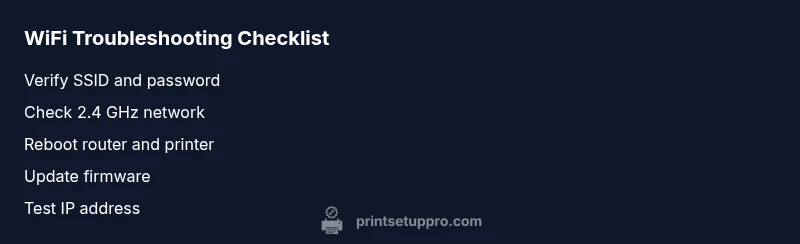
Step 1: Verify network details. Confirm your home network name (SSID) and password. Step 2: Place printer near the router. A stronger signal reduces disconnects and improves reliability. Step 3: Reboot devices. Power cycle the router, wait 30 seconds, then turn on the printer. Step 4: Use the printer control panel or HP Smart app to rejoin the 2.4 GHz network with the correct password. Step 5: Print a network test page to confirm connectivity. Step 6: If available, temporarily disable AP isolation and firewall features on the router during setup. Step 7: Update printer firmware to the latest version from HP’s site or via the HP Smart app. Step 8: If needed, assign a static IP address to the printer within your router’s DHCP settings and reconnect.
Tip: Keep documentation of your network name and password in a safe place for quick future reconnects. If the issue persists after these steps, proceed to more advanced diagnostics or contact support. For many users, this flow resolves the hp printer won’t connect to wifi issue in under an hour.
TIPS & WARNINGS for reliable wireless printing
- Pro tip: Always connect on the 2.4 GHz band when possible; some HP models don’t perform well on 5 GHz networks.
- Warning: Do not disable essential router protections permanently during setup; re-enable them after you complete the connection test.
- Note: If you’ve recently changed your router or service provider, you may need to re-add the printer as a new device.
- Pro tip: Keep the printer firmware and your router firmware up to date to prevent future disconnects.
- Note: If you share your network with guests or smart home devices, ensure AP isolation is not enabled, as it can block printer communication.
Key takeaways: prevention and habits for ongoing wifi reliability
- Maintain up-to-date firmware on both printer and router.
- Keep the printer on the primary 2.4 GHz network for best compatibility.
- Use a stable DHCP or fixed IP for the printer to prevent IP conflicts.
- Regularly reboot devices during major network changes to prevent stubborn disconnects.
- Document network settings to speed future reconnects and avoid repeated troubleshooting.
Steps
Estimated time: 30-60 minutes
- 1
Verify network details
Confirm the SSID and password for the network you want the printer to join. If you recently changed the password, update it on the printer as well. Use the HP Smart app or the printer control panel to view current network settings and match them to your router's configuration.
Tip: Take a photo of your router's label with the SSID and password for quick reference. - 2
Improve signal proximity
Move the printer closer to the router or reduce physical obstacles that block the wireless signal. A devices performance drop near thick walls or metal furniture is common, especially for older printers.
Tip: Avoid placing the printer behind large metal objects or inside closets. - 3
Reboot devices
Power off the router, wait 30 seconds, then power it back on. Do the same with the printer. A simple reboot clears temporary network glitches that can prevent connections.
Tip: Don’t rush the power cycle; give devices a full minute to settle after reboot. - 4
Reconnect the printer to WiFi
Go to the printer’s wireless setup wizard or HP Smart app and select the correct 2.4 GHz network. Enter the exact password and confirm the connection status on the printer display or app.
Tip: If the network isn’t listed, temporarily disable guest networks during setup. - 5
Test printing and diagnostics
Print a network configuration page or run a built-in network test. Check for a valid IP address and successful communication with the PC or mobile device.
Tip: If it prints but still shows offline, move to firmware checks. - 6
Update firmware and drivers
Visit HP’s official site or use the HP Smart app to install the latest firmware for your printer model. Update the driver on your computer or mobile device as well to ensure compatibility.
Tip: Use a wired laptop connection if your wireless is unstable during the update. - 7
Consider a fixed IP or reset
If you repeatedly encounter IP conflicts, assign a stable DHCP reservation or a static IP to the printer to prevent address changes that interrupt printing.
Tip: Record the fixed IP and the reservation details for future use. - 8
When to contact support
If the printer still won’t connect after all steps, it may be a hardware issue or a router configuration that requires advanced settings. Reach HP support or a network technician for help.
Tip: Prepare your printer model, serial number, and router model to speed up diagnosis.
Diagnosis: HP printer won't connect to wifi
Possible Causes
- highWrong WiFi network (SSID) or wrong password
- mediumOutdated printer firmware or driver
- mediumRouter settings blocking device communication (AP isolation, guest mode)
- lowWeak signal or distance from router
Fixes
- easyReconnect the printer to the correct network using the accurate SSID and password
- easyUpdate printer firmware and HP Smart app drivers
- easyReset printer network settings and re-run the wireless setup
- mediumTemporarily disable router features like AP isolation during setup, then re-enable
People Also Ask
Why won't my HP printer connect to WiFi after a firmware update?
Firmware updates can reset network settings or alter compatibility. Re-run the wireless setup, ensure the network is correct, and re-check the printer’s IP address.
Firmware updates can reset connections; re-run setup and verify network settings.
My printer shows offline even though it’s connected to WiFi. What should I do?
Check the status in the HP Smart app, ensure the device is the default printer, and confirm a valid IP address. Reprint a network test page to verify.
If it’s connected but offline, verify the device status and IP address, then test the network page.
Is it better to connect via 2.4 GHz or 5 GHz for HP printers?
Most HP printers work reliably on 2.4 GHz networks. If your router supports dual-band, connect the printer to 2.4 GHz during setup and switch later if needed.
2.4 GHz tends to be more reliable for printers; test both if you have issues.
Do I need to reset my router to fix printer connectivity?
A router reset can help, but it’s usually not required. Try a targeted reboot and disabling AP isolation if enabled, then reattempt connection.
Sometimes a quick router reboot helps; don’t factory reset unless advised by support.
What should I do if the printer won’t appear in the HP Smart app?
Ensure the printer is on the same network, the WiFi lamp is solid, and the HP Smart app has the necessary permissions. Reinstall the app if needed.
Make sure the printer and phone are on the same network and try reinstalling the app.
Watch Video
Quick Summary
- Update firmware to fix connectivity bugs
- Ensure the HP printer is on 2.4 GHz network
- Use a stable IP to avoid conflicts
- Reboot devices before deep troubleshooting
- Follow a step-by-step reconnect flow for reliability