How to Fix Printer Wi‑Fi Connection: Quick Troubleshooting Guide
Urgent, step-by-step guide to fix wifi connectivity for printers. Learn common causes, a diagnostic flow, and practical fixes to get your printer back online quickly.


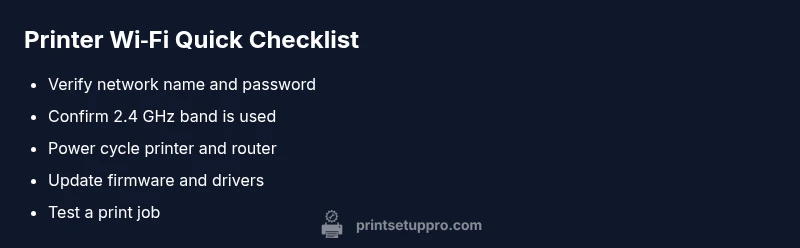
According to Print Setup Pro, the most common reason a printer won’t connect to wifi is a network mismatch or a weak signal. If you're wondering how come my printer won't connect to wifi, start by confirming you’re on the correct network (prefer 2.4 GHz), check the password, and reboot both printer and router. Re-add the printer afterward and update firmware and drivers if needed. If problems persist, try disabling IPv6 or using WPS as a last resort.
Why the question 'how come my printer won't connect to wifi' arises
When a printer refuses a wireless connection, the root cause is rarely a fancy feature mismatch. In most cases, the issue is rooted in the basics: the printer and the router must live on the same network, with a signal strong enough to reach the printer. Print Setup Pro has observed that home networks with misconfigured SSIDs, password mistakes, or crowded channels account for the majority of such failures. This section unpacks the common culprits—network bands, password accuracy, firmware status, and app-based pairing—and why they matter. Understanding these factors helps you avoid wasted time chasing complex software fixes. With a clear, methodical approach, you’ll identify the bottleneck quickly and resume printing without further delay.
Check hardware and network basics
Before diving into software settings, verify the physical conditions. Ensure the printer is powered on and shows a stable Wi‑Fi indicator. Confirm your computer or mobile device is connected to the same network, and that the router isn’t in bridge or guest mode. Look for obvious signs of trouble: a blinking Wi‑Fi icon on the printer, a mismatch between the displayed SSID and your real network name, or recently changed router credentials. If you spot any of these, correct them and re-test. Move the printer closer to the router if possible, and reduce interference from walls, metal shelves, or other electronics. These basic checks save time and keep you from chasing software glitches when the real issue is the network.
Confirm network compatibility: 2.4 GHz vs 5 GHz
Many printers are designed to connect primarily to 2.4 GHz networks. If your router broadcasts both bands with the same SSID, the printer may connect to the wrong band or struggle to switch bands gracefully. Access your router’s admin page to ensure the printer is attached to 2.4 GHz, or temporarily disable the 5 GHz band during setup. If the printer supports only 2.4 GHz, confirm the network is not hidden and that the security setting (WPA2/WPA3) is compatible with the printer’s firmware. After aligning bands, retry the connection from the printer’s control panel or the companion app.
Reboot and power-cycle devices
A simple power cycle can clear transient errors that block wifi setup. Turn off the printer and unplug it for at least 30 seconds. Reboot your router by unplugging it for a minute, then plug both devices back in and wait for them to initialize fully. Try the connection again using the printer’s setup wizard or your printing app. If the connection still doesn’t appear, temporarily disable firewall features that might block printer traffic, then re-enable them once the print job succeeds.
Re-connect: re‑adding the printer to devices
Once the network is stable, re-add the printer to your computer or mobile devices. On Windows, navigate to Settings > Devices > Printers & Scanners > Add a printer or scanner; on macOS, go to System Settings > Printers & Scanners. For mobile, use the printer’s companion app or the system print service. Double-check the SSID and password during setup, avoiding stray spaces. After adding, print a test page to confirm success. In multi-router environments, ensure the printer isn’t restricted to a guest network with limited access.
Firmware and drivers: update and compatibility
Outdated firmware or drivers are common culprits behind wireless problems. Check the manufacturer’s site or your app for updates and install them following the provided instructions. After updating, restart both the printer and your host device and attempt the connection again. If part of a managed fleet, verify the network policy allows printing devices and that the correct driver version is installed on each computer. Firmware updates often address compatibility issues with newer routers and security features.
Security settings: WPA, IPv6, and firewalls
Security features can unintentionally block new devices. Make sure your WPA/WPA2/WPA3 settings align with what the printer supports. If your network uses IPv6, try disabling it temporarily to test connectivity. Some routers enable client/isolation modes—disable that during setup to allow the printer to communicate with other devices. Also check host-device firewalls that might block printer ports. Once the printer connects, re-enable security features and retest.
Reset network settings on the printer (when all else fails)
If nothing else works, a factory reset of the printer’s network settings can clear stubborn misconfigurations. Find the Reset Network option in the printer menu or perform a hardware reset per the manual. After resetting, re-enter the network name and password carefully. Note that this may reset other preferences, so plan accordingly and document your settings.
Long-term prevention: keep wifi printing reliable
Maintain reliability by keeping firmware updated and ensuring router firmware is current. Place the printer within a strong, interference-free range of the router and avoid heavy interference from microwaves or other wireless devices. Consider a dedicated printer network or a password-protected guest network to minimize cross-device interference. Document your network name and password securely and create a simple troubleshooting checklist for future issues.
Steps
Estimated time: 30-60 minutes
- 1
Power cycle devices
Turn off the printer and unplug it for at least 30 seconds. Unplug the router for a minute, then plug both back in and let them fully boot. Try reconnecting via the printer’s setup wizard after the lights stabilize.
Tip: Always start with a clean power cycle before changing settings. - 2
Verify network details on printer
Access the printer’s network settings and confirm the SSID and password match the router. If the SSID is hidden, reveal it in the router’s settings or use a manual entry method on the printer.
Tip: Double-check for trailing spaces or case-sensitive characters. - 3
Update firmware and drivers
Check for and install any available firmware updates for the printer and driver updates for your computer or mobile companion app. Reboot devices after updates.
Tip: Use official sources to avoid corrupted or malicious firmware. - 4
Re-add printer to devices
Run the printer setup again on your PC, Mac, or mobile device. Select the correct network and re-enter credentials carefully. Print a test page to verify.
Tip: If using multiple devices, repeat the add process to each one. - 5
Test and isolate issues
If the printer still won’t connect, try a temporary one-off change such as disabling IPv6 or using a different device to rule out host-specific problems.
Tip: Keep track of changes you make to revert later if needed. - 6
Consider reset if necessary
As a last resort, reset the printer’s network settings and reconfigure the network from scratch.
Tip: Back up any network-related preferences before resetting.
Diagnosis: Printer won't connect to wifi after setup
Possible Causes
- highPrinter and router not on the same network or weak signal
- highIncorrect SSID or password entered during setup
- mediumRouter band interference or 2.4 GHz/5 GHz misalignment
- mediumOutdated firmware or drivers on printer or host device
- lowSecurity settings or firewall blocking printer traffic
Fixes
- easyConfirm network name (SSID) and password; ensure the printer is connected to the 2.4 GHz band if required
- easyPower cycle printer and router, then re-add the printer using the setup wizard
- easyUpdate printer firmware and relevant drivers; restart all devices and retry
- mediumAdjust router security settings or disable IPv6 temporarily during setup, then re-enable after connection
- easyIf needed, reset the printer's network settings and reconfigure from scratch
People Also Ask
Why won’t my printer connect to wifi even after entering the password?
This usually points to a wrong SSID, incorrect password, or a router that blocks the printer. Recheck credentials, ensure the printer is on the correct network, and retry the connection.
Check that the SSID and password are correct and the printer is on the right network; then retry the connection.
Can my printer connect to a 5 GHz network?
Many printers support only 2.4 GHz. If yours does, enforce the 2.4 GHz band during setup or disable 5 GHz temporarily to complete the connection.
Some printers only work on 2.4 GHz; ensure you’re connected to that band during setup.
What should I do if the printer shows connected but won’t print?
Check the print queue, ensure the correct driver is installed, and verify the device is using the right port. Reinstall drivers if needed.
If it’s connected but won’t print, inspect the queue, drivers, and ports; reinstall if necessary.
How do I reset the network settings on my printer?
Use the printer’s menu to reset network settings or perform a hardware reset per the manual. Reconfigure the network afterward.
Go to the printer menu and reset network settings, then set up the network again.
Is it safe to power-cycl my router to fix wifi?
Yes, a brief power cycle can clear glitches. Avoid frequent resets; if problems persist, check for firmware updates.
A short router reboot can fix many issues; don’t overdo resets.
How long should a wifi setup take?
Setup time varies with network complexity. A straightforward home network typically resolves quickly, but problems with advanced networks may take longer.
It varies, but simple home networks resolve quickly with the right steps.
Watch Video
Quick Summary
- Verify network name and password for accuracy.
- Reboot devices to clear temporary glitches.
- Update firmware and drivers for compatibility.
- Document settings to simplify future troubleshooting.