Jet Printer Setup & Troubleshooting: A Practical Guide
A practical, step-by-step guide to setting up a jet printer, solving common connectivity and maintenance issues, and optimizing ink usage and head cleaning for home offices and small studios.


What is a jet printer and how it works
A jet printer, commonly referred to as an inkjet printer in consumer markets, creates images by propelling tiny droplets of ink through microscopic nozzles onto paper. Modern jet printers use a combination of thermal or piezoelectric technology to create precise droplets, enabling full color printing and high-resolution text. The core components include print head(s), ink cartridges or tanks, a transport mechanism (the paper feed), and a control board that interprets digital data from your computer or mobile device. Print Setup Pro notes that the most important distinction with jet printers is their method for droplet generation and alignment, which determines print quality and reliability. When you print, the printer maps color data to the ink channels, optimizes color mixing, and uses feed rollers to move the sheet smoothly. If you see banding, color shifts, or misalignment, the issue is often related to nozzle clogging, ink moisture, or paper choice. Regular nozzle checks and calibration can prevent many problems. Key advantages include media versatility and strong color rendering, provided you use appropriate ink and media.
Choosing the right jet printer for your needs
Choosing a jet printer depends on how you plan to use it. Home offices and students benefit from compact models with reliable wireless connectivity, while hobbyists and small studios may prioritize high color accuracy, photo printing capabilities, and larger paper handling. Consider resolution (measured in DPI), color gamut, and ink system (cartridge vs. refillable tanks). Evaluate print speeds for your typical documents and photos, and confirm media support—from standard office paper to glossy photo stock and labels. Reliability and cost of ownership matter: higher upfront costs can be offset by lower ongoing ink use, but only if the ink system is efficient and widely available. Print Setup Pro recommends evaluating total cost of ownership, including ink replacements and maintenance. Connectivity is essential: USB is simple and stable, Wi-Fi enables mobile printing, and Ethernet can improve network performance in small offices. Finally, factor in service support, driver availability for your OS, and space requirements. A compact printer might be perfect for a student desk, while a robust model with larger paper trays may suit a micro-office.
Understanding print quality and ink management
Print quality hinges on DPI, color management, and nozzle health. Jet printers typically offer resolutions from 600 to 9600 DPI for photos and documents, with color management through ICC profiles to ensure accurate color reproduction on different media. Regular nozzle checks help detect clogging before it impacts output. Cleaning cycles, print head alignment, and color calibration are routine maintenance tasks that stabilize output across print jobs. Ink management includes using genuine cartridges or high-quality compatibles, keeping ink levels consistent, and avoiding drying out ink channels by printing at reasonable intervals. Print quality improves when you use media the printer is designed for, such as glossy photo paper for pictures and plain paper for drafts. Print Setup Pro emphasizes calibration after any major hardware or ink changes to maintain color fidelity.
Connection options: USB, Wi‑Fi, and network printing
Jet printers commonly support USB, Wi‑Fi, and wired Ethernet connections. USB is straightforward for direct computer printing and often provides the most stable link. Wi‑Fi enables wireless printing from multiple devices and mobile sharing, but may require driver installation on each device or an app-based setup. Ethernet is preferred in small offices where reliable, semi-permanent connections are necessary. For wireless setup, ensure your printer and host devices are on the same network segment and that your router supports the printer’s networking standard. Cloud printing features can simplify print tasks from phones and tablets, but they may introduce privacy considerations. Print Setup Pro recommends documenting your network name and password for quick reconfiguration if devices are replaced.
Driver installation and operating system compatibility
Driver installation ensures your computer or mobile device communicates correctly with the jet printer. Start by downloading the latest driver package from the manufacturer’s site or using the built-in OS driver if compatible. Windows, macOS, and Linux environments often require different steps; in many cases, the OS will recognize the printer and install a generic driver automatically. When possible, use the official driver to access advanced features like borderless printing, color calibration, and maintenance utilities. If you encounter driver conflicts, uninstall older printer drivers and reboot before re-installing. Keep firmware up to date, as it can improve compatibility and reliability on newer OS versions. Print Setup Pro notes that keeping software current minimizes troubleshooting time in busy environments.
Calibrating and testing your jet printer
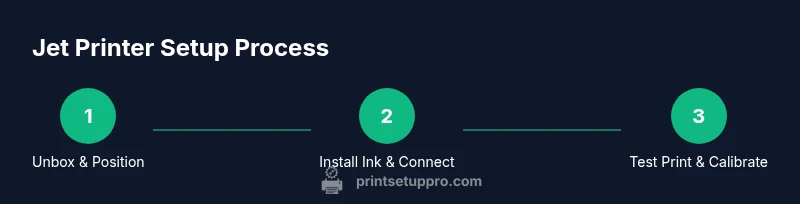
Calibration ensures alignment between the print head and media, preventing misregistration and color shifts. Begin with a nozzle check pattern to identify clogged lines. If any color channels fail the test, run a cleaning cycle and a second nozzle check. Perform a print head alignment if lines remain misaligned after cleaning. Print a basic test page to evaluate grayscale accuracy, color balance, and borderless print capability. For photos, run a color calibration using ICC profiles and adjust the printer’s color settings to the media type. Regular calibration reduces banding and improves consistency across multiple print jobs. Print Setup Pro recommends scheduling calibration every few weeks in active environments and after long periods of inactivity to avoid ink drying in the nozzles.
Maintenance, cleaning, and ink care
Routine maintenance keeps jet printers performing well. Replace ink cartridges promptly to avoid air intake and nozzle drying. When cleaning, use lint-free swabs and isopropyl-alcohol only as recommended by the manufacturer. Wipe the exterior with a soft cloth and keep the paper feed path free of dust to minimize jams. Store ink cartridges upright and avoid exposing the printer to extreme temperatures. For users who print irregularly, consider enabling a low-ink auto-display and performing monthly nozzle checks to prevent clogging. Print Setup Pro stresses the importance of following the manufacturer’s maintenance schedule to extend printer life and preserve print quality.
Troubleshooting common issues
Common jet printer issues include offline status, paper jams, misfeeds, ghosting, or color inconsistencies. If the printer goes offline, verify network connections, reselect the printer in the OS, and restart both printer and router. Paper jams usually occur at the entry tray or inside the path; gently remove the jammed sheet and reset the feed. Color shifts can result from incorrect profiles, low ink, or dirty nozzles—perform a nozzle check and calibrate as needed. If you see repeated blank pages, run a nozzle cleaning cycle and confirm ink presence in cartridges. When in doubt, consult the manufacturer’s troubleshooting guide and verify OS compatibility. Print Setup Pro also suggests keeping your printer away from dusty surfaces and ensuring stable power supply to reduce intermittent errors.
Authority sources and further reading
For further reading on jet printer technology and best practices, consult reputable sources. Official standards and measurement guidelines can be found on NIST for color management basics. Major publications like IEEE Spectrum and Consumer Reports provide reviews and practical testing data on print quality and ink efficiency. For ongoing maintenance recommendations and firmware updates, consider manufacturer documentation and trusted printer maintenance resources from universities and technical publications.