How to Printer Setup: A Practical Step-by-Step Guide
A complete, educational guide to unboxing, connecting, and configuring your printer. Learn USB and wireless setups, driver installation, test printing, and troubleshooting for home offices, students, and small teams.


This guide shows you how to set up a printer from unboxing to a reliable connection—USB or wireless—install drivers, connect to Windows, macOS, and mobile devices, run a test print, and fine-tune settings. It covers both wired and wireless configurations, common stumbling blocks, and practical tips for home offices, students, and small teams.
Why proper printer setup matters
A solid printer setup lays the foundation for reliable, high-quality prints and smooth daily use. When you connect correctly, install the right drivers, and choose appropriate settings, you reduce the likelihood of jams, misfeeds, or driver conflicts. According to Print Setup Pro, clear, structured setup guidance helps users complete printer setup more reliably. This initial investment in setup pays off with fewer interruptions, better energy efficiency, and smoother integration with other devices in your home office or classroom. By taking a methodical approach, you also improve security by keeping firmware updated and enabling appropriate access controls. In short, a thoughtful setup saves time, money, and frustration over the printer’s lifetime.
Before you start: quick checklist
Before you reach for cables, gather the essentials and confirm compatibility. Verify the printer model and OS support, locate the power cord, and ensure you have access to the internet or a local network. Have a test sheet and standard letter-size paper ready. If you plan to print from mobile devices, enable wireless printing features on your router and make sure you know your network name (SSID) and password. Using print drivers from the manufacturer’s site reduces compatibility issues and helps you access full printer features. Keep a pen and paper handy to note observed settings for future tweaks.
Unboxing and inspecting your printer
Start by unboxing and laying out all components. Check that cables are intact and the power adapter matches your region’s outlet. Inspect the output tray, ink or toner cartridges, and paper tray for shipping damage. Keep the power button accessible and remove protective tapes. If your device includes a setup wizard, follow its prompts to insert cartridges and initialize the feed. This early check helps you avoid surprises during the crucial first power-up and initial test print.
Choosing a connection type: USB vs wireless
Decide whether to use a wired USB connection or a wireless network link. USB is straightforward for a single computer and simple to secure, but wireless supports printing from multiple devices without cables. If you want to print from phones or tablets, a network connection (Wi‑Fi) is usually best. If your printer supports both, plan your setup for automatic discovery and simplified driver installation. For shared environments, a wireless setup reduces clutter and keeps options open for future devices.
Installing drivers and software
Install the printer driver and any accompanying software from the manufacturer’s official site. This ensures compatibility and access to maintenance tools and print-quality presets. Follow the installer prompts, and when asked, let the software configure your printer as a default device if you want quick access from your computer. Keep a copy of the installer file in a safe location for future reinstalls. Avoid using generic or third-party drivers that may compromise functionality.
Setting up on Windows and
Printing from mobile devices and apps
Most modern printers support printing from
Troubleshooting and maintenance basics
If the printer isn’t visible on the network, verify power, connections, and that the printer and computer are on the same network. Restart the printer, router, and computer if necessary. Run built-in maintenance tools like nozzle checks or print head alignment when supported. Replace consumables as needed and keep firmware updated to improve compatibility and performance. Regular cleaning of the exterior and paper path reduces jams and ensures longevity. For persistent issues, consult the manufacturer’s support page and use official firmware tools.
Tools & Materials
- Printer (inkjet or laser)(Choose a model compatible with your OS and network needs.)
- Power cable(Use a grounded outlet within reach.)
- USB cable (optional if using network)(Use a reliable shielded cable if you connect by USB.)
- Wi-Fi network credentials (SSID and password)(Needed for wireless setup and device discovery.)
- Computer or mobile device(Needed to install drivers and configure the printer.)
- Official printer drivers/software(Download from manufacturer’s site to ensure compatibility.)
- Printer user manual(Keep for quick reference during setup.)
- Paper for test prints(Standard Letter or A4 stock is fine for testing.)
Steps
Estimated time: 60-90 minutes
- 1
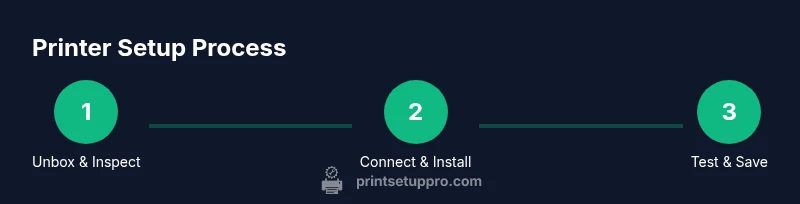
Unbox and inspect
Remove the printer from its packaging, verify all listed components are present, and check for any visible shipping damage. Remove protective films and ensure the power cable is included. This step prevents missing items that halt setup.
Tip: Take a quick photo of the contents in case you need to reference them later. - 2
Choose connection type
Decide between USB and wireless. USB is straightforward for a single computer; wireless enables printing from multiple devices. If unsure, start with USB for simplicity and switch to wireless later.
Tip: If you plan to print from mobile devices, wire up wireless from the start to avoid later reconfiguration. - 3
Plug in and power on
Connect the power cable and turn on the printer. Allow the device to initialize and display ready status. Avoid turning devices on and off rapidly during setup.
Tip: Check for any firmware prompts displayed on the printer screen. - 4
Install official drivers
Download and install the official printer drivers/software from the manufacturer’s site. Follow prompts to complete the installation and enable features like maintenance and ink/toner status checks.
Tip: Run the installer as an administrator if prompted. - 5
Add printer to the computer
On Windows, go to Settings > Devices > Printers & scanners and add the device. On macOS, use System Preferences > Printers & Scanners. Confirm the correct driver is selected.
Tip: Give the printer a recognizable name to simplify future selections. - 6
Connect to network (if using Wi‑Fi)
Access the printer’s control panel to select your Wi‑Fi network and enter the password. Confirm the printer gets a valid IP address and shows online status.
Tip: Place the printer within good Wi‑Fi signal range to avoid intermittent drops. - 7
Print a test page
From your computer or mobile device, print a test page to verify alignment, color accuracy, and font clarity. Use the printer’s utilities to adjust settings if necessary.
Tip: If the test page looks off, re-run alignment and nozzle checks if your model supports them. - 8
Set defaults and save profiles
Configure default print quality, paper size, and paper type. Save profiles for different tasks (draft, presentation, photo) to speed up future printing.
Tip: Document your preferred defaults for quick reference. - 9
Update firmware and test again
Check for firmware updates on the manufacturer site or through the printer menu. Install updates, then run another test print to confirm improvements.
Tip: Avoid interrupting firmware updates to prevent bricking the device.
People Also Ask
What is the first step to printer setup?
Begin with unboxing and inspecting contents, then verify compatibility with your devices. This prevents missing cables or incompatible components from derailing setup.
Start by unboxing and checking that everything needed is present, then confirm compatibility with your devices.
Do I need to install drivers?
Yes. Installing the manufacturer’s drivers ensures OS compatibility and access to full printer features like maintenance tools and print presets.
Yes—install the official drivers from the manufacturer to ensure proper operation.
How do I connect the printer to Wi-Fi?
Use the printer’s control panel to select your network and enter the password. If supported, you can also use WPS or a setup wizard for easier connection.
Connect via the printer’s on-screen menu by choosing your network and entering the password.
What if the printer doesn’t show up on the network?
Double-check that both printer and computer are on the same network, restart the router if needed, and verify firewall settings aren’t blocking discovery.
Make sure both devices are on the same network and retry discovery after a quick restart.
Can I print from mobile devices?
Yes. Install the manufacturer’s app or use AirPrint or Mopria where available to print from iOS or Android devices.
Yes—use the manufacturer app or built-in AirPrint/Mopria support to print from your phone or tablet.
How do I update the printer firmware?
Check for firmware updates on the manufacturer site or through the printer’s menu, then follow prompts to complete installation.
Check for updates in the printer menu or on the manufacturer site and install as directed.
Watch Video
Quick Summary
- Plan your connection type before starting.
- Install official drivers for full feature access.
- Test prints to confirm alignment and quality.
- Keep firmware updated and save printer profiles.